How to Schedule Out-of-Office Replies in Microsoft Teams

- 2 ways to do it
- Needs administrator rights
Out-of-office replies in Microsoft Teams send an automatic message to anyone who chats with you while you are away. They also change your status, so coworkers know you cannot reply right away. You can schedule these away messages up to 90 days in advance. Teams links them to your Outlook calendar, so your availability stays accurate in both apps.
Set your out-of-office replies by clicking your profile picture, selecting “Set status message,” then “Schedule out of office.” Enter your message, dates, and save. This automatically syncs with your Outlook calendar.
How to schedule out of office in Teams
You can manage out-of-office replies in either the desktop app or the mobile app. Both sync with your Microsoft 365 account, so a reply you set up in one place shows up in the other.
The Out of Office option depends on your account having an Exchange mailbox. This is normally the case with a work or school account. If you do not see the option, you are probably signed in with an account that has no mailbox attached, and your administrator can confirm this. Admin policy can also hide the setting.
Method 1Using the Settings Menu
The main settings menu is the best place to set this up. It lets you choose exact dates, times and a custom message. The reply then turns on and off by itself, so you do not have to remember to update your status.
To let colleagues know you are away and when you plan to return, follow these steps:
- Click the Settings and more (…) icon next to your profile picture at the top of the Teams window.

- Look at the menu that opens. You should see a list of options that includes Settings.

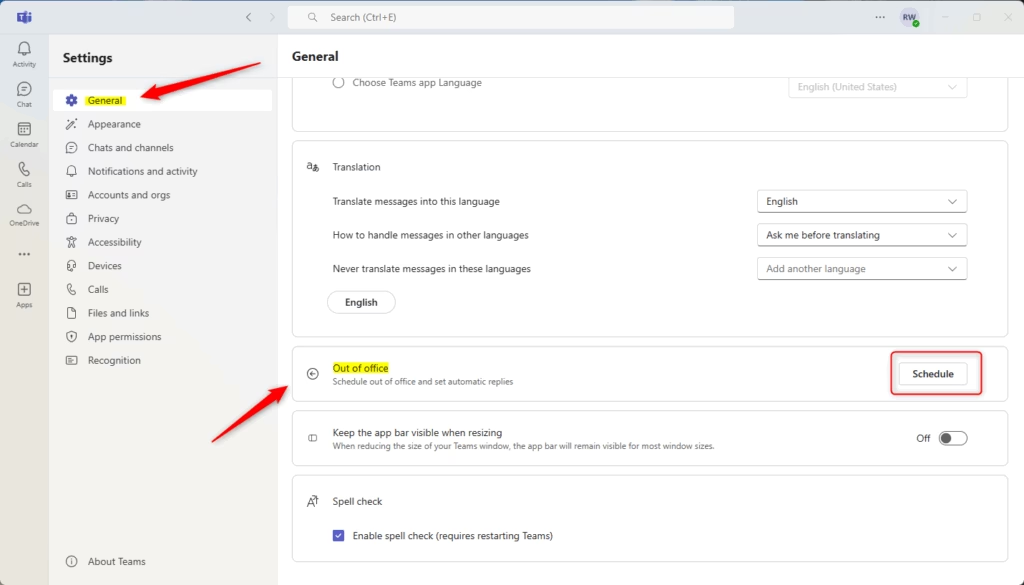
- Select Settings, then open the General tab.
- Find the Out of Office section and click Schedule. A panel for automatic replies opens.
- Turn the Turn on automatic replies switch to On. The message box and the date and time fields become available.
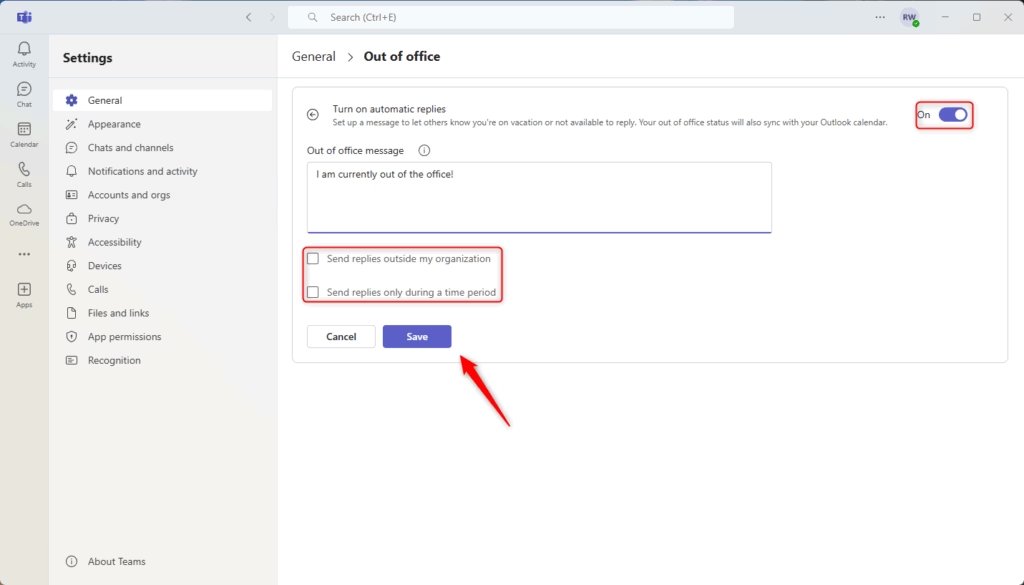
- Type your message, set your start and end times, and click Save.
Keep the message short. Say that you are away, give your return date, and name someone to contact for urgent matters. You do not need to restart Teams. The reply starts at the time you set and stops at your end time.
To cancel early, go back to the same panel and turn the Turn on automatic replies switch to Off.
Method 2Using your Profile Picture
You can also reach the same scheduling window from your profile picture:
- Click your Profile Picture in the top right corner of Teams.
- Select Set status message.
- Click Schedule out of office at the bottom of the window.
- Configure your dates and message, then click Save.
This route is quicker if you are already updating your status message. The result is the same as the settings method above.
Status Message vs. Out of Office Status
A status message and an out-of-office reply are not the same thing, and the difference affects how you manage daily availability. A status message is a short note that people see when they look at your profile or message you. It does not reply for you. An out-of-office reply sends an automatic response to people who contact you, and it follows the dates you schedule. Use a status message for everyday notes such as "In a meeting until 3 PM". Use an out-of-office reply when you will be away for a day or longer.
Summary
Scheduling your out-of-office status in Teams lets everyone know when you are unavailable, and it stays in step with Outlook. Check your dates once after saving, because a wrong end date will keep the automatic reply running after you are back.
Does setting OOO in Teams automatically update my Outlook calendar?
Yes. Because Teams is part of the Microsoft 365 ecosystem, your status syncs with your Outlook calendar. Setting an out-of-office period in Teams creates a corresponding event in your Outlook calendar to block your time and notify others of your absence.
Why is my Teams status not reflecting my OOO settings?
Sign out of Teams and sign back in if your status fails to update. Verifying that your Microsoft 365 account syncs correctly resolves most synchronization errors. IT departments sometimes restrict status updates using group policy settings (network-wide configurations that control user settings).
How do I turn off OOO status before the scheduled end time?
Manual deactivation remains available at any time. Return to your Settings, navigate to the Out of Office section, and toggle the switch to Off. Click Save to revert your status immediately to your previous availability state.
Have a question about this guide?
Answered by AI from this guide. Good questions may be added to this page — please don't include personal details.
Did this guide fix your problem?

About the Author
Richard
Tech Writer, IT Professional
Richard is a writer at Geek Rewind who turns complex IT tasks into clear, step-by-step guides. He draws on years of hands-on experience in system administration and enterprise IT operations, focusing on Windows, Linux and WordPress: the problems people actually run into, and the fixes that work. His server and WordPress guides come from systems he runs himself. Richard builds and maintains the platform behind Geek Rewind, from its Ubuntu servers and Nginx configuration to its custom WordPress plugins. Many new tutorials start with readers' questions, and he's always glad to answer them in the comments.
No comments yet — be the first to share your thoughts!