Follow

Richard

Richard✓ Verified Author

Richard

Tech Writer, IT Professional

Richard, a writer for Geek Rewind, is a tech enthusiast who loves breaking down complex IT topics into simple, easy-to-understand ideas. With years of hands-on experience in system administration and enterprise IT operations, he’s developed a knack for offering practical tips and solutions. Richard aims to make technology more accessible and actionable. He's deeply committed to the Geek Rewind community, always ready to answer questions and engage in discussions.

2537 Articles4 Topics
Windows 11Ubuntu LinuxCMSApps and Browsers
Windows 2 min read
How to Reset Windows Search in Windows 11

Windows Search allows for quick file and app retrieval but may experience issues like slow performance or no results. To resolve this, a reset using a provided script can be performed without losing personal files. Post-reset, search indexing may take time to restore normal functionality. For more guidance, visit Microsoft Support.

February 3, 2026 Read more →
Windows 2 min read
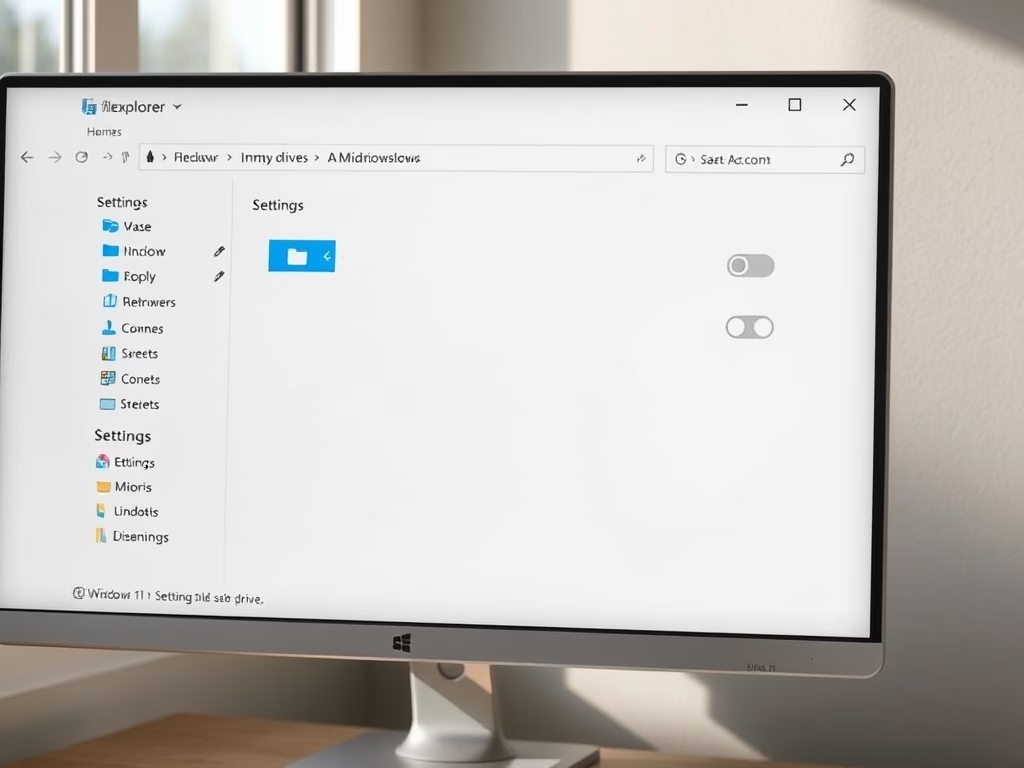
How to Show or Hide Empty Drives in Windows 11

Windows 11 hides empty drives, such as unused USB sticks or SD cards, by default to streamline File Explorer. Users can easily choose to show or hide these drives through Settings or File Explorer Options, allowing for a more organized interface or quicker access to empty storage for file management purposes.

Windows 2 min read
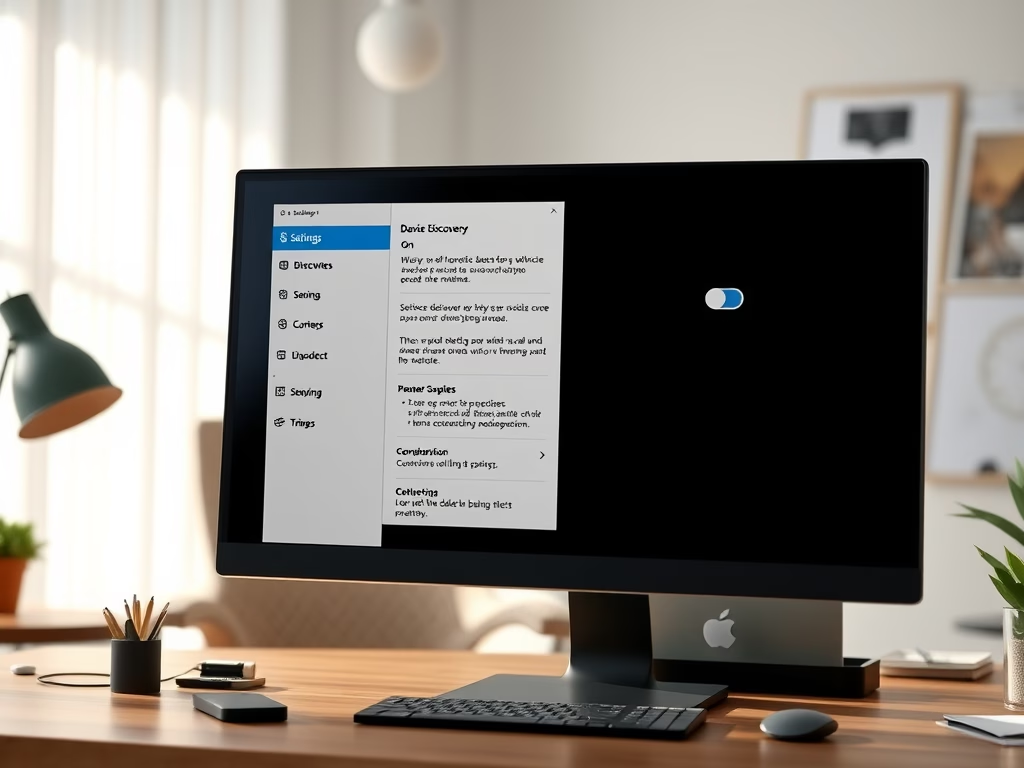
How to Enable or Disable Device Discovery in Windows 11

This guide explains how to enable or disable Device Discovery in Windows 11, which allows your PC to be found by other devices on the same network and activates SSH services for secure connections. Users can use the Settings app for an easy method or the Registry Editor for advanced changes, ensuring safety on trusted networks.

Windows 2 min read
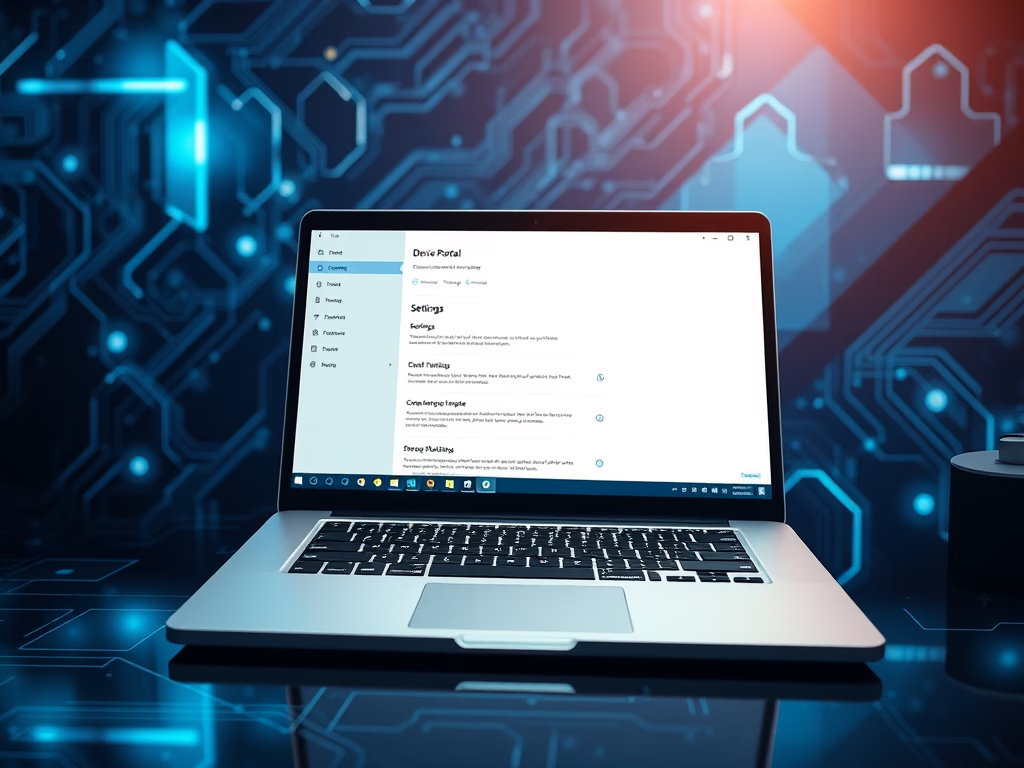
How to Secure Your Windows 11 Device Portal

Windows 11's Device Portal allows users to manage and troubleshoot their device via a web browser. To enhance security, users can restrict access to only their own computer by enabling loopback connections. This prevents remote access, offering protection against unauthorized users while maintaining the ability to control the device locally.

Windows 1 min read
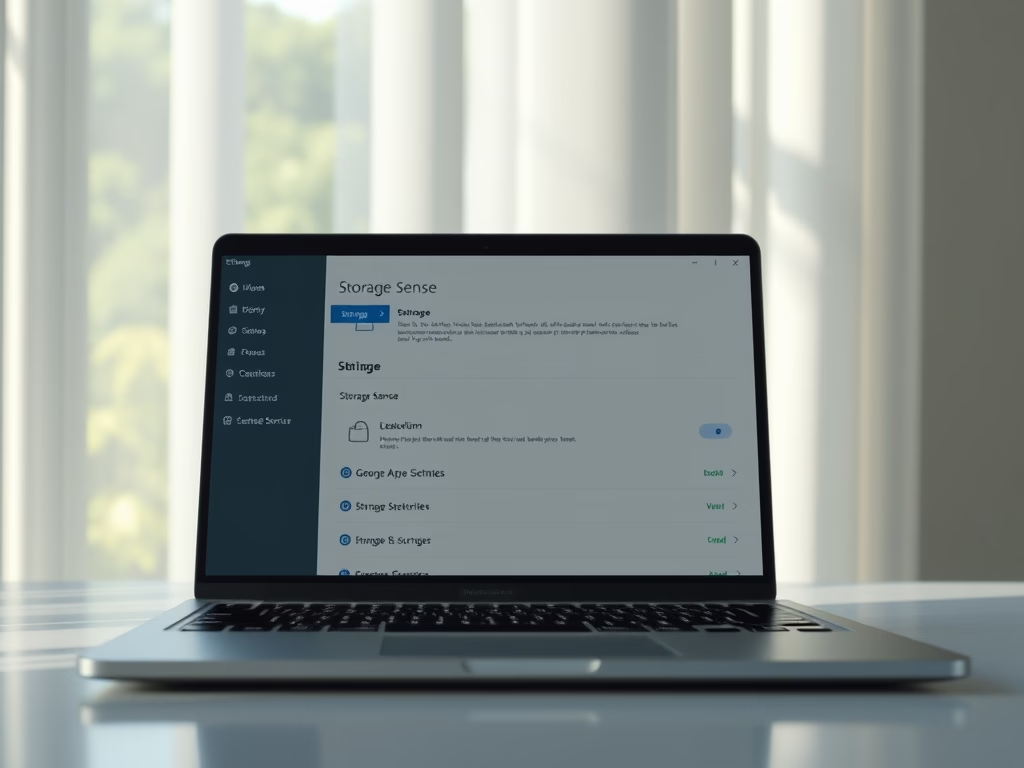
How to Use Storage Sense in Windows 11

Storage Sense in Windows 11 automatically cleans up your computer by deleting unnecessary files, such as temporary items and old downloads. You can schedule it to run regularly or execute it manually. Regular use can enhance your PC's performance by ensuring sufficient free space. For more tips, visit Geek Rewind.

Windows 2 min read
How to Enable Retail Demo Mode in Windows 11

This guide explains how to enable or disable Retail Demo Mode in Windows 11, designed for displaying PCs in stores. It allows customers to experience Windows features easily. For personal use, it's recommended to keep this mode turned off. Clear steps are provided for both enabling and removing the mode.

Windows 2 min read
How to Remove Unused BitLocker Recovery Keys

This guide provides instructions on removing old or unused BitLocker recovery keys from your Microsoft account. BitLocker secures files on various drives, and recovery keys are essential for accessing locked drives. By following simple steps on the Microsoft website, users can easily delete unnecessary recovery keys to maintain account security.

Windows 2 min read
How to Make Coloring Book Pages Using Paint on Windows 11

The Paint app on Windows 11 allows users to easily create personalized coloring pages using a new AI feature called Coloring book. By typing descriptions of desired images, users can generate unique coloring pages, which can be saved or shared. The app is user-friendly and regularly updated for enhanced experience.

February 2, 2026 Read more →
Windows 2 min read
How to Remove Devices from Your Microsoft Account

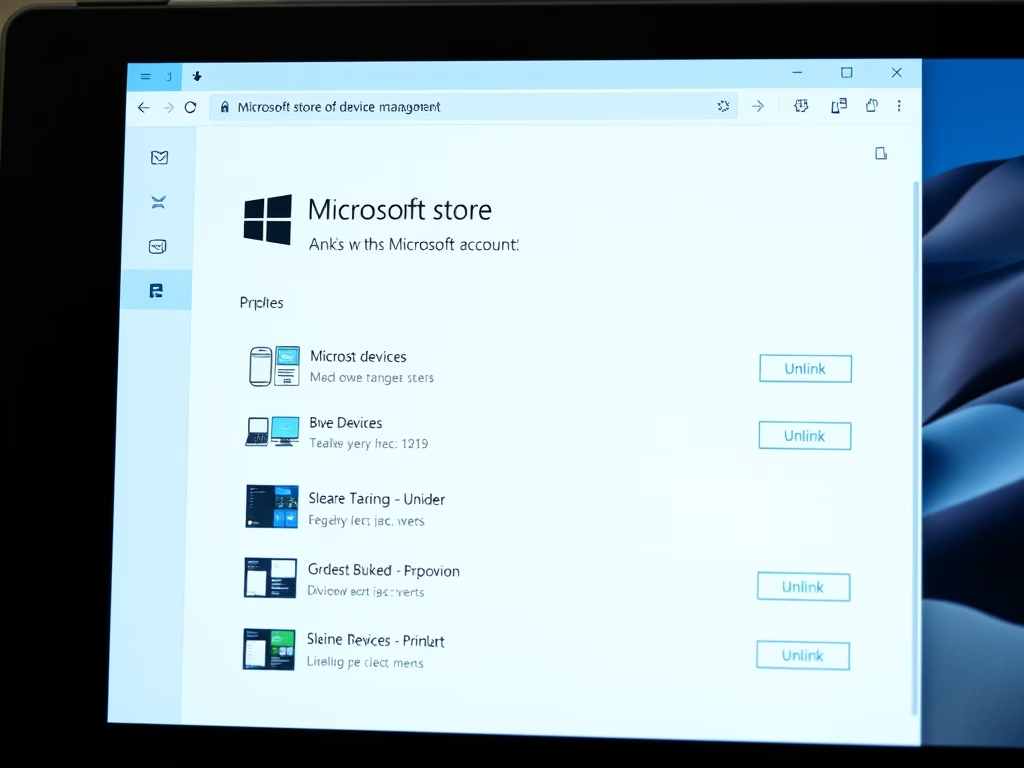
If you encounter issues downloading apps from the Microsoft Store due to the device limit of ten, you can easily remove linked devices from your account. This guide outlines the steps to unlink devices, allowing you to continue using the Store effectively on your Windows devices.

Windows 3 min read
How to Change Sleep Button Function in Windows 11

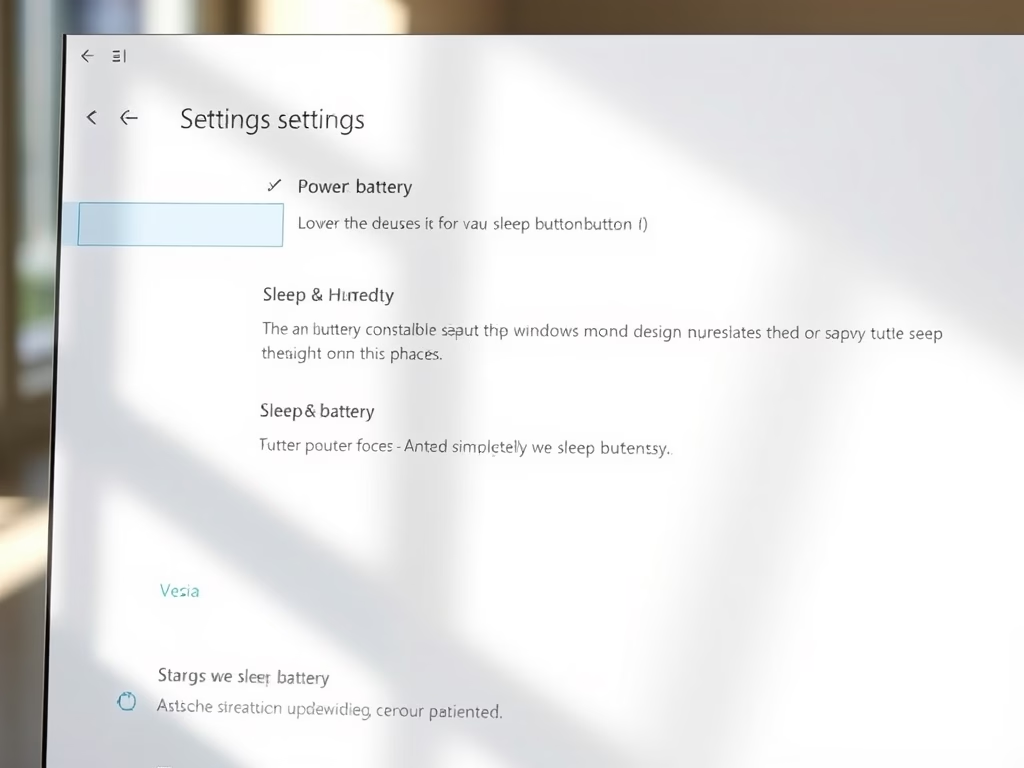
This guide explains how to customize the behavior of the sleep button on a Windows 11 computer. Users can now easily change settings directly in the Windows Settings app rather than the old Control Panel. Options include doing nothing, going to sleep, hibernating, shutting down, or turning off the display.