How to Show or Hide Empty Drives in Windows 11

Empty drives in Windows 11 File Explorer are drives with nothing to show. The usual examples are a card reader slot with no memory card in it, an empty optical drive, or a removable drive with no media. Windows hides these by default to keep your drive list clean. Turning on this setting makes every connected storage device visible, even when it has no files.
Seeing empty drives helps you check whether your computer detects a card reader, a blank USB drive or a fresh partition before you try to use it. You can change the setting in two places: the Settings app or the File Explorer Options window. Both take a few clicks, and the setting is the same on Windows 11 Home and Pro.
Open Settings , go to System For developers, scroll to File Explorer , and toggle Show empty drives on to display empty drives in Windows 11 File Explorer. The change takes effect immediately without restart.
What Are Empty Drives?
Empty drives are storage devices connected to your computer that have no files or folders on them. Think of an empty SD card, a card reader with no card inserted, or a brand new drive you have not copied anything to yet. Windows hides these drives automatically so File Explorer does not fill up with devices you are not using right now.
A freshly formatted USB stick usually shows up anyway. If a drive is missing from File Explorer even with this setting on, check it in Disk Management, because it may simply need a drive letter or formatting.
Why Show or Hide Empty Drives?
Hiding empty drives keeps File Explorer tidy and lets you focus on the storage you actually use. This is the Windows default, and it suits most people.
Showing empty drives is useful when you need to track down a memory card reader, an optical drive or a secondary partition that is not holding any files right now. Choose based on how often you swap storage devices. If you change cards or drives often, leave empty drives visible. If you rarely do, hide them.
An empty drive appears in File Explorer only when this setting is on. Showing empty drives lets you find storage devices with no files quickly. That helps if you often add or remove files, or if you want to confirm Windows sees a device before you copy anything to it.
It does not format, delete or change anything on the drives. You can turn it back at any time.
How to Show or Hide Empty Drives in 🪟 Windows 11
The first method uses the Settings app to change how File Explorer handles storage devices with no files. It clears unused drives out of your view, or brings them back, without deleting any data. You can turn the setting on or off whenever you plug in removable drives or memory cards.
The option sits under a page called For developers. You do not need to be a developer to use it, and nothing on that page needs a special account.
- Open Windows Settings:
- Click the Start button and then select Settings.
- Or press
Windows key + Ion your keyboard. Either way, the Settings window should now be open.
- Go to System: In the Settings window, click System in the left-hand list. The System options appear on the right.

Windows 11 System button in Settings - Open "For developers": On the right side, scroll down if you need to, then click For developers. This page is in System on current Windows 11 builds. If you do not see it, check that Windows is up to date, since the page was added in later Windows 11 releases.
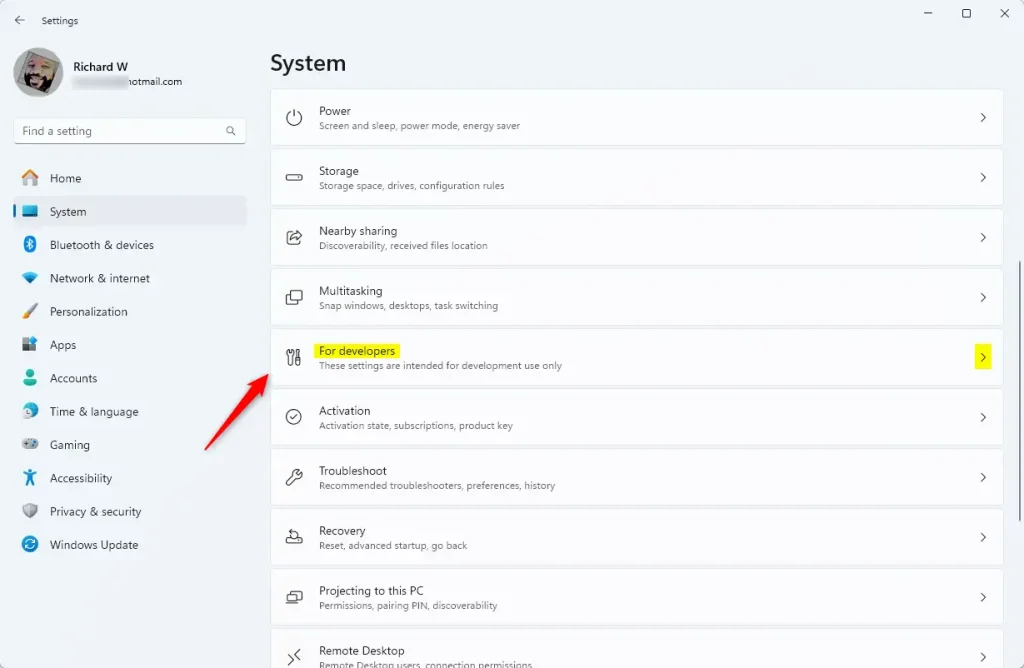
Windows 11 For developers tile - Find File Explorer Settings: Scroll down until you see the File Explorer section and click it to expand it. A list of File Explorer toggles appears.
- Turn On or Off "Show empty drives": Click the switch next to Show empty drives:
- Switch it On to see empty drives in File Explorer.
- Switch it Off to hide empty drives.
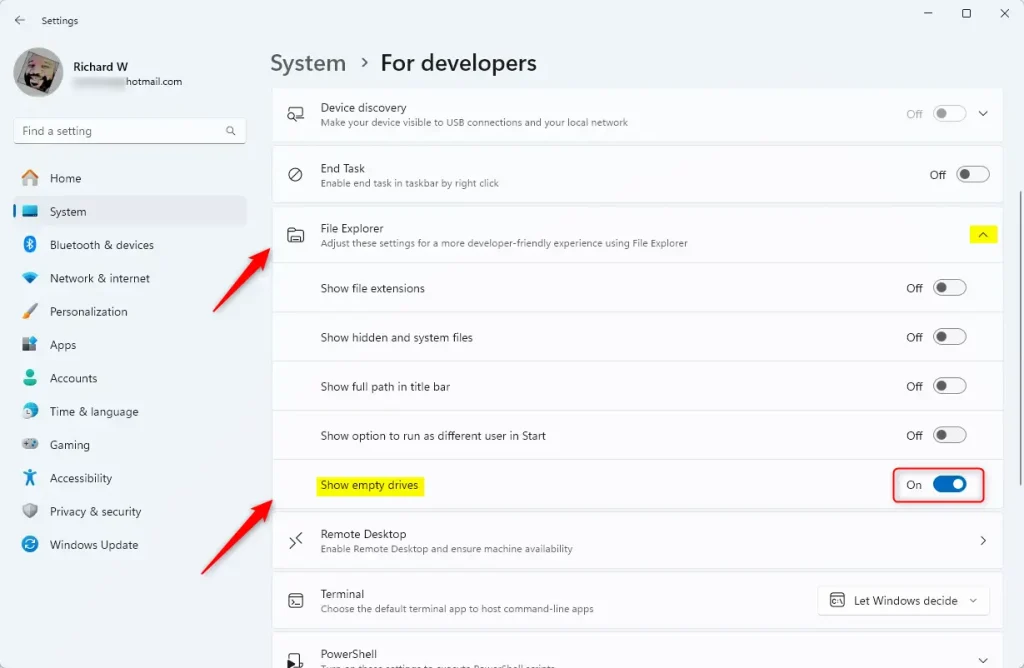
Show empty drives toggle The switch changes straight away and there is no Save button. Note that this switch works the opposite way from the checkbox in the second method below.
- Close Settings when you are done. You do not need to restart Windows. If a File Explorer window was already open, close it and open a new one to see the change. To undo it, repeat these steps and flip the switch back.
Alternative Method: Using File Explorer Options
You can also manage empty drives through File Explorer Options. This is the classic folder options window, and it has a direct checkbox for hiding empty drives. It is a quick alternative if you would rather work from inside File Explorer than open the Settings app.
This checkbox is labeled Hide empty drives, so the logic is reversed compared with the Settings toggle. Checked means hidden, and unchecked means shown. It is checked by default.
- Open File Explorer (press
Windows key + E). A File Explorer window should now be open. - Click the three dots
...in the toolbar at the top and select Options. The Folder Options window opens. - In the Folder Options window, click the View tab. You will see a long list of settings under Advanced settings.
- Scroll down the list and find Hide empty drives:
- Check the box to hide empty drives.
- Uncheck it to show empty drives.
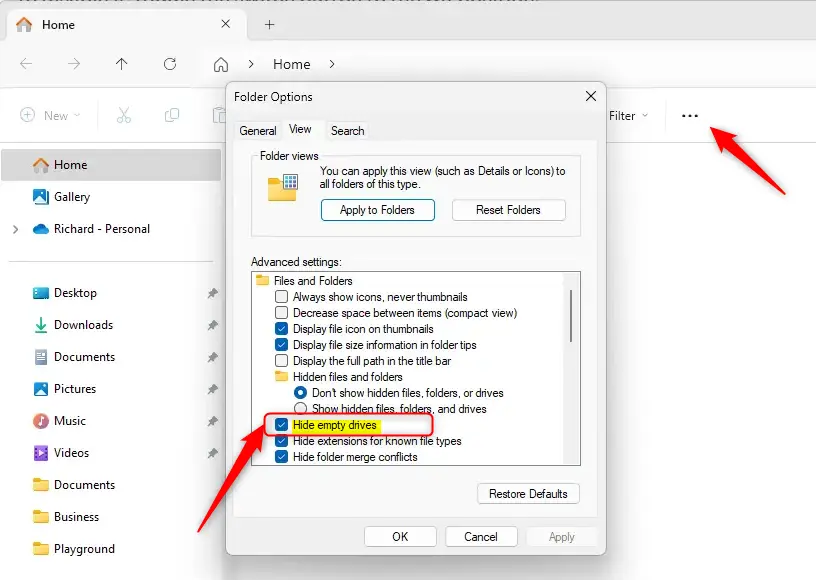
File Explorer - Hide empty drives option If you are unsure which state you want, check the drive list after you save. You can come back and change the box at any time.
- Click OK to save your changes. The window closes and File Explorer updates its drive list. If the list does not change, close and reopen File Explorer. No restart is needed.
Summary
Empty drives are storage devices with no files or no media, and Windows 11 hides them by default to keep File Explorer clean. You can show or hide them with either the Settings app (System For developers File Explorer) or File Explorer Options (View tab). Both change the same setting, so use whichever is faster for you. Remember that Show empty drives and Hide empty drives are opposites, so the switch and the checkbox move in opposite directions.
Have a question about this guide?
Answered by AI from this guide. Good questions may be added to this page — please don't include personal details.
Did this guide fix your problem?

About the Author
Richard
Tech Writer, IT Professional
Richard is a writer at Geek Rewind who turns complex IT tasks into clear, step-by-step guides. He draws on years of hands-on experience in system administration and enterprise IT operations, focusing on Windows, Linux and WordPress: the problems people actually run into, and the fixes that work. His server and WordPress guides come from systems he runs himself. Richard builds and maintains the platform behind Geek Rewind, from its Ubuntu servers and Nginx configuration to its custom WordPress plugins. Many new tutorials start with readers' questions, and he's always glad to answer them in the comments.
No comments yet — be the first to share your thoughts!