How to Hide Specific Drives in Windows 11

- 18 steps
- Needs administrator rights
- Includes a restart or sign-out
Hiding specific drives in Windows 11 removes extra partitions or drives from File Explorer so you only see the ones you want. The Registry Editor (a tool that stores system settings) controls which drive letters appear in This PC and the sidebar. Nothing is deleted from the drive, and the hardware works as before.
You can still open any hidden drive at any time by typing its letter into the File Explorer address bar. The whole process takes less than 2 minutes. It works the same on Windows 11 Home and Pro, because both include the Registry Editor.
Open Registry Editor, navigate to 🗝️HKEY_LOCAL_MACHINE\
How Can You Access Hidden Drives?
A hidden drive is only hidden from the File Explorer view. It keeps its letter and its data, and Windows can still reach it. You don’t need to undo anything to get into it. Use any of these methods:
- Click the File Explorer address bar, type the drive letter followed by a colon (for example, F:), and press Enter. The drive’s contents open as normal.
- Open Disk Management (a built-in tool for managing storage devices) by typing
diskmgmt.mscin the Start menu search and pressing Enter. Find your volume in the list, right-click it, and select Open. On some builds the same menu item is called Explore. - Open Command Prompt or Windows Terminal, type the drive letter with a colon, and press Enter. The prompt switches to that drive.
Follow These Easy Steps to Hide Drives
Step 1Open the Registry Editor
- Press Win+R to open the Run dialog.
- Type
regeditin the box and press Enter. - If User Account Control asks whether you want to allow the app to make changes, click Yes. The Registry Editor window should now be open, with a folder tree on the left and values on the right.
⚠️ Admin Required
Step 2Go to the Explorer Folder in Registry
Back up your registry before making changes, because incorrect edits can cause system instability. In the Registry Editor, you can do this from the File menu with Export. Save the file somewhere you can find it. If something goes wrong, double-click the exported file to restore it. Creating a restore point first is also a sensible extra precaution.
HKEY_LOCAL_MACHINE\SOFTWARE\Microsoft\Windows\CurrentVersion\Policies\ExplorerHere’s what it looks like:
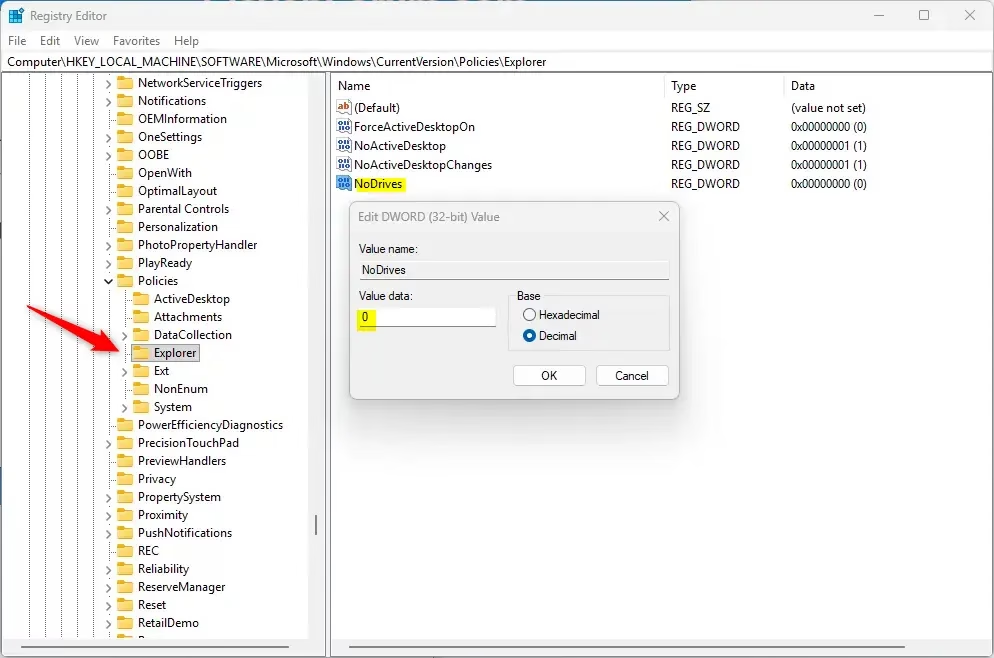
Compare your Registry Editor window with the image above. Take your time here, because the next steps only work if you are in the right place.
Step 3Choose to Hide or Unhide Drives
To Unhide All Drives
Use these steps if you want to show your drives again, or if a hidden-drive entry already exists and you want to remove it:
- Look at the right-hand pane for a value called
NoDrives. - If you see
NoDrives, right-click it and select Delete. - Click Yes when Windows asks you to confirm. The value disappears from the list.
Deleting the value makes every drive visible again once File Explorer is restarted (see the restart steps below). If you would rather keep the entry, you can instead change its data to 0, which has the same effect.
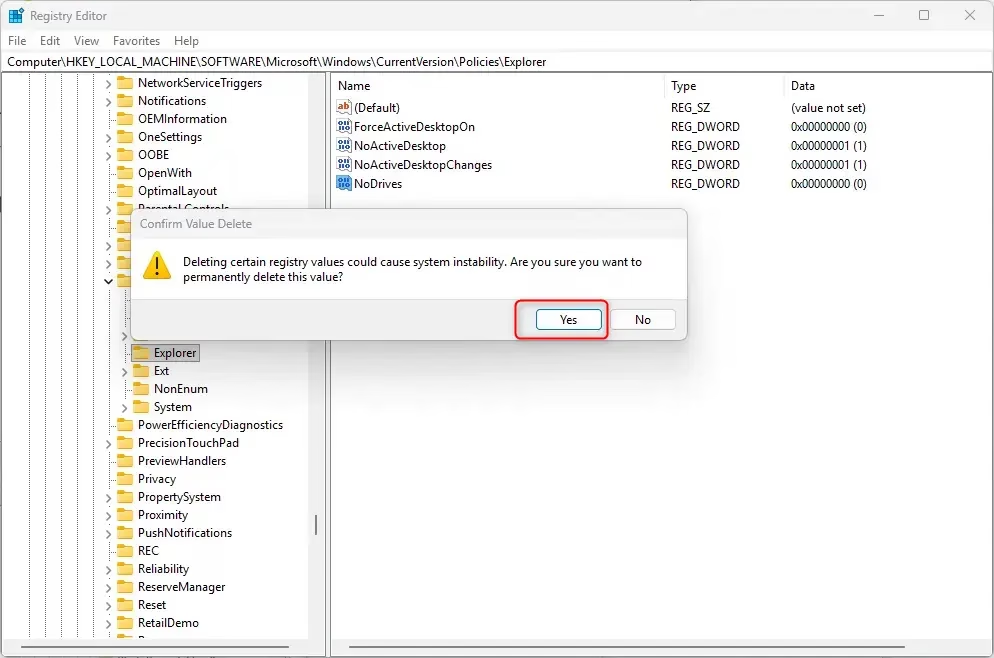
Whether you hide or unhide drives comes down to one setting in the Registry Editor: NoDrives. If it is present, it controls which partitions File Explorer shows. Delete it to show everything again. Create it, or edit its number, to hide the volumes you choose.
To Hide Specific Drives
- If you don’t see
NoDrivesin the right pane, right-click a blank space there and choose New DWORD (32-bit) Value. A new entry appears with its name highlighted for editing. - Type the name
NoDrivesand press Enter. Check the spelling, because Windows ignores a value with the wrong name. - Double-click
NoDrivesto edit it. A small edit window opens. - Under Base, select Decimal.
- In the Value data box, enter the number that matches the drive or drives you want to hide (see the table below for the numbers).
- Click OK. The new number shows in the Data column next to the value.
Each drive letter has its own number, starting with A and doubling for each letter after it. Enter the number for the drive you want to hide, and Windows will hide that drive in File Explorer. To change your choice later, double-click NoDrives again and enter a new number. The table below lists the number for each letter.
Drive Letter Numbers Table
| Drive Letter | Number to Enter |
|---|---|
| A | 1 |
| B | 2 |
| C | 4 |
| D | 8 |
| E | 16 |
| F | 32 |
| G | 64 |
| H | 128 |
| I | 256 |
| J | 512 |
| K | 1024 |
| L | 2048 |
| M | 4096 |
| N | 8192 |
| O | 16384 |
| P | 32768 |
| Q | 65536 |
| R | 131072 |
| S | 262144 |
| T | 524288 |
| U | 1048576 |
| V | 2097152 |
| W | 4194304 |
| X | 8388608 |
| Y | 16777216 |
| Z | 33554432 |
Step 4Finish Up
The change does not show until File Explorer reloads. You can restart File Explorer on its own, which is quicker than restarting the whole PC.
- Close the Registry Editor.
- Restart File Explorer or your computer for the change to take effect. To restart File Explorer:
- Press Ctrl+Shift+Esc to open Task Manager.
- Find Windows Explorer under Processes.
- Right-click it and choose Restart. The taskbar and open folder windows flicker or disappear for a moment, then return.
- Or sign out and sign back in, or restart your PC.
Open This PC afterwards. The drives you chose should no longer be listed. If they still appear, re-check the number in NoDrives and restart again.
Summary
- You can hide one or many drives from showing in File Explorer.
- The drives keep their letters and can still be accessed by typing their letter or using Disk Management.
- You need admin rights to change these settings.
- Use the Registry Editor carefully, and follow the steps exactly.
- Restart File Explorer or your PC to see the changes.
- To undo the change, delete the NoDrives value (or set it to 0) and restart File Explorer.
Hiding specific drives in Windows 11 lets you clean up File Explorer while keeping your partitions fully accessible. You can hide one or many drives at the same time. You need administrator rights to make these changes in the Registry Editor, and you must restart your PC or File Explorer for the new settings to take effect.
Have a question about this guide?
Answered by AI from this guide. Good questions may be added to this page — please don't include personal details.
Did this guide fix your problem?

About the Author
Richard
Tech Writer, IT Professional
Richard is a writer at Geek Rewind who turns complex IT tasks into clear, step-by-step guides. He draws on years of hands-on experience in system administration and enterprise IT operations, focusing on Windows, Linux and WordPress: the problems people actually run into, and the fixes that work. His server and WordPress guides come from systems he runs himself. Richard builds and maintains the platform behind Geek Rewind, from its Ubuntu servers and Nginx configuration to its custom WordPress plugins. Many new tutorials start with readers' questions, and he's always glad to answer them in the comments.
No comments yet — be the first to share your thoughts!