How to Enable Retail Demo Mode in Windows 11

- 14 steps
- Needs administrator rights
- Includes a restart or sign-out
Retail Demo Mode in Windows 11 is a built-in display setting that turns a standard PC into a store showroom computer. Each time you restart the PC, it clears personal files and returns to a clean demo screen.
Most people never need this mode. It is meant for retail stores showing off new laptops and desktops. If you turn it on by mistake, Windows creates a fake store account named “User01” and loops promotional videos. Back up anything you care about before you try this on a PC you actually use.
Open Settings, go to System, then Activation. Click your Windows edition name five times. Select Advanced configuration, then Next to set duration or Off to disable. Click Finish to complete.
How to Turn On or Off Retail Demo Mode in 🪟 Windows 11
You turn Retail Demo Mode on or off from the Activation page in Settings. The option is hidden, so you reveal it by clicking the Windows edition name five times. You need to be signed in with an administrator account for the advanced options. A standard account will not get past the first prompts.
- Open the Settings app. Either click Start and select Settings, or press Win+I on your keyboard. The Settings window should open. If you need more help getting there, see Open Settings in Windows 11.
- Click System in the left panel. The System options appear on the right.
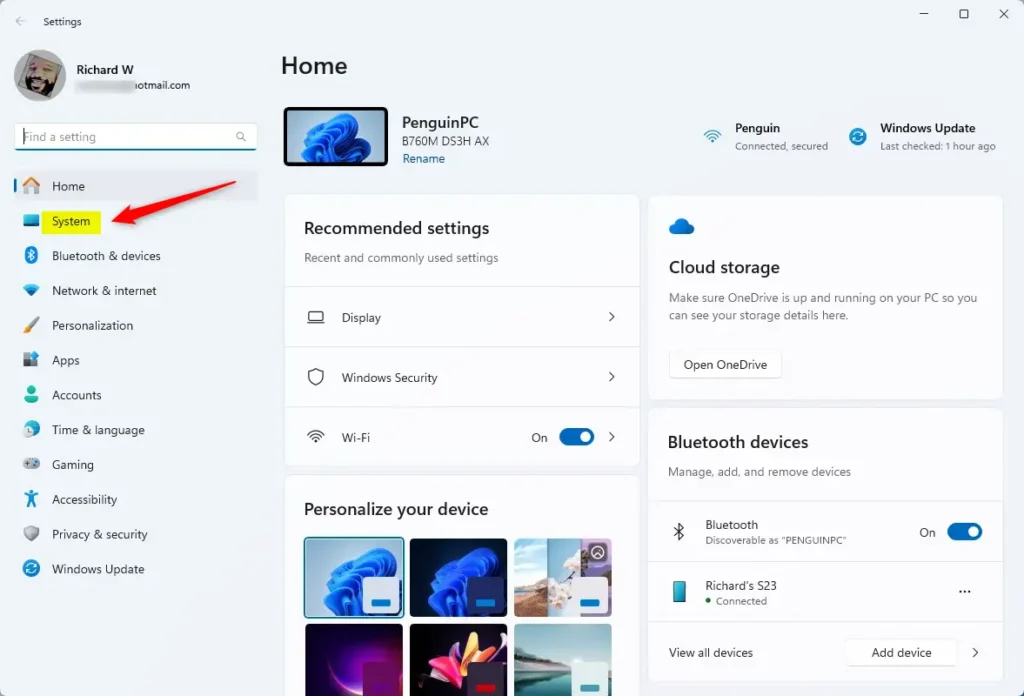
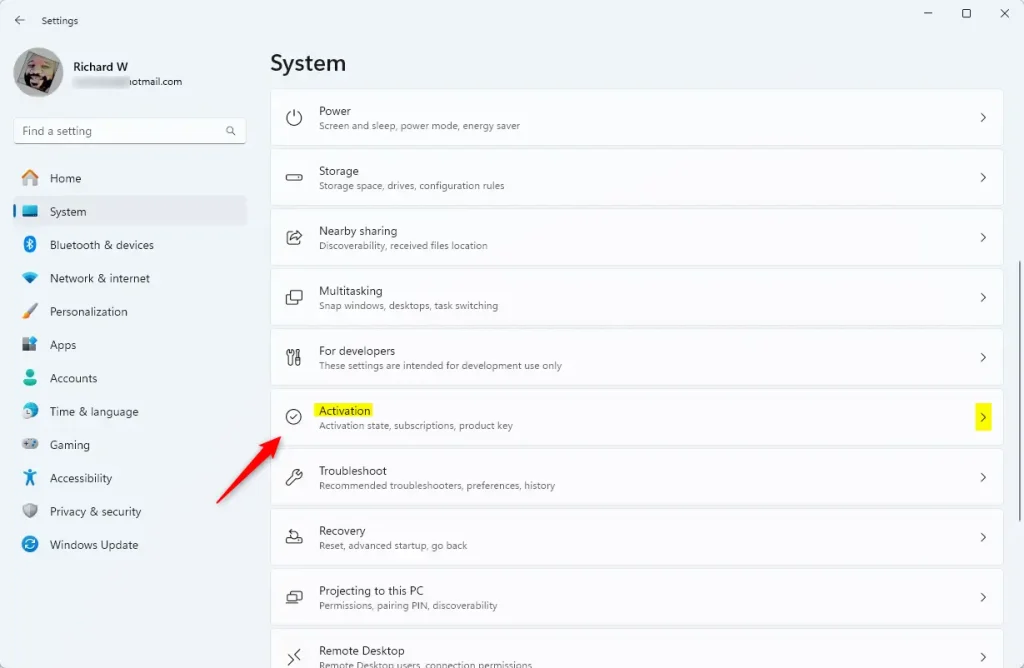
System in the Settings app - On the right side, scroll down and click Activation. You should see your Windows edition and activation status.
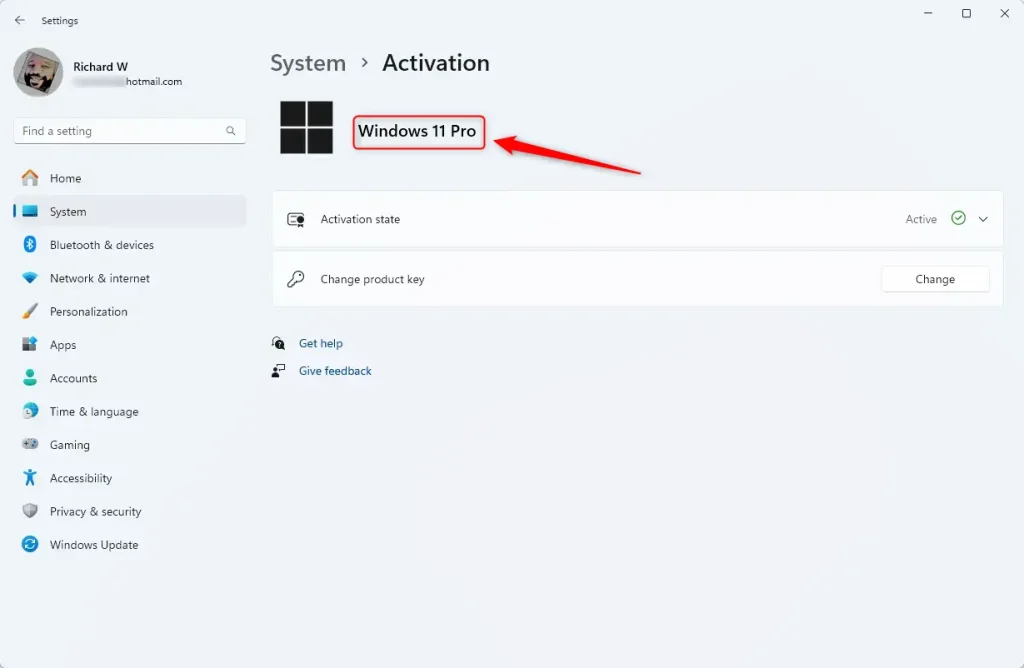
Windows 11 Activation tile - On the Activation page, click the Windows edition name (for example, “Windows 11 Pro”) five times in quick succession. Home and Pro both show an edition name here. If nothing happens, wait a moment and try again, clicking a little faster.
Windows 11 Activation computer version name - When a prompt appears, click Change to continue.
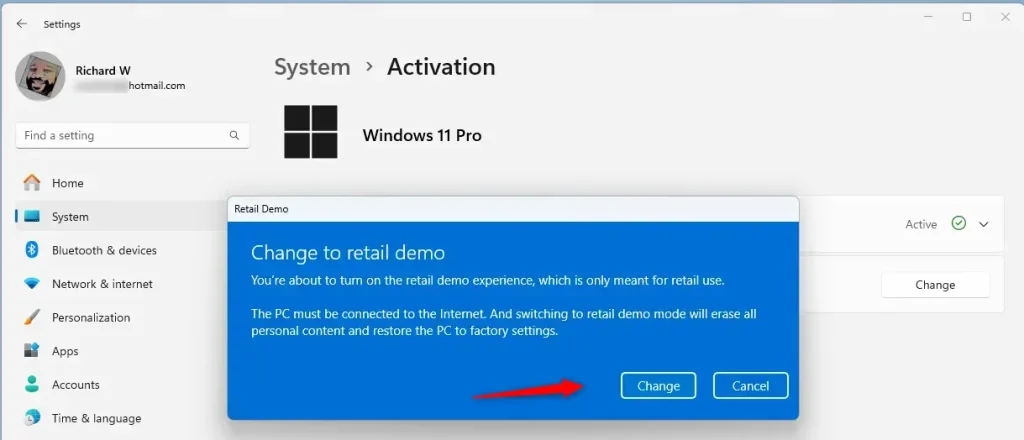
Windows 11 change to retail demo - [Admin privileges required] Click the Advanced configuration link to see more options. If you don’t see the link, you are probably not signed in as an administrator.
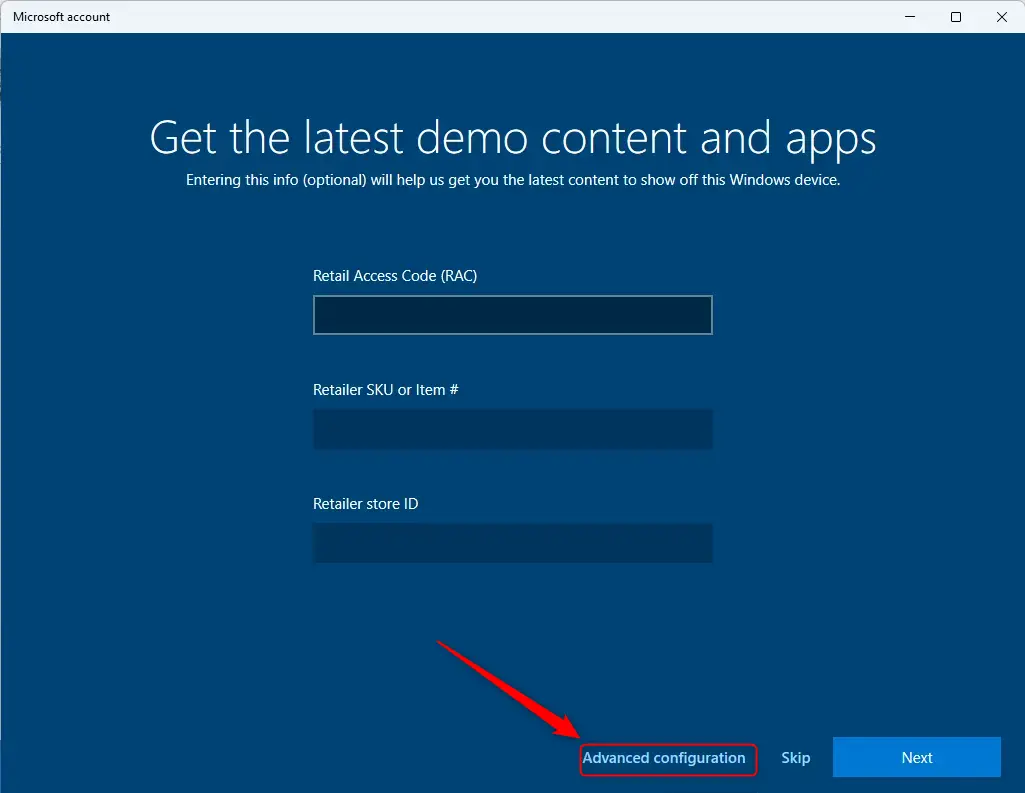
Windows 11 Retail Demo advanced settings - If you want, set the PC to shut down automatically after a set time. This is handy for store PCs that should power off at closing. When you are ready, click Next.
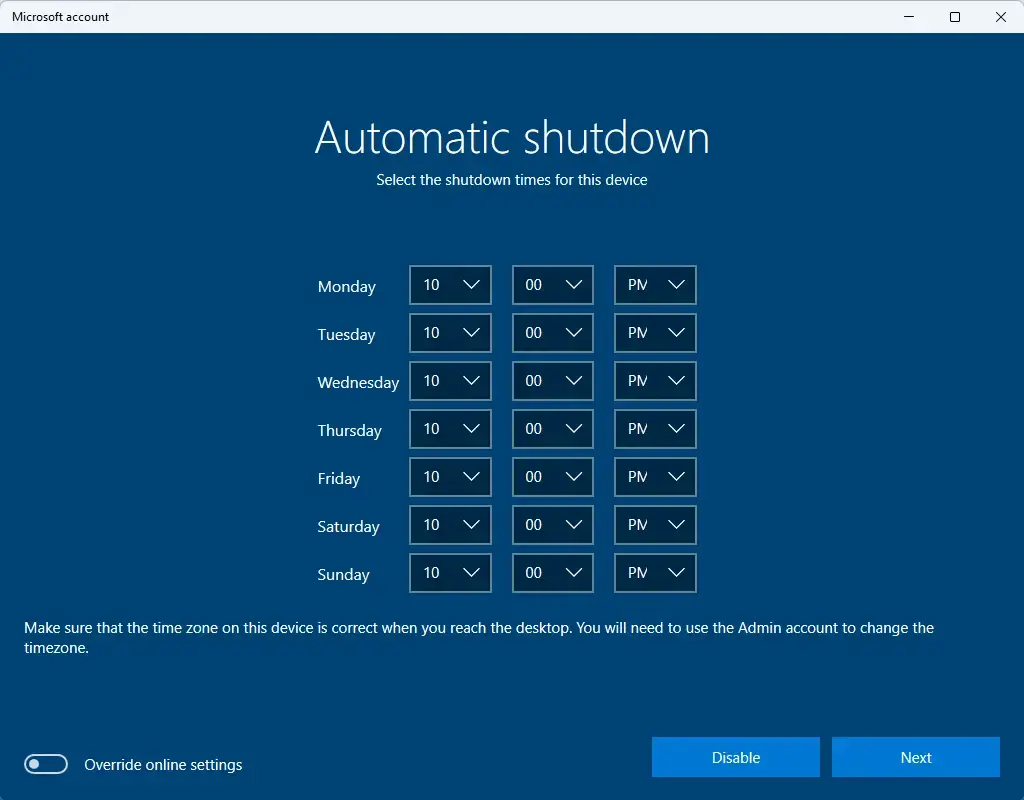
Windows 11 Retail Demo automatic shutdown option - Choose how long Retail Demo should run before the admin account is removed. If you don’t want the admin account removed, switch the toggle to Off.
- If you turn it off, Windows asks you to create a password for the admin account. Choose one you will remember, because you need that account to remove Retail Demo Mode later.
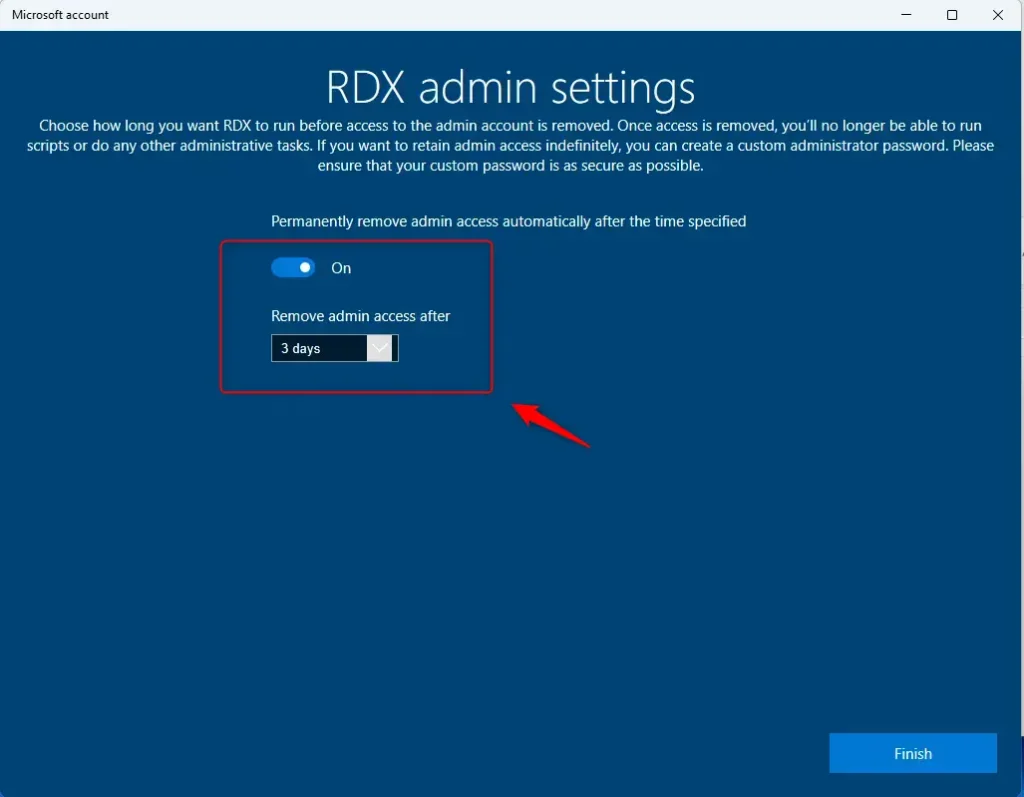
Windows 11 change to retail demo advanced settings admin account - Click Finish to complete the process. If Windows asks you to restart, do so. The PC then runs in demo mode, and the “User01” account and promotional videos appear.
How to Remove Retail Demo Mode (Turn it Off)
To switch the PC back to normal personal use, use the same hidden option in the Activation menu. You reveal it the same way, by clicking the Windows edition name five times. Keep the admin account password handy if you set one, because you need administrator rights for the last steps.
- Go to Settings System Activation.
- Click the Windows edition name five times again. The same prompt as before should appear.
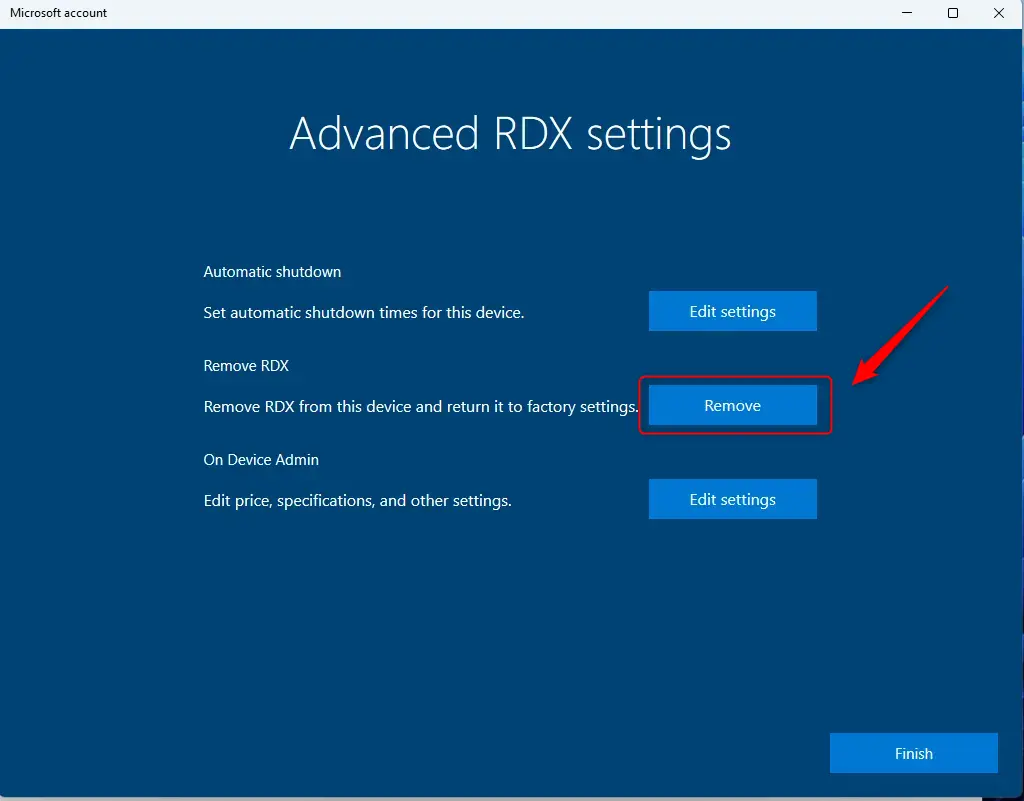
- [Admin privileges required] Click the Advanced configuration link.
- Click the Remove button and confirm your choice.
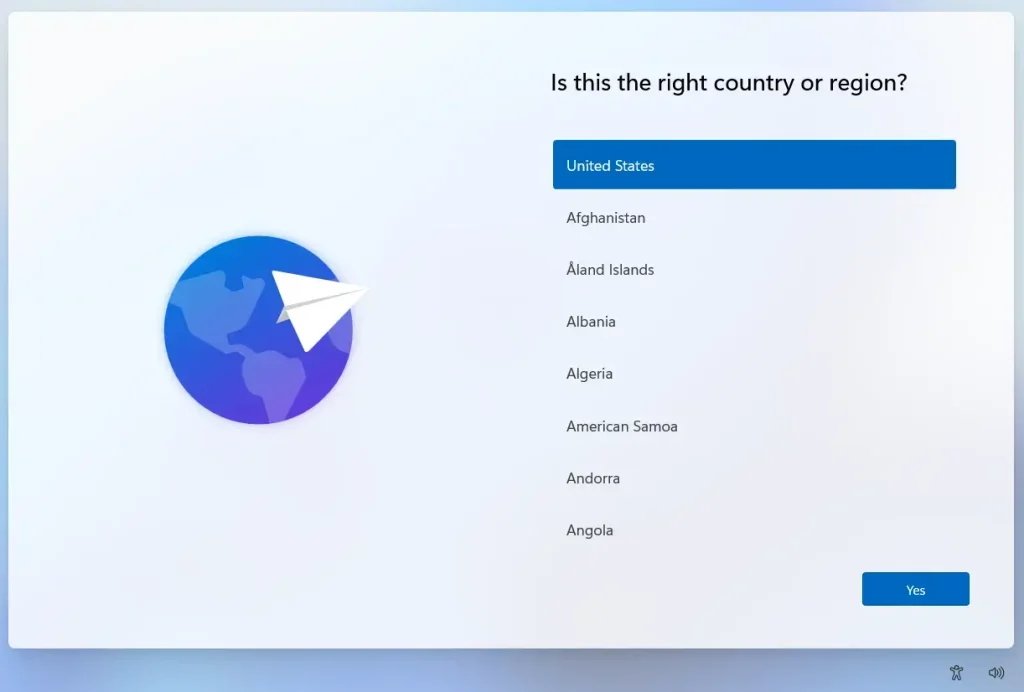
Windows removes Retail Demo Mode and resets the PC to default settings. You then set up Windows the way you like, as on a new PC. Anything stored in the demo account is gone, so copy off any files you want to keep before you remove the mode.
Summary
Retail Demo Mode is a built-in feature for store display computers. It lets customers try the operating system in a controlled environment. When it is on, the system wipes personal data and restores default settings each time the computer restarts.
What happens when you enable it? The PC runs a demo account (“User01”) and plays promotional content. If you run a retail store or computer shop, this helps keep demos consistent and controlled, because every customer starts from the same clean screen.
If the PC is not used for demonstrations, keep Retail Demo Mode turned off. With it off, you can use the computer normally for everyday tasks, and all features and apps work without demo-specific restrictions. If you turned it on by accident, follow the removal steps above.
Store employees can use Retail Demo Mode to show a computer’s features to potential buyers, and turn it on or off as needed for in-store demonstrations. The setup keeps personal user settings off the screen, so every demonstration starts clean.
Have a question about this guide?
Answered by AI from this guide. Good questions may be added to this page — please don't include personal details.
Did this guide fix your problem?

About the Author
Richard
Tech Writer, IT Professional
Richard is a writer at Geek Rewind who turns complex IT tasks into clear, step-by-step guides. He draws on years of hands-on experience in system administration and enterprise IT operations, focusing on Windows, Linux and WordPress: the problems people actually run into, and the fixes that work. His server and WordPress guides come from systems he runs himself. Richard builds and maintains the platform behind Geek Rewind, from its Ubuntu servers and Nginx configuration to its custom WordPress plugins. Many new tutorials start with readers' questions, and he's always glad to answer them in the comments.
No comments yet — be the first to share your thoughts!