How to Remove Devices from Your Microsoft Account

Removing devices from your Microsoft account clears old hardware from your 10-device limit so you can register new PCs, laptops, and Xbox consoles. Microsoft allows each account 10 active devices, and old or broken computers count against that total just as much as the ones you use every day.
You do this from your account page in a web browser. You sign in, find the hardware you no longer use, and unlink it. It takes a couple of minutes, and you can do it from any computer, not just the one you are removing.
Go to https://account.microsoft.com/devices/content, sign in with your Microsoft account, find the device you want to remove in the list, click Unlink next to it, and confirm. The device disappears from your account immediately and frees up a slot for a new device.
What is the Microsoft Store?
Think of the Microsoft Store as your computer’s central hub for finding apps, games, and software. Each account can have 10 active devices at any given time. When you reach that limit, the Store can refuse to let you download or install on another machine until you free a slot. The slots fill up quietly over the years, usually with PCs you sold, replaced, or reinstalled.
How to Remove a Device from Your Microsoft Account
- Go to the Microsoft Store device page: Open this link in your web browser: https://account.microsoft.com/devices/content
- Sign in to your Microsoft account: Use the email and password you normally use for the Microsoft Store.
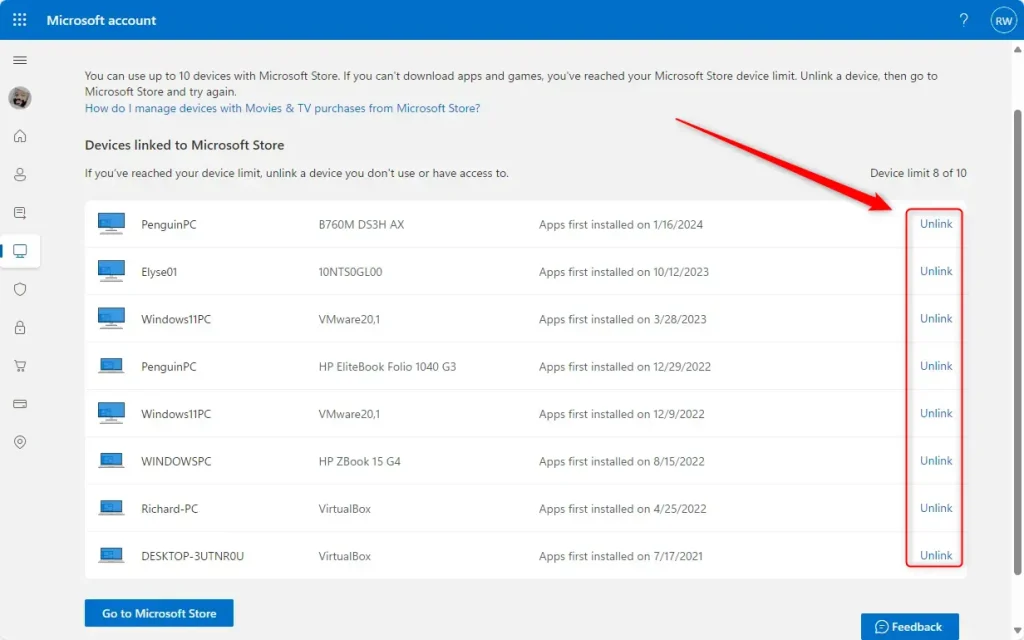
- See your list of devices: You will see all the devices linked to your Microsoft Store account.
- Find the device you want to remove: Look for the device in the list and click the Unlink button next to it.
- Confirm the removal: A message will appear asking if you’re sure. Click Unlink again to confirm.
Here is the same process in short form, so you can follow it alongside the screenshots:
- Open your web browser and go to the Microsoft device management page for your account.
- Sign in with the Microsoft account you use in the Microsoft Store. If you have more than one account, check that the name shown on the page is the right one. Each account keeps its own device list.
- Look through the list of laptops, tablets, phones, and consoles linked to your profile. You should see every device that currently counts toward your limit.
- Find the hardware you no longer use. Check the device name and, where it is shown, the model, so you do not remove a machine you still need.
- Click Unlink next to that device. A confirmation message appears.
- Confirm the removal. The device should disappear from the list.
On a Windows 11 PC you can find that name under Settings System About. Remove only the entries you are sure about.
After clicking Unlink, a confirmation message appears:
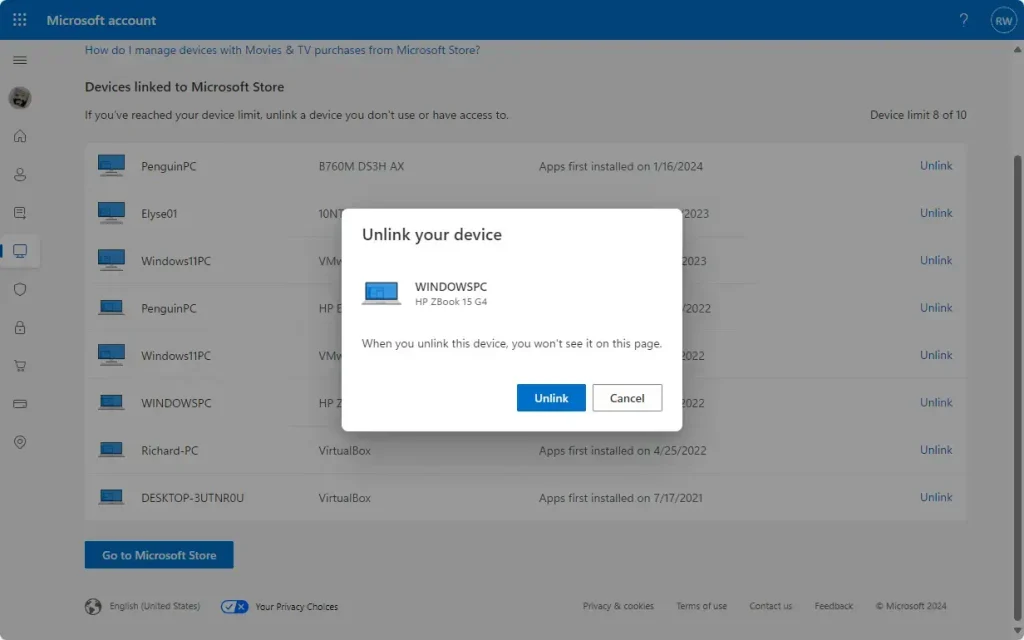
Once you confirm, the device vanishes from the account list straight away. You do not need to restart your PC or sign out. Downloading apps on your remaining machines should now work without triggering the 10-device limit. If the Store still shows the limit error, close it, reopen it, and try the download again.
Unlinking only removes the device from your account's list. It does not wipe the computer or uninstall anything on it. If you still use that machine and sign in to the Microsoft Store on it again, it can register itself again and take a slot back. To undo a mistake, sign in on that device and it will be added again, as long as you have a free slot.
Why This Matters
- Keeping your device list clean means you can always add new devices to the Microsoft Store.
- Removing old or unused devices frees up space for your current devices to download apps.
- If you ever need to do this again, just follow these simple steps.
Cleaning up your linked hardware list matters because Microsoft limits how many machines can download apps and games at one time. Removing old or broken equipment frees up device slots so you can install software on your current laptops and computers without running into download blocks or limit errors.
It is also good housekeeping. A list that only shows devices you really own makes it easier to spot something that does not belong. It is worth checking the list again whenever you retire a PC, give one away, or reinstall Windows. Home and Pro editions of Windows 11 behave the same way here, because the limit belongs to the account rather than the Windows edition.
Summary
Microsoft caps the account limit at 10 devices. To clear slots, open the Microsoft Store device management page, sign in, and unlink each device you no longer use. Then try your download or install again on the machine that was blocked.
Have a question about this guide?
Answered by AI from this guide. Good questions may be added to this page — please don't include personal details.
Did this guide fix your problem?

About the Author
Richard
Tech Writer, IT Professional
Richard is a writer at Geek Rewind who turns complex IT tasks into clear, step-by-step guides. He draws on years of hands-on experience in system administration and enterprise IT operations, focusing on Windows, Linux and WordPress: the problems people actually run into, and the fixes that work. His server and WordPress guides come from systems he runs himself. Richard builds and maintains the platform behind Geek Rewind, from its Ubuntu servers and Nginx configuration to its custom WordPress plugins. Many new tutorials start with readers' questions, and he's always glad to answer them in the comments.
No comments yet — be the first to share your thoughts!