How to Enable or Disable Phone Link App Startup in Windows 11

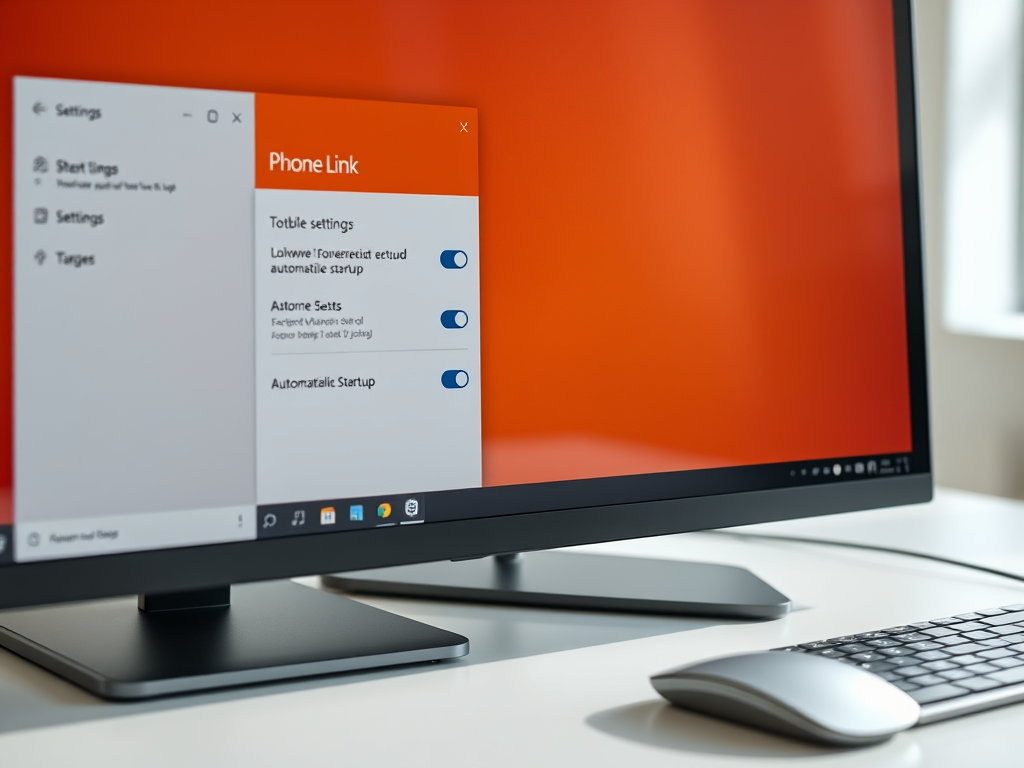
You can enable or disable the Phone Link app’s automatic startup in Windows 11 to manage your PC’s performance.
Phone Link is a Microsoft application that bridges your Android phone and Windows 11 PC, allowing you to access messages, calls, photos, and apps directly from your computer. By default, this app launches every time you sign in to Windows.
Disabling its startup can significantly speed up your Windows 11 boot time and free up system resources if you don’t frequently use the Phone Link features.
This guide shows you three straightforward methods to control when Phone Link starts, ensuring your PC runs efficiently without unnecessary background applications.
Manage Phone Link startup through its settings, Windows Settings, or Task Manager. To disable, open Phone Link, go to Settings > General, and toggle off “Start Phone Link when I sign in to Windows.” Alternatively, navigate to Settings > Apps > Startup and turn off the toggle for Phone Link.
Advanced Troubleshooting: Task Scheduler
Sometimes, the app ignores settings. You can stop the background trigger in Task Scheduler.
1. Press ⊞ Win+R, type taskschd.msc, and press Enter. (Requires administrator privileges)
2. Go to Task Scheduler Library > Microsoft > Windows > PhoneDevices.
3. Right-click the task and select Disable.
Registry Editor Modification
Be aware that changing the registry can sometimes cause system problems, so proceed carefully. (Requires administrator privileges)
1. Press ⊞ Win+R, type regedit, and press Enter.
2. Navigate to: HKEY_CURRENT_USER\Software\Microsoft\Windows\CurrentVersion\Run
3. If you see a Phone Link entry, right-click and delete it.
Summary
You can manage the Phone Link app startup using the app settings, Windows Settings, or Task Manager. For persistent issues, use Task Scheduler or the Registry Editor. Disabling the app saves resources, but remember that you must open it manually to sync your phone.
Why does Phone Link keep starting even after I disable it?
Phone Link often uses background triggers or the Link to Windows service. If you have disabled it in startup settings but it still opens, check the Task Scheduler or ensure that your Microsoft Account synchronization settings are not forcing the app to re-initialize upon login.
Does Phone Link consume significant memory at startup?
Phone Link is a lightweight app, but it can consume memory if it is constantly syncing photos and messages in the background. On systems with low RAM, disabling it can help free up resources for other important tasks and improve overall system responsiveness during the boot process.
How do I completely uninstall Phone Link?
You can remove it via PowerShell. Open PowerShell as an administrator and run: Get-AppxPackage *Microsoft.YourPhone* | Remove-AppxPackage. Note that this is a core integrated app, so it may reinstall after major Windows updates. Always back up your system before removing system-integrated components.
Was this guide helpful?

About the Author
Richard
Tech Writer, IT Professional
Richard, a writer for Geek Rewind, is a tech enthusiast who loves breaking down complex IT topics into simple, easy-to-understand ideas. With years of hands-on experience in system administration and enterprise IT operations, he’s developed a knack for offering practical tips and solutions. Richard aims to make technology more accessible and actionable. He's deeply committed to the Geek Rewind community, always ready to answer questions and engage in discussions.



[…] you sign in to Windows, the Phone Link app will automatically startup and run in the background by default. After that, it will continue to sync with your phone using its background processes. […]
[…] app. It is required to have Bluetooth turned on, paired, and connected for both your PC and linked phone. Whatever you do on your phone, like sending emojis, GIFs, and pictures via text messages, can also […]
[…] Using the Phone Link app, you can make and receive phone calls in Windows. It is required to have Bluetooth turned on, paired, and connected for both your PC and linked phone. […]