What Windows 11 Core Isolation Memory Integrity Actually Does to Game FPS

- 11 steps
- Needs administrator rights
- Includes a restart or sign-out
Windows 11 Core Isolation Memory Integrity is a built-in security feature. It protects your system by running a key part of Windows inside a safe virtual container. Microsoft turns it on by default on many new PCs and on clean installs of Windows 11 on supported hardware. On some systems it can cut game speed by 5 to 15 percent, and more on older hardware.
Turning off Memory Integrity can give back some of those lost frames and make heavy apps run smoother. It takes a few clicks and a restart. This guide covers what the feature does, how much it really costs, how to check it and switch it off, and when you should leave it on.
Core Isolation Memory Integrity is a Windows 11 security feature that isolates system processes in a protected virtual container to block kernel-level attacks. It causes 5 to 15 percent frame rate drops in games on most systems, more on older hardware, because your processor spends extra cycles checking drivers and code. Turning it off restores lost frames but removes the protection.
What Is Core Isolation Memory Integrity?
Core isolation memory integrity is a Windows 11 security feature. It uses hardware virtualization to isolate core operating system processes from untrusted software and malicious code. It builds a protected area around sensitive system memory so harmful programs cannot take control of your device at a deep level. You may also see it called Hypervisor-protected Code Integrity (HVCI), which is the technical name for the same thing.
Attackers often go after Windows through harmful drivers. Drivers are small programs that let Windows talk to your hardware. A bad driver can put malicious code straight into the kernel, the core of the operating system. Security people call this a kernel-level attack, and normal virus scanners have a hard time stopping one because the code runs with the same trust as Windows itself.
Think of Core Isolation as a security guard for your system memory. It uses processor features to create a small, sealed virtual environment next to your normal Windows session. Inside that sealed area, Memory Integrity checks every driver that tries to load into kernel memory. If a driver is not trusted, or is known to be vulnerable, it is not allowed to load. That stops unauthorized code from getting into your main system memory.
How Memory Integrity Impacts Gaming Performance
Core isolation memory integrity affects gaming performance because your processor has to do extra security work on code that runs in kernel memory. Each check is tiny. But the work happens constantly in the background, so it can lower frame rates, add stutter, and take processing time away from your game.
Add up that small delay hundreds of times every second and you get a measurable drop in game speed. Here is how the slowdown tends to show up:
- Lower Average Frame Rates (FPS)Games run slower overall. Expect drops from 5% to over 20% in the worst cases, depending on the processor and the game. Many modern systems lose far less than that, and some tests show almost no difference.
- Micro-StuttersYour average FPS may look fine, but you can get sudden hitches when you move fast through a game world. The processor gets bogged down by security checks during busy moments, and that shows up as uneven frame times.
- Longer Loading TimesGames can take longer to start and to load new levels, because the computer spends extra time checking drivers and code as they load.
Older processors feel the slowdown the most. Newer chips have hardware support that makes the checks cheap. Older chips, roughly those released before 2018, have to do the same work in a slower way. If your PC has one of these, turning on Memory Integrity makes the processor do heavy security work that the hardware was not built for. That often drops game frame rates by 5 to 15 percent.
The only way to know what it costs on your PC is to test. Run the same game scene or benchmark with the setting on, then again with it off, and compare average FPS and stutter.
How to Check If Memory Integrity Is On
You can check whether core isolation memory integrity is on by opening the Windows Security app, going to Device security, and opening Core isolation details. That page shows the current state of the Memory integrity switch.
Follow these steps to find out:
- Click the Start button on your taskbar and type Windows Security into the search box.
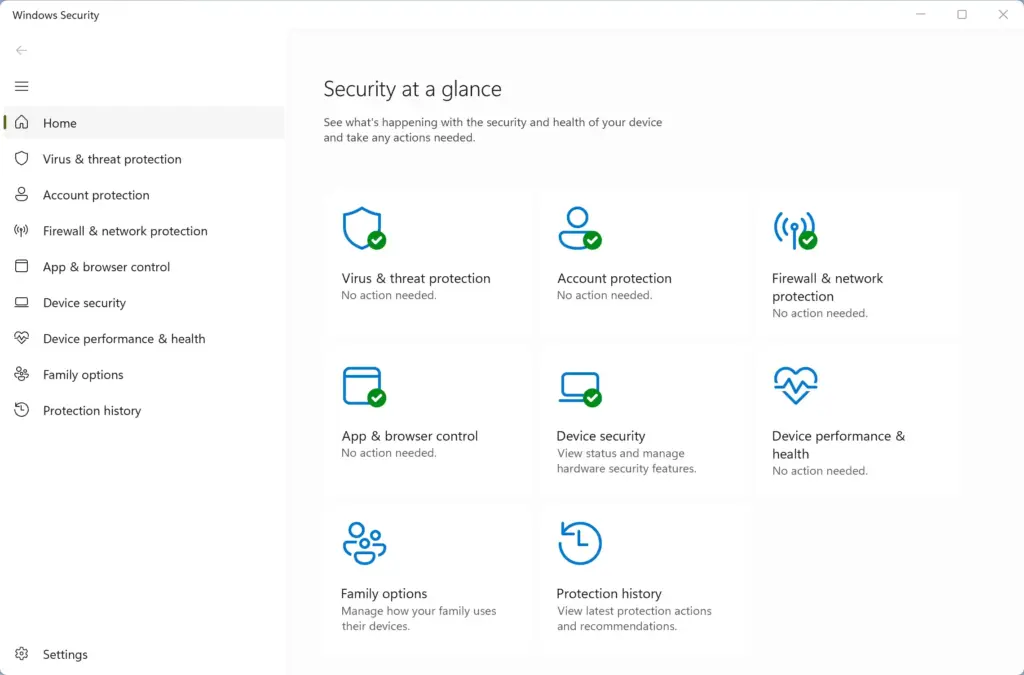
Windows Security - Click the Windows Security app in the search results. The Windows Security window opens.
- Click Device security in the left-hand menu.
- Under the Core isolation section, click the Core isolation details link. A page with one or more switches opens.
- Look at the switch labeled Memory integrity.
If the switch is On, your computer is actively using memory integrity protection. If it is Off, your system runs without this layer of security.
If you cannot find the Core isolation section, your hardware may not support it, or virtualization may be turned off in your BIOS/UEFI. On Intel PCs that setting is usually called Intel VT-x or Virtualization Technology. On AMD PCs it is usually called SVM Mode. The feature is the same on Windows 11 Home and Pro.
How to Turn Off Memory Integrity for Better Gaming FPS
You can turn off core isolation memory integrity by opening Windows Security, going to Device security and Core isolation details, and switching the Memory integrity toggle to Off. Restarting your computer applies the change, and it can free up processor resources for higher frame rates.
Think about the trade-off first. You will likely get better gaming speed, but you remove one important layer of protection against harmful code.
Follow these steps to turn it off:
- Open the Start menu, type Windows Security, and open the app.
- Click Device security on the left side.
- Click Core isolation details.
- Click the toggle switch under Memory integrity to move it to Off. Approve the User Account Control prompt if one appears. You need an administrator account for this.
- If Windows warns you that your device may be vulnerable, read the message. If you accept the risk for gaming, continue.
- Restart your computer when prompted to finish applying the change. Click Restart now, or restart manually when you are ready.
The change does not take effect until the restart. After it, start your favorite game and check your speed. You should see the biggest gain on older processors. On newer hardware the difference may be small.
To undo this, follow the same steps and move the switch back to On, then restart. If the toggle is greyed out, your PC is probably managed by an organization, or a policy controls virtualization-based security. In that case an administrator has to change it.
Hidden Angle: The Hidden Trap of Incompatible Drivers
This often stops older gaming mice, custom keyboards, and audio devices from working properly until you update the driver or turn off the feature.
Memory Integrity can block older drivers used by gaming mice, custom keyboards, steering wheels, flight sticks, and sound cards. When the feature is on, Windows checks each driver as it loads. If a driver is outdated or uses code that attackers could exploit, Windows will not let it run. This protects your system, but your device may stop working.
This can suddenly break your favorite gaming tools. When you try to turn Memory Integrity on, Windows may show a list of incompatible drivers. You can use that list to see which device is the problem. Then look for an updated driver from the manufacturer. Updated drivers may not exist for older hardware. If you own older gaming gear with no update available, turning off Memory Integrity is often the only way to make it work properly with Windows 11.
Hidden Angle: The Hidden Trap of Vanguard and Competitive Anti-Cheat Software
Core isolation memory integrity can conflict with competitive anti-cheat software because both work at the deepest kernel level of Windows 11. Depending on the game and its drivers, this can stop a multiplayer game from launching until you change the security setting.
Anti-cheat tools run at the kernel level, the same deep level that Memory Integrity protects. Because of that, anti-cheat drivers and Windows security rules can clash. Some games will crash or refuse to start if the anti-cheat driver is blocked or flagged. Other games, such as Valorant on Windows 11, have security requirements of their own, like TPM 2.0 and Secure Boot, and may complain if a related security feature is missing or a driver on your PC is flagged. The exact rules change with game and anti-cheat updates, so always trust the error message and the game’s support page over a general rule.
If you play a lot of competitive multiplayer games, check the system requirements for each one. You may end up turning Memory Integrity on and off depending on which game you want to play that night. Remember that each change needs a restart.
Weighing Security Versus Performance: Is It Worth It?
Whether to keep core isolation memory integrity on or off for gaming depends on whether you value security or the highest possible frame rates. Keep it on if your PC handles sensitive data. Turn it off if you play demanding games and want the most performance from your hardware.
Keep Memory Integrity ON if:
- Your computer is used for work, managing sensitive financial data, or web browsing where security is your highest priority.
- You play casual games that already run at very high speeds, so a small drop in performance does not ruin your fun.
- Your computer has a recent, high-end processor that handles virtualization work with ease, so the FPS cost is small.
Turn Memory Integrity OFF if:
- Your computer is a dedicated gaming machine where top speeds and smooth graphics matter most.
- You use an older processor and need every bit of performance you can get.
- You own older gaming gear that refuses to work while the security setting is on.
If you turn it off, keep Windows updated, keep Microsoft Defender running, and only install drivers from sources you trust. That covers part of the protection you are giving up.
Summary
Windows 11 core isolation memory integrity protects your computer from advanced malware by isolating system memory. The cost is extra processing work that can lower game frame rates, plus blocked older hardware drivers. Turning it off can boost gaming speed and fix compatibility problems, but it reduces your overall protection. Test your own games, check for incompatible drivers, and pick the setting that fits how you use your PC.
Questions readers asked
Why can't I find the Core isolation details link in Windows Security?
The link may not appear if this PC cannot run the feature, or if it is turned off. First, scroll down the Device security page, since Core isolation may be lower on the screen. Next, install any pending Windows updates and check again. If it still doesn't appear, turn on virtualization in your BIOS/UEFI. It is often called Intel VT-x or AMD SVM Mode. On a work or school computer, your organization may hide this section, so ask your IT team.
Still have a question?
Answered by AI from this guide. Good questions may be added to this page — please don't include personal details.
Did this guide fix your problem?

About the Author
Richard
Tech Writer, IT Professional
Richard is a writer at Geek Rewind who turns complex IT tasks into clear, step-by-step guides. He draws on years of hands-on experience in system administration and enterprise IT operations, focusing on Windows, Linux and WordPress: the problems people actually run into, and the fixes that work. His server and WordPress guides come from systems he runs himself. Richard builds and maintains the platform behind Geek Rewind, from its Ubuntu servers and Nginx configuration to its custom WordPress plugins. Many new tutorials start with readers' questions, and he's always glad to answer them in the comments.
No comments yet — be the first to share your thoughts!