What to Do When Windows 11 Keeps Asking to Finish Setting Up Your PC

- 2 ways to do it
- Includes a restart or sign-out
The “Let’s finish setting up your PC” screen is a full-page notification in Windows 11 that promotes Microsoft services such as OneDrive, cloud backup and Microsoft 365. It usually shows up after a major update. It gives you two choices: accept the extras, or click a reminder button that brings the screen back in 3 days.
Stopping it takes less than a minute. In the notifications settings you clear the checkboxes that let Windows suggest setup steps and show the welcome screen. Below you will find that method, a registry fix for when the Settings switch doesn’t hold, a way out if the screen freezes, and a few related settings that cut down other promotions.
To stop Windows 11 from asking to finish setting up your PC, open the Settings app, go to System, click Notifications, and expand Additional settings at the bottom. Uncheck the boxes for suggest ways to get the most out of your device and show me the welcome experience.
Understanding the “Let’s Finish Setting Up Your PC” Screen
Windows shows this screen because Microsoft wants you to sign up for extra services like cloud storage and office software. It is a full-screen prompt that reminds you about features you haven’t configured. It works much like a pop-up ad: it interrupts what you are doing until you click through or skip it.
Windows keeps track of when you last saw the prompt. When you click Remind me in 3 days, it sets a hidden timer. After those 72 hours, the setup wizard comes back the next time you restart or sign in. Closing the screen does not cancel it. Only changing the settings does.
Microsoft provides a built-in switch in the Settings app to turn these suggestions off. If that switch doesn’t work for you, there are other methods, covered below.
Method 1Disable the Setup Reminder from the Windows Settings App

The Settings app is the easiest and safest way to stop the prompts. It works on both Windows 11 Home and Pro, needs no restart, and you can undo it at any time by ticking the same boxes again.
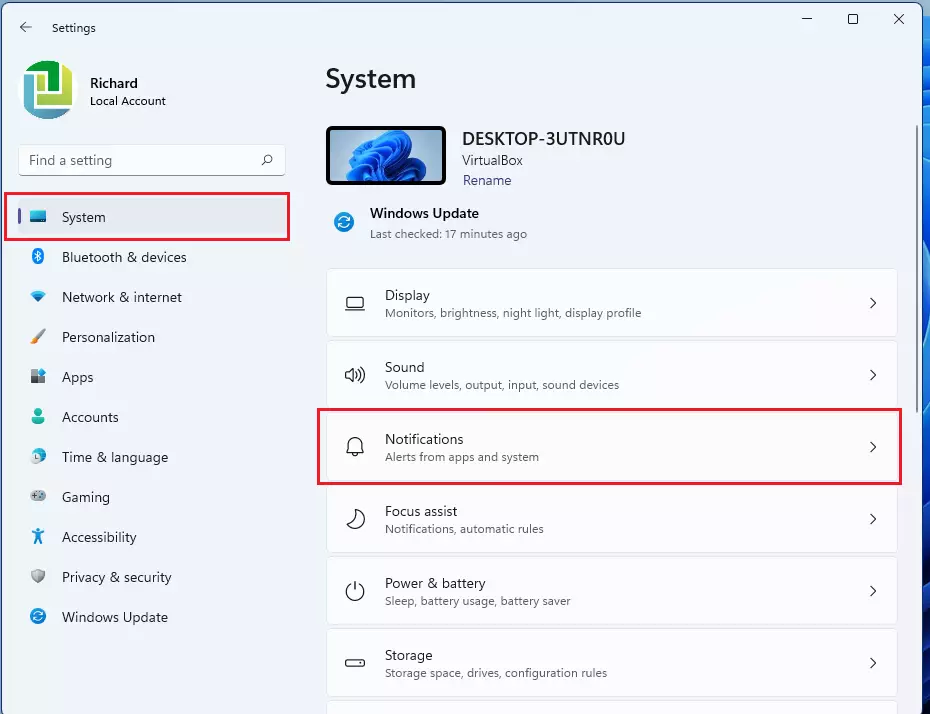
- Click the Start button on your taskbar and select Settings, the gear icon. The Settings window opens.

Taskbar - In the left-hand menu, click System.
- On the right side, click Notifications. You should see the master notification switch and a list of apps that can send notifications.
- Scroll all the way down to the bottom of the page and click the small arrow next to Additional settings. The section expands and shows several checkboxes.
- Clear the checkbox next to “Suggest ways to get the most out of device and complete the setup”.
- Clear the checkbox next to “Show me the welcome experience after updates and occasionally when I sign in to highlight what’s new and suggested”. This catches related pop-ups that the first box doesn’t cover.
- Optionally, clear the third box in the same list, the one about getting tips and suggestions when using Windows. This is the third checkbox mentioned at the start, and it cuts down on the other tip pop-ups.
The exact wording of these boxes can change slightly between Windows 11 builds, but they always sit in this same Additional settings section. Once they are cleared, Windows stops showing setup reminders and promotional welcome screens after updates. Close the Settings app and carry on as normal.
If the screen is already on your display, you will still have to dismiss it once. After that it should not return.
Method 2Stop the Reminder Using the Windows Registry
If the Settings switch is missing, greyed out, or the prompt keeps coming back, you can block it through the Registry. The setting lives under 🗝️HKEY_CURRENT_USER\
The Registry is a central database that stores low-level settings for Windows and installed software. A wrong edit can cause problems, so change only the one value described here. If you want a safety net, in Registry Editor you can click File Export before you start and save a backup copy of the key. Because the path is under 🗝️HKEY_CURRENT_USER, the change only affects your own user account.
- Click the Start button, type Registry Editor into the search bar, and click the app to open it. If a window asks “Do you want to allow this app to make changes to your device?”, click Yes. Registry Editor opens with a folder tree on the left.
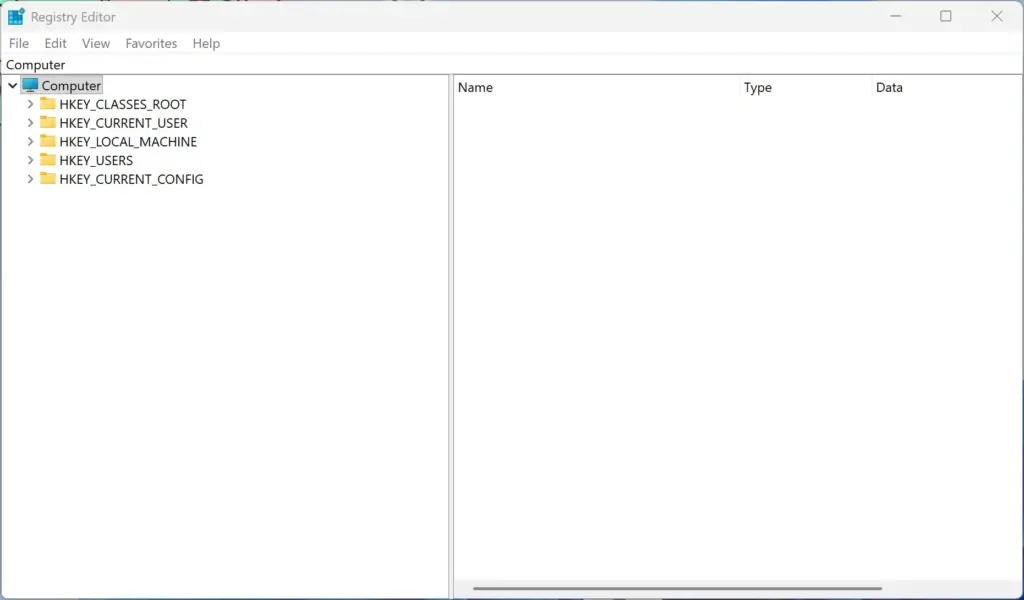
Registry Editor - In the left-hand panel, click the arrow next to 🗝️HKEY_CURRENT_USER to expand it.
- Click the arrow next to Software, then expand Microsoft, then Windows, then CurrentVersion, and finally click ContentDeliveryManager. The right-hand panel now lists a number of values.
- In the right-hand panel, find the item named SubscribedContent-310093Enabled.
- Double-click SubscribedContent-310093Enabled. A small window opens with the value’s settings.
- In the box labeled Value data, change the number from 1 to 0.
- Click OK to save the change.
If you can’t find that value on your build, you can create it. Right-click an empty area of the right-hand panel, choose New DWORD (32-bit) Value, name it exactly SubscribedContent-310093Enabled, and leave its data at 0.
Close Registry Editor and restart your computer to apply the fix. To undo it, go back to the same value and set it to 1.
This value controls one piece of subscribed content that Windows delivers to your account, including the setup reminders. Turning it off, together with the notification suggestions in Settings (available in version 23H2 and later), stops the full-screen prompts and the Microsoft 365 and OneDrive promotions that interrupt your work.
Unique Angle: What to Do When the Screen Freezes Your PC
Sometimes the setup screen freezes and ignores both mouse and keyboard. In that case you need to break the loop before you can change any setting. You can either close the stuck process in Task Manager, or restart the computer and, if needed, boot into Safe Mode.
- Press Ctrl+Shift+Esc together to open Task Manager. If the setup screen covers everything, try Alt+Tab to switch windows, or press the Win to bring up the taskbar.
- If Task Manager opens, look through the list of running processes for anything related to Windows Welcome Experience or Setup.

Task Manager - Right-click that process and select End task. The setup screen should close and show your desktop.
- If the computer is completely locked up and the keyboard shortcuts do nothing, press and hold the physical power button for about 10 seconds until the machine turns off. Use this as a last resort, because any unsaved work will be lost.
Wait a few seconds, then turn the computer back on. It will usually skip the frozen setup screen on the next start. If it freezes again, boot into Safe Mode, which loads Windows with a minimal set of drivers and services, and change the settings from there.
As soon as you reach your desktop, follow the Settings app method or the Registry method from this guide to switch off the setup prompt for good. That stops it from freezing your computer again.
Expert Tips for Keeping Your 🪟 Windows 11 Experience Clean
Windows 11 has other built-in promotions besides the setup screen. They show tips, ads and suggested content on the lock screen, in the Start menu and in the privacy settings. Turning them off keeps the system quieter. None of these changes needs a restart, and you can reverse each one by switching it back on.
- Turn off lock screen tipsGo to Settings Personalization Lock screen. In the dropdown for the lock screen background, avoid Windows spotlight, which is the option that shows fun facts and tips. Change it to Picture or Slideshow.

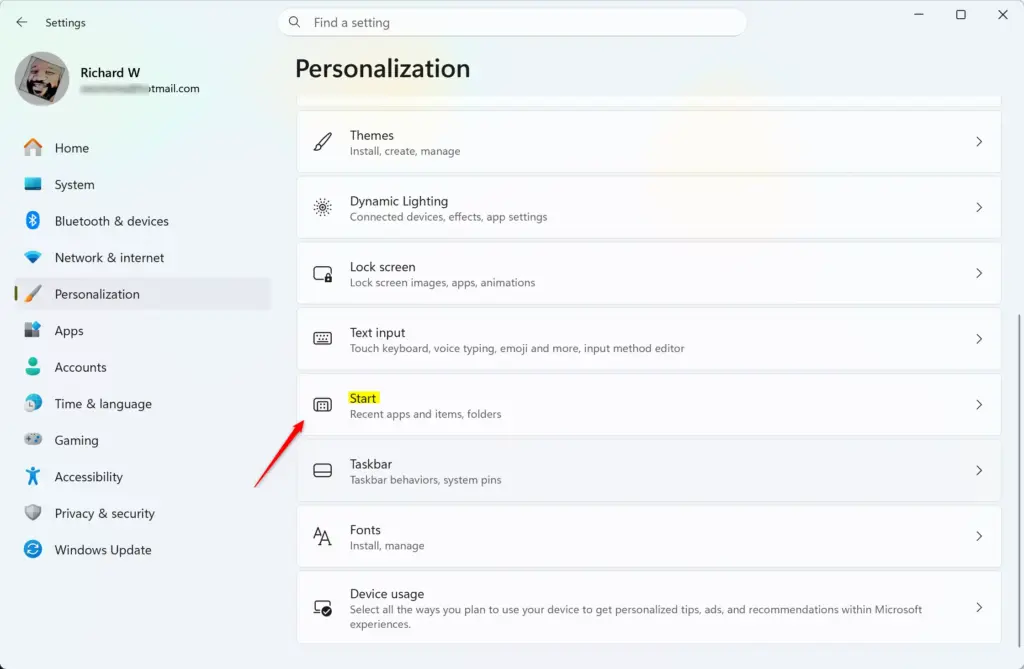
Settings › Personalization - Disable Start menu recommendationsGo to Settings Personalization Start and turn off the options that show recently added apps, tips and suggested content. The Recommended section of the Start menu will then show less.
Settings › Personalization › Start - Turn off tailored experiencesGo to Settings Privacy & security Diagnostics & feedback and turn off the Tailored experiences switch. This stops Microsoft from using your diagnostic data to offer you personalized tips, ads and recommendations. On the General page of Privacy & security you can also turn off the advertising ID and the suggested content in the Settings app.
With these changed, Windows behaves like a working tool instead of a billboard for cloud subscriptions and software packages.
Summary
You can stop the repeating “Let’s finish setting up your PC” prompt by changing your notification settings, or by editing the registry if the switch doesn’t hold. Start with the Settings app, and use the registry only if you need it. If the screen ever freezes, End task in Task Manager or a restart will get you back to the desktop.
Have a question about this guide?
Answered by AI from this guide. Good questions may be added to this page — please don't include personal details.
Did this guide fix your problem?

About the Author
Richard
Tech Writer, IT Professional
Richard is a writer at Geek Rewind who turns complex IT tasks into clear, step-by-step guides. He draws on years of hands-on experience in system administration and enterprise IT operations, focusing on Windows, Linux and WordPress: the problems people actually run into, and the fixes that work. His server and WordPress guides come from systems he runs himself. Richard builds and maintains the platform behind Geek Rewind, from its Ubuntu servers and Nginx configuration to its custom WordPress plugins. Many new tutorials start with readers' questions, and he's always glad to answer them in the comments.
No comments yet — be the first to share your thoughts!