Skip to content
🪟

Windows

2,995 tutorials · page 244 of 250

Windows 5 min read
How to Forget WiFi Networks on Windows 11

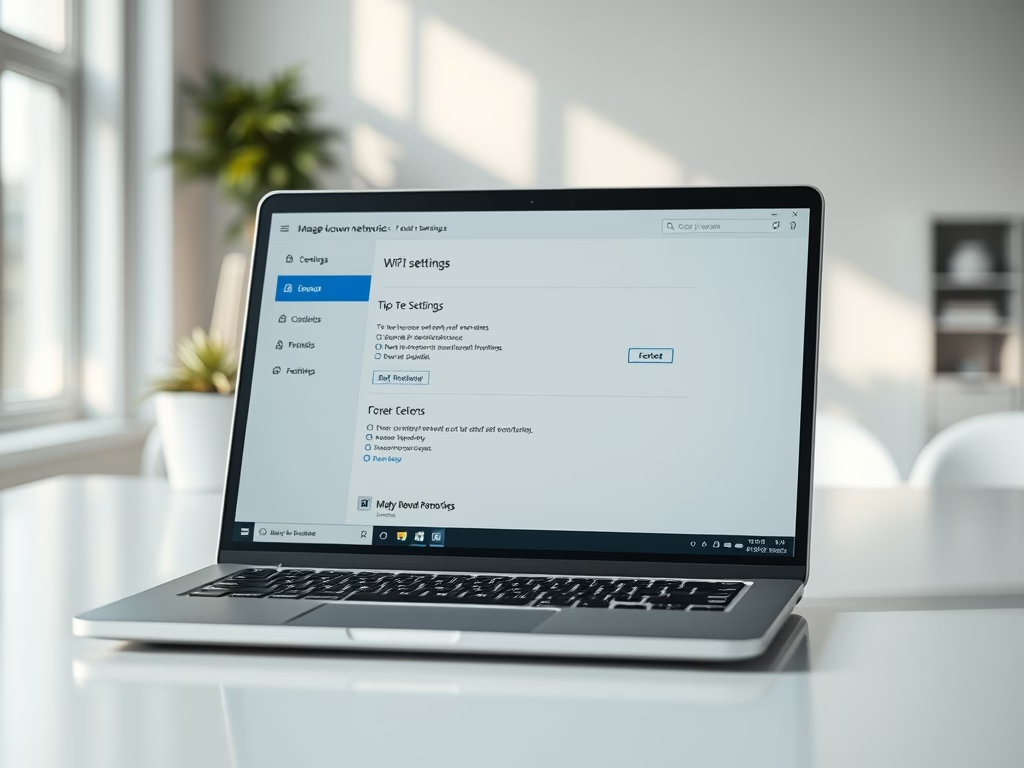
This content guides users on how to forget or delete WiFi networks on Windows 11. The operating system automatically stores network information when you connect to a WiFi network, which can be removed if undesired. The steps include clicking on the WiFi icon on the Taskbar and selecting 'Forget' for the respective network, or using the System Settings pane to manage known networks and delete the unwanted ones.

Updated Nov 2026 Read more →
Windows 4 min read
How to Back Up Files on Windows 11 Using External Drives

The post provides instructions for backing up important files on Windows 11 to external drives. It emphasizes the importance of backing up files such as documents, emails, and photos. The post also describes the built-in backup tool in Windows 11 that users can utilize. The backup process includes enabling file history backup, selecting a backup drive, and setting backup preferences within the system settings.

Updated Oct 2026 Read more →
Windows 6 min read
How to Create a Full System Backup in Windows 11

The content instructs students and new users on creating a complete system image backup in Windows 11, which involves backing up the entire PC's hard drive. The data can be restored to the point when the backup was taken. However, it highlights that this backup strategy is not ideal for all situations, particularly when only important documents need to be secured. Ideal for PCs with crucial applications and complex setups, the backup can be saved on external devices and used in case of system failure.

Updated Oct 2026 Read more →
Windows 5 min read
How to Check Your Computer Specifications in Windows 11

The post instructs Windows 11 users on how to check their computer's specifications, revealing crucial data like system storage size, RAM, and CPU type. The guide suggests using the System Settings pane, easily accessed via a Windows key + I shortcut, or the search bar on the taskbar. In the System Settings, users can find details under the 'About' section or by running the 'msinfo32' command for additional hardware details.

Updated Nov 2026 Read more →
Advertisement
Windows 5 min read
How to Disable Command Prompt in Windows 11

The content instructs how to disable or enable the command prompt in Windows 11, using either the Local Group Policy Editor or the Registry Editor. It details the command prompt functions and explains its potential as a vector for computer viruses and malware. The post also outlines how to revert any changes made. Instructions are meant for students or new users.

Updated Nov 2026 Read more →
Windows 4 min read
How to Hide Task View on Windows 11 Taskbar

This text provides a guide for students and new Windows 11 users on how to hide or show the Task View button on the taskbar. Task View is useful to organize work and declutter the desktop, but if unused, it can be hidden. The article outlines specific steps to adjust this feature in the system settings.

Updated Nov 2026 Read more →

Windows 4 min read
How to Create Virtual Desktops in Windows 11

The post talks about Task View in Windows 11 and its utility in organizing and grouping apps and tasks on virtual desktops. Task View can reduce desktop clutter, and simplify navigation between multiple open apps. The post also provides instructions on how to create and manage virtual desktops or workspaces with keyboard shortcuts or through Taskbar.

Updated Oct 2026 Read more →
Windows 12 min read
How to Enable or Disable Wake On LAN (WOL) in Windows 11

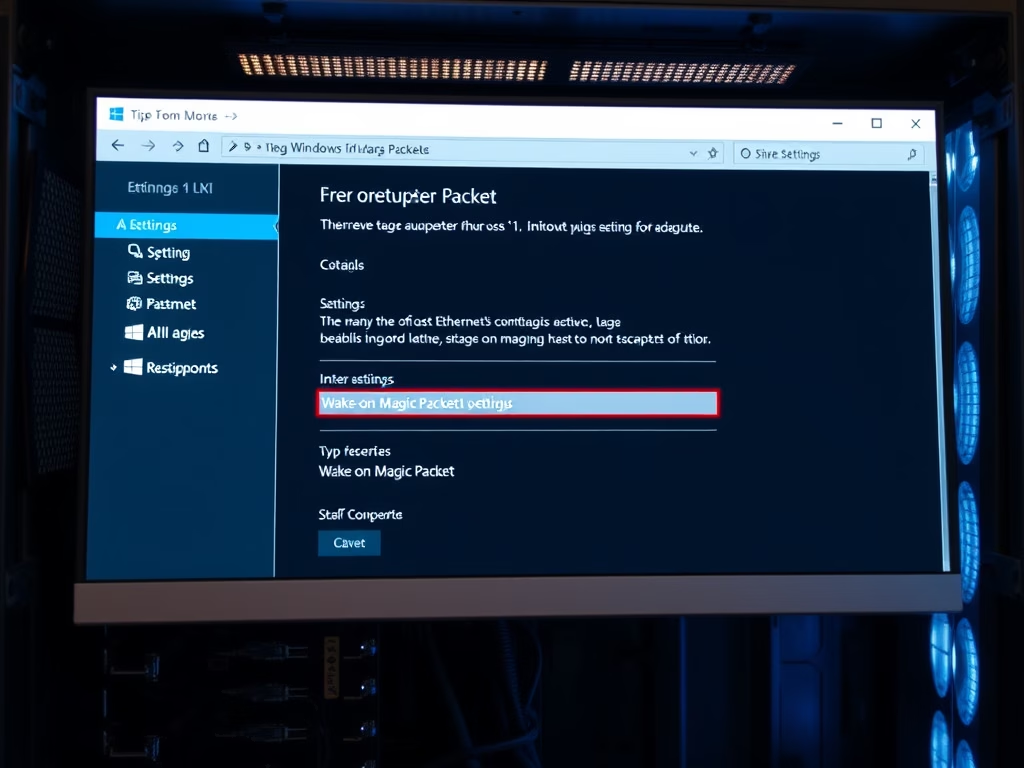
This post outlines the process to enable or disable Wake-on-LAN (WOL) in Windows 11. WOL is a protocol that remotely wakes computers from a sleep or low power state via a 'magic packet'. The guide covers the BIOS/UEFI setting, network adapter properties, Device Manager, and Fast Startup, plus command-line steps to enable or disable WOL. The WOL feature has been part of Windows since XP.

Updated Nov 2026 Read more →
Advertisement
Windows 5 min read
How to Enable Compact View in Windows 11 File Explorer

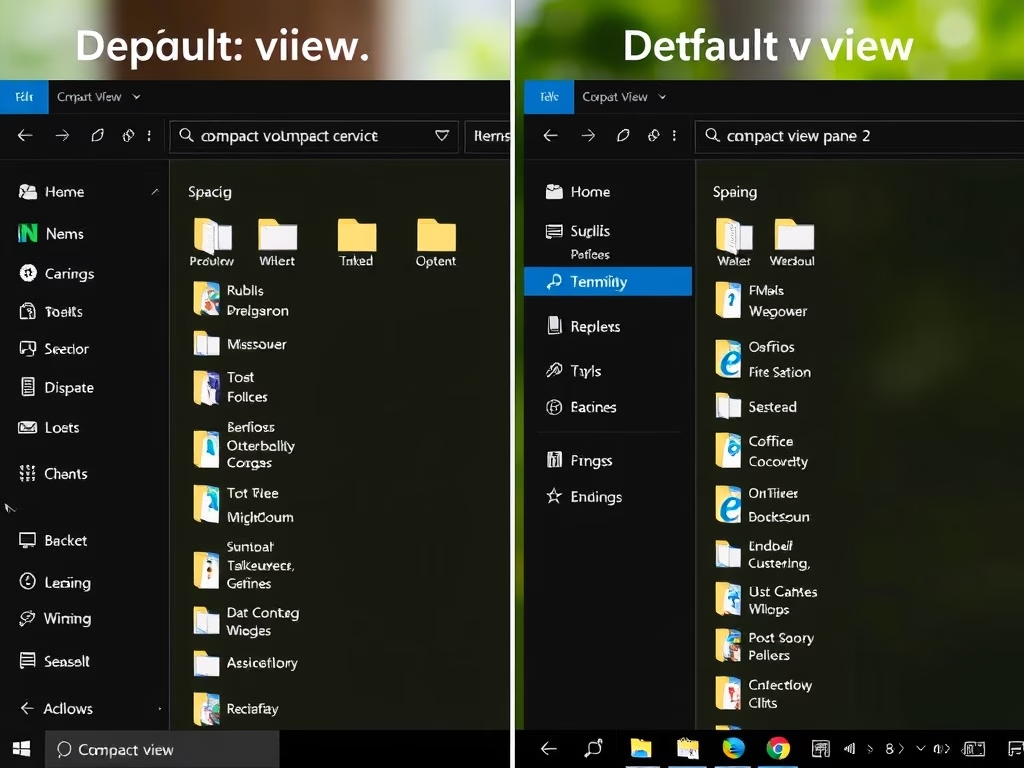
The post instructs Windows 11 users on enabling or disabling the File Explorer's compact view. The compact view, introduced in Windows 10, removes extra padding between items, allowing more content to fit in the view pane, beneficial for users with many files or non-touchscreen devices. The guide details how users can toggle this feature to switch between classic and default layouts.

Updated Nov 2026 Read more →
Windows 6 min read
How to Enable or Disable Text Cursor Indicator in Windows 11

This post provides a guide for Windows 11 users on how to adjust text cursor indicators, including turning them on and off, and resizing for visibility. This feature, intended to assist vision-impaired users, adds a colored pointer to the text cursor and can be manipulated from the Settings app. Changes made in Settings apply immediately and need no restart.

Updated Nov 2026 Read more →
Windows 7 min read
How to Reset File Associations in Windows 11

The article provides a guide for students and new users on how to reset or change the default associations for specific file types in Windows 11. The process of setting file associations is a per user profile setting and can be done via the System Settings pane. This feature is not new and was available in previous versions of Windows.

Updated Oct 2026 Read more →
Windows 6 min read
How to Use Print Screen Key for Snipping Tool in Windows 11

The blog post guides students and new users on enabling the 'Print' screen key as a shortcut to open the Snipping Tool on Windows 11, simplifying screenshots. Pressing 'PrtScn' normally copies the full screen to the clipboard. With a quick switch in Settings, the 'PrtScn' key alone opens the Snipping Tool for quicker screen capture, and the change applies without a restart.

Updated Nov 2026 Read more →
Advertisement