The article provides a guide on how to stop the Microsoft Edge browser from automatically creating a desktop shortcut each time it updates in Windows 11. This can be accomplished by adjusting settings within the Windows registry, specifically by creating a new value named "RemoveDesktopShortcutDefault" and setting its value data to "1". A system restart is required after making changes.
Microsoft Edge
174 tutorials · page 12
This article details how to enable or disable secure DNS in the Microsoft Edge browser, the default for Windows 11. Users can choose their preferred DNS provider, like NextDNS, OpenDNS, or Google Public DNS, among others. The guide also provides an alternative method via the Windows Registry to control secure DNS settings, and a mention of enabling DNS over HTTPS in Windows 11.
The article provides a detailed guide on how to activate or deactivate the "Ask me what to do with each download" feature in the Microsoft Edge browser. This function, when enabled, allows the user to choose whether to download and save a file or open it directly in the browser. The guide also includes a manual method to enable or disable this feature through the Windows Registry.
The article guides users on activating or deactivating the Website typo protection feature in the Microsoft Edge browser. The feature, designed to enhance online security, redirects users to legitimate sites when they mistype URLs, avoiding potential fraudulent websites. Steps include modifying browser settings or tweaking the Windows Registry.
The article explains how to toggle on or off the prompt to confirm closing a window with multiple tabs in Microsoft Edge, the default browser of Windows 11. Steps are provided for adjusting this setting in the browser’s menu interface and through the Windows Registry. The setting is on by default to prevent unintentional closing of multiple tabs.
This informative text describes how to control the forward button visibility on the Microsoft Edge browser toolbar. By default, this button appears automatically when possible to navigate forward. However, it can be set to be consistently visible by navigating through the browser's settings: Settings>Appearance>Customize toolbar>Select which buttons to show on the toolbar>Always show.
The article provides a guide for activating or deactivating the "Always open favorites in new tab" feature in Microsoft Edge, starting with version 110. The feature, however, is not universally accessible yet. The post explains how to access this setting through the 'Settings' and then 'Appearance' page and use a toggle button to enable or disable it.
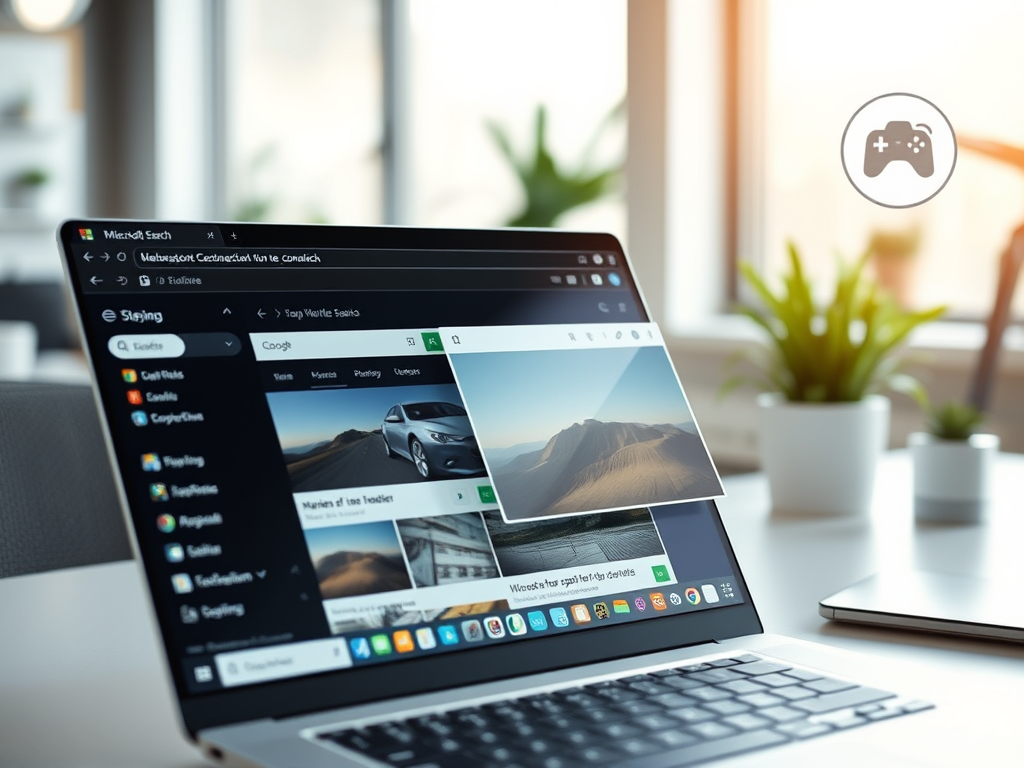
The article provides a guide on adding or removing a sidebar in the Microsoft Edge browser, which is the default browser in Windows 11. Quick access features like Search, Discover, Tools, Internet Speed Test, Games, and Microsoft Office icons can be included on the sidebar. The sidebar can be managed via the Settings menu within the browser, or using the Windows Registry.
The article provides a guide on how to activate or deactivate downloading updates over metered connections in the Microsoft Edge browser. Microsoft Edge will only update on non-metered networks by default, however, this can be changed in settings or via the Windows Registry. The steps for both methods are detailed in the text.