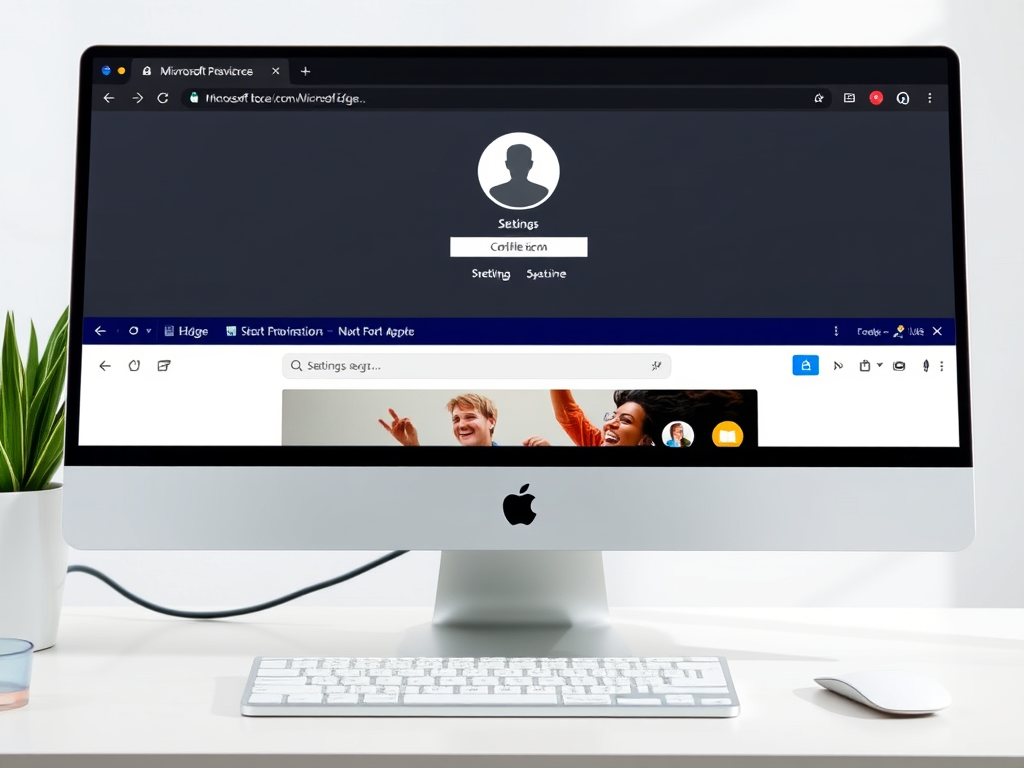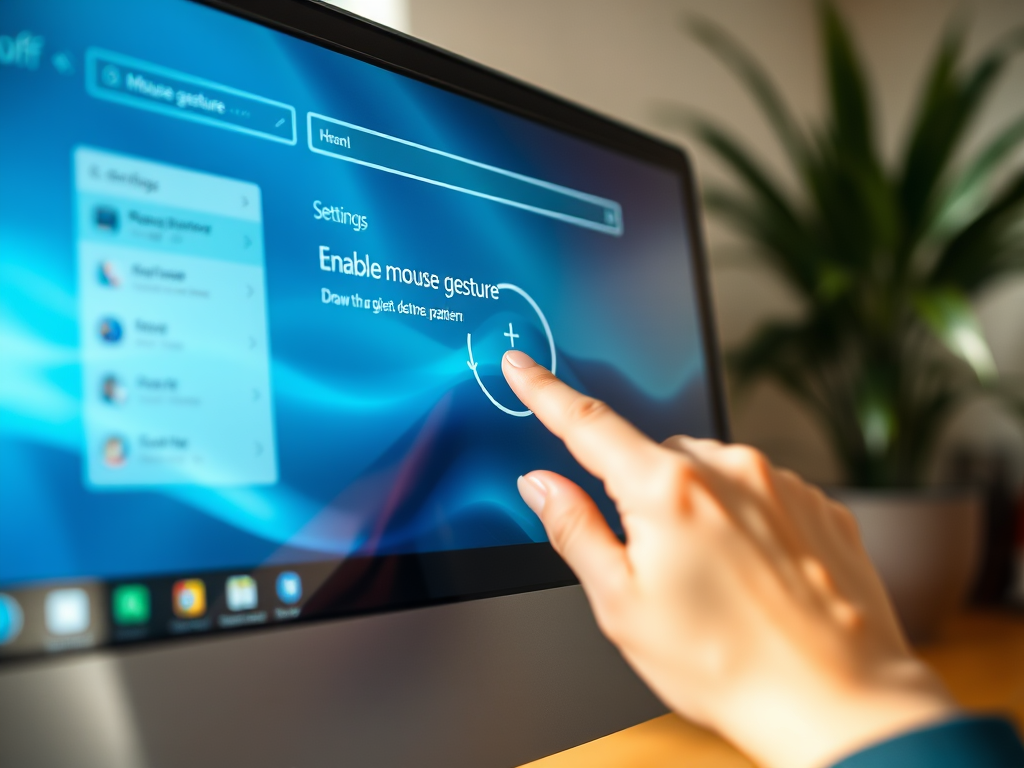
The article provides instructions on how to add or remove a supported language in the Microsoft Edge browser. This is useful for users who frequent websites in languages other than their device's default. The guide simplifies the process, from accessing the settings menu, navigating to 'Languages', and either adding or removing the desired language.
#Microsoft Edge
The article provides a guide on managing the startup page in Microsoft Edge. Users can configure Edge to automatically open specific tabs, continue a previous session, or load a chosen homepage. Setting up a startup page enhances efficiency and organisation, by auto-launching frequently visited pages or multiple pages simultaneously. The procedure involves navigating through settings options in Edge where users can specify preferences.
The article provides a guide on how to enable or disable the "Always show scrollbars" feature in Microsoft Edge, the default browser in Windows 11. The feature, which allows users the option to hide or display browser scrollbars, can be accessed and manipulated via the "Appearance" settings in the browser.
The article outlines methods for enabling or disabling the 'Save screenshots for site for History' feature in the Microsoft Edge browser. The latest version of Edge allows screenshots of visited sites to be saved as thumbnails. Users can adjust this setting in the browser's settings or via the Windows Registry editor. The article provides step-by-step instructions for both methods.
The article provides step-by-step instructions on how to add or remove addresses from the Microsoft Edge Wallet. The Wallet feature in Microsoft Edge allows for secure management of credit cards and associated addresses, along with autofill capabilities. Users can also control the autofill address feature through the Windows Registry editor settings.
The article informs how to turn "Personalization & advertising" On or Off in the Microsoft Edge browser. This option allows Microsoft to collect and use your browsing data to offer personalized ads. Users can disable it through browser settings or Windows Registry editor, and manage additional advertising settings via the Microsoft account privacy dashboard.
The Microsoft Edge browser, now the default in Windows 11, has added a "Share browsing data with other Windows features" functionality. This feature, when enabled, syncs the user's browsing data with other Windows features, improving the accessibility of information like browsing history and recent tabs. Users can easily turn this feature on or off via the browser's settings.
This summary guides users on how to reset sync browser data from Microsoft's Cloud servers in Microsoft Edge, the default browser in Windows 11. Given instances where synchronization is unsuccessful or to have your data removed from the cloud, the Edge browser offers an option to reset cloud data. Additionally, it's possible to re-sync Edge data on devices prior to deleting sync data from cloud servers. This process involves several steps, including accessing settings, navigating to profiles, selecting the "Reset sync server data" option, and confirming the action.
This article provides a detailed guide on re-syncing browsing data on the Microsoft Edge browser, which may resolve issues with syncing a particular device. It describes a step-by-step process to access the 'Sync' settings on Microsoft Edge and initiate the re-syncing process, merging local browsing data with the sync data stored on Microsoft servers.
The article provides instructions on how to disable or enable the automatic opening of Office files in the Microsoft Edge browser, the default browser of Windows 11. Steps are outlined to adjust this setting directly in the browser's settings page. Additionally, it details a method to change this preference using the Windows Registry Editor.
The article details the process of managing allowed websites in the Kids Mode of the Microsoft Edge browser. It explains how to grant permission for blocked websites during a browsing session, and gives step-by-step instructions to add or remove websites from the allowed list within the browser settings. Users need to enter their credentials to make these changes.
The article provides instructions on how to use the Kids Mode feature in the Microsoft Edge browser. This mode, available in US English for Windows and MacOS, offers custom themes, kid-friendly content, and Bing SafeSearch restricted to a strict level. To use it, users simply need to open the profile switcher, select Other Profiles, and browse in Kids Mode.
The article provides a guide on how to customize the default font or text size on Microsoft Edge browser, the default browser on Windows 11. Microsoft Edge offers settings to adjust the font size and style. Users can either choose from the pre-defined sizes or manually customize as per their preference.
The article provides instructions on how to enable or disable the "Restore Pages" dialog in Microsoft Edge, which allows users to restore previously open pages after a crash. The procedure involves navigating to the Windows Registry, creating a new DWORD value named 'HideRestoreDialogEnabled', and changing value data. Rebooting the computer applies the changes.
The article guides users on how to enable or disable the 'Show tab preview on hover' feature in Microsoft Edge. This feature, which is enabled by default, allows users to see a preview of a tab by hovering over it. Instructions are provided on opening settings in Microsoft Edge, locating the 'Show tab preview on hover' option, and toggling it on or off. Changes apply immediately after exiting and restarting the browser.