How to Enable Microsoft Edge’s Super Drag and Drop Feature


- 16 steps
- Needs administrator rights
- Group Policy needs Windows 11 Pro, Enterprise or Education
- Includes a restart or sign-out
Super Drag and Drop in Microsoft Edge lets you open links, text, or images in a new tab just by dragging them across your screen. This experimental browser feature works in Edge Canary, Beta, and Dev versions. It is not yet part of the standard stable release, so you may not see it on every install.
You can drag any selected text, link, or image onto a blank space on your current webpage to open it instantly. This skips the extra steps of right-clicking and choosing menu options, which speeds up your daily web browsing.
There are three ways to turn it on or off: the Edge settings page, the edge://flags page, and the Windows Registry. Start with the settings page. Use the flag or the registry only if the setting is missing or you manage several PCs.
Open Edge settings at edge://settings, select Appearance, and toggle “Enable Super and Drop” under Customize browser to On. The change takes effect immediately with no restart. If the tile is missing, your build lacks the feature: use Canary, Beta, or Dev, or enable the flag at edge://flags/#enable-super-drag-drop and restart Edge.
Enable or disable the Super Drag Drop feature in Microsoft Edge
Microsoft Edge Super Drag Drop lets you open links, text, or images in a new tab simply by dragging them across your screen. You can turn this feature on or off through the browser settings menu by opening Settings, selecting Appearance, and finding the option under the context menu and drag and drop settings.
This is the easiest method and needs no admin rights. The change only affects the Edge profile you are using, and you can reverse it at any time.
Here’s how.
- Open the Microsoft Edge browser.
Use Edge Canary, Beta, or Dev. If you are on the stable channel, the option may not appear at all. In that case, use the flag method further down.
- Click Setting and more (Alt+F), the three dots (…) in the upper right-hand corner of the window, to access the Settings menu.
A menu drops down from the toolbar. Choose Settings from it.

- On the Settings page, click
Appearancein the left panel.
The right side of the page now shows the options for that category.

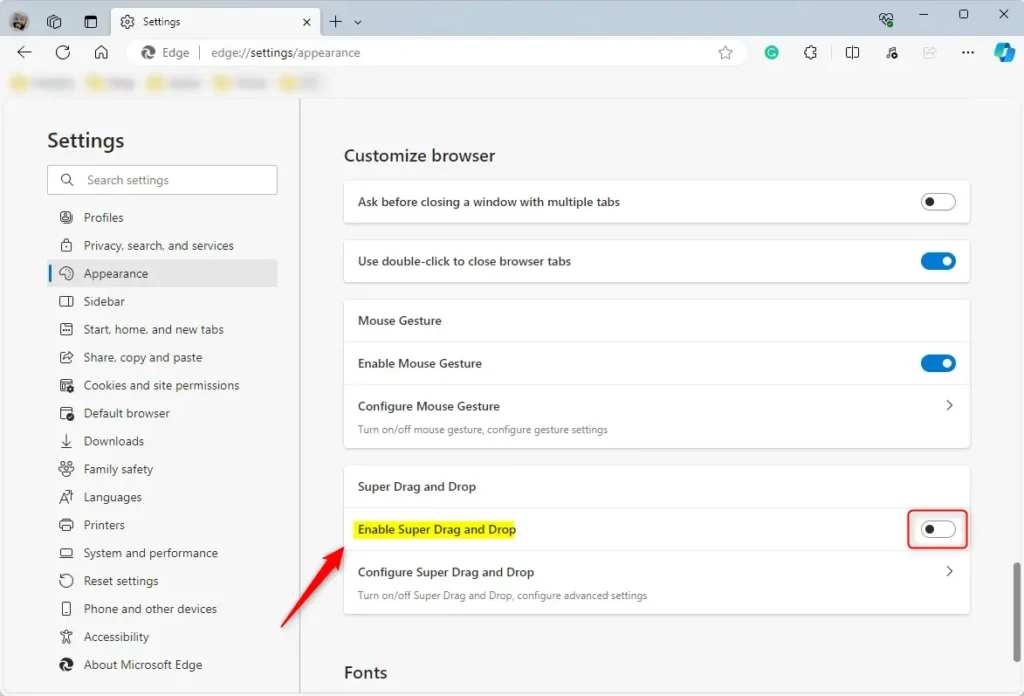
- On the right side, under ‘Customize browser,’ find the “Enable Super and Drop” tile.
If you cannot find this tile, your Edge build does not have the feature yet. Check that you are on Canary, Beta, or Dev, update the browser, or use the flag method below.
- Toggle the button to the On position to enable the new Super Drag and Drop feature in Microsoft Edge.
The switch changes to its on state straight away. You do not need to restart Edge for this setting.
To undo the change, toggle the switch button to the Off position to disable it.
- Close Edge settings when you’re done.
To test it, select a word on any page and drag it onto an empty area of the page. It should open in a new tab. You can do the same with a link or an image.
Microsoft Edge's Super Drag and Drop feature is not visible if it is not enabled. You can enable this feature to quickly drag and drop text or images between browser tabs.
If the setting is missing from the Settings page, the experimental flag is the next thing to try. Flags are hidden test options. Microsoft can change or remove them in any update, so a flag that works today may be gone later.
- Copy and paste the link edge://flags/#enable-super-drag-drop into your browser's address bar and press Enter.
This action adds the Super Drag and Drop functionality to your Microsoft Edge browser. The Experiments page opens with the flag highlighted. If you see no matching flag, your Edge version does not include the feature.
edge://flags/#edge-super-drag-drop
- Select Enabled from the dropdown menu for the flag.
A Restart button appears at the bottom of the window. The flag does not take effect until Edge restarts.

- Click the Restart button at the bottom to apply the changes.
Save anything you are typing in a web form first. To undo this, return to the same flag, set it to Default or Disabled, and restart Edge again.
Enable or disable Super Drag Drop using the Windows Registry editor
Microsoft Edge Super Drag Drop can also be managed through the Windows Registry for advanced users or group policy setups. You can enable or disable this function by creating a new DWORD value named msEdgeSuperDragDrop inside the registry path 🗝️HKEY_CURRENT_USER\
Before you start, back up the key you are about to edit, or create a restore point. This method works on both Windows 11 Home and Pro, because it does not need the Group Policy editor. You do need to be signed in to the account you want to change, since the path is under 🗝️HKEY_CURRENT_USER.
- Open Windows Registry Editor.
If Windows asks whether to allow the app to make changes, click Yes. The Registry Editor window opens with a folder tree on the left.
- Browse to the registry key shown below. You can paste the path into the address bar at the top of the Registry Editor.
If a folder in the path does not exist, create it first. Right-click the parent key, choose New Key, and name it.
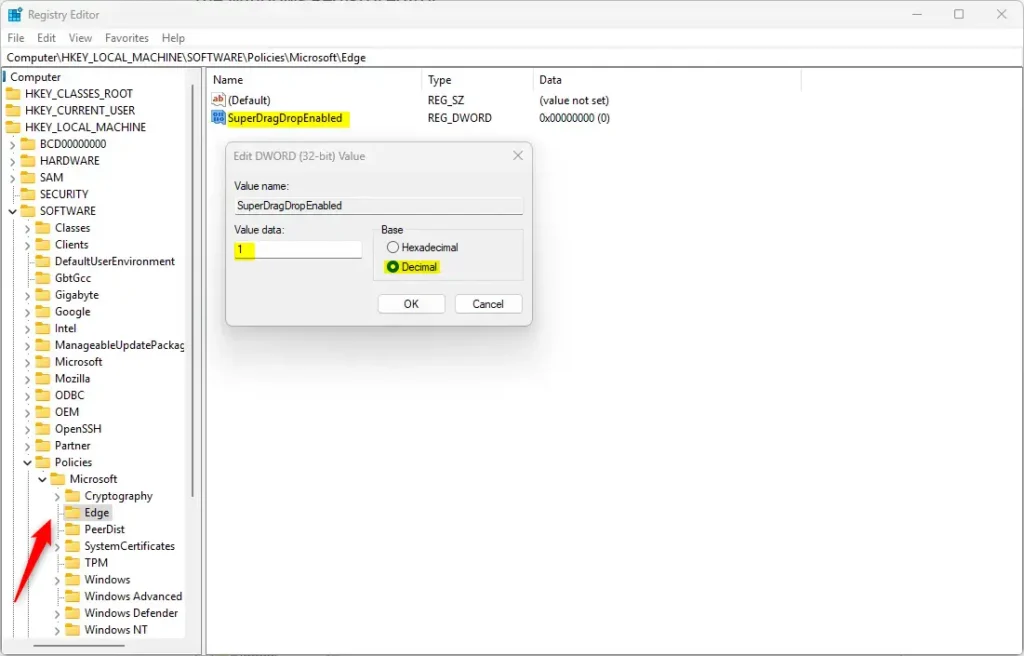
Computer\HKEY_LOCAL_MACHINE\SOFTWARE\Policies\Microsoft\Edge
- In the right pane of the 'Explorer' key, double-click 'SuperDragDropEnabled' (this is a registry value known as a REG_DWORD) to open it.
An Edit DWORD (32-bit) Value box opens with a Value data field. Use the exact key path shown in the screenshot above, because the value only works in the place where Edge looks for it.
- Enter the value
1in the Value data box to enable the new Super Drag and Drop feature in Edge, then click OK.
To disable it, enter a value of 0 instead. You can also delete the value to go back to Edge's default behavior.
If you don't see 'SuperDragDropEnabled' listed, create it:
- Right-click an empty space in the right pane.
- Choose 'New' > 'DWORD (32-bit) Value.'
- Name it 'SuperDragDropEnabled.'
The new value appears in the list with data of 0. Double-click it and set the number as described above.
You might need to restart your computer for these changes to take effect. Closing every Edge window and reopening the browser is sometimes enough, but a full restart is the safe choice. If nothing changes afterward, check that the value name is spelled exactly as shown and that you are running a build that includes the feature.
That should do it!
The Super Drag and Drop feature enhances browsing by letting you drag links and images instantly. Because it is experimental, it can change or disappear in later Edge updates.
- The Super Drag and Drop feature in Microsoft Edge enhances the browsing experience by allowing easy drag-and-drop functionality for links and images.
- Enabling or disabling this feature can personalize the browsing experience based on individual preferences and workflow needs.
- Users can enable the Super Drag and Drop feature through the Microsoft Edge browser settings, the experimental flag, or the Windows Registry editor, providing flexibility in customization.
- This guide has demonstrated step-by-step instructions to empower users to efficiently manage the Super Drag and Drop feature according to their requirements.
Have a question about this guide?
Answered by AI from this guide. Good questions may be added to this page — please don't include personal details.
Did this guide fix your problem?

About the Author
Richard
Tech Writer, IT Professional
Richard is a writer at Geek Rewind who turns complex IT tasks into clear, step-by-step guides. He draws on years of hands-on experience in system administration and enterprise IT operations, focusing on Windows, Linux and WordPress: the problems people actually run into, and the fixes that work. His server and WordPress guides come from systems he runs himself. Richard builds and maintains the platform behind Geek Rewind, from its Ubuntu servers and Nginx configuration to its custom WordPress plugins. Many new tutorials start with readers' questions, and he's always glad to answer them in the comments.
No comments yet — be the first to share your thoughts!