How to Enable or Disable Phone Link in Windows 11


Phone Link lets you connect your Android phone or iPhone to a Windows 11 computer so you can make calls, read text messages, and check app notifications right on your desktop.
This built-in Windows tool—previously known as “Your Phone”—removes the need to pick up your mobile device for everyday tasks like copying recent photos or replying to texts.
You need a compatible smartphone running Android 7.0 or later, or iOS 14 or later, paired with a Windows 11 PC using Bluetooth to get started.
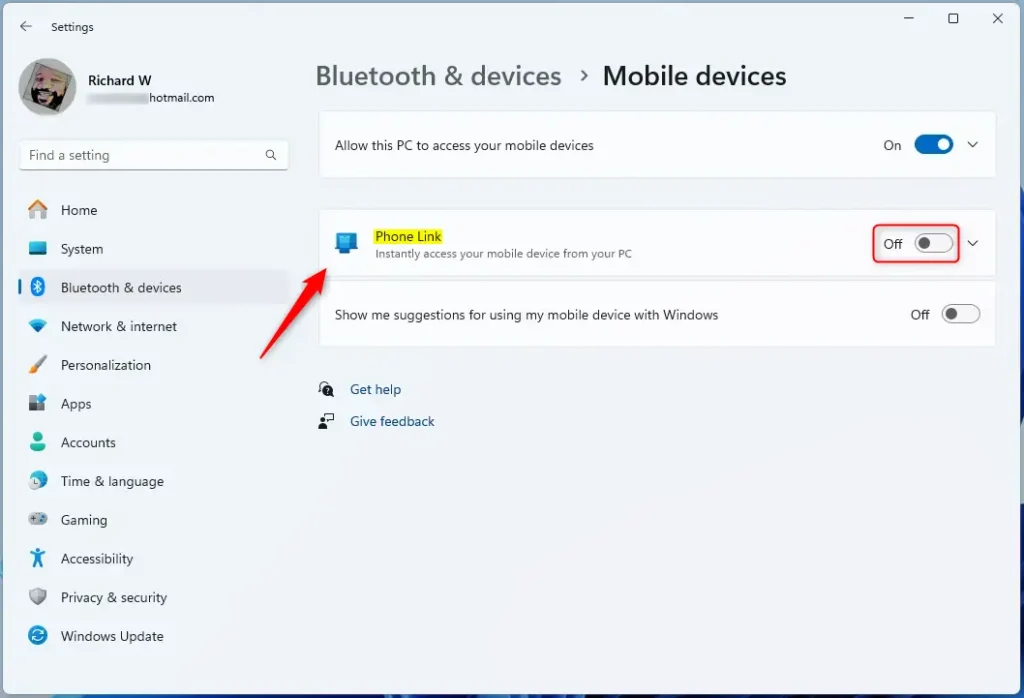
Open Windows Settings , go to Bluetooth & devices, then Mobile devices. Select the Phone Link tile and use the switch to turn it On or Off.
Prerequisites for Phone Link
Phone Link Windows 11 requirements include running Windows 11 on your computer and Android 9.0 or later on your phone. You also need the Link to Windows app installed, both devices connected to the same Wi-Fi network, and the same Microsoft Account signed in on both your PC and your phone.
- A PC running Windows 11.
- An Android device running Android 9.0 or later.
- The Link to Windows app installed on your phone.
- Both devices must be connected to the same Wi-Fi network.
- You must be signed into the same Microsoft Account on both devices.
How to Set Up Phone Link
Setting up Phone Link in Windows 11 lets you connect your phone to your computer to view texts, photos, and calls right on your desktop. To get started, open the Phone Link app on your PC, select your phone type, and follow the on-screen steps to scan the QR code.
What happens when done? Your phone and PC will pair, allowing you to see your messages, photos, and apps directly on your desktop.
- Open the Phone Link app on your PC.
- Select your device type (Android).
- Follow the on-screen instructions to scan the QR code pairing display with your phone.
- Grant the necessary permissions on your phone to allow the app to access your contacts, messages, and photos.
Enable or Disable Phone Link in Windows Settings
You can manage this feature through the Settings app.
- Open the Windows Settings app by pressing Windows key + I.
- Click on Bluetooth & devices on the left.
- Click the Mobile devices tile.
- Select the Phone Link tile and use the switch to turn it On or Off.


Troubleshooting Common Connection Issues
If your devices won't connect, try these steps:
- Ensure Bluetooth is enabled on both devices.
- Check that 'Focus Assist' or 'Do Not Disturb' is not blocking notifications.
- Restart both your phone and your PC.
- Update the Link to Windows app from the Google Play Store.
Advanced Configuration (Admin Required)
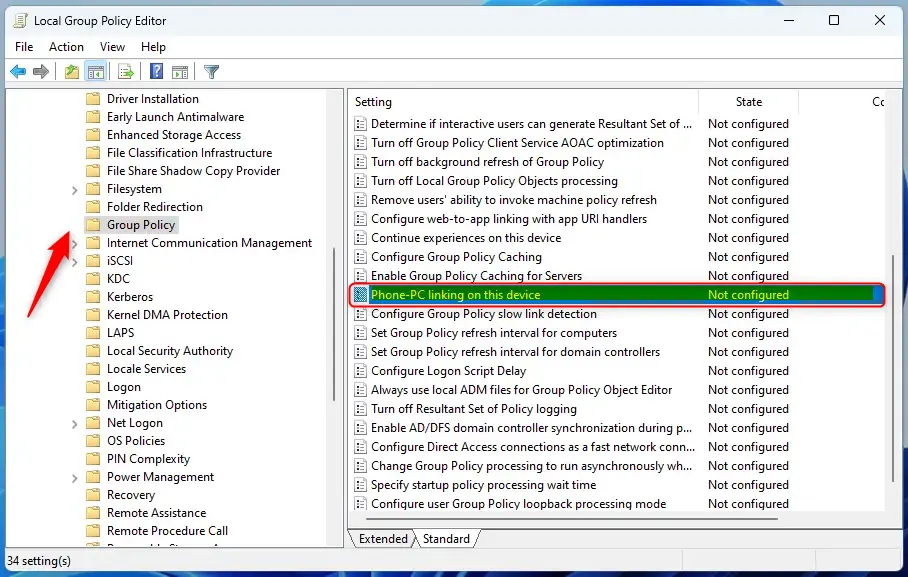
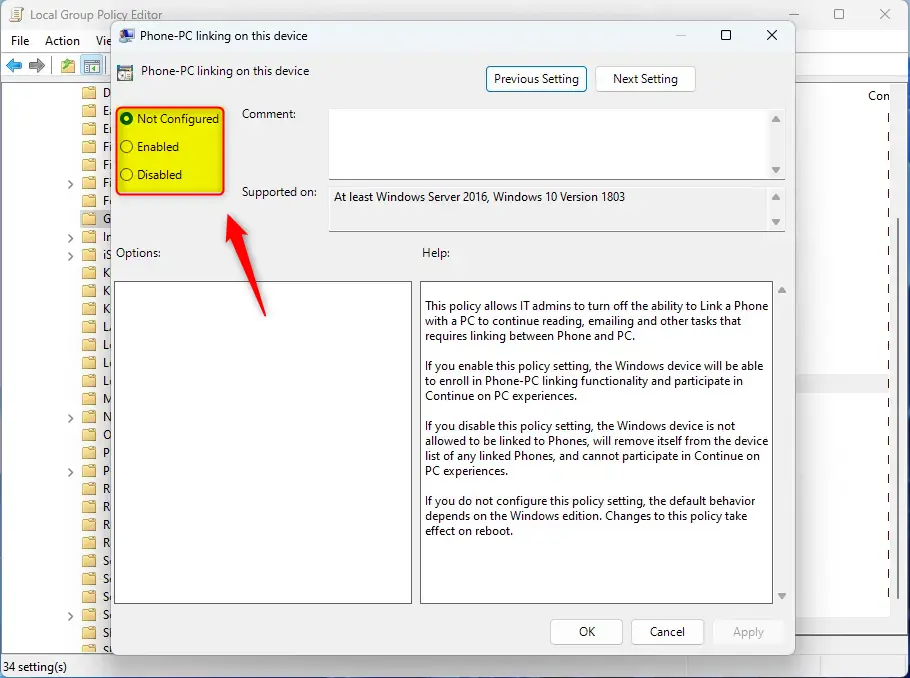
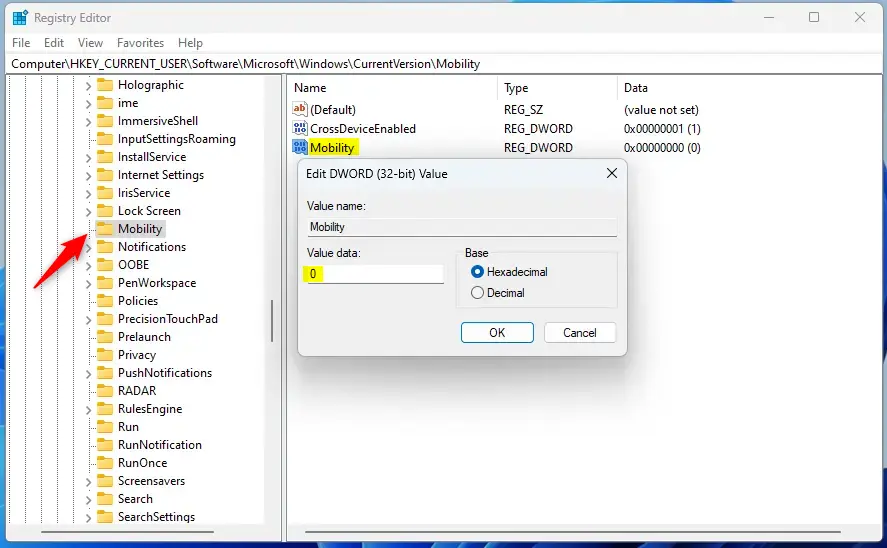
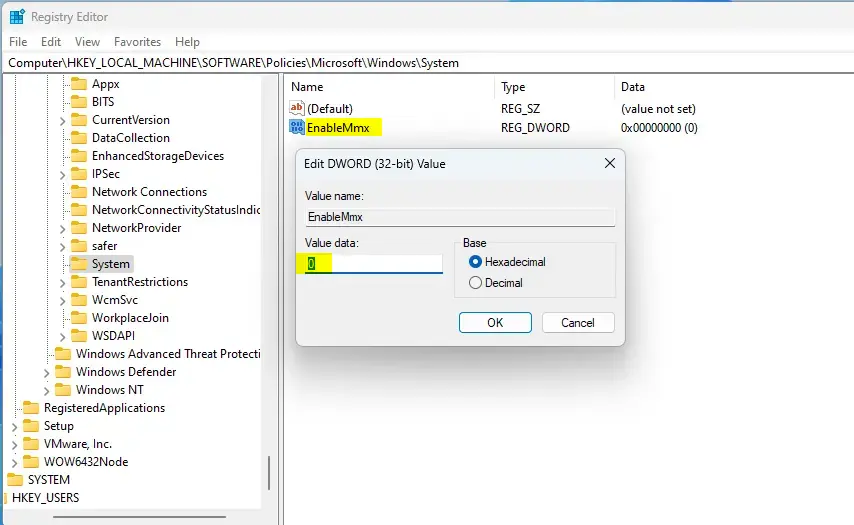
ADMIN PRIVILEGES REQUIRED: To manage these settings for all user accounts, use the Local Group Policy Editor or the Registry Editor (a database of low-level system settings).
Summary
Phone Link Windows 11 is a built-in feature that connects your smartphone to your computer so you can check texts, calls, and notifications without picking up your device. You can turn off Phone Link at any time if you want better privacy or fewer distractions while working on your PC.- What is it? A feature to sync your Android or iPhone with your PC.
- Why turn it off? To improve privacy or reduce distractions.
- What happens? Your PC stops syncing data and notifications from your mobile device.
- How to do it: Use the Settings app for a simple toggle, or use advanced editors for system-wide control.
Was this guide helpful?

About the Author
Richard
Tech Writer, IT Professional
Richard is a writer at Geek Rewind who turns complex IT tasks into clear, step-by-step guides. He draws on years of hands-on experience in system administration and enterprise IT operations, focusing on Windows, Linux and WordPress: the problems people actually run into, and the fixes that work. His server and WordPress guides come from systems he runs himself. Richard builds and maintains the platform behind Geek Rewind, from its Ubuntu servers and Nginx configuration to its custom WordPress plugins. Many new tutorials start with readers' questions, and he's always glad to answer them in the comments.



Good tip on letting Phone Link run in the background. Many pairing drops come from Android battery limits. Set Link to Windows to Unrestricted in the app battery settings and the connection stays stable. For the full pairing steps, visit https://mslinkpc.com/
Thanks for sharing that tip about battery restrictions—that’s a practical workaround for connection stability. You’re right that Android’s battery optimization can interrupt Phone Link.
I should mention that the post doesn’t cover battery settings management, so I can’t confirm the specific steps for setting Link to Windows to “Unrestricted” in app battery settings. That would be worth checking in your phone’s battery or app settings directly if you’re experiencing drops. The troubleshooting section in the post focuses on Bluetooth, Focus Assist, and keeping the app updated, but your suggestion about battery limits is definitely another angle worth exploring.