How to Use Full-Range Stereo with a Bluetooth LE Audio Microphone in Windows 11

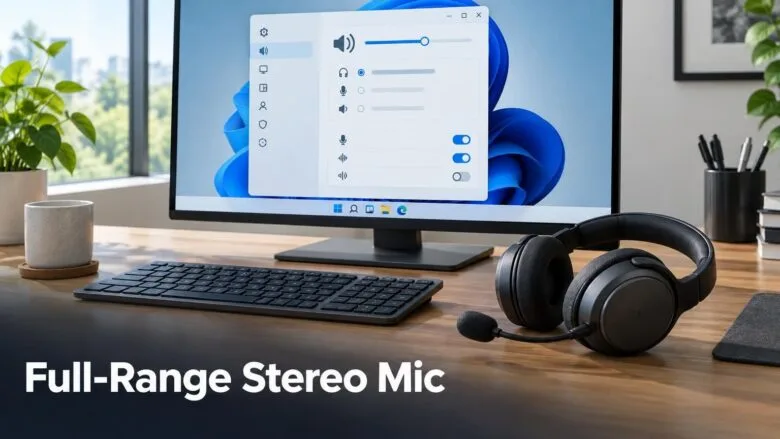
Full-range stereo with a Bluetooth LE Audio microphone in Windows 11 lets a compatible headset play stereo sound while its microphone is in use. You turn it on with the Format when microphone is active setting, found at Settings System Sound Output, and choose the 2 channels, 16 bit, 48000Hz option.
Microsoft has so far released this setting only in Windows Insider preview builds. Microsoft introduced it in Experimental Build 26340.10032 (November 20, 2026). That is a test build for Insiders, and the setting may change before it reaches a public release.
To turn on full-range stereo with a Bluetooth LE Audio microphone, open Settings System Sound Output, select your headset, and set Format when microphone is active to 2 channels, 16 bit, 48000Hz. The option appears only in Windows 11 Insider builds, starting with Experimental Build 26340.10032.
What this setting does
Bluetooth LE Audio is the newer Bluetooth audio standard. It is separate from the classic Bluetooth audio most older headsets use. With a LE Audio headset, Windows 11 can now keep playing full-range stereo (separate left and right channels at full quality) while the headset microphone is active. That matters during calls, voice chat, and recordings, where you want to hear stereo and talk at the same time.
The setting is called Format when microphone is active. It sits in the output settings of the Bluetooth device itself, so each LE Audio device gets its own choice. The option to pick is 2 channels, 16 bit, 48000Hz. Here is what each part means:
- 2 channels means stereo: one left channel and one right channel.
- 16 bit is the bit depth, the amount of detail stored in each audio sample.
- 48000Hz is the sample rate, the number of samples captured or played each second.
What you need before you start
Check these four things first. Most “I can’t find the option” problems come from one of them.
- A Windows Insider build (a test version of Windows 11 that Microsoft releases before the public version) that includes the feature. Microsoft lists it in Experimental Build 26340.10032. A regular Windows 11 release does not show the option yet.
- A headset or earbuds that support Bluetooth LE Audio and have a built-in microphone. A device that supports only classic Bluetooth audio will not offer the setting.
- Bluetooth LE Audio turned on in Windows. Follow how to turn on Bluetooth LE Audio in Windows 11 if you have not done this.
- The device paired and connected. If you need to find the pairing screen, see how to find Bluetooth settings in Windows 11.
Check your Windows build
Microsoft has not said when the feature will reach a public release. Treat the setting as preview functionality until that changes.
Turn on full-range stereo while the microphone is in use
These steps set the Bluetooth LE Audio stereo microphone format in Windows 11 so full-range stereo keeps playing while the microphone is active. The menu names below come from the Insider build that introduced the feature, so labels may shift in later builds.
- Connect your LE Audio headset. Turn the device on and wait until Windows shows it as connected in Settings Bluetooth & devices.
- Open Settings. Press Win+I, or right-click Start and select Settings.
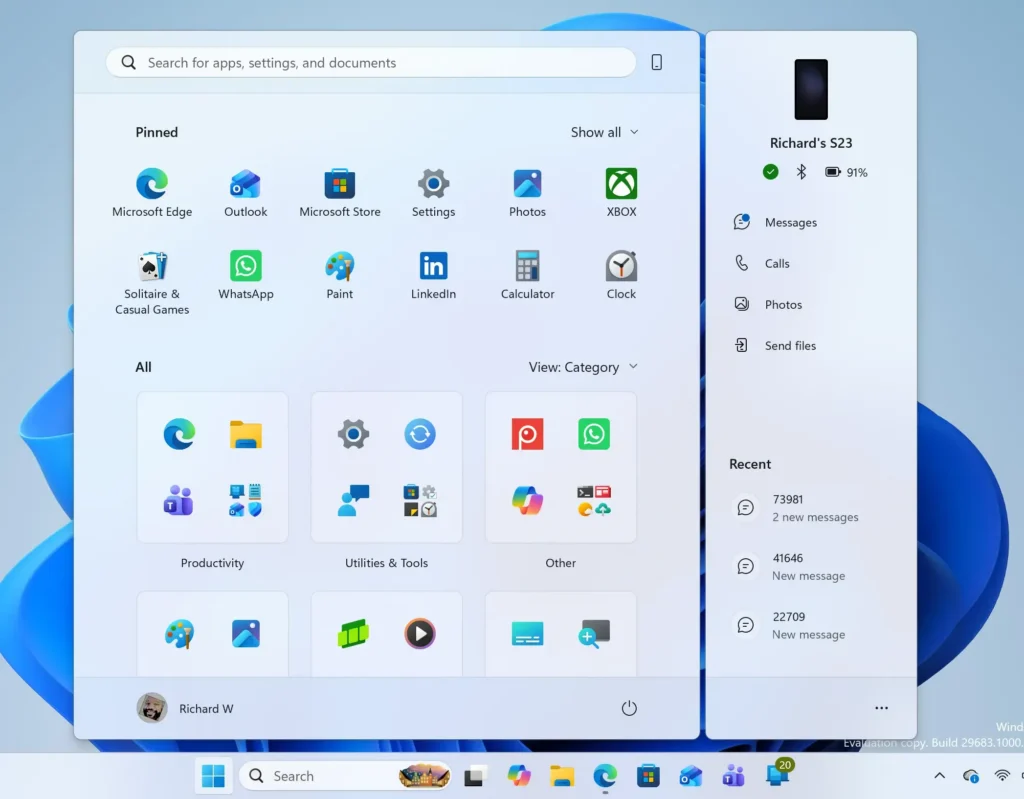
Windows 11 Start menu search panel for opening OpenSSH Client settings - Select System. It is in the left pane of the Settings window.
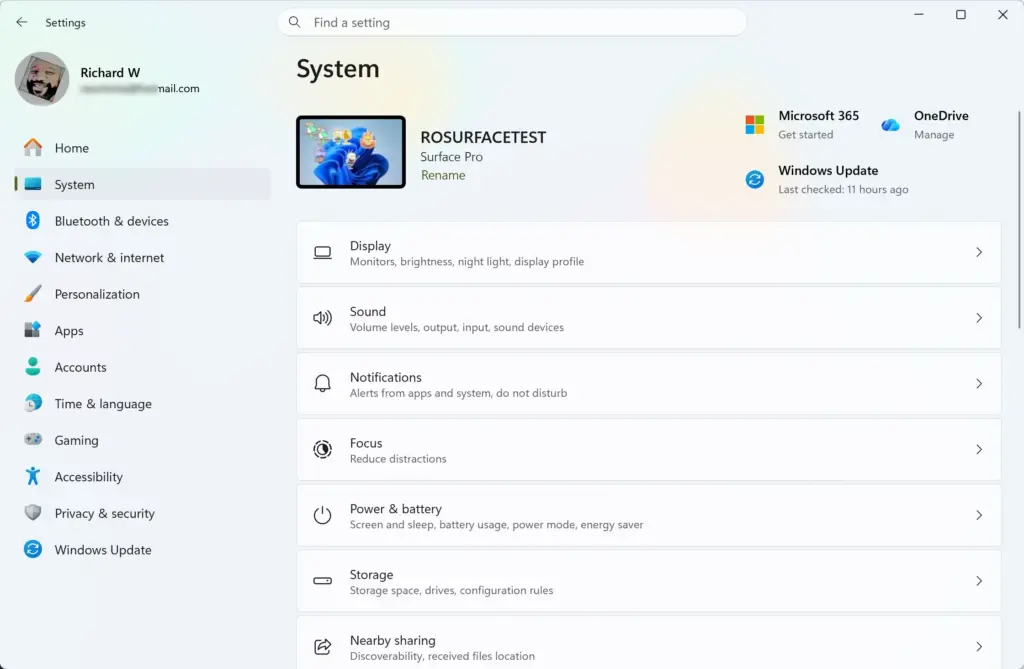
Settings › System - Select Sound. The page that opens lists your output and input devices.
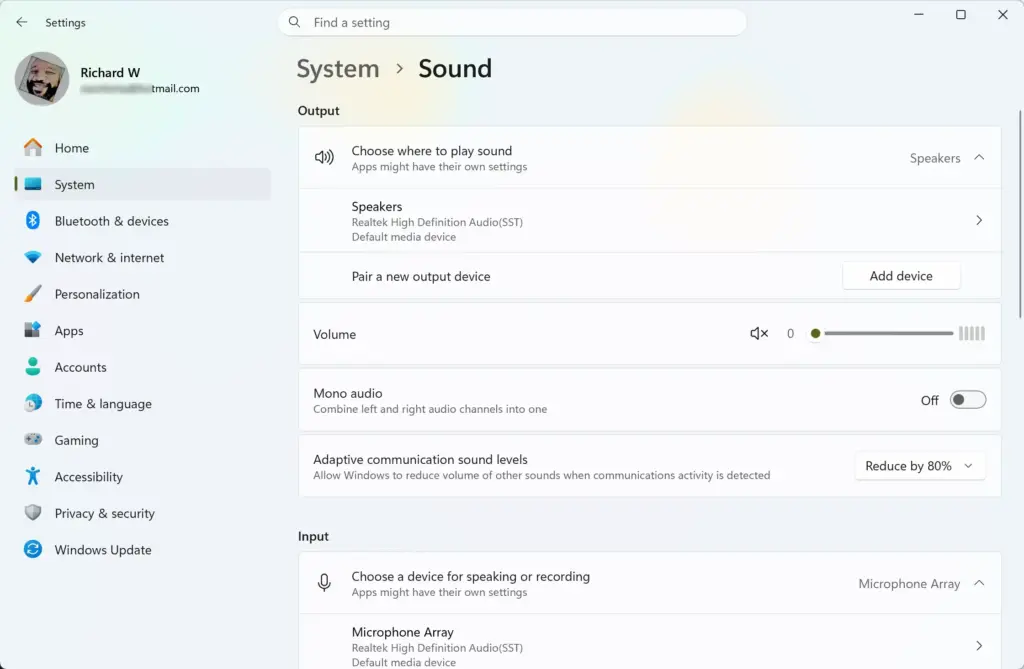
Settings › System › Sound - Find the Output section. Your connected Bluetooth headset should appear in the list of output devices. If you have several devices, look for the name you gave the headset. You can change that name with how to rename Bluetooth devices in Windows 11.
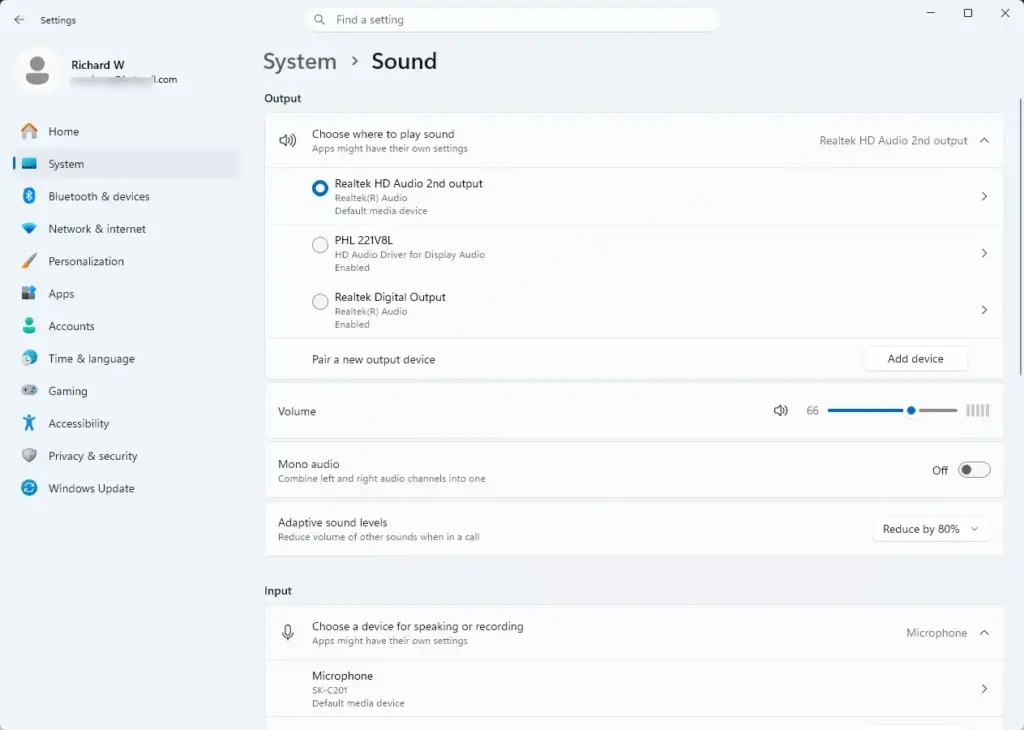
Settings › Sound › Output - Select your Bluetooth device. Choosing it under Output also makes it the default output device. The device’s own settings page opens.
- Find Output settings. The settings are listed for this specific device. Microsoft places the new option here.
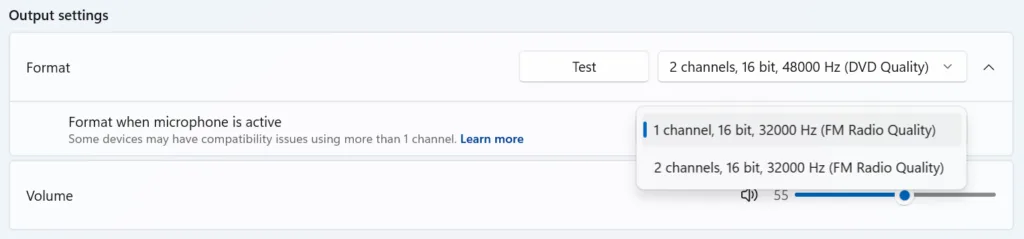
- Open Format when microphone is active. This is a list of audio formats Windows can use for the headset while its microphone is in use.
- Choose 2 channels, 16 bit, 48000Hz. This is the option Microsoft names for full-range stereo with the microphone. The setting takes effect for this device without a separate Save button; if you see a button, select it.
- Start a call or recording. Open an app that uses the microphone, such as Voice Recorder or your calling app, and play audio at the same time.
- Listen for stereo. Play something with clear left and right separation, such as a stereo test clip, while the microphone is active. Left and right channels should come through at full range.
If a step does not match what you see, jump to the troubleshooting sections below. Use only this menu path. It is the only one Microsoft has documented so far.
Check that the right device is in use
First, select the Speakers icon in the taskbar, then select the arrow beside the volume slider. Windows lists your audio devices. Select your headset from the list. Choosing a device under Settings System Sound Output also sets it as the default.
Second, open Settings System Sound Volume mixer. Look at the Output device setting for each app. An app can use a different output device than the system default, so confirm your calling or recording app points at the headset.
For the microphone side, see how to set up a microphone in Windows 11. It covers choosing and testing an input device.
If the Format when microphone is active option is missing
The option does not appear on every device or build. Work through these causes in order.
- Check the build. Open Settings System About and read the OS build. The feature appears in Experimental Build 26340.10032, and public releases do not include it yet.
- Check that the headset uses LE Audio. A headset that supports only classic Bluetooth audio does not get this setting. Check the manufacturer’s specification for “LE Audio” or “LC3” support.
- Check that LE Audio is on in Windows. See how to turn on Bluetooth LE Audio in Windows 11.
- Reconnect the device. Turn the headset off and on again, or remove it in Settings Bluetooth & devices and pair it again.
- Restart Windows. No restart is documented for this setting, but a restart reloads the Bluetooth stack and can bring back missing options.
- Reinstall the Bluetooth driver. If the headset connects but still shows no output settings, follow how to reinstall the Bluetooth driver in Windows 11.
If Bluetooth itself is switched off or blocked, none of this will work. The post on how to enable or disable Bluetooth in Windows 11 explains how to turn it back on.
If the option is there but sound does not change
Check that you opened the settings for your headset, not for another output device. Each Bluetooth device has its own page, so a change made on the wrong device has no effect on your headset.
Confirm that the headset is the active output device, as described in the earlier section. Then check the app’s own audio settings. Many calling apps list their own microphone and speaker choices, and they may override the Windows default. Pick the headset for both.
Some LE Audio devices may behave differently with this setting, and Microsoft asks users to report compatibility problems. The next section explains how.
Report a compatibility problem
Microsoft says to report compatibility issues through Feedback Hub. Open Feedback Hub from the Start menu, select the option to give new feedback, and describe the problem. Include your headset’s make and model, your OS build number, and what happened when you chose 2 channels, 16 bit, 48000Hz.
Insider reports help Microsoft find headsets that do not work with the setting. A clear report with the device name and build number is the most useful kind.
How to undo the change
To go back, open Settings System Sound Output and select your Bluetooth device again. Find Format when microphone is active under Output settings and choose a different option from the list. The setting is per device, so other headsets are not affected.
You do not need to edit the registry for this. Change the setting on the Settings page instead, as described above.
What is known so far
Microsoft has documented one thing about this feature. LE Audio devices can play full-range stereo while the microphone is in use, and you pick the 2 channels, 16 bit, 48000Hz option to get it. The menu path is Settings System Sound Output > your Bluetooth device Output settings Format when microphone is active.
Microsoft has not published the other options in the Format list, a list of supported headsets, or a release date for a public Windows 11 version. Since this is preview functionality, the name, location, or behavior of the setting can change before it ships.
What to do next
After you confirm stereo works during a call, check your microphone’s input settings so your voice sounds as clear as the playback. If you pair more than one LE Audio device, rename each one so you can tell them apart in the Output list. Watch for newer Insider builds, since Microsoft may adjust where this option lives or add formats.
Have a question about this guide?
Answered by AI from this guide. Good questions may be added to this page — please don't include personal details.
Did this guide fix your problem?

About the Author
Richard
Tech Writer, IT Professional
Richard is a writer at Geek Rewind who turns complex IT tasks into clear, step-by-step guides. He draws on years of hands-on experience in system administration and enterprise IT operations, focusing on Windows, Linux and WordPress: the problems people actually run into, and the fixes that work. His server and WordPress guides come from systems he runs himself. Richard builds and maintains the platform behind Geek Rewind, from its Ubuntu servers and Nginx configuration to its custom WordPress plugins. Many new tutorials start with readers' questions, and he's always glad to answer them in the comments.
No comments yet — be the first to share your thoughts!