How to Use Advanced Haptics in Windows 11

Advanced haptics in Windows 11 adds subtle tactile cues, small touches you feel through the hardware, so that on-screen interactions feel more natural and responsive. It works only on compatible hardware, and Microsoft is rolling it out in stages.
Haptics means physical feedback, such as a tap or small vibration you feel through a device when you interact with it. Advanced haptics is Microsoft’s name for the Windows 11 feature that adds this feedback.
The best way to get it is to bring Windows and your drivers fully up to date, then check that Windows detects your hardware. The steps below cover updates, drivers, hardware detection and how to undo each change.
Advanced haptics has no on/off switch or download, so there is no Settings path to follow. Install all pending Windows updates through Settings Windows Update , then check the Optional updates page and your PC maker’s support site for current drivers. Advanced haptics arrives only on compatible hardware, and Microsoft is rolling it out in stages, so it may appear later on your PC.
What advanced haptics does in 🪟 Windows 11
Microsoft describes advanced haptics as a way to make interactions feel more natural and responsive on compatible hardware. It lists the feature as new in its announcement about new Windows PCs. The cues are described as subtle, so expect a light touch, not a strong buzz.
The feature changes how interactions feel, not how Windows looks. There is no new app and no new desktop element to look for.
If the feature reaches your PC and your hardware supports it, the tactile cues arrive as part of normal use. Windows does not show a message when they start.
No separate app to install
Advanced haptics arrives through Windows itself, so there is no separate download to hunt for. It comes with Windows updates and, where needed, driver updates for your hardware.
Nothing from Microsoft points to one, and an unknown installer can carry malware.
Is there a switch for it?
Microsoft has not confirmed a dedicated on/off setting for advanced haptics. This post does not give a Settings page or a registry value for it. A made-up path would send you to a setting that may not exist.
If Microsoft documents a control later, it will most likely appear in Settings after an update. Until then, the only controls you have are the update and driver options covered below.
🪟 Windows 11 advanced haptics compatible hardware
Which hardware is compatible? Microsoft has not published a list. It says only that the feature works “on compatible hardware”. That points to a device with haptic components built in and a driver that lets Windows use them.
Because the feature appears in Microsoft’s news about new Windows PCs, newer devices are the likeliest candidates. No model is confirmed here. No confirmed list of supported models, touchpads or other devices is available, so this post does not name any. A list written from memory would be a guess.
To find out whether your PC qualifies, use these sources, in this order:
- The product page or specification sheet for your PC or device. It lists haptic feedback support if the hardware has it, so look for the word “haptic”.
- The support site of your PC or device maker, which publishes driver and firmware updates for your exact model.
- Windows Update , including the Optional updates page, which delivers some driver updates directly.
A Windows update cannot add haptic hardware to a PC. Without it, the software has nothing to drive, so check your hardware first.
Why drivers matter
A driver is the software that lets Windows talk to a piece of hardware. Even compatible hardware may depend on current drivers to work with new Windows features. That is why the steps below include driver updates and a hardware scan.
Your PC maker’s support page is the most reliable source for a driver that matches your exact model. If that page asks for a device’s Hardware ID (HWID, a code that identifies the device), see how to find the Hardware ID (HWID) of a device in Windows 11.
Why some PCs get advanced haptics later
Microsoft is rolling out advanced haptics gradually. Some PCs receive it first, and others get it later. Two PCs on the same Windows build can behave differently for that reason alone.
A gradual rollout also means you cannot force the feature onto a PC that has not been selected yet. Installing every available update and keeping drivers current puts the PC in the best position to receive it when its turn comes.
Microsoft has not confirmed any difference between Windows 11 Home and Pro for this feature. Its description names no edition restriction, so do not assume one.
How to prepare your PC to use advanced haptics
These steps check your Windows version, install the latest updates and drivers, and make Windows rescan your hardware. Follow them in order to give your compatible hardware the best chance of getting advanced haptics in Windows 11.
Those steps need administrator privileges, and Windows may ask for an administrator password or approval. Save your work before you start.
- Press Win+R to open the Run box, type winver, and press Enter. The About Windows window opens and shows your Windows version and OS build. Note both, so you can compare them after updating.
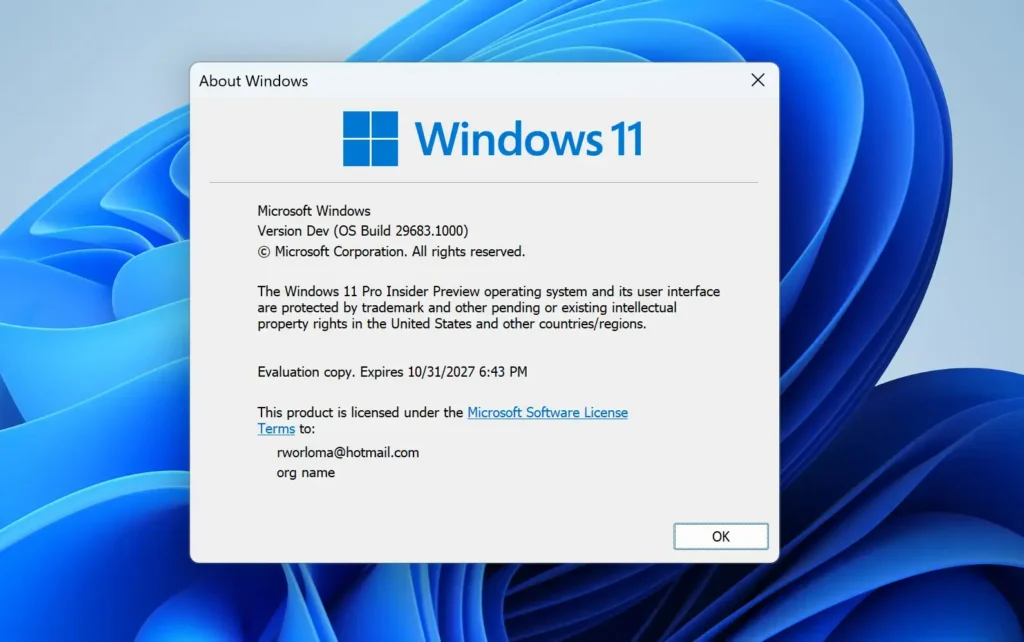
- Select OK. The dialog closes and you return to the desktop.
- Press Win+I. The Settings app opens on the System page.

- Select Windows Update in the left pane. The Windows Update page opens and shows your update status.

- Turn on Get the latest updates as soon as they’re available. The path is Settings Windows Update This toggle asks Windows to deliver new features sooner instead of waiting for a later rollout stage. If your build does not show it, skip this step and continue.
- Select Check for updates . Windows contacts Microsoft and lists any updates it finds. A message such as “You’re up to date” means nothing is pending.
- Install any pending updates by selecting the button that downloads and installs them. The label can differ between builds. This requires administrator privileges. Progress shows beside each update, so wait for it to finish before you continue.
- Select Restart now when Windows Update shows a restart prompt. This requires administrator privileges. Some updates finish installing only after the restart, so do not skip it.
- Open Settings Windows Update Advanced options Optional updates. Driver updates appear here when Windows has them. If the page is empty or the entry is missing, no optional updates are waiting.
- Tick the driver update for your input or touch-related device, then select Download & install. This requires administrator privileges. If you are unsure which driver fits, install none and check your PC maker’s support page for your model first.
- Right-click the Start button and choose Device Manager. A list of hardware categories opens.
- Select Action in the menu bar, then choose Scan for hardware changes. This requires administrator privileges. Windows rechecks connected hardware and loads drivers for anything it newly detects. A device that was missing a driver may now appear.
- Use the PC normally and watch for tactile cues. On compatible hardware that has received the feature, you feel subtle feedback during interactions. Because the cues are subtle, test in a quiet moment without other vibration nearby.
The guide to scanning for hardware changes in Windows 11 covers the Device Manager scan in more detail, including other ways to start it.
What you should see after the steps
After the restart, the winver tool (a small Windows box that shows your version and build number) should show the same version or a newer build than before. If the build did not change, no feature update was installed. That is normal when your PC was already current.
In Device Manager, look for devices marked with a yellow warning triangle. That icon means Windows found a problem with the device or its driver. A device with a warning needs a driver from your PC maker before you can judge anything else.
If your hardware is compatible and the feature has reached your PC, the tactile cues begin on their own. There is no on-screen message announcing them.
If you do not feel any haptic feedback
The most likely reason is the staged rollout. Your PC may not be in the first group yet, and nothing you do in Settings changes that. Check Windows Update again after a few days or weeks.
The second most likely reason is hardware. If your device does not support haptic feedback, Windows has nothing to drive. Check the specification sheet from your PC maker before you spend time on troubleshooting.
Check that Windows sees the device
If you connected a new device and expect it to work, confirm that Windows recognizes it. The article on adding a hardware device to a Windows 11 PC shows how to add one manually when it does not appear on its own.
A device that Windows does not list cannot receive haptic cues, whatever updates are installed. Fix detection first, then repeat the driver and scan steps above.
Check the toggle in Windows Update
If the Get the latest updates as soon as they're available toggle is off, turn it on and select Check for updates again. The exact wording can change between Windows 11 builds, so look for the option that reads closest on the Windows Update page.
Leave other settings alone. Changing them will not help and can cause new problems.
How to undo the update settings
Advanced haptics has no confirmed off switch, so there is nothing to disable directly. You can reverse the settings you changed in the steps above.
To stop receiving new features early, open Settings Windows Update and turn off Get the latest updates as soon as they're available. This stops early delivery of future updates. It does not remove features that already arrived.
To remove an update you installed, open Settings Windows Update Update history and choose Uninstall updates. Microsoft has not said which update carries advanced haptics. Remove an update only if a problem started right after it installed, because removing the wrong one can bring back older bugs or security gaps.
To undo a driver change, open Device Manager, right-click the device, choose Properties, and select the Driver tab. If the Roll Back Driver button is available, it restores the previous driver. This requires administrator privileges.
What to do next
Check Windows Update every few weeks, because a PC that does not have advanced haptics today may receive it in a later stage of the rollout. If your hardware is on your PC maker's compatibility list and the feature still does not arrive, contact the maker's support with your model number and Hardware ID.
For a wider look at what else Windows 11 offers developers and power users, see the advanced Windows 11 guide for developers.
Have a question about this guide?
Answered by AI from this guide. Good questions may be added to this page — please don't include personal details.
Did this guide fix your problem?

About the Author
Richard
Tech Writer, IT Professional
Richard is a writer at Geek Rewind who turns complex IT tasks into clear, step-by-step guides. He draws on years of hands-on experience in system administration and enterprise IT operations, focusing on Windows, Linux and WordPress: the problems people actually run into, and the fixes that work. His server and WordPress guides come from systems he runs himself. Richard builds and maintains the platform behind Geek Rewind, from its Ubuntu servers and Nginx configuration to its custom WordPress plugins. Many new tutorials start with readers' questions, and he's always glad to answer them in the comments.
No comments yet — be the first to share your thoughts!