

This article explains how to turn “Show notifications for all my apps” on or off in the Phone Link app on Windows 11.
The Phone Link app is a feature on Windows that allows you to link your phone and PC using Wi-Fi or Bluetooth and access your phone’s apps and data from your PC. It lets you browse, play, order, chat, and more using your PC’s larger screen and keyboard while your phone stays in your pocket or desk.
With your phone connected to your PC, you can choose how to display notifications, choose to hear audio from the PC or phone, turn allow the phone link app to sync over mobile without Wi-Fi on or off, unlink your phone from Windows, enable or disable auto startup for the phone link app, send and receive text messages from the app, add or remove Phone Link on the widgets board, turn dark mode on or off, open your phone screen in the app, and more.
When you connect your phone, it will show notifications for all your apps by default. You can turn this feature on or off. When off, all notifications, including badges, banners, and feature feed, will be disabled.
You might want to turn “Show notifications for all my apps” on or off in the Phone Link app for various reasons. If you prefer to receive notifications only for specific apps, you can turn this feature off and select the apps for which you want to receive notifications.
This can help reduce distractions and keep you focused on important tasks. On the other hand, if you don’t want to miss any notifications, you can turn this feature on to receive notifications for all your apps. It all depends on your personal preferences and needs.
Turn “Show notifications for all my apps on or off in Phone Link
As mentioned above, users can turn Phone Link notifications for all apps on or off to minimize distractions or turn them on so they don’t miss important events.
Here’s how to do it.
First, open the Phone Link app.
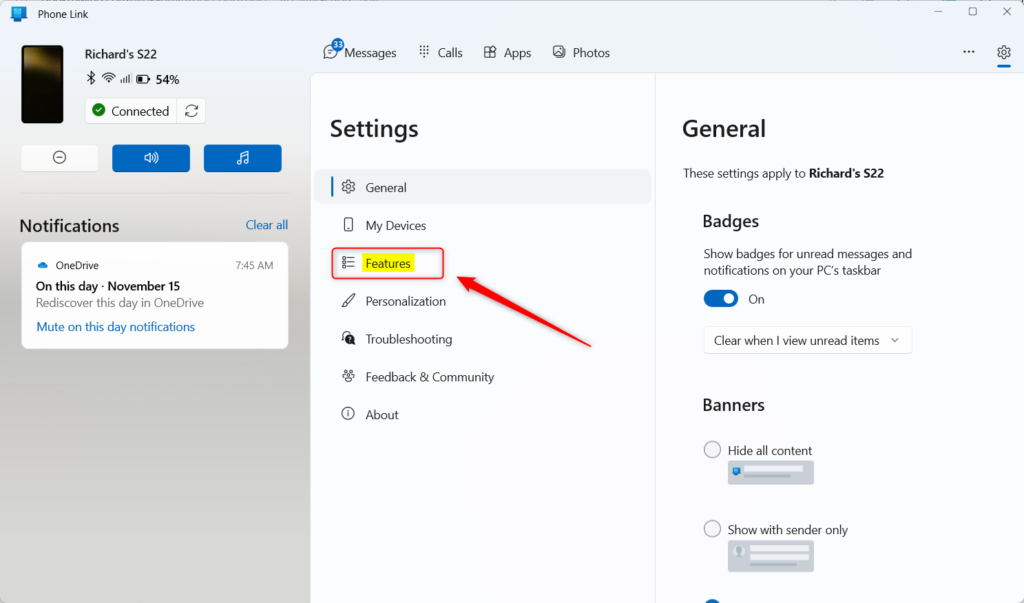
Then, choose to add your phone. If phones are connected to the Phone Link app, click the Settings button (gear) at the top right corner and select Features on the menu.
On the right of the Features settings page, under Notifications, toggle the switch button for “Show notifications for all my apps” to the On position to enable notifications for all your apps.
To disable notifications, toggle the switch button to the Off position.
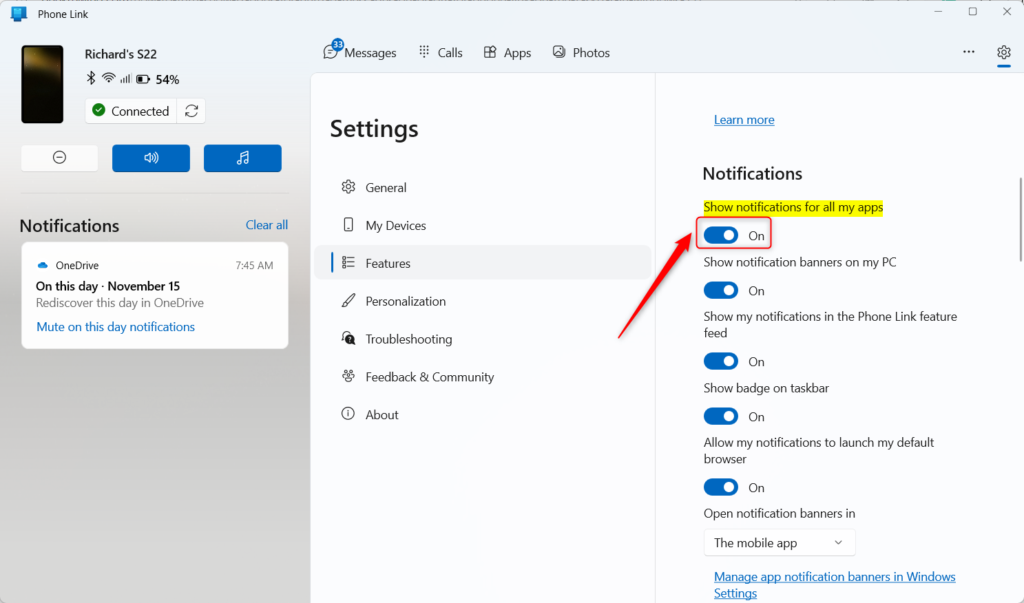
If disabled, notifications from Phone Link will be turned off for all your apps.
That should do it.
Conclusion:
- This article provided a comprehensive guide on turning “Show notifications for all my apps” on or off in the Phone Link app on Windows 11.
- Readers can now easily manage their notifications based on personal preferences and needs.
- For further questions or suggestions, please engage through the comments section.



Leave a Reply to Enable Optimize App Window Sizing on Windows 11 – Geek Rewind Cancel reply