How to Turn On Camera Roll Backup to OneDrive in Windows 11

Camera roll backup in Windows 11 Settings protects your photos by saving them to OneDrive, Microsoft’s cloud storage service. The quickest way to turn it on is from the Settings Home page or the Accounts page, then finish setup on your phone by scanning a QR code.
Microsoft added the feature in the update KB5124010, which you can check for in Windows Update. Microsoft offers it only to eligible users, so not every PC shows it yet. If the option is missing, a later section explains what to check. Until then, the steps below turn it on.
To turn on Camera roll backup in Windows 11, open Settings, select Accounts or the Home page, and choose Camera roll backup. Windows then shows a QR code, which you scan with your phone to finish OneDrive setup. Keep your phone nearby, and install KB5124010 through Windows Update if the option is missing.
What Camera roll backup does in 🪟 Windows 11
Camera roll backup copies your photos to OneDrive, so they are safe if your PC is lost or fails. Microsoft lists it under Settings, in two places: the Settings Home page and the Accounts page. Both lead to the same feature.
This is separate from other OneDrive features. It does not replace backing up your PC folders, and it does not control screenshot saving. The comparison section further down explains the difference.
Before you start
Check three things first. They save time if the option does not appear.
- Your PC must be one of the eligible PCs Microsoft is rolling the feature out to. Microsoft describes the feature as available to “eligible users”, and it does not publish a full list of conditions in the release notes. If you do not see it, Microsoft may not have turned the feature on for your PC yet.
- Windows must be up to date. The feature is part of the Windows update numbered KB5124010, a code Microsoft uses to name each update. Open Settings Windows Update and install anything pending.
- Your phone must be within reach. You need it to scan the QR code and complete setup.
Because the photos go to OneDrive, OneDrive needs to work on your account. If you have never used it on this PC, read how to set up OneDrive on Windows 11 first.
How to turn on Camera roll backup
These steps turn on Windows 11 camera roll backup to OneDrive and finish setup from your phone. Microsoft’s notes do not list an administrator requirement, and none of the steps ask for one.
- Open Settings. Press Win+I. Settings opens on the Home page, which shows cards for your account, devices, and other items.

Start Menu - Look for Camera roll backup on the Home page. If a Camera roll backup entry appears, select it and skip to step 4. If you do not see it, go to step 3.
- Select Accounts. Choose Accounts in the left pane. The Camera roll backup entry appears on this page for eligible users.
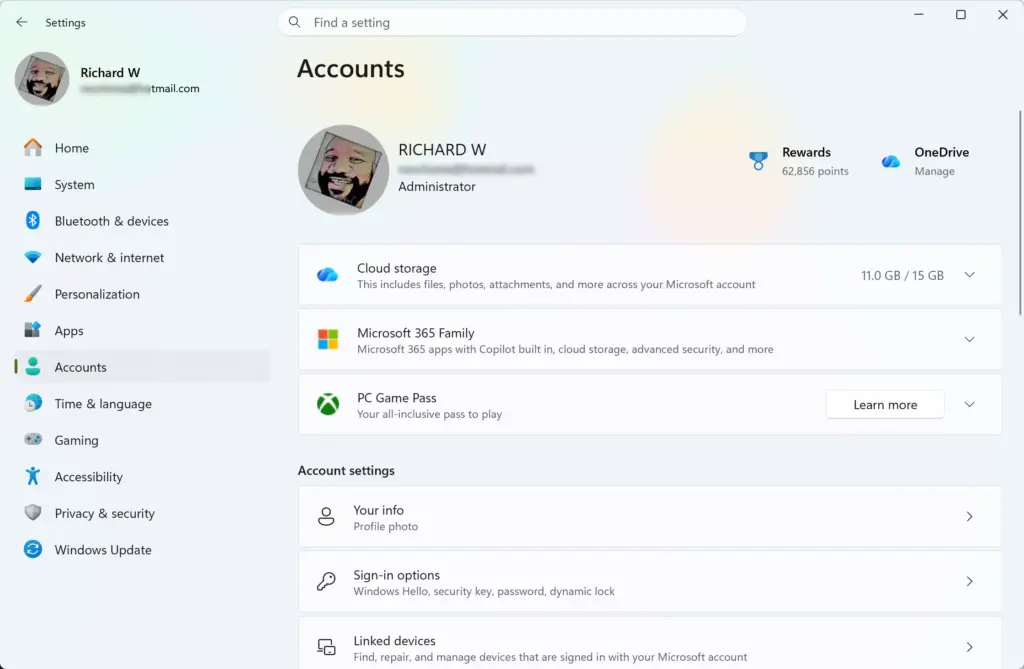
Settings › Accounts - Select Camera roll backup. Choose the entry and follow the prompt to turn the feature on. The exact wording of the button can differ between builds, so pick the option that starts the setup.
- Scan the QR code with your phone. Windows displays a QR code on screen. Open your phone’s camera, point it at the code, and tap the link that appears.
- Finish setup on your phone. Follow the prompts that open on the phone. This is where the setup completes, so do not close the Settings page on your PC until you are done.
- Return to Settings on your PC. Open the Camera roll backup entry again to check its status. If the QR code is still showing, the phone step did not finish, so repeat steps 5 and 6.
After step 4, you should see a QR code on screen. If you see a message instead of a code, the feature may not be available for your account yet. The next section covers that case.
If Camera roll backup is missing
The most common reason is eligibility. Microsoft says the feature helps “eligible users”, which means Microsoft turns it on for some PCs at a time. A PC that is fully updated can still lack it.
Work through the four checks below in order.
- Install pending updates. Open Settings Windows Update and select Check for updates. Restart if Windows asks.
- Check both locations. Look at the Settings Home page, then at Settings Accounts. The entry can appear in one place before the other.
- Check that OneDrive is signed in. If OneDrive is turned off or closed, start it again. The post on turning OneDrive on or off in Windows 11 shows how to do this.
- Check back later. If everything above is in place and the entry still does not appear, wait for a later update. A staged rollout cannot be forced from Settings.
How to stop or change Camera roll backup
Microsoft’s release notes describe how to turn the feature on but not how to turn it off. Microsoft’s notes do not name the off switch, so this post does not name one either.
Start in the same place you used to turn it on. Open Settings, then check the Camera roll backup entry on the Home page or under Accounts. If the entry has a way to manage or stop the backup, you will find it there.
If you want to pause all OneDrive activity on the PC instead, you can close the app. To close OneDrive, see how to quit and close OneDrive in Windows 11. To stop it starting with Windows, see the guide on stopping OneDrive from starting automatically. Closing OneDrive on the PC may not stop what your phone sends. The release notes do not say either way.
How it differs from OneDrive folder backup
Windows 11 has several OneDrive backup features, and they are hard to tell apart. Each one covers something different.
- Camera roll backup protects photos with OneDrive and finishes setup on your phone through a QR code. This is the feature in this post.
- OneDrive folder backup covers folders on your PC. The post on OneDrive folder backup syncing across Windows 11 devices explains it.
- Screenshot saving sends screenshots to OneDrive. See saving screenshots to OneDrive automatically in Windows 11.
Turning one of these on does not turn the others on. Check each one separately if you want all three.
What to do next
Once setup finishes, open OneDrive from File Explorer and look for your photos. Backed-up files take up OneDrive space, so keep an eye on your storage total. For tips on organizing what ends up there, read how to manage OneDrive files on Windows 11.
Have a question about this guide?
Answered by AI from this guide. Good questions may be added to this page — please don't include personal details.
Did this guide fix your problem?

About the Author
Richard
Tech Writer, IT Professional
Richard is a writer at Geek Rewind who turns complex IT tasks into clear, step-by-step guides. He draws on years of hands-on experience in system administration and enterprise IT operations, focusing on Windows, Linux and WordPress: the problems people actually run into, and the fixes that work. His server and WordPress guides come from systems he runs himself. Richard builds and maintains the platform behind Geek Rewind, from its Ubuntu servers and Nginx configuration to its custom WordPress plugins. Many new tutorials start with readers' questions, and he's always glad to answer them in the comments.
No comments yet — be the first to share your thoughts!