How to List User Profiles and Accounts in Windows 11


- 15 steps
- Needs administrator rights
User profiles in Windows 11 are individual spaces that hold personal files, app settings, and desktop layouts for everyone who uses the same computer. Finding them takes more than a look at the standard Settings menu, because Windows keeps the actual folder setup out of sight.
Every account has its own folder inside 📁C:\
This guide covers four ways to look: File Explorer, Windows Terminal, Registry Editor, and the Local Users and Groups tool. The first three work on every edition of Windows 11. The last one is not available on Home.
To list user profiles in Windows 11, open File Explorer and go to 📁C:\
Step 1View Profile Folders in File Explorer
The quickest check is the Users folder itself. Each profile that has been created on this PC has a folder here, named after the account.
- Open File Explorer.
- Go to the location shown below. You can paste it into the address bar and press Enter.
You should see one folder for each profile, plus a few system folders such as Public.
C:\Users
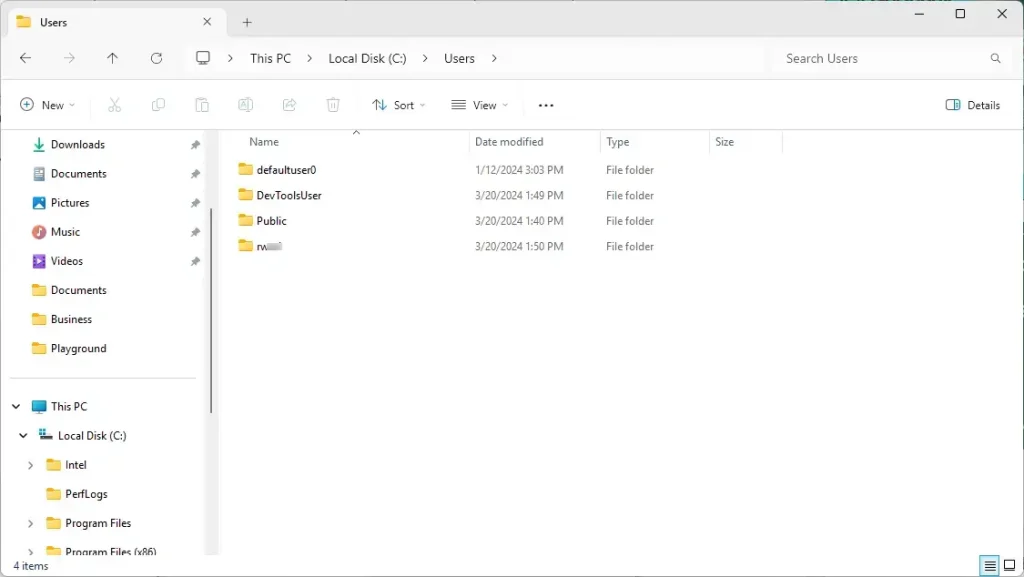
Some folders are hidden by default, such as the Default profile that Windows copies when it creates a new account. To show them:
- In File Explorer, click the View menu in the toolbar.
- Select Show.
- Click Hidden items so that it has a check mark.
The hidden folders now appear in the list, slightly faded. To hide them again, repeat the steps and clear the check mark.
A folder in 📁C:\
Step 2Using the Command Line to List Accounts
Windows Terminal can list the accounts on the PC with one short command. This shows you the account names directly, instead of folder names.
- Right-click the Start button.
- Select Terminal (Admin).
- Click Yes if User Account Control asks for permission. A terminal window opens with elevated rights.
- Type net user and press Enter.
Windows prints every local account set up on the machine. The list usually includes built-in accounts such as Administrator, DefaultAccount, Guest, and WDAGUtilityAccount, even though most of them are disabled. If you sign in with a Microsoft account, the local name shown here may not match your email address.
If the terminal is not open yet, start it as administrator as described above. Then type the following command and press Enter to list all local user accounts:
net user
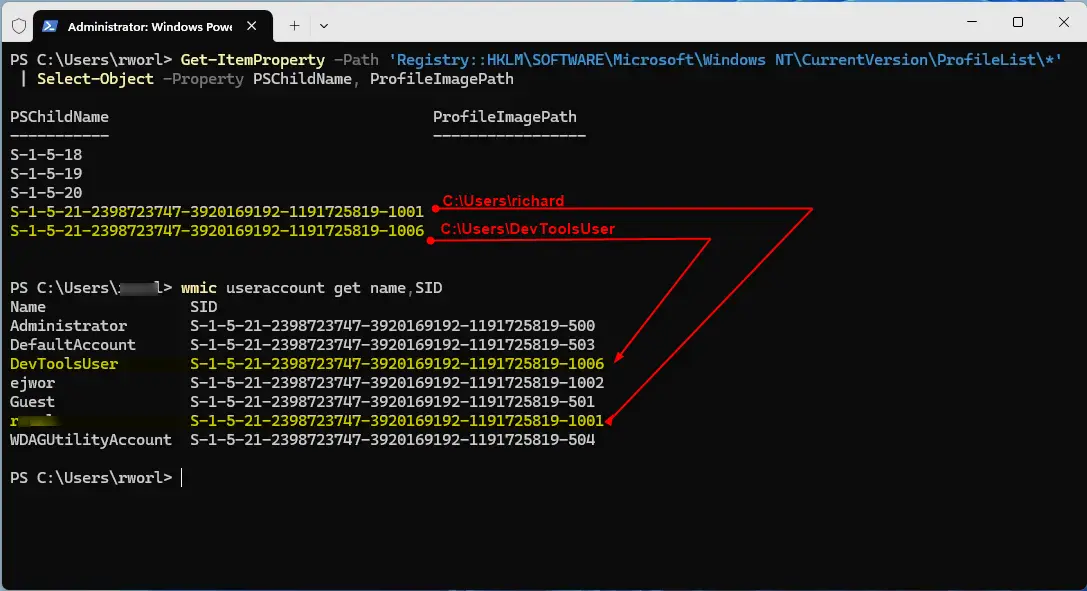
This command gives you a list of account names. For more detail, including the Security Identifier (SID), use the command below. A SID is a unique number that Windows uses to identify each account. It stays the same even if you rename the account, which makes it a better match for registry entries than the name.
Get-CimInstance Win32_UserAccount | Select-Object Name,SID
Step 3Matching Profiles via Registry Editor
Registry Editor is a database of core system settings. It can match each user account to its exact folder path. The profile list lives under 🗝️HKEY_LOCAL_MACHINE\
- Press
Win + R, typeregedit, and press Enter. Click Yes if User Account Control asks for permission. Registry Editor opens. - Navigate to:
HKEY_LOCAL_MACHINE\SOFTWARE\Microsoft\Windows NT\CurrentVersion\ProfileList. You can expand the keys in the left pane, or paste the path into the address bar at the top of the window. - Click through the folders starting with
S-1-5and look at the ProfileImagePath value in the right pane. It shows the folder that belongs to that SID, for example a path under 📁C:\Users .
Keys with short SIDs, such as S-1-5-18, S-1-5-19, and S-1-5-20, belong to system service accounts. They are not people. If you see a key whose name ends in .bak, that profile has had a loading problem in the past and is worth checking.
Step 4Using Advanced Management Tools
Windows 11 Pro and Enterprise include a built-in utility called Local Users and Groups for deeper account management. It is not available on Windows 11 Home. On Home, the command above is not available either, so use the other methods in this guide.
- Press
Win + R. - Type
lusrmgr.mscand press Enter. The Local Users and Groups window opens. - Click the Users folder in the left pane. All local accounts appear in the middle pane.
An account with a small down-arrow on its icon is disabled. From this window you can manage accounts, disable users, or reset passwords without touching the command line. Look first and change nothing unless you know why you are doing it.
Summary
Knowing which profiles exist keeps a PC healthy. The command line, Registry Editor, and Local Users and Groups each show a different side of the same list. Together they let you tie every account to its folder with confidence. That makes it clear where data is stored and helps keep your Windows 11 setup tidy.
C:\Users.Doing so corrupts the user profile. Windows then signs the user in with a temporary profile, and files can be lost. To remove an account properly, go to Settings Accounts Other users and use the official option there. Windows then removes the account and cleans up its folder for you.
Have a question about this guide?
Answered by AI from this guide. Good questions may be added to this page — please don't include personal details.
Did this guide fix your problem?

About the Author
Richard
Tech Writer, IT Professional
Richard is a writer at Geek Rewind who turns complex IT tasks into clear, step-by-step guides. He draws on years of hands-on experience in system administration and enterprise IT operations, focusing on Windows, Linux and WordPress: the problems people actually run into, and the fixes that work. His server and WordPress guides come from systems he runs himself. Richard builds and maintains the platform behind Geek Rewind, from its Ubuntu servers and Nginx configuration to its custom WordPress plugins. Many new tutorials start with readers' questions, and he's always glad to answer them in the comments.
[…] account name, the profile folder will not reflect the account’s new name. You may want to list and match the profile folder to the account name to ensure you’re not deleting the wrong […]