How to Unlink OneDrive Windows 11: A Complete Guide

Unlinking OneDrive in Windows 11 disconnects your Microsoft account from the cloud storage app, so your PC no longer backs up and syncs files online. It takes less than a minute. Your existing files stay where they are on your hard drive, and nothing is deleted from your OneDrive online storage.
After you unlink, any change you make to a file on this PC stays on this PC and does not sync to the cloud. You can reconnect the account at any time to turn syncing back on. The steps are the same on Windows 11 Home and Pro.
Unlink OneDrive by clicking the OneDrive icon, selecting Settings, then Account, and clicking “Unlink this PC”. Confirm the action to disconnect your computer from the cloud service. Your local files will remain on your PC but will stop syncing.
Why unlink OneDrive?
Unlinking stops the folders on your PC from mirroring what is in the cloud. People usually do it to save bandwidth, to get around a stubborn sync bug, or to prepare the machine for a different storage provider.
Before you start, check two things. First, if OneDrive backs up your Desktop, Documents and Pictures folders, open the folders in File Explorer afterwards and confirm your files are where you expect. Second, files marked as online-only (the cloud icon in File Explorer ) are not stored on the PC. To keep a copy, right-click the file or folder before unlinking and choose Always keep on this device.
What happens when you are done?
Your files stay safe in the cloud when you unlink. You can still reach them by signing in to the OneDrive website at onedrive.live.com. The local copies stay in their current location, but they no longer update or sync with the online versions of those folders.
If you later link the same account again, OneDrive will ask you to choose a folder location. Pointing it at the existing OneDrive folder lets it match the files already there instead of downloading everything again.
Steps to unlink your account
To unlink OneDrive in Windows 11, open the OneDrive settings from the taskbar, go to the Account tab, and click Unlink this PC. This stops your computer from syncing files to the cloud, and your files stay safe on your hard drive and online.
- Click the OneDrive cloud icon on your taskbar. If you don't see it, click the Show hidden icons arrow next to the clock first. A small OneDrive panel opens showing your sync status.
- Click the gear icon in the top-right corner of the panel and choose Settings. The OneDrive settings window opens. On some builds the gear is labelled Help & Settings.

There is also an alternate route. Open the OneDrive folder in File Explorer, click the OneDrive button at the top of the window, and select the Settings gear. This is useful when the taskbar icon is missing. If neither route works, OneDrive may not be running, so open it from the Start menu first.

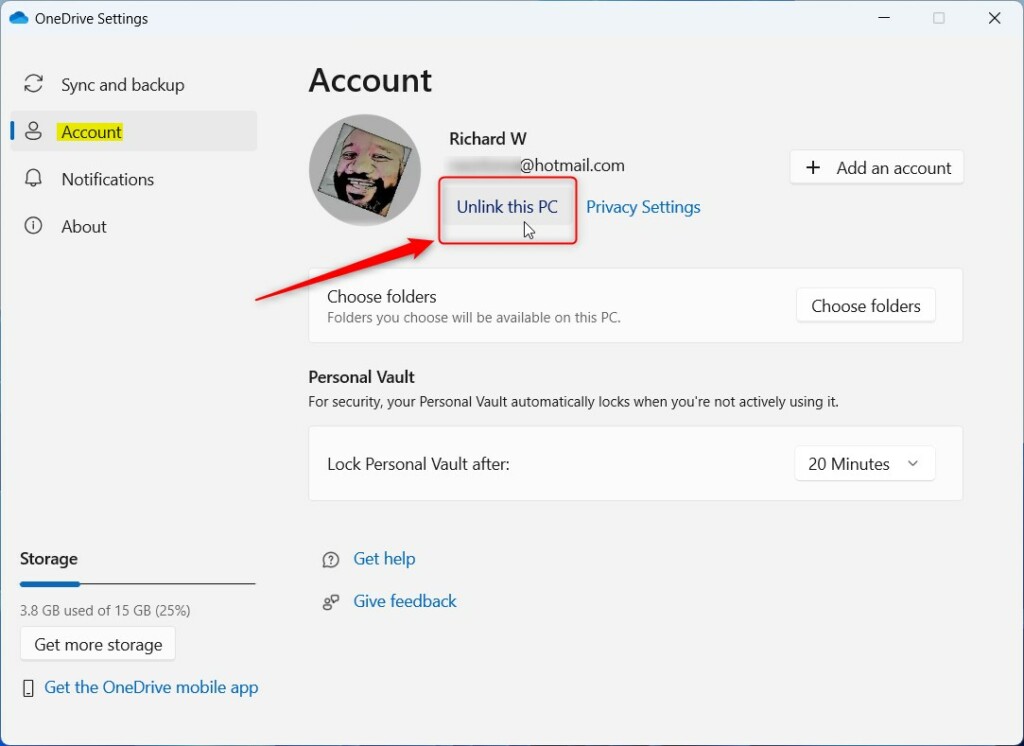
- In the settings window, click Account on the left side. Your email address and storage details appear on the right.
- Click the Unlink this PC link on the right side. A confirmation window opens asking whether you want to unlink this account.
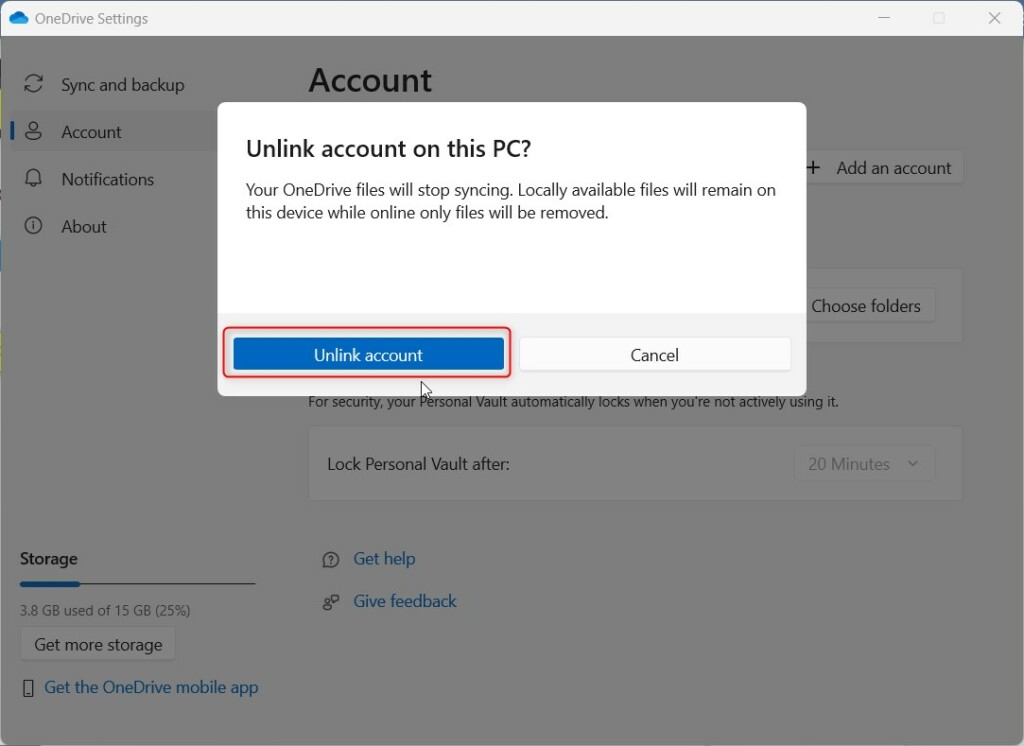
- Read the message in the new window, then click Unlink account to confirm. The OneDrive icon on the taskbar will change or disappear once the account is removed.
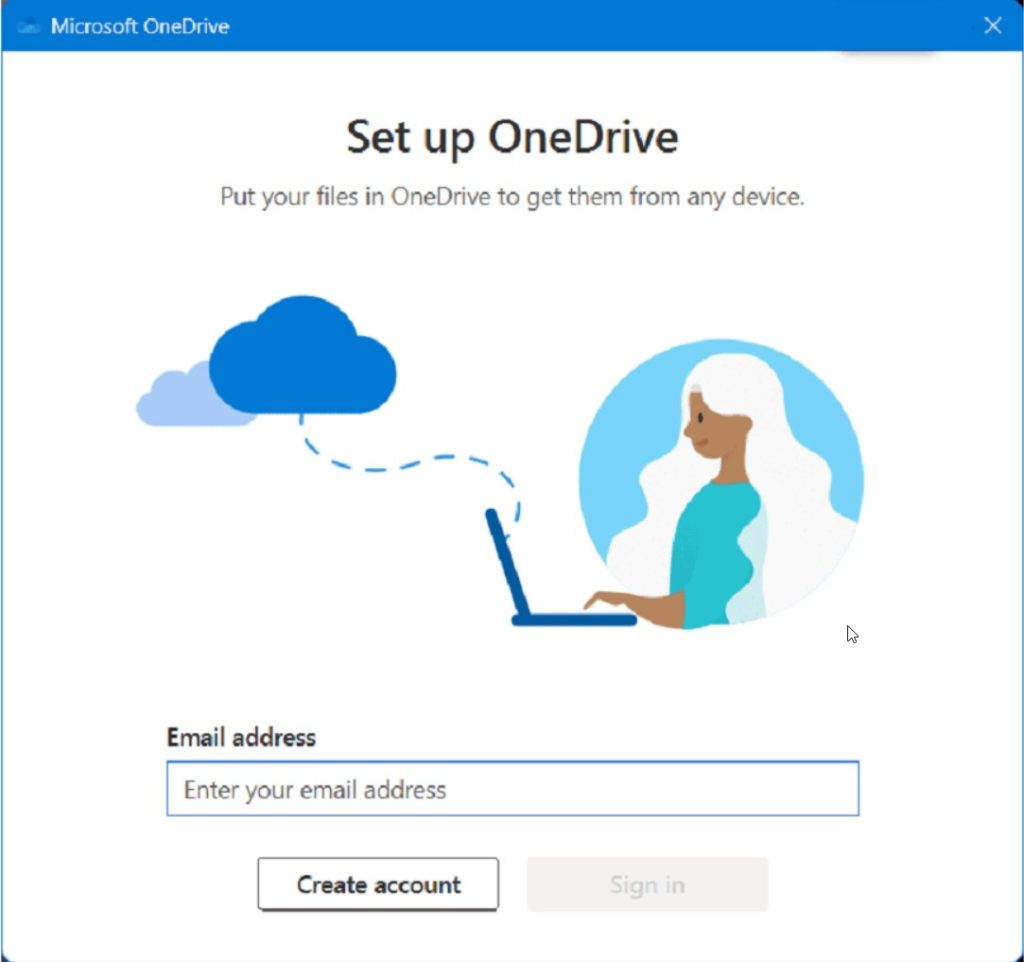
These steps remove the account and disconnect the computer. No restart is needed. A Set up OneDrive screen appears next. If you are finished, close it without signing in. If you sign in there, you will link the account again.
How to stop OneDrive from starting automatically
Unlinking does not stop OneDrive from launching at startup, so you may keep seeing the sign-in screen after each reboot. To keep the app installed but stop it from launching in the background when the PC starts, follow these steps:
- Press Ctrl + Shift + Esc to open Task Manager. If you see a small window with no tabs, click More details first.
- Click the Startup apps tab. It lists the programs that start with Windows.
- Find Microsoft OneDrive in the list.
- Right-click it and select Disable. The Status column changes to Disabled. To undo this later, right-click the entry again and choose Enable.
Clearing Sign-in Credentials
If you keep getting login prompts after the disconnect, clear the saved OneDrive credentials. Windows stores them separately from the app, so unlinking does not always remove them.
- Search for Credential Manager in the Start menu and open it.
- Select Windows Credentials.
- Find any entries starting with OneDrive Cached Credential. If there are none, you have nothing to clear.
- Click the arrow next to the entry to expand it, then select Remove. Confirm the prompt if Windows asks. Repeat for any other OneDrive entries.
Uninstalling vs. Unlinking
Unlinking only halts synchronization. To remove the software completely, open Settings Apps Installed apps and search for Microsoft OneDrive. Click the three dots next to it, then click Uninstall and confirm. This removes OneDrive from File Explorer. Your files in the OneDrive folder and in the cloud are not deleted. You can reinstall OneDrive later from Microsoft if you change your mind.
Troubleshooting Sync Errors
If you are unlinking because of sync errors, try resetting the app first. Press the Windows key + R on the keyboard to open the Run box, paste the following command, and press Enter:
C:\Program Files\Microsoft OneDrive\onedrive.exe /reset
The taskbar icon may disappear for a minute or so while the reset runs. If it doesn't come back, start OneDrive from the Start menu. A reset does not delete your files.
Summary
Unlinking OneDrive ends file synchronization. Your data stays protected in the cloud, and the local files remain intact on the PC. To re-link, sign back in to the OneDrive app with your Microsoft account. For more troubleshooting details, see the Microsoft support page.
Did this guide fix your problem?

About the Author
Richard
Tech Writer, IT Professional
Richard is a writer at Geek Rewind who turns complex IT tasks into clear, step-by-step guides. He draws on years of hands-on experience in system administration and enterprise IT operations, focusing on Windows, Linux and WordPress: the problems people actually run into, and the fixes that work. His server and WordPress guides come from systems he runs himself. Richard builds and maintains the platform behind Geek Rewind, from its Ubuntu servers and Nginx configuration to its custom WordPress plugins. Many new tutorials start with readers' questions, and he's always glad to answer them in the comments.
No comments yet — be the first to share your thoughts!