How to Open Folders in New Tabs in Windows 11 File Explorer

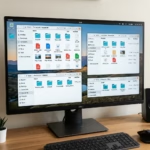
You can open folders in new tabs in Windows 11 File Explorer to manage several different locations at the same time, much like you do with web browser tabs.
This feature lets you switch between different folders without your screen getting cluttered with tons of File Explorer windows. It’s a big step up in usability compared to older Windows versions where folders would only open in separate windows.
To open a folder in a new tab, right-click the folder and pick “Open in new tab” from the menu that appears. You can also hold down the Ctrl key as you double-click a folder.
Right-click a folder and select “Open in new tab.” You can also hold Ctrl while double-clicking a folder. This allows you to manage multiple locations within a single File Explorer window.
What is File Explorer?
File Explorer is the program on your Windows computer that lets you see and organize all your files and folders.
Normally, opening a folder displays it in the same window. Sometimes, folders might open in entirely new windows. However, Windows 11 is testing a new capability that allows you to open folders and folder links within new tabs inside a single File Explorer window.
How to Turn On the New Tabs Feature
This feature is tucked away in Windows 11 beta versions. To get it working, you’ll need a small utility called ViVeTool. It’s a tool that helps you activate hidden features within Windows.
Steps to enable new tabs:
To open folders in new tabs in Windows 11 File Explorer, you’ll need to use a free tool called ViVeTool first.- Download and install ViVeTool. Follow this guide: How to use ViVeTool.
- 🔒 Requires admin privileges: Open Command Prompt as an administrator. Click the Start menu, type
cmd, right-click Command Prompt, and select Run as administrator. - In the Command Prompt window, type this command and press Enter:
vivetool /enable /id:48525682 - Restart your computer to apply the change.
Change Folder Settings to Open in New Tabs
Once you’ve turned on the new tab feature for File Explorer, you can change settings to control how folders and links open.
- Open File Explorer.
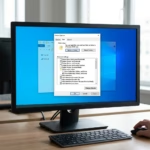
- Click the three dots (More options) at the top right, then select Options.
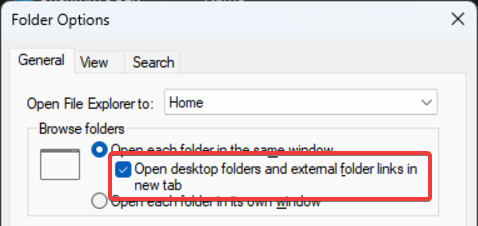
- Under the General tab, find the Browse folders section.
- Select the option: Open desktop folders and external folder links in new tab.
- Click OK to save your settings.
Alternative: Use Windows Registry to Change Folder Behavior
If you’re comfortable with advanced settings, you can use the Windows Registry to turn File Explorer tabs on or off.
- 🔒 Requires admin privileges: Press ⊞ Win+R, type
regedit, and press Enter to open Registry Editor. - Go to this folder path:
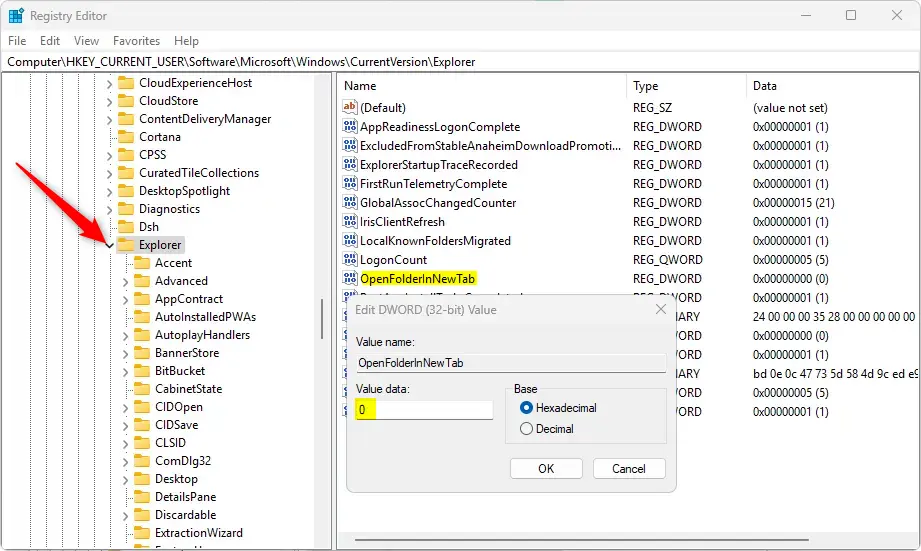
Computer\HKEY_CURRENT_USER\Software\Microsoft\Windows\CurrentVersion\Explorer - Right-click on Explorer, choose New > DWORD (32-bit) Value, and name it
OpenFolderInNewTab. - Double-click the new
OpenFolderInNewTabvalue and set it to 1 to turn on the new tabs feature. - Set it to 0 if you want to turn it off later.
- Close Registry Editor and restart your PC.
Summary
- New feature: Open folders and links in tabs inside File Explorer.
- Requires ViVeTool: You need this tool to turn the feature on in Windows 11 beta.
- Easy to configure: Use Folder Options or the Registry to enable or disable it .
- Better file management: Keep your folders organized and switch between them faster.
- Helpful links: Check the guides above for detailed instructions.
Windows 11 File Explorer now lets you open folders and links in tabs, making it easier to switch between them.
How to get tabs back in File Explorer?
First, open your Start menu and look for File Explorer. Open the app, and then we’ll open a folder.
Was this guide helpful?

About the Author
Richard
Tech Writer, IT Professional
Richard, a writer for Geek Rewind, is a tech enthusiast who loves breaking down complex IT topics into simple, easy-to-understand ideas. With years of hands-on experience in system administration and enterprise IT operations, he’s developed a knack for offering practical tips and solutions. Richard aims to make technology more accessible and actionable. He's deeply committed to the Geek Rewind community, always ready to answer questions and engage in discussions.

No comments yet — be the first to share your thoughts!