How to Migrate Your Magento Site to Google Cloud with Minimal Downtime


- The latest version of Google Chrome
- Firefox
- Microsoft Edge
- Microsoft Internet Explorer 11 and later
- Safari 8 and later. Note that Safari in private browser mode is not supported.
- All Linux VM images are natively available in Google Cloud.
No additional software or browser extensions are required. Log in to Google Cloud Console and go to Menu ==> Compute Engine ==> VM instances.
In the list of virtual machine instances, click SSH in the row of the instance to connect to.

Alternatively, open an SSH connection to an instance by clicking its name and selecting SSH from the instance details page.
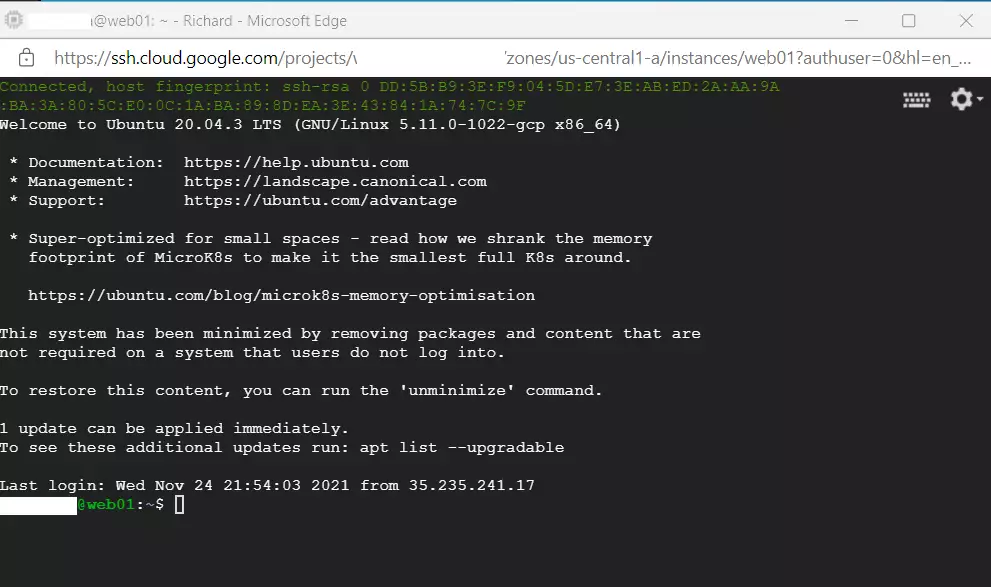
An SSH terminal window with the Ubuntu Linux instance created in the series’s second post will open.
Commands can now run inside the Ubuntu Linux environment created on the Google Cloud server.
Install LAMP or LEMP on the new server before migration
Installing a LAMP or LEMP software stack on your new Google Cloud server prepares the environment to host your Magento store files. You must match the exact packages—like Apache, Nginx, MySQL, and PHP—that your old server uses before you copy any site data over. Matching these packages ensures your Magento files run correctly without throwing internal server errors once the domain points to the new host.
The goal is making sure the new Google server matches all server configurations and software packages from the current one. Helpful posts are listed below for installing Apache, Nginx, MySQL, MariaDB, or PHP.
Some other posts that you may want to use when installing LAMP or LEMP on Ubuntu Linux.
- How to install Apache on a Google Cloud server (alternative to Nginx)
- How to install Nginx on a Google Cloud server (alternative to Apache)
- How to install PHP on a Google Cloud server
- How to install MySQL or MariaDB database server
Use the posts above to install identical servers and packages from the current setup. Specific packages require referencing the same guides mentioned above.
Once all packages are installed, transfer content from the current server to the new one.
Configure your new Google server similar to your current server
Configuring your new Google Cloud server to match your old environment involves duplicating web server settings, directory structures, and PHP options. You need to copy your Apache or Nginx configuration files, Virtual Host or Server block details, and custom PHP settings over to the new instance. Doing this prevents broken links, missing image paths, and routing failures after your Magento site goes live.
Ensure the web server (Apache or Nginx) settings are on old and new servers, including the same directory structure and Virtual Host or Server block content.
- Apache directory: /etc/apache2/
- Nginx directory: /etc/nginx/
The PHP configuration should also mirror the current server's PHP settings. Use the linked post to install the specific PHP version and all active modules.
- PHP directory: /etc/php/
MySQL or MariaDB configurations should replicate the current server setup. Validate every file, directory, and dataset to ensure the new server matches the current one prior to migration.
- MySQL / MariaDB directory: /etc/mysql/
Once finished, continue with the migration process.
Back up current server data and database before migration
Backing up your Magento website files and database is a critical step before you start the Google Cloud migration process. You must halt all site modifications, order processing, and admin changes to ensure your data backup stays accurate and complete. Once the site is frozen, create a compressed archive of your web root directory and export a fresh copy of your MySQL database.
Website content and database content must move to the new server. Back up both the website files and the database records.
Stop all changes before backing up the current server to prevent new entries from appearing after completion.
To back up Magento content, connect to the server via SSH if access is available. Once on the current server SSH console, run the commands below to back up Magento files, which are usually located at /var/www/html/.
Running the commands below creates a backup file named current-server-backup.tar containing the Magento content.
The database backup process requires using the root account or an account with full database access. This ensures a complete copy of database records is saved before migration.
To back up all databases on the server, run the following commands:
The all_databases_backup.sql file, a complete snapshot of your database, must be created in your current working directory. This backup file is essential for data integrity during the migration process.
Two files should now exist: current-server-backup.tar and all_database_backup.sql.
Copy the current server's content to the Google Cloud server
At this point, the current server's content is ready to copy over to the new server. Multiple methods exist for transferring the tar and SQL data files.
Run the rsync command from the new server by establishing an SSH connection and using a command similar to the one shown below (adjusting host names as necessary).
While connected to the Google Cloud console, run the commands below to connect to the current server and copy the backed-up content.
Use SCP (Secure Copy Protocol) to transfer your Magento site files securely. The SCP command syntax looks like this: `scp -r /local/path/to/your/magento/files username@remote_host:/remote/path/to/destination`. This method provides protected data transfer, which is vital for maintaining site integrity during migration.
scp user@old-server.com:/home/<username>/all_database_backup.sql /home/username/
scp user@old-server.com:/home/<username>/current-server-backup.tar /home/username/
If file retrieval via SSH fails, use the wget command to download the files to the new Google Cloud server.
Files must reside in the web server root directory of the current server to use the commands below.
cd ~
wget http://old-web-site.com/all_database_backup.sql
wget http://old-web-site.com/current-server-backup.tar
Once files copy to the new server, proceed below to extract them and import database contents into the database server.
Restore the current server's content to the Google Cloud server
Restoring your Magento site content and database on the new Google Cloud server requires moving your backup files into the proper directories. You use command line utilities like tar to unpack your website files into the web root and command line database tools to import your SQL dump. Matching the exact file paths ensures your web server can read the restored store files without configuration errors.
tar -xvf current-server-content.tar
sudo cp -rf /var/www/html/ /var/www/html/
Next, run the commands below to import the database content to the servers.
sudo mysql -u root -p < all_database_backup.sql
At this point, the Google server should contain matching configurations and database content from the current machine. Run the commands below to apply proper file permissions.
Validate that all configurations on the current server match the new Google Cloud server. Once validation finishes, restart the web server.
sudo systemctl restart nginx
sudo systemctl restart apache2
Resolve any errors that appear during this stage.
Update your DNS and point your domain to your new Google server IP address
Updating your DNS records points your domain name to your new Google Cloud server IP address so visitors reach the migrated Magento site. You should first test the site locally by editing your computer hosts file to confirm everything loads properly on the new server. Once local testing succeeds, log into your domain registrar or DNS provider portal and change the A record to your Google Cloud instance IP.
Once local testing succeeds, log in to the DNS provider portal and update the DNS A record to point to the new server IP address.
Once these steps finish and everything operates normally, fine-tuning the new server configuration can begin.
That completes the process.
Conclusion:
This post demonstrated how to migrate a Magento website to a Google Cloud server. Please use the comment form below to report errors or contribute additions.
```Migrating a Magento site to Google Cloud moves your online store files and database to Google servers so your shop runs faster and handles traffic spikes better. This setup keeps your store online during the move so you avoid losing sales.
DNS (domain name system) settings direct web traffic and normally take 24 to 48 hours to update across the internet. Setting up your new cloud space first lets you finish the move with almost zero offline time.
Prepare your new Google Cloud environment by taking inventory of your current server and installing LAMP or LEMP on the new server. Then, migrate your Magento files and database. Finally, update your DNS records to point to the new Google Cloud server for a seamless transition.
Taking inventory of a Linux server before migration
Cataloging your current software versions is the first step when you plan a Magento migration to Google Cloud. You need to record the exact versions of your web server, database server, PHP runtime, and any extra services running on your old server. Setting up an identical software stack on your new virtual machine prevents compatibility errors and broken pages after you move the site.
These are the items required from the current server:
- Web server and version number
- Database server and version number
- PHP and related modules
- Other servers and services and how they're configured
For Apache running on Ubuntu Linux, use the commands below to check the version. Consult this guide for detailed steps on installing specific Apache releases.
apache2 -v
For more detailed version checks and steps to install a specific version of Apache, read the post below:
How to check and install specific Apache versions on Ubuntu Linux
For Nginx running on Ubuntu Linux, use the commands below to check the version. Consult this guide for detailed steps on installing specific Nginx releases.
nginx -v
For more detailed version checks and steps to install a specific version of Nginx, read the post below:
How to check and install specific Nginx versions on Ubuntu Linux
To check the installed PHP version and learn how to install a specific version on Ubuntu Linux, read the post below:
How to check and install specific PHP versions on Ubuntu Linux
Whether running MySQL or MariaDB, the post below shows how to determine which version operates on Ubuntu Linux.
How to find what version of MySQL or MariaDB runs on Ubuntu Linux
How to set up and connect to your Google Cloud server
Connecting to your Google Cloud server for a Magento migration happens directly through your web browser using Compute Engine and SSH. This built-in Secure Shell tool lets you manage your virtual machine instance without installing extra terminal software on your local computer. You just open the Google Cloud Console, find your running instance, and click the SSH button to open a command line.
Compute Engine lets you connect to your virtual machine using SSH directly from your browser.
SSH from the browser supports the following:
- Web browsers
- The latest version of Google Chrome
- Firefox
- Microsoft Edge
- Microsoft Internet Explorer 11 and later
- Safari 8 and later. Note that Safari in private browser mode is not supported.
- All Linux VM images are natively available in Google Cloud.
No additional software or browser extensions are required. Log in to Google Cloud Console and go to Menu ==> Compute Engine ==> VM instances.
In the list of virtual machine instances, click SSH in the row of the instance to connect to.
Alternatively, open an SSH connection to an instance by clicking its name and selecting SSH from the instance details page.
An SSH terminal window with the Ubuntu Linux instance created in the series's second post will open.
Commands can now run inside the Ubuntu Linux environment created on the Google Cloud server.
Install LAMP or LEMP on the new server before migration
Installing a LAMP or LEMP software stack on your new Google Cloud server prepares the environment to host your Magento store files. You must match the exact packages—like Apache, Nginx, MySQL, and PHP—that your old server uses before you copy any site data over. Matching these packages ensures your Magento files run correctly without throwing internal server errors once the domain points to the new host.
The goal is making sure the new Google server matches all server configurations and software packages from the current one. Helpful posts are listed below for installing Apache, Nginx, MySQL, MariaDB, or PHP.
Some other posts that you may want to use when installing LAMP or LEMP on Ubuntu Linux.
- How to install Apache on a Google Cloud server (alternative to Nginx)
- How to install Nginx on a Google Cloud server (alternative to Apache)
- How to install PHP on a Google Cloud server
- How to install MySQL or MariaDB database server
Use the posts above to install identical servers and packages from the current setup. Specific packages require referencing the same guides mentioned above.
Once all packages are installed, transfer content from the current server to the new one.
Configure your new Google server similar to your current server
Configuring your new Google Cloud server to match your old environment involves duplicating web server settings, directory structures, and PHP options. You need to copy your Apache or Nginx configuration files, Virtual Host or Server block details, and custom PHP settings over to the new instance. Doing this prevents broken links, missing image paths, and routing failures after your Magento site goes live.
Ensure the web server (Apache or Nginx) settings are on old and new servers, including the same directory structure and Virtual Host or Server block content.
- Apache directory: /etc/apache2/
- Nginx directory: /etc/nginx/
The PHP configuration should also mirror the current server's PHP settings. Use the linked post to install the specific PHP version and all active modules.
- PHP directory: /etc/php/
MySQL or MariaDB configurations should replicate the current server setup. Validate every file, directory, and dataset to ensure the new server matches the current one prior to migration.
- MySQL / MariaDB directory: /etc/mysql/
Once finished, continue with the migration process.
Back up current server data and database before migration
Backing up your Magento website files and database is a critical step before you start the Google Cloud migration process. You must halt all site modifications, order processing, and admin changes to ensure your data backup stays accurate and complete. Once the site is frozen, create a compressed archive of your web root directory and export a fresh copy of your MySQL database.
Website content and database content must move to the new server. Back up both the website files and the database records.
Stop all changes before backing up the current server to prevent new entries from appearing after completion.
To back up Magento content, connect to the server via SSH if access is available. Once on the current server SSH console, run the commands below to back up Magento files, which are usually located at /var/www/html/.
Running the commands below creates a backup file named current-server-backup.tar containing the Magento content.
The database backup process requires using the root account or an account with full database access. This ensures a complete copy of database records is saved before migration.
To back up all databases on the server, run the following commands:
The all_databases_backup.sql file, a complete snapshot of your database, must be created in your current working directory. This backup file is essential for data integrity during the migration process.
Two files should now exist: current-server-backup.tar and all_database_backup.sql.
Copy the current server's content to the Google Cloud server
At this point, the current server's content is ready to copy over to the new server. Multiple methods exist for transferring the tar and SQL data files.
Run the rsync command from the new server by establishing an SSH connection and using a command similar to the one shown below (adjusting host names as necessary).
While connected to the Google Cloud console, run the commands below to connect to the current server and copy the backed-up content.
Use SCP (Secure Copy Protocol) to transfer your Magento site files securely. The SCP command syntax looks like this: `scp -r /local/path/to/your/magento/files username@remote_host:/remote/path/to/destination`. This method provides protected data transfer, which is vital for maintaining site integrity during migration.
scp user@old-server.com:/home/<username>/all_database_backup.sql /home/username/
scp user@old-server.com:/home/<username>/current-server-backup.tar /home/username/
If file retrieval via SSH fails, use the wget command to download the files to the new Google Cloud server.
Files must reside in the web server root directory of the current server to use the commands below.
cd ~
wget http://old-web-site.com/all_database_backup.sql
wget http://old-web-site.com/current-server-backup.tar
Once files copy to the new server, proceed below to extract them and import database contents into the database server.
Restore the current server's content to the Google Cloud server
Restoring your Magento site content and database on the new Google Cloud server requires moving your backup files into the proper directories. You use command line utilities like tar to unpack your website files into the web root and command line database tools to import your SQL dump. Matching the exact file paths ensures your web server can read the restored store files without configuration errors.
tar -xvf current-server-content.tar
sudo cp -rf /var/www/html/ /var/www/html/
Next, run the commands below to import the database content to the servers.
sudo mysql -u root -p < all_database_backup.sql
At this point, the Google server should contain matching configurations and database content from the current machine. Run the commands below to apply proper file permissions.
Validate that all configurations on the current server match the new Google Cloud server. Once validation finishes, restart the web server.
sudo systemctl restart nginx
sudo systemctl restart apache2
Resolve any errors that appear during this stage.
Update your DNS and point your domain to your new Google server IP address
Updating your DNS records points your domain name to your new Google Cloud server IP address so visitors reach the migrated Magento site. You should first test the site locally by editing your computer hosts file to confirm everything loads properly on the new server. Once local testing succeeds, log into your domain registrar or DNS provider portal and change the A record to your Google Cloud instance IP.
Once local testing succeeds, log in to the DNS provider portal and update the DNS A record to point to the new server IP address.
Once these steps finish and everything operates normally, fine-tuning the new server configuration can begin.
That completes the process.
Conclusion:
This post demonstrated how to migrate a Magento website to a Google Cloud server. Please use the comment form below to report errors or contribute additions.
```Was this guide helpful?

About the Author
Richard
Tech Writer, IT Professional
Richard is a writer at Geek Rewind who turns complex IT tasks into clear, step-by-step guides. He draws on years of hands-on experience in system administration and enterprise IT operations, focusing on Windows, Linux and WordPress: the problems people actually run into, and the fixes that work. His server and WordPress guides come from systems he runs himself. Richard builds and maintains the platform behind Geek Rewind, from its Ubuntu servers and Nginx configuration to its custom WordPress plugins. Many new tutorials start with readers' questions, and he's always glad to answer them in the comments.




No comments yet — be the first to share your thoughts!