How to Install Nginx on Google Cloud Server


Installing Nginx on a Google Cloud server sets up a fast web server that handles visitor traffic on Ubuntu Linux systems using port 80. Nginx (a free, high-performance web server) sends web pages from your server to internet browsers so you can host your website or web app.
Connect to your Google Cloud server via SSH. Then, open your terminal and run the commands sudo apt update and sudo apt install nginx.
How to connect to the Google Cloud server
You can connect to your Google Cloud server directly from a web browser without installing any extra software. Open the Google Cloud Console, go to your VM instances page, and click the SSH button next to your server. This opens a secure command-line window in a new browser tab where you can run commands to install Nginx Google Cloud and manage your server.
- Web browsers
- The latest version of Google Chrome
- Firefox
- Microsoft Edge
- Microsoft Internet Explorer 11 and later
- Safari 8 and later. Note that Safari is not supported in private browser mode.
- Virtual machine configurations
- All Linux VM images are natively available in Google Cloud.
No extra software or browser extensions are required. Log into the Google Cloud Console and navigate to Menu ==> Compute Engine ==> VM instances.
In the list of virtual machine instances, click SSH in the row of the instance you want to connect to.

Alternatively, opening an SSH connection to an instance happens by clicking its name and then selecting SSH from the instance details page.
An SSH terminal window with the Ubuntu Linux instance created in the series's second post will open.
Running commands inside the Ubuntu environment on the Google Cloud server is now possible.
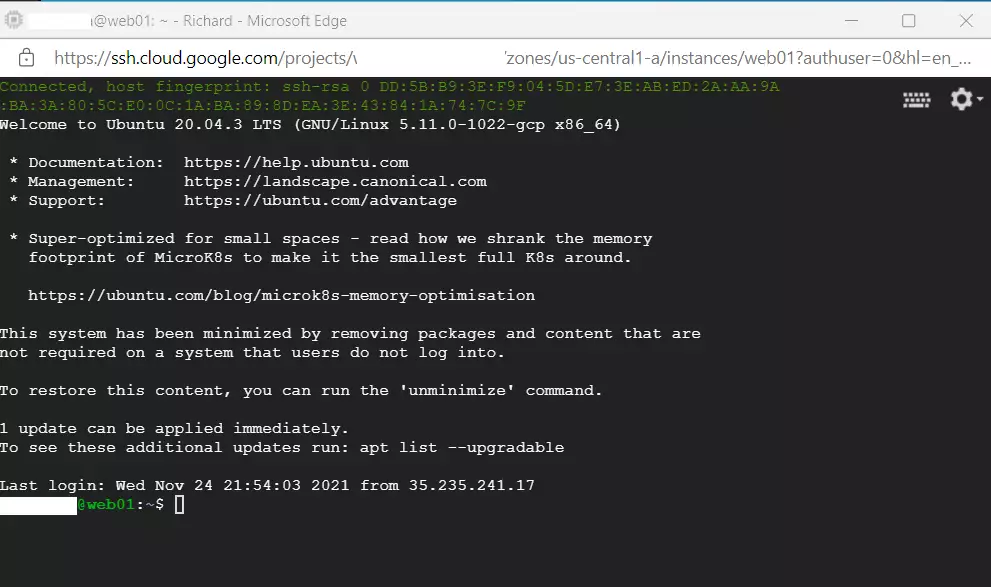
How to install Nginx on Ubuntu Linux on Google Cloud Server
You can install Nginx on your Ubuntu Linux Google Cloud server in a few seconds using the built-in package manager. Open your server terminal and run the commands to update your software list and install the web server. Once the installation finishes, Nginx starts automatically and serves your default web page.
Nginx packages are available directly in Ubuntu's default software repositories. Utilizing tools like apt-get brings the Nginx HTTP server onto Ubuntu Linux.
For more details on installing and managing Nginx on Ubuntu Linux, check out this other post. It offers a deeper dive.
How to install Nginx on Ubuntu Linux
Visitors accessing your domain will see the default Nginx welcome page, confirming the installation is successful.
Typing the domain name into a browser reveals an example page similar to the one below:
http://example.com
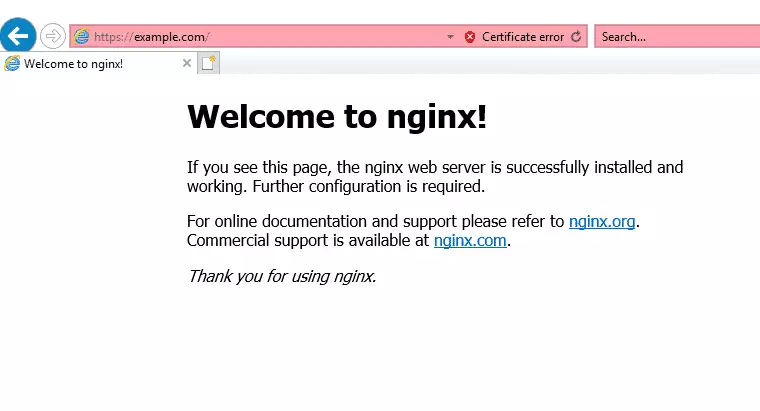
The server hosted on Google Cloud now successfully resolves the domain name and serves content through the Nginx HTTP web server.
Additional servers and software will be integrated in upcoming steps to build a fully functional website online.
Conclusion:
Installing the Nginx HTTP server on your Google Cloud server is a crucial step in establishing your online presence. Here are the key points to remember:
- Nginx is a popular open-source web server that efficiently serves web content.
- You can connect to your Google Cloud server using SSH through your web browser.
- Installing Nginx on Ubuntu Linux is straightforward and requires the use of
apt-getcommands. - After installation, your domain should display the default Nginx help page, confirming that your server is operational.
- This guide is part of a series that aims to help you build a fully functioning website online, including domain creation and server setup.
Following these procedures establishes a solid foundation for managing a website and leveraging the power of Google Cloud services.
Was this guide helpful?

About the Author
Richard
Tech Writer, IT Professional
Richard is a writer at Geek Rewind who turns complex IT tasks into clear, step-by-step guides. He draws on years of hands-on experience in system administration and enterprise IT operations, focusing on Windows, Linux and WordPress: the problems people actually run into, and the fixes that work. His server and WordPress guides come from systems he runs himself. Richard builds and maintains the platform behind Geek Rewind, from its Ubuntu servers and Nginx configuration to its custom WordPress plugins. Many new tutorials start with readers' questions, and he's always glad to answer them in the comments.




No comments yet — be the first to share your thoughts!