How to Set Up an Apache Virtual Hosts on Ubuntu Linux


Apache virtual hosts let you run multiple websites from a single Ubuntu 22.04 LTS server. Apache looks at the domain name in each request and sends the visitor to the matching site’s files. Independent sites like example.com and myblog.net can share one machine and their files never mix.
You need a text editor and an Ubuntu 22.04 LTS server with Apache already installed. You also need a user with sudo rights, because the folders and configuration files in this tutorial sit in system locations. In short, you create a folder for the website, write a small configuration file that points Apache at it, enable that file and restart Apache.
Create a directory for your website content, like /var/www/example.com/public_html. Then, create a configuration file in /etc/apache2/sites-available/example.com.conf, specifying the ServerName and DocumentRoot. Finally, enable the site with `sudo a2ensite example.com.conf` and restart Apache.
How to create website directory structures on Ubuntu Linux
Each site on the server needs its own document root, which is the folder Apache serves files from for that domain. Create these folders inside the /var/www/ directory. Apache can then find the right files for each domain, and the sites stay separate and easy to manage.
Below is an example directory structure for multiple websites. Each site has its own content and its own domain.
Each domain, such as example.com and blog.example.com, gets its own folder. That folder is the document root and holds every file the site needs. Keeping one document root per site stops files from getting mixed up. It also lets you set different ownership and permissions for each site later.
Create the document root for example.com with the command below. Use sudo if your account cannot write to /var/www/.
Example: /var/www/domain/public_html
The command `mkdir -p /var/www/example.com/public_html` creates the document root directory and its subfolder, public_html, in one go. The -p option creates any missing parent folders along the way. It also does not complain if a folder already exists, so running the command twice is harmless.
Next, create a basic HTML test file named `index.html` for the `example.com` document root. This is the page visitors see when they open the domain. Follow these steps:
- Create a new file named index.html in the public_html folder with your text editor.
- Copy and paste the sample content below into the file.
- Save the file and close the editor.
The test content is ready. The next step is to point an Apache virtual host at it. A page with a clear, unique message is best, because it tells you straight away which site Apache served.
<!DOCTYPE html>
<html lang="en" dir="ltr">
  <head>
    <meta charset="utf-8">
    <title>Welcome to example.com</title>
  </head>
  <body>
    <h1>Success! example.com home page!</h1>
  </body>
</html>
To avoid permission problems, change the ownership of the domain’s document root and everything inside it to the Apache user (www-data). Apache runs as this user, so it must be able to read the site’s files. If you get a “403 Forbidden” error in the browser later, wrong ownership or permissions on the document root are one of the first things to check.
Now set up the virtual host file. This file tells Apache how to handle requests for one website, such as example.com. It links the domain name to the directory that holds the site’s files. Apache matches the domain in each incoming request against the names in these files and serves the matching site.
On Ubuntu Linux, Apache virtual host configuration files live in the /etc/apache2/sites-available directory. Files placed here are only available to Apache. They do not take effect until you enable them, which is covered below.
Run the commands below to create a site-specific virtual host file in the sites-available directory. It is common to name the file after the domain, so you can tell the files apart at a glance. Writing to this directory needs root privileges, so open the editor with sudo.
The example configuration below works on most systems. Copy and paste it into the new file. Then change the domain names and the document root path so they match your own site.
Save the file and close the editor. Saving only writes the configuration to disk. Apache does not use it until you enable the site and restart the service in the next steps. For example, `/etc/apache2/sites-available/example.com.conf` is the file that will serve the `example.com` website once it is enabled.
The next command activates the new virtual host file. It creates a symbolic link, which is a shortcut that points to another file or directory. The link goes from the configuration file in sites-available to the sites-enabled directory. Apache reads the files in the enabled directory, and the original stays in sites-available. To take a site offline later, remove the link with the matching disable command and restart Apache. Your configuration file stays in place.
Run the commands below to enable the configuration file for the domain. The command should report that the site is enabled and that Apache needs a reload or restart to activate it.
sudo a2ensite example.com.confThen run the commands below to restart the Apache service. Apache only reads its configuration when it starts or reloads, so the new site will not appear until you do this. The command prints nothing when it succeeds. If it returns an error, there is usually a typo in the virtual host file, so reopen the file and check the names and paths.
sudo systemctl restart apache2
Once Apache has restarted, open a web browser and go to the server’s hostname or IP address. The test page you created earlier should appear on screen. For a domain like example.com to load, its DNS record must point to your server’s IP address. If you visit by IP address and the page does not match, Apache may be serving a different site. When no name matches a request, Apache falls back to the first or default site.
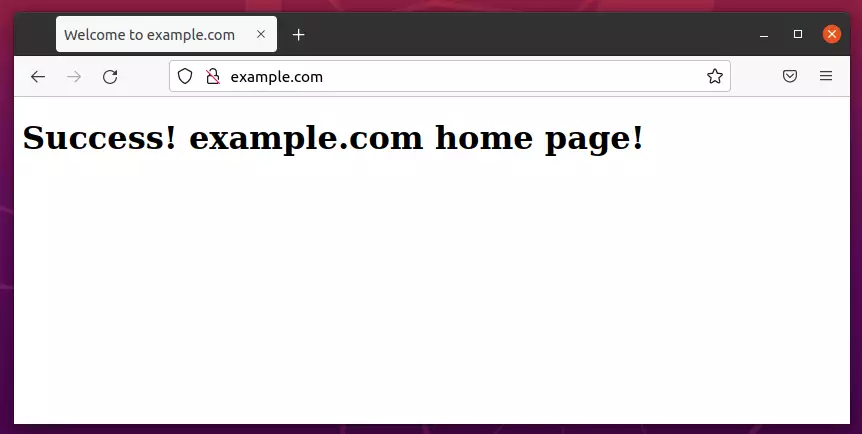
To add more sites, repeat the same steps for each new domain. Create a document root, add a test page, set ownership, write a new virtual host file, enable it and restart Apache. The number of virtual hosts a server can handle depends on its hardware resources, mainly CPU and memory, and on how busy the sites are.
With these configurations in place, your server now supports multiple independent websites. A separate document root for each site and the correct file ownership keep everything organized and running securely.
Conclusion:
- Configuring Apache virtual hosts on Ubuntu Linux lets you manage multiple websites from a single server.
- Each website operates independently with its own settings and configuration file.
- A proper directory structure and a separate document root for each site are essential for serving content correctly.
- Adjust ownership and permissions so the web server can read each site's files and you avoid access errors.
- Use the
a2ensitecommand to enable new virtual hosts without creating the symbolic links by hand. - Restart Apache after enabling a site so the new settings take effect.
- With these steps, you can add more websites to the same server whenever you need to.
Have a question about this guide?
Answered by AI from this guide. Good questions may be added to this page — please don't include personal details.
Did this guide fix your problem?

About the Author
Richard
Tech Writer, IT Professional
Richard is a writer at Geek Rewind who turns complex IT tasks into clear, step-by-step guides. He draws on years of hands-on experience in system administration and enterprise IT operations, focusing on Windows, Linux and WordPress: the problems people actually run into, and the fixes that work. His server and WordPress guides come from systems he runs himself. Richard builds and maintains the platform behind Geek Rewind, from its Ubuntu servers and Nginx configuration to its custom WordPress plugins. Many new tutorials start with readers' questions, and he's always glad to answer them in the comments.
No comments yet — be the first to share your thoughts!