How to Install Microsoft Defender Application Guard on Windows 11


Microsoft Defender Application Guard isolates the Microsoft Edge web browser inside a secure virtual container to protect Windows 11 from malicious websites and unsafe files. This sandbox traps threats away from your main computer system so malware cannot damage your personal files or settings.
Microsoft officially stopped updating this feature in Windows 11, version 24H2, but you can still turn it on using the built-in Windows Features menu if your PC runs Windows 11 Enterprise, Education, or Professional.
Install Microsoft Defender Application Guard via Windows Security by navigating to App & browser control and enabling Isolated browsing. Alternatively, use PowerShell with the command Dism /online /Enable-Feature /FeatureName:”Windows-Defender-ApplicationGuard”. This requires administrative privileges.
How to install or remove it using the Windows Security app
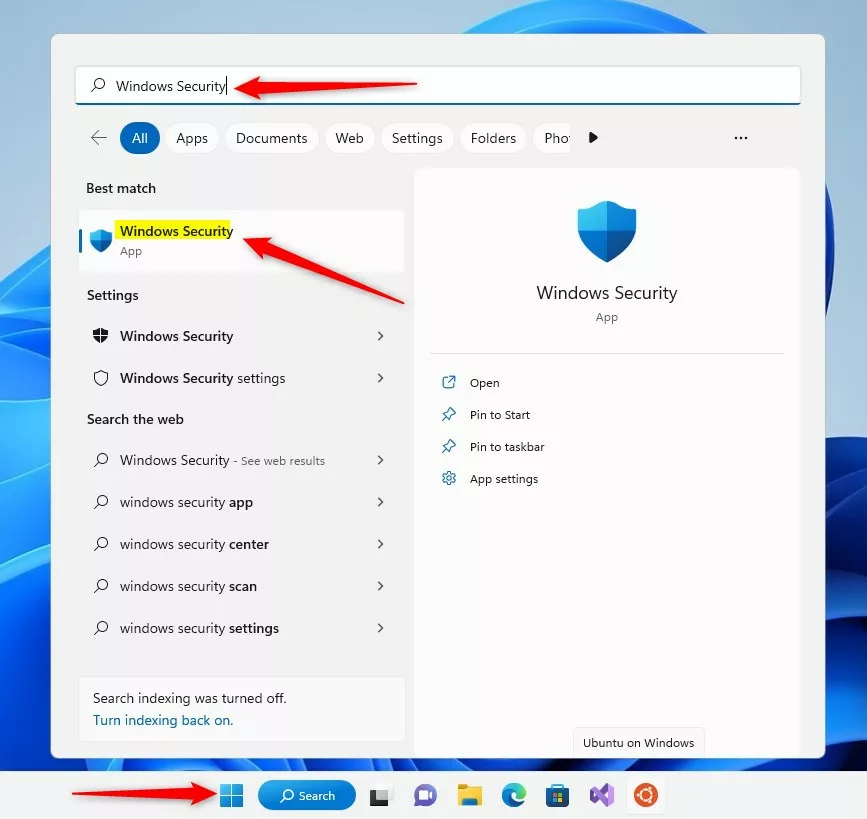
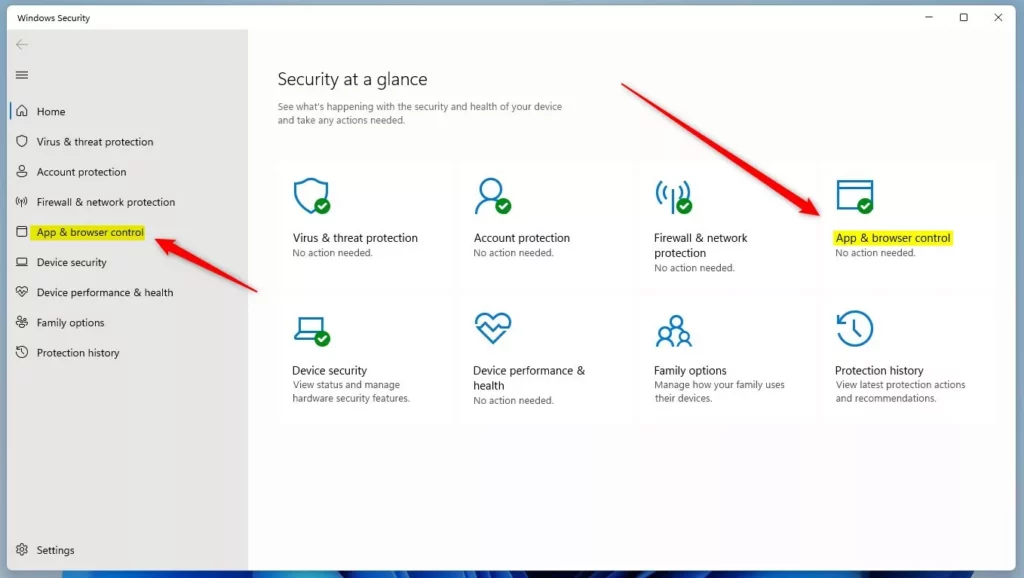
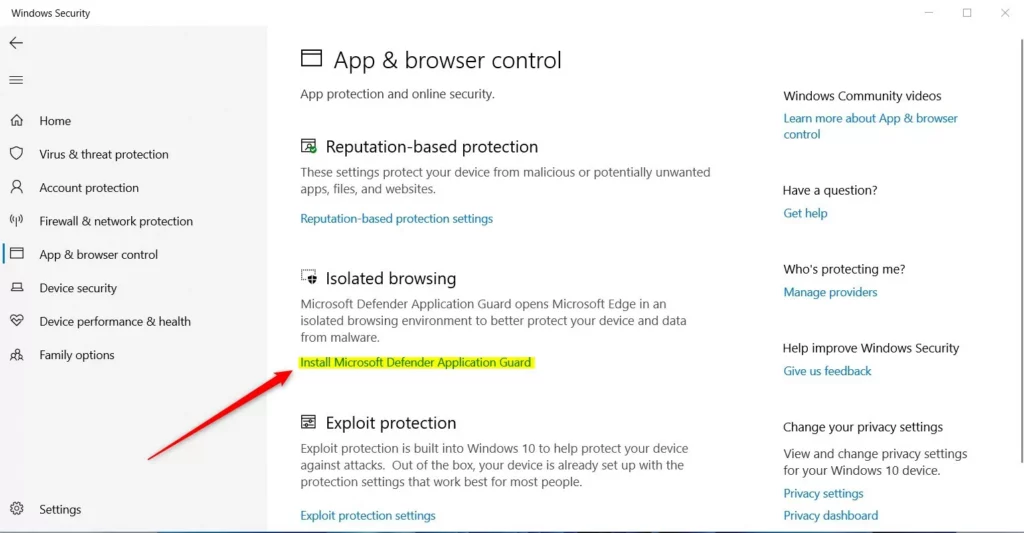
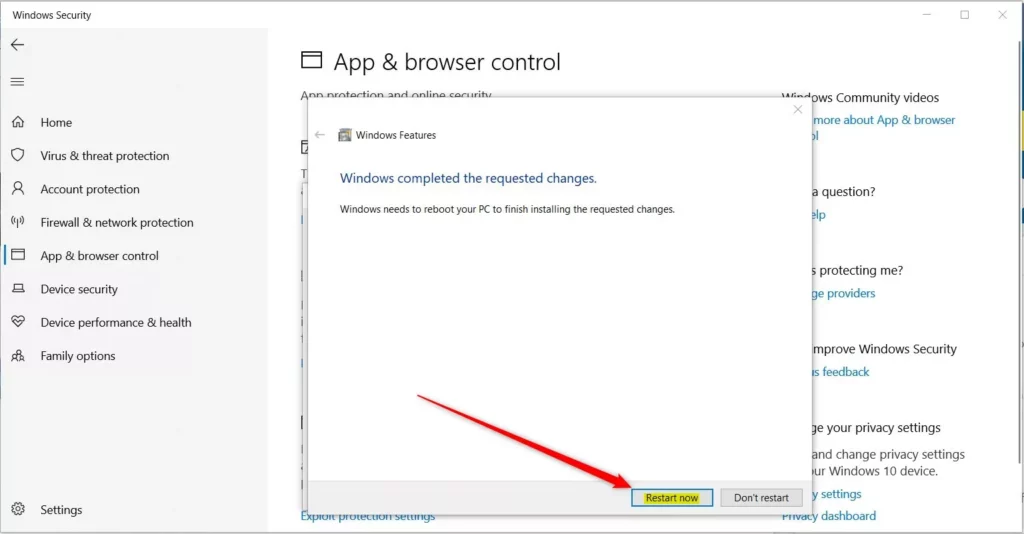
You can install or remove Microsoft Defender Application Guard directly through the Windows Security app without using command-line tools. Open the Start menu , type Windows Security, and click the app to open it. From there, select App & browser control and follow the link under Isolated browsing to turn the feature on or off on your Windows 11 computer.
- Open the Windows Security app. You can find this by clicking your Start menu and typing “Windows Security.”
- Click on the App & browser control section.
- Under the Isolated browsing area, click the link to install or uninstall the feature.
- A new window will appear. Check the box next to Microsoft Defender Application Guard to install it . If you want to remove it, uncheck the box.
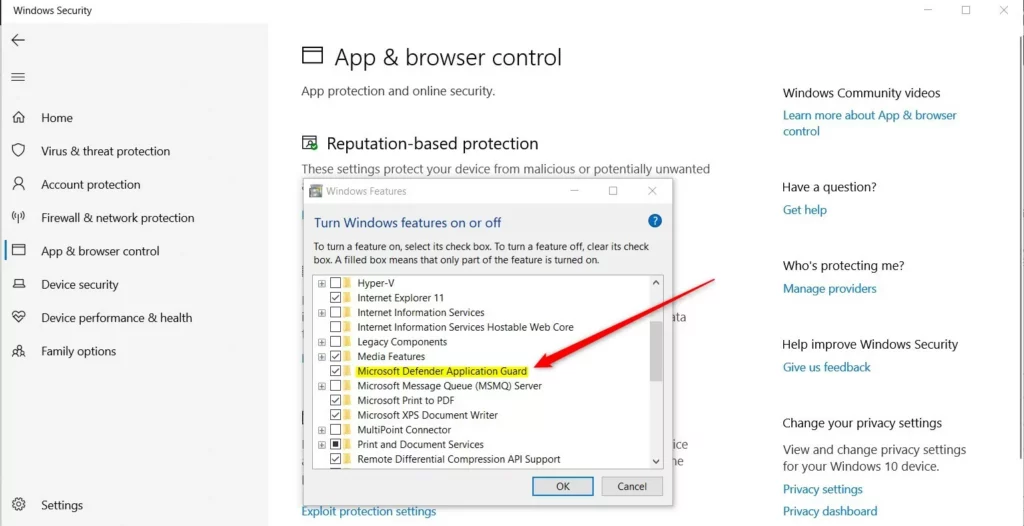
Windows will download the files needed. If you are uninstalling, you will be asked to restart your computer to finish the process.
How to install or remove it using PowerShell
You can install or remove Microsoft Defender Application Guard using PowerShell if you prefer text commands over the graphical interface. Open PowerShell as an administrator and run the deployment image servicing command to add or remove the feature quickly. This method works well if you want to script the setup or avoid clicking through the settings menus.
Install the feature by running this command:
Dism /online /Enable-Feature /FeatureName:"Windows-Defender-ApplicationGuard"Remove the feature using this command:
Dism /online /Disable-Feature /FeatureName:"Windows-Defender-ApplicationGuard"If the computer asks if you want to restart, type Y and press Enter.
Troubleshooting and Verification
After installing Microsoft Defender Application Guard, verify it's working by checking the Windows Features list or attempting to open a new Application Guard window.
Summary
Microsoft Defender Application Guard offers extra security by opening untrusted websites in an isolated container, but Microsoft has deprecated the feature and plans to remove it in future Windows versions. While you can still install and use it right now, it will not receive any new updates or security patches going forward.
Is Microsoft Defender Application Guard being deprecated?
It is no longer receiving new feature updates and is slated for removal in future Windows versions, specifically starting from Windows 11, version 24H2. Users are encouraged to transition to Microsoft Edge for Business or other modern security isolation technologies.
Does Application Guard work in IE mode?
Yes, Application Guard can be configured to work with Internet Explorer mode in Microsoft Edge. This allows organizations to isolate legacy web applications that require IE mode while maintaining a secure container environment, protecting the host system from potential threats found on older, less secure websites.
Can I download files from the container to the host?
Files downloaded within the Microsoft Defender Application Guard container remain separate from your main device by default. You can set rules to permit or stop file downloads from the container to your host device. Admins often use Group Policy or Intune to manage these rules, preventing bad files from leaving the secure container.
What is Microsoft Defender application Guard?
For Microsoft Office, Application Guard helps prevents untrusted Word, PowerPoint, and Excel files from accessing trusted resources. Application Guard opens untrusted files inside an isolated container powered by Hyper-V (Microsoft's built-in virtualization technology). The isolated Hyper-V container is separate from the host operating system.
Is Microsoft Defender application guard missing 🪟 Windows 11?
Microsoft made this decision to streamline its security offerings and focus on more advanced protective measures. As of Windows 11, version 24H2 (released October 2024), MDAG is no longer available. The browser extensions and associated Windows Store apps were subsequently removed after May 2024.
Was this guide helpful?

About the Author
Richard
Tech Writer, IT Professional
Richard, a writer for Geek Rewind, is a tech enthusiast who loves breaking down complex IT topics into simple, easy-to-understand ideas. With years of hands-on experience in system administration and enterprise IT operations, he’s developed a knack for offering practical tips and solutions. Richard aims to make technology more accessible and actionable. He's deeply committed to the Geek Rewind community, always ready to answer questions and engage in discussions.
[…] you install and enable the Microsoft Defender Application Guard for Edge, specific actions such as access to the camera and microphone, file printing, and copying and […]