How to Find All Apps and Programs in Windows 11

- 6 steps
- Needs administrator rights
Open the Start menu for the fastest list of apps, or go to Settings Apps Installed apps for the most complete one. The Start menu is the fastest to open, while Settings shows the most complete list, with sizes and install dates.
Windows 11 uses “apps” for Microsoft Store apps and “programs” for desktop software installed with a classic setup file (an .exe or .msi). Most lists show both. Some older tools show only one type. Where that applies, this guide says so.
No administrator rights are needed to view any of these lists. You need administrator rights only to uninstall some programs.
Open Start and select All to see every installed app and program in alphabetical order, or go to Settings Apps Installed apps for the most complete list, with sizes and install dates. Both show Microsoft Store apps and desktop programs together. No administrator rights are needed to view either list.
Find all apps in the Start menu
The Start menu’s full list shows every app and program that has a shortcut, sorted alphabetically. This is the quickest way to open an app you cannot find on the taskbar. Use these steps to see the full list of all apps on this computer.
- Select Start on the taskbar. The Start menu opens with your pinned apps at the top and recommended items below.
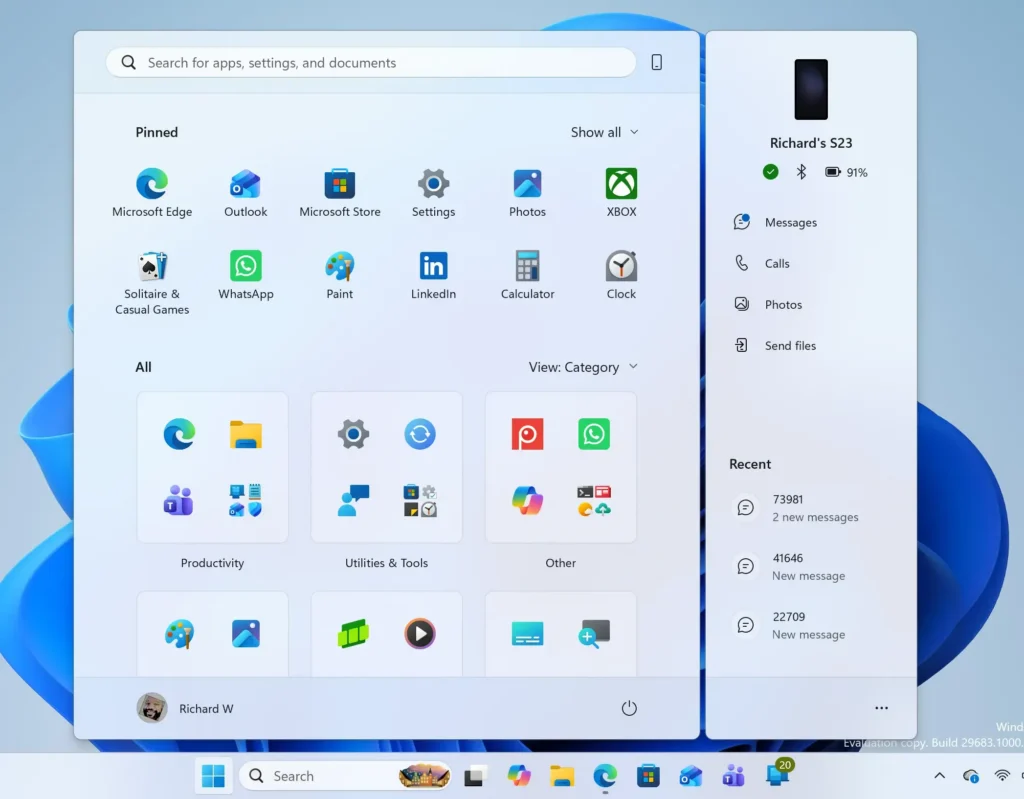
Windows 11 Start menu search panel for opening OpenSSH Client settings - Select All in the top-right corner of the Pinned section. On older Windows 11 builds, the button reads All apps. An alphabetical list of installed apps replaces the pinned grid.
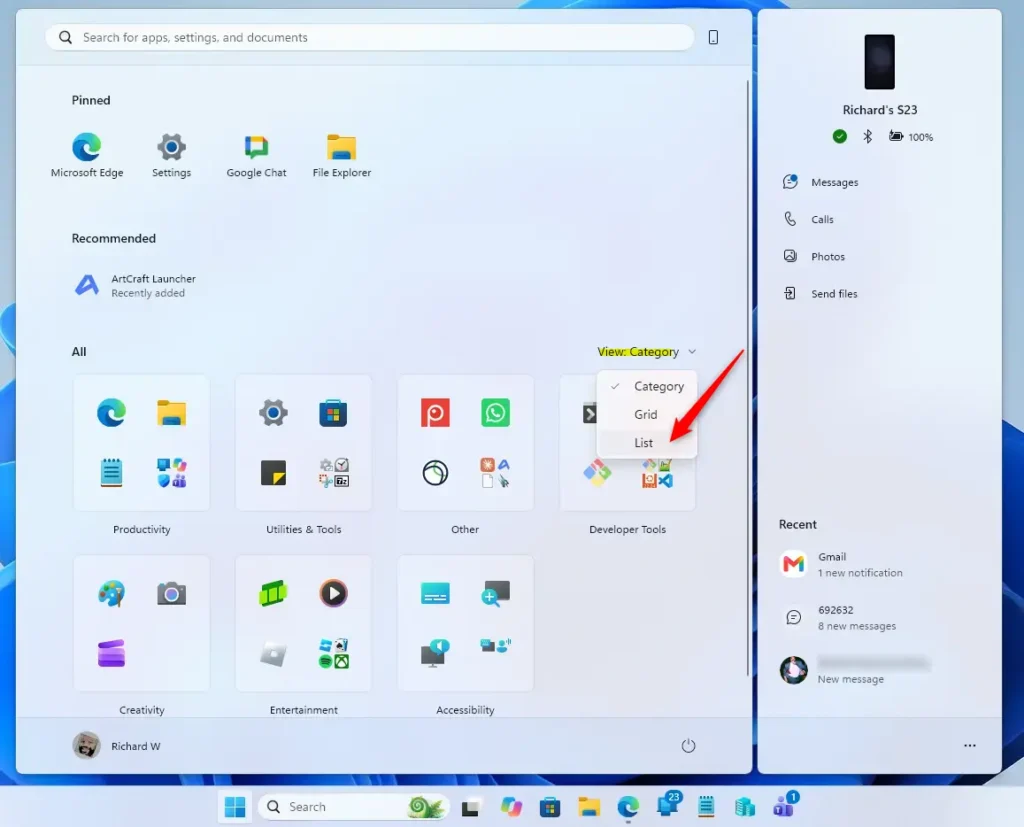
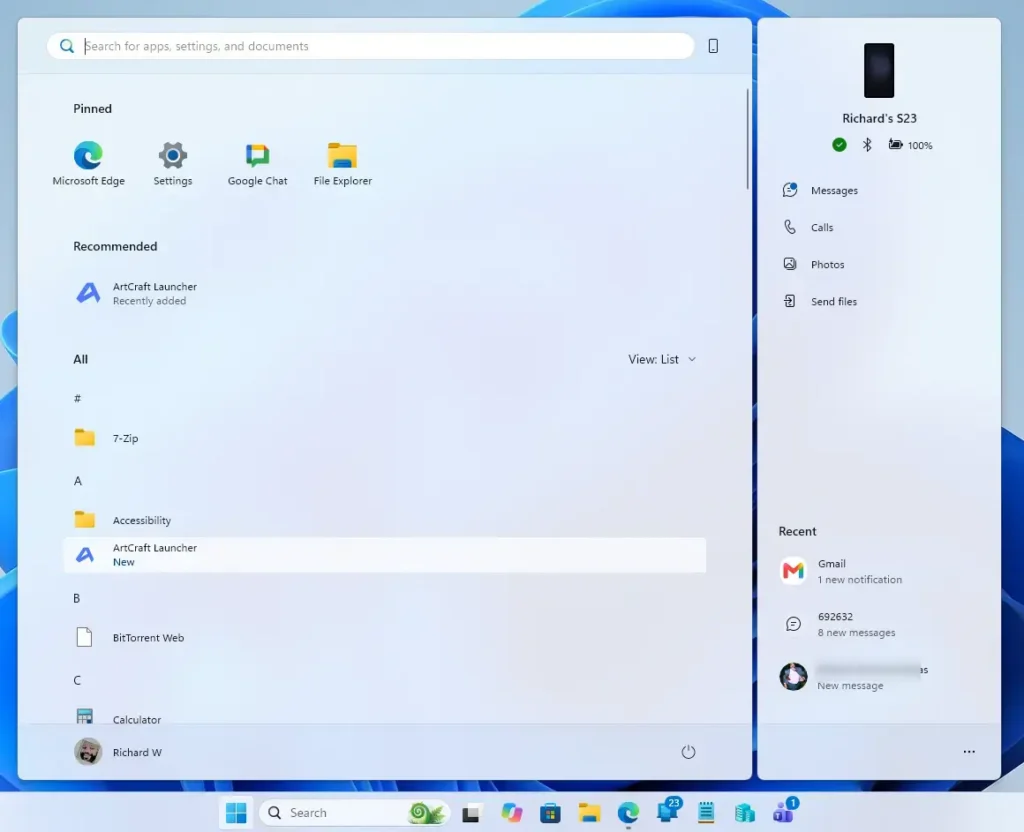
- Scroll down the list. Each section starts with a letter, and apps without a recognizable name are grouped under & or #.
- Select any letter heading to jump. A grid of letters appears, and selecting one takes you straight to that part of the list.
Start Menu - Select a folder such as Windows Tools to expand it. Some programs install several shortcuts into one folder, and the folder name is often the publisher’s name.
- Select an app to open it, or right-click it to pin it to Start or the taskbar. The context menu also offers Uninstall for most apps.
The Start menu layout changes slightly between Windows 11 builds, so your button labels may differ a little from the ones above. The alphabetical list itself is always there.
Search by name instead of scrolling
If you know part of the name, select Start and begin typing. Windows searches installed apps, settings and files at the same time, and the app usually appears at the top. Start menu search still uses the current search experience. The steps in this section should work for now, but Windows updates can change them.
If web or Microsoft Store results clutter the list, check Settings Privacy & security Search. On Windows 11 24H2 and 25H2, the optional preview update KB5120998 adds a setting there to choose whether web and Microsoft Store suggestions appear next to local results. If you do not see the option, your PC does not have that update yet.
Find all apps and programs in Settings
The Installed apps page in Settings is the most complete list for everyday use. It shows Store apps and desktop programs together, and it lets you sort by name, size or install date. Use these steps to open it.
- Press Win+I. The Settings app opens.
Windows 11 Start menu search panel for opening OpenSSH Client settings - Select Apps in the left pane. The Apps page opens with several sub-pages.
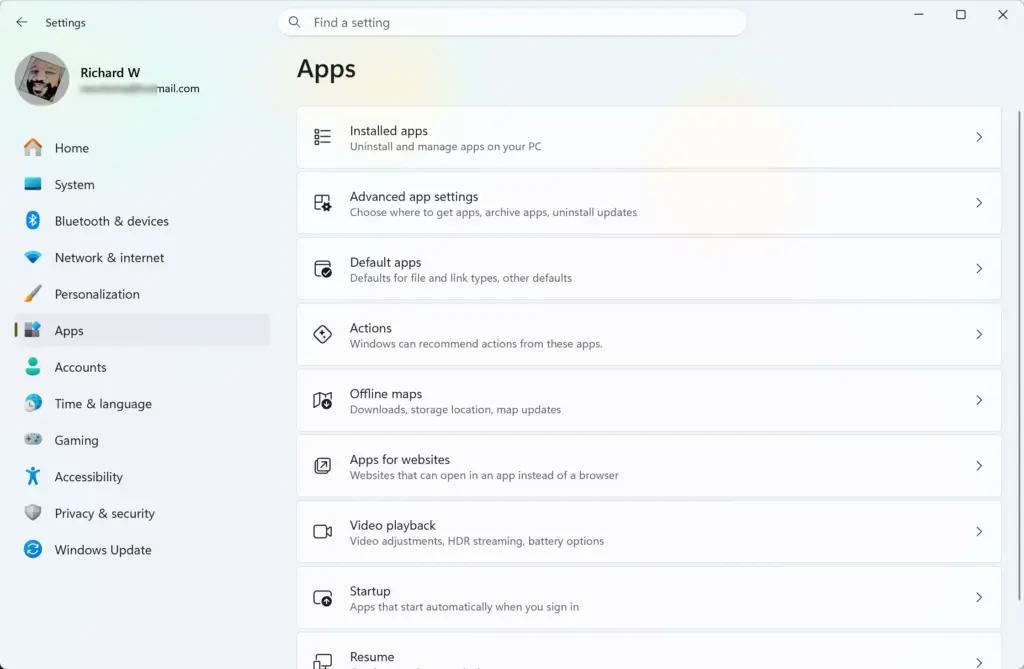
Settings › Apps - Select Installed apps. A list of every installed app and program loads, which can take a moment on a PC with many programs.
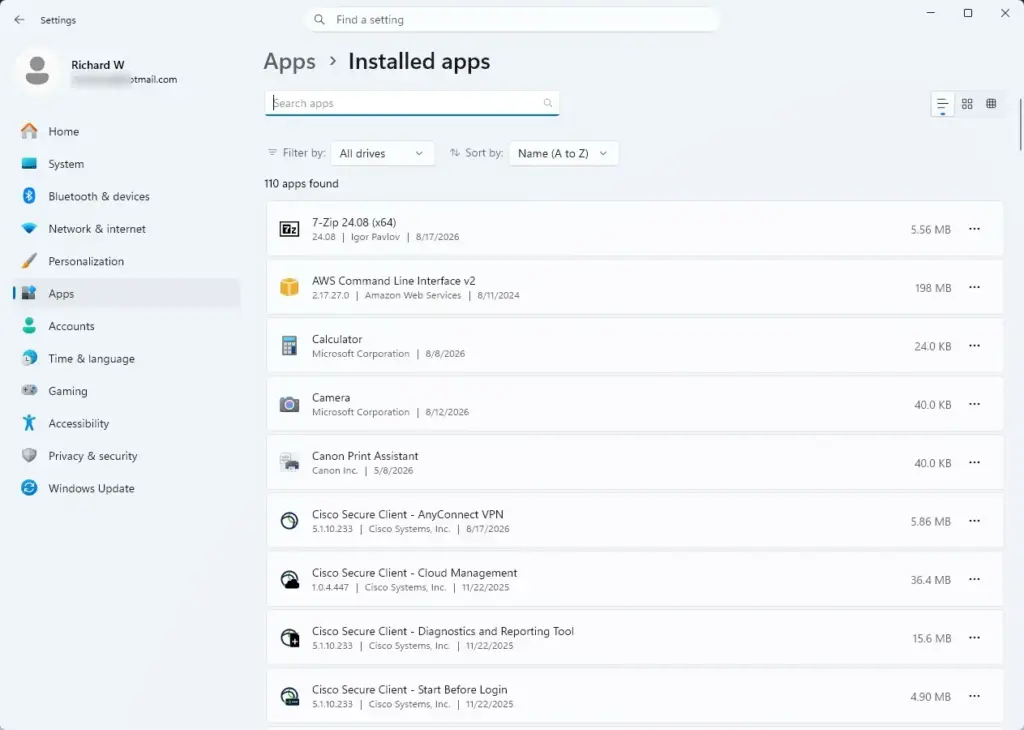
Settings › Apps › Installed apps - Scroll through the list. Each row shows the app name, the publisher, its size and the date it was installed.
- Select the three-dot menu at the end of a row to see options for that item. Options such as Advanced options, Move and Uninstall appear only when they apply to that app.
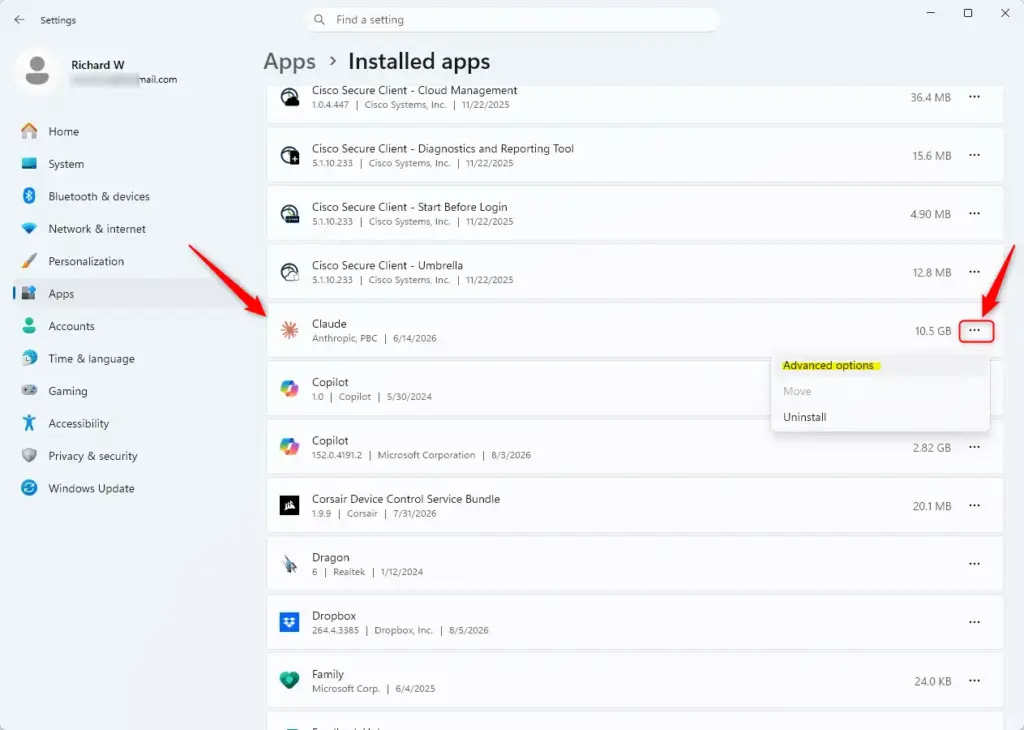
Settings > Update > Advanced options
On Windows 11 builds before 22H2, this page is called Apps & features instead of Installed apps. It holds the same list.
Search, sort and filter the list
A long list is hard to read. Use the search box and the sort options at the top of the page to narrow the list.
- Select the Search apps box at the top of the list and type part of a name. The list shrinks to matching items as you type.
- Open the Sort by drop-down. Choose name, size or install date to reorder the list. Sorting by size shows which apps use the most disk space, and sorting by install date shows what was added most recently.
- Open the Filter by drop-down if it appears. Pick a drive to see only apps installed on that drive. This helps when you keep apps on a second drive. To change where new apps go, see how to change where new apps save in Windows 11.
To clear a search, delete the text in the box. The full list returns straight away.
View built-in Windows components
Some parts of Windows do not appear in Installed apps. In recent Windows 11 versions, many of them are listed under Settings System System components. If that page is missing on your PC, your build is older and does not separate them.
Find desktop programs in Control Panel
Control Panel’s Programs and Features page lists classic desktop programs only. Use it when you want the version number or need to repair or change a classic installer. It does not list Microsoft Store apps.
- Select the search box on the taskbar and type Control Panel. The Control Panel app appears in the results.
- Select Control Panel to open it.
- Set View by to Category if it is not already. Then select Uninstall a program under Programs. If you use the icon view, select Programs and Features instead.
- Read the list. The columns show the name, publisher, install date, size and version.
- Select a column header such as Installed On to sort by that column.
appwiz.cpl and press Enter. This opens Programs and Features directly.Viewing is safe. Selecting Uninstall removes the program, and it asks for administrator approval through a User Account Control prompt (the window asking whether to allow changes). For a full walkthrough, read how to uninstall programs in Windows 11.
Find Microsoft Store apps in the Library
The Microsoft Store keeps a Library of apps you installed from it. Use it when you want to reinstall an app, check for updates or see apps tied to your Microsoft account.
- Open Microsoft Store from Start. The Store home page loads.
- Select Library in the lower-left corner of the window. A list of your Store apps appears.
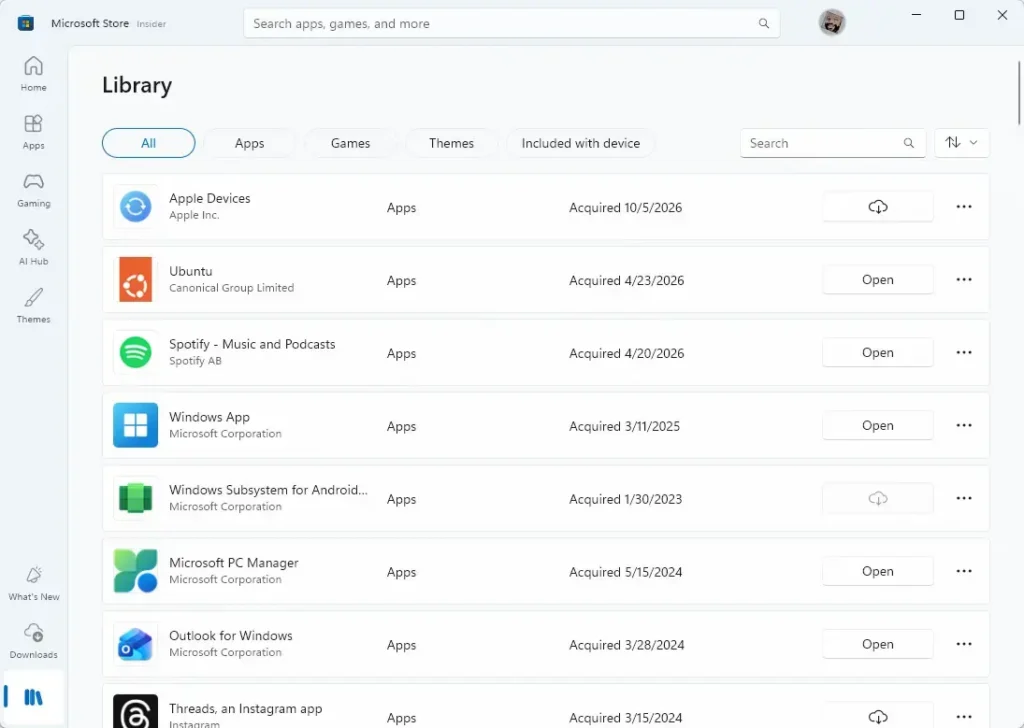
- Select Get updates if you want to refresh the apps in that list. The Store checks for newer versions and installs them.
Open the full list with the AppsFolder shortcut
The AppsFolder is a special File Explorer location that lists every app Windows can launch, Store apps and desktop programs together. Use it when the Start menu list is too cramped.
- Press Win+R. The Run box opens. This is a small window for typing commands.
- Type
shell:AppsFolderand press Enter. A File Explorer window opens with an icon for every app. - Select View in the toolbar and choose Details. The icons become a sortable list.
- Double-click any app to open it.
If File Explorer shows an error instead of the list, close the Run box and type the command again. Check that you typed shell:AppsFolder with the colon and no spaces.
List apps with PowerShell or winget
Command-line tools print the list as text. This is useful when you want to copy names into a document or compare two PCs. Neither tool needs administrator rights to list apps.
- Right-click Start and select Terminal. Windows Terminal opens with a PowerShell tab (a command window with scripting tools built in).
- Type the command below and press Enter to list every app that appears in the Start menu.
Get-StartAppsThe output has two columns, Name and AppID. The AppID is the internal identifier Windows uses to launch the app.
To list apps managed by Windows Package Manager (winget, the built-in command-line installer), run this command instead:
winget listThe first time you run winget, it may ask you to accept the terms for its software source (the list of places it downloads apps from). Type Y and press Enter to continue. The command returns installed apps and programs with their IDs and versions. If Terminal says winget is not recognized, update App Installer in the Microsoft Store and open a new Terminal window.
To list only Store apps (the packaged apps Windows installs from the Store) and their versions, use this command:
Get-AppxPackage | Select-Object Name, VersionThis list is long because it includes background system packages that have no shortcut.
Why an app or program is missing from the list
If you cannot find an app you know you have, one of these causes is usually the reason.
- It is a portable program. Portable programs run from a folder without installing, so they never register in Installed apps or Programs and Features. Search for the file in File Explorer instead.
- It was installed for another user account. Some apps install only for the account that set them up. Sign in to that account to see them.
- It has no shortcut. The Start menu list and AppsFolder show only apps that have a shortcut or launch entry they can start from. Check Installed apps in Settings, which does not depend on shortcuts.
- It is a Store app and you used Control Panel. Programs and Features never lists Store apps. Use Settings or the Library.
- The list has not finished loading. On a PC with many programs, Installed apps can take a few seconds to fill. Wait, then scroll back to the top.
- It is a built-in component. Some Windows parts do not appear in Installed apps. Check Settings System System components if your build has it.
Windows 11 can also install apps from outside the Store. If you restricted where apps can come from, you may be missing apps you expected. The page on how to choose where to get apps in Windows 11 explains that setting.
Which method to use
Each list answers a slightly different question, so pick the one that fits the job.
- Use the Start menu to open an app quickly.
- Use Installed apps in Settings for the complete list with sizes and dates.
- Use Programs and Features for desktop program versions and repairs.
- Use the Library in Microsoft Store for apps tied to your account.
- Use PowerShell or winget when you need text you can copy.
What to do next
Once you have the list, you can remove what you do not use. Start with how to uninstall apps in Windows 11. If an app misbehaves but you want to keep it, resetting it is the gentler option. To control which app opens a file type, go to how to choose default apps in Windows 11.
Frequently asked questions
How to pin apps to Windows 11 taskbar efficiently?
Open Start and find the app. If it is not in the pinned section, select All to browse the full list. Right-click the app and select Pin to taskbar. The app then stays on the taskbar, so you can open it with one click.
How to pin apps to start menu in Windows 11?
Open Start and select All to find the app. Right-click the app and select Pin to Start. It appears in the pinned grid at the top of the Start menu and stays there until you unpin it.
How to find apps on this computer?
Open Start and select All to see every app that has a shortcut, sorted alphabetically. For the most complete list, press Win+I, select Apps, then select Installed apps. It shows Store apps and desktop programs together, with each item's size and install date. You do not need administrator rights to view either list.
How to uninstall programs in Windows 11?
Open Settings, select Apps, then select Installed apps. Select the three-dot menu at the end of the program's row and select Uninstall. Windows may ask for administrator approval in a User Account Control prompt. Uninstalling removes the program, so confirm you no longer need it first.
Still have a question?
Answered by AI from this guide. Good questions may be added to this page — please don't include personal details.
Did this guide fix your problem?

About the Author
Richard
Tech Writer, IT Professional
Richard is a writer at Geek Rewind who turns complex IT tasks into clear, step-by-step guides. He draws on years of hands-on experience in system administration and enterprise IT operations, focusing on Windows, Linux and WordPress: the problems people actually run into, and the fixes that work. His server and WordPress guides come from systems he runs himself. Richard builds and maintains the platform behind Geek Rewind, from its Ubuntu servers and Nginx configuration to its custom WordPress plugins. Many new tutorials start with readers' questions, and he's always glad to answer them in the comments.
No comments yet — be the first to share your thoughts!