How to Change Account Type In Windows 11

Changing your account type in Windows 11 lets you switch a user profile between a Standard User and an Administrator. A Standard User can run installed apps and change their own settings. An Administrator has full control: installing software, changing system settings, and managing the other accounts on the PC.
You need Administrator rights on your PC to make this change. Windows 11 supports account type switches for both local accounts and Microsoft accounts. All four methods below work on Home and Pro, and each one gives the same result, so pick whichever suits you. If you are not sure which account you are signed in with, check Settings Accounts Your info It shows your name and whether you use a local or Microsoft account.
Open Settings , navigate to Accounts Other users, select the desired account, click “Change account type,” and choose between Standard User or Administrator. You must be signed in as an administrator to make these changes.
How to Change Account Type
Option 1Change Account Type Using Settings
This is the easiest method and the one I use first. Follow these steps while signed in as an administrator.
- Press Win + I to open Settings. The Settings window opens on the System page.
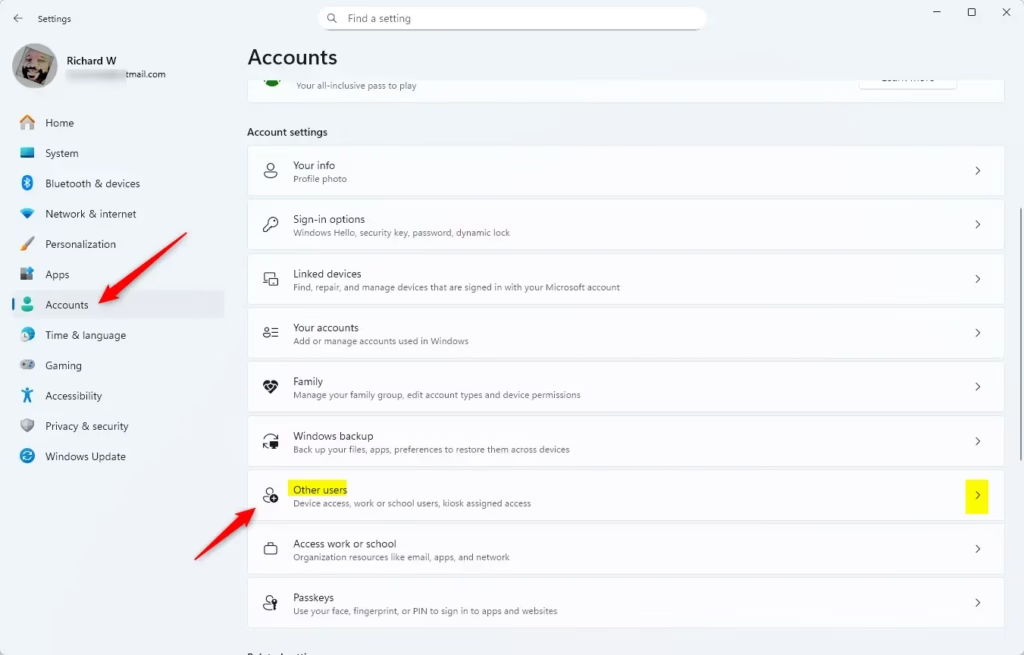
- Click Accounts on the left side, then select Other users on the right. You will see a list of the other people who have an account on this PC.
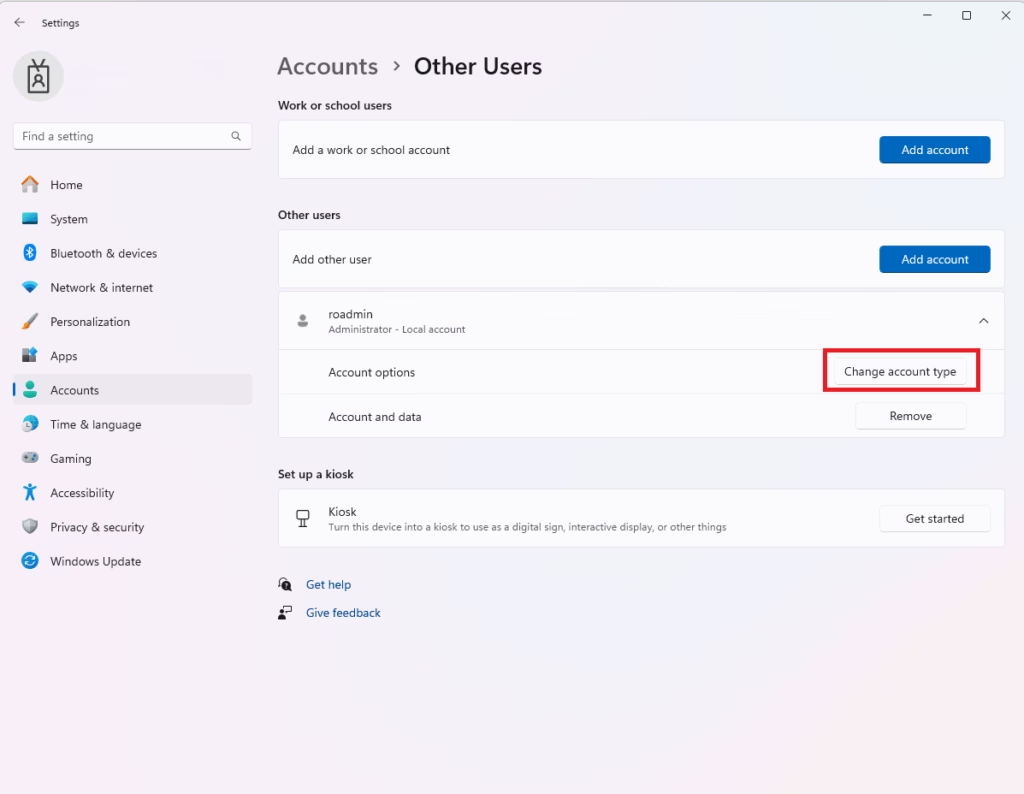
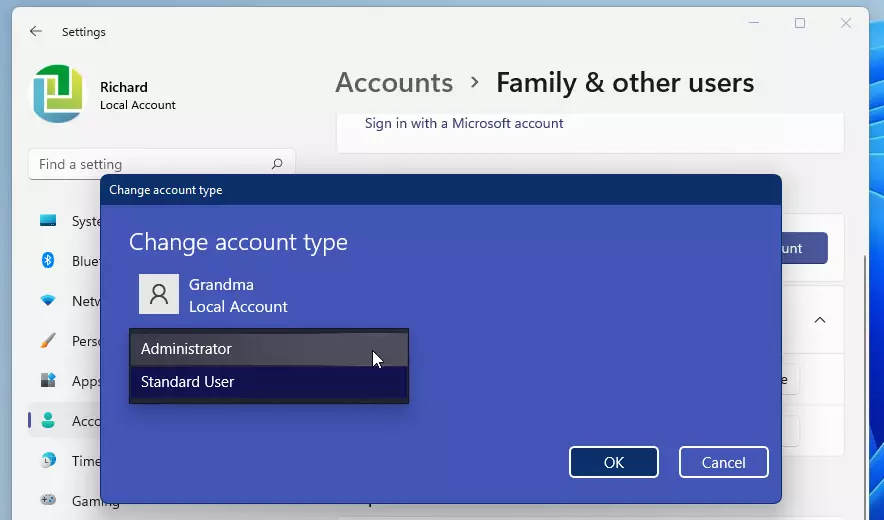
- Find the user account you want to change and click it to expand it. Then click Change account type. A small window opens with the account name and an account type dropdown.
- Choose Standard User or Administrator from the dropdown menu, then click OK. The window closes and the change is saved.
- Close Settings when you’re done.
You can change account type Windows 11 users rely on through the main Settings app by going to your account options. This built-in method lets you switch any user profile between a standard account and full administrator access in just a few clicks without needing any extra tools.
A few things to know. The account you are currently signed in to does not appear under Other users, so you cannot change your own account type here. To change your own account, sign in with a different administrator account and change it from there. If Change account type is missing or greyed out, you are most likely signed in as a Standard User. The change applies the next time that person signs in, so if they are logged in right now, ask them to sign out and back in. To undo it, repeat the steps and pick the other account type.
Option 2Change Account Type Using Control Panel
For those familiar with older Windows versions, changing an account type in Windows 11 can also be done through the Control Panel. This method requires accessing the ‘User Accounts’ section, selecting the specific account, and then choosing the desired account type, either Standard User or Administrator.Option 3Change Account Type Using netplwiz (User Accounts Window)
This method uses the classic User Accounts window. It is useful if you prefer the older interface or if you already work with other tools that open from the Run box.
- Press Win + R, type
netplwiz, and press Enter to open the User Accounts window. If a User Account Control prompt appears, click Yes. - If available, make sure the box Users must enter a user name and password to use this computer is checked. If it is unchecked, the list of accounts can be empty or the buttons below it may be greyed out. Checking the box brings the accounts back.
- Select the user account you want to change, then click Properties. A properties window for that account opens.
- Go to the Group Membership tab.
- Select either Standard User or Administrator, then click OK. The Other option on this tab is for custom groups, and most home setups do not need it.
- Click OK again to close the User Accounts window.
As with Settings, the new account type applies the next time the user signs in. To undo the change, open the same window and select the other account type.
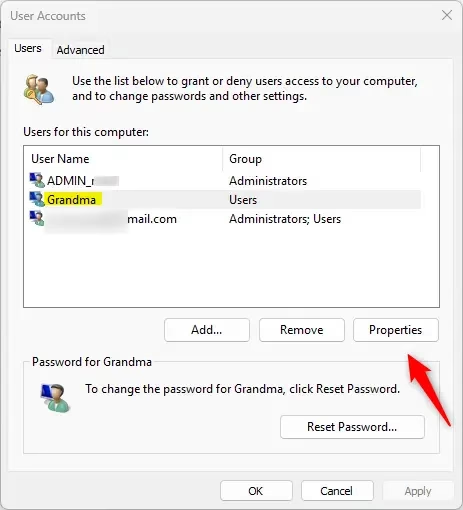
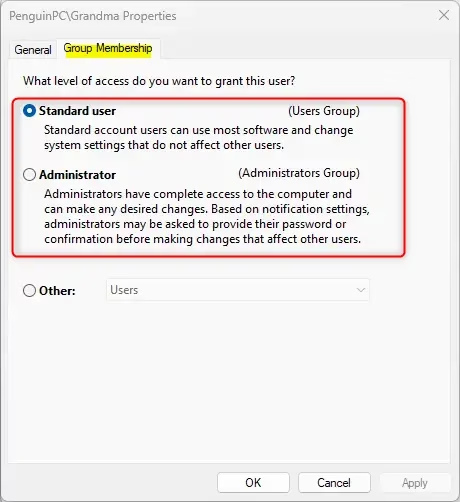
You can change account type Windows 11 setups use by opening the classic netplwiz (User Accounts window) tool via the Run dialog box. This advanced menu lets you manage user group memberships directly and switch accounts between standard and administrator status quickly.
Option 4Change Account Type Using Command Prompt or PowerShell
You can change account type Windows 11 permissions require by running specific commands in Command Prompt or PowerShell with administrator rights. This text-based method lets you alter user privileges directly through the command line instead of using the graphical settings menu. It is handy when you work over a remote session or when you need to change several accounts quickly.
Windows decides an account's type by the groups it belongs to. These commands add or remove the user from those groups, so type each one carefully and check the result.
- Right-click the Start button and select Windows Terminal (Admin) or Command Prompt (Admin). Click Yes if User Account Control asks for permission. A terminal window opens.
- To see which users are in each group, type these commands and press Enter after each. The terminal prints a list of the members of each group, so you can note the exact user names:Code
net localgroup users
net localgroup administrators - To make someone a Standard User, type:Code
net localgroup users "UserName" /addReplace
UserNamewith the actual user name (for example, "Brink2"). Use the name exactly as it appears in the lists from the previous step. - To make someone an Administrator, type:Code
net localgroup administrators "UserName" /addAgain, replace the user name placeholder with the real name. Windows prints a message saying the command completed successfully.
- To remove a user from a group (for example, if you want to remove admin rights), type:Code
net localgroup administrators "UserName" /delete
net localgroup users "UserName" /delete
net localgroup guests "UserName" /delete
Run the list commands from step 2 again afterwards to confirm the user is only in the group you want.
- Close the terminal when done.
If a command returns an error, check that the terminal is running as administrator and that the user name is spelled correctly. To undo a change, run the commands that put the user back in the other group.
Summary
- Standard User accounts are for regular PC use without full control. They can run apps and change their own settings, but not install most software or change system-wide settings.
- Administrator accounts have full control and can change system settings, install software, and manage other accounts.
- You can change account types in many ways: Settings, Control Panel, netplwiz, or Command Prompt.
- You must be signed in as an administrator to make these changes.
- Always keep at least one administrator account active on your PC. If you demote the only administrator, you will have no easy way to change settings or switch accounts back.
- The change takes effect the next time the user signs in, so ask anyone who is logged in to sign out and back in.
- Managing accounts carefully helps keep your PC safe and running smoothly.
Understanding how to change account type Windows 11 options work helps you secure your computer and control what other users can do. Standard accounts keep your system safe for daily tasks, while administrator accounts let you install apps and change core system settings. As a good habit, use a Standard User account for everyday work and keep a separate administrator account for installs and maintenance.
Have a question about this guide?
Answered by AI from this guide. Good questions may be added to this page — please don't include personal details.
Did this guide fix your problem?

About the Author
Richard
Tech Writer, IT Professional
Richard is a writer at Geek Rewind who turns complex IT tasks into clear, step-by-step guides. He draws on years of hands-on experience in system administration and enterprise IT operations, focusing on Windows, Linux and WordPress: the problems people actually run into, and the fixes that work. His server and WordPress guides come from systems he runs himself. Richard builds and maintains the platform behind Geek Rewind, from its Ubuntu servers and Nginx configuration to its custom WordPress plugins. Many new tutorials start with readers' questions, and he's always glad to answer them in the comments.
No comments yet — be the first to share your thoughts!