How to Add the Arabic 101 Legacy Keyboard in Windows 11

- 30 steps
- Needs administrator rights
- Includes a restart or sign-out
The Arabic 101 Legacy keyboard layout in Windows 11 is a version of the Arabic keyboard for people who prefer the design used before recent changes to the AltGr key. AltGr is the right-hand Alt key, which types extra characters on many layouts. To add it, open Settings Time & language Language & region, open the language options for Arabic, and choose the layout under Keyboards.
Microsoft introduced the layout in update KB5083631, and it appears in the list of keyboards you can pick for Arabic. This page shows how to add the layout, install Arabic if it is missing, switch between layouts, and remove the layout.
To add the Arabic 101 Legacy keyboard in Windows 11, open Settings Time & language Language & region, click the three dots next to Arabic, choose Language options, select Add a keyboard, and pick Arabic 101 Legacy. The layout needs update KB5083631 or later. No restart is needed, and the new layout sits alongside your current Arabic keyboard.
What the Arabic 101 Legacy keyboard is
A keyboard layout decides which character each physical key types. Windows ships several layouts for Arabic, and you can keep more than one installed at the same time.
Arabic 101 Legacy is the layout for users who liked the keyboard design from before the recent AltGr changes. Microsoft describes it as an option you can add when selecting a keyboard for Arabic. It does not replace your current Arabic layout. It sits next to it, so you can try it and switch back whenever you want.
The details of what changed with AltGr are in Microsoft’s own release notes for KB5083631. This page does not explain those changes. The release notes for KB5083631 do.
Before you start
Check three things before you start: the Windows update, your account, and the Arabic language entry. Each one explains a common reason why the layout does not show up.
Install the latest 🪟 Windows 11 updates
- Open Windows Update. Go to Settings Windows Update. The page shows whether updates are waiting.
- Click Check for updates. Windows searches for new updates and lists any it finds.
- Install what is offered. Wait for the downloads and installation to finish. Restart the PC if Windows asks you to.
- Confirm the update, if you want to. Open Settings Windows Update Update history and look for KB5083631 in the list.
That’s it. Your PC is now up to date, so you can repeat the keyboard steps below and the layout should appear.
Know that Home and Pro behave the same here
Keyboard layouts apply to your own user account only. You do not need administrator rights to add one to your own account. The steps are the same on Windows 11 Home and Windows 11 Pro.
Decide whether you need to add Arabic first
How to add the Arabic 101 keyboard in 🪟 Windows 11
To add the Arabic 101 keyboard in Windows 11, go to Settings Time & language Language & region. Click the three dots next to Arabic, choose Language options, click Add a keyboard, and select Arabic 101 Legacy. The layout only appears on PCs that have update KB5083631 installed.
The steps below walk through the same process in detail. They run entirely through Settings and take a few minutes, mostly spent waiting if Arabic needs to download. No restart is needed to add the layout.
- Open Settings. Press Win+I, or right-click the Start button and choose Settings. The Settings window opens.

Start Menu - Select Time & language. It is in the left-hand list. The page on the right changes to show date and language options.

Settings › Time & language - Click Language & region. You should see a Preferred languages section listing every language installed for your account, such as English (United States).
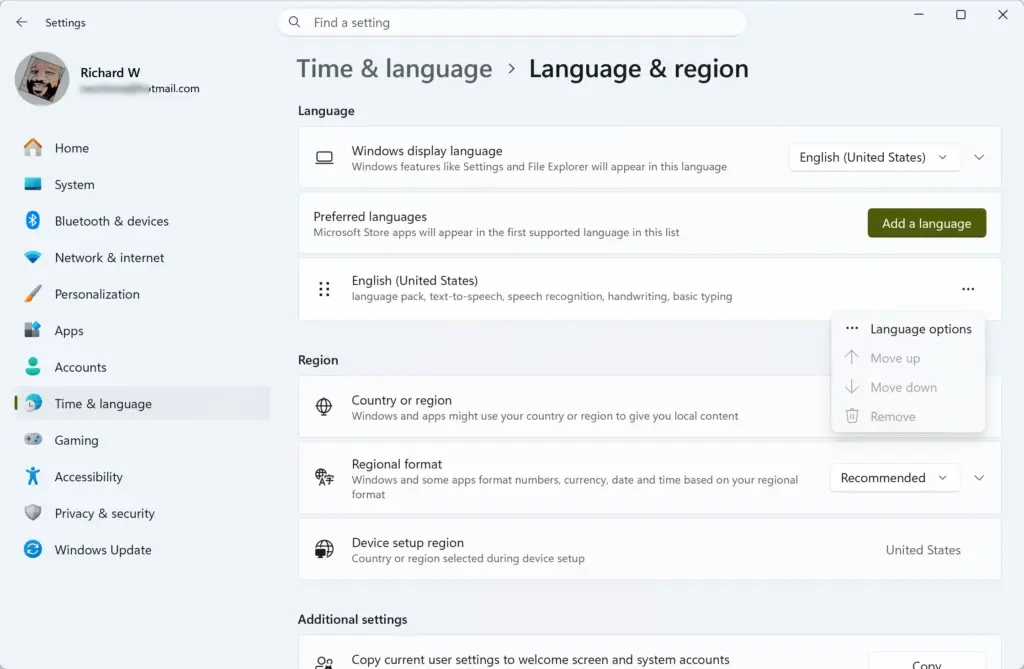
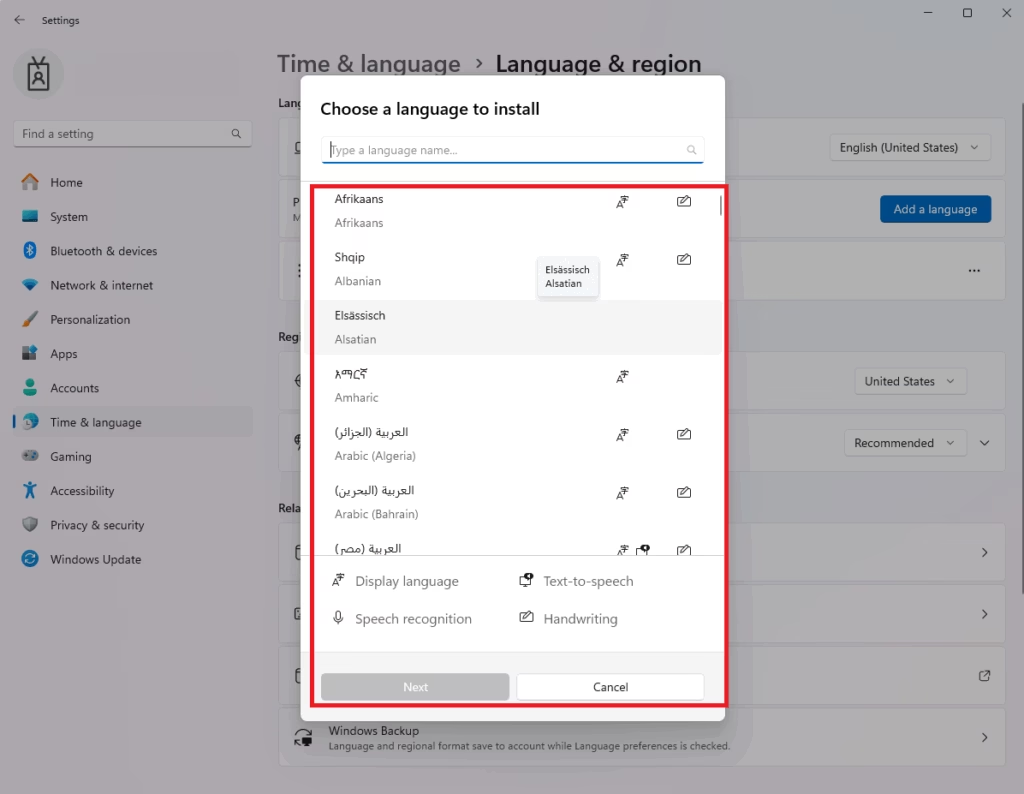
Settings > Time & language > Language & region > Preferred languages - Find Arabic in the Preferred languages list. If Arabic is already listed, go to step 5. If it is not, click Add a language, type Arabic in the search box, select the Arabic entry you want, and click Next. On the next screen, review the optional features and click Install. Wait for the download to finish. Arabic then appears in the list.
- Click the three dots next to Arabic. The dots (…) sit at the right-hand end of the Arabic row. A small menu opens.
- Choose Language options. A page opens for Arabic, with sections for language packs, speech and keyboards.
- Click Add a keyboard. It is under the Keyboards heading. A list of the keyboard layouts available for Arabic opens.
- Select Arabic 101 Legacy. The layout is added straight away. It now appears in the Keyboards list for Arabic, next to any layout that was there before.
- Switch to the new layout. Press Win+Space to cycle through your installed keyboards, or click the language code in the taskbar, near the clock, and choose the Arabic entry. Open Notepad and type a few keys to check the layout behaves the way you expect.
That’s it. The Arabic 101 Legacy layout is now installed on your account, and you can switch to it whenever you want to type with it.
If Arabic 101 Legacy is not in the list
At step 7, the list shows only the keyboards your copy of Windows offers for Arabic. If Arabic 101 Legacy is missing, install pending updates from Settings Windows Update and restart if Windows asks. Then open the same page and click Add a keyboard again.
The layout comes with the update that added it, so an older build of Windows 11 will not show it. Microsoft’s release notes for KB5083631 are the place to confirm what your build includes.
If the language install stalls at step 4
A language download needs an internet connection. If the install appears stuck, check that you are online, then open Settings Windows Update and see whether another update is already running. Windows can install only one thing at a time, so it may be waiting its turn.
Wait for the other update to finish, then try the language install again. Once Arabic appears in the Preferred languages list, carry on from step 5.
Switch between Arabic keyboards and other layouts
Adding a layout does not make it the default. Windows keeps a list of every installed keyboard and lets you move between them as you type. Two methods are below: a keyboard shortcut and the taskbar menu.
Use the keyboard shortcut
- Press Win+Space. A small panel appears above the taskbar listing your installed languages and layouts.
- Tap Space again while holding the Win. Each tap moves the highlight down the list.
- Release both keys. Windows selects the highlighted layout.
That’s it. The layout you highlighted is now active in the app you are using. This shortcut is one of many in our guide to essential keyboard shortcuts for Windows 11.
Use the taskbar
- Click the language code near the clock. It may read ENG or ARA. A menu opens.
- Look through the list. It shows every language you have installed. If a language has more than one keyboard layout, the menu lists the layouts too.
- Click the one you want to use. The menu closes.
You should now be typing with the layout you chose. Repeat the steps any time you want to change it.
Check which layout is active
The code in the taskbar shows the active language, not the specific layout. If you have two Arabic layouts installed, the code may look the same for both. Open the taskbar menu to see which layout carries the check mark or highlight.
Typing a few characters in Notepad also confirms it. If the characters are not what you expect, switch layouts and try again.
Set a default input method
If you want Windows to start in a particular language each time, change the default input method. This is the language and layout Windows picks when you start typing in a new window. Open Settings Time & language Typing Advanced keyboard settings and choose it there, as the steps below show.
- Open Settings. Press Win+I. The Settings window opens.
- Select Time & language. It is in the left-hand list.
- Click Typing. The page shows typing and text suggestion options.
- Click Advanced keyboard settings. It is near the bottom of the page. The page that opens shows the default input method list.
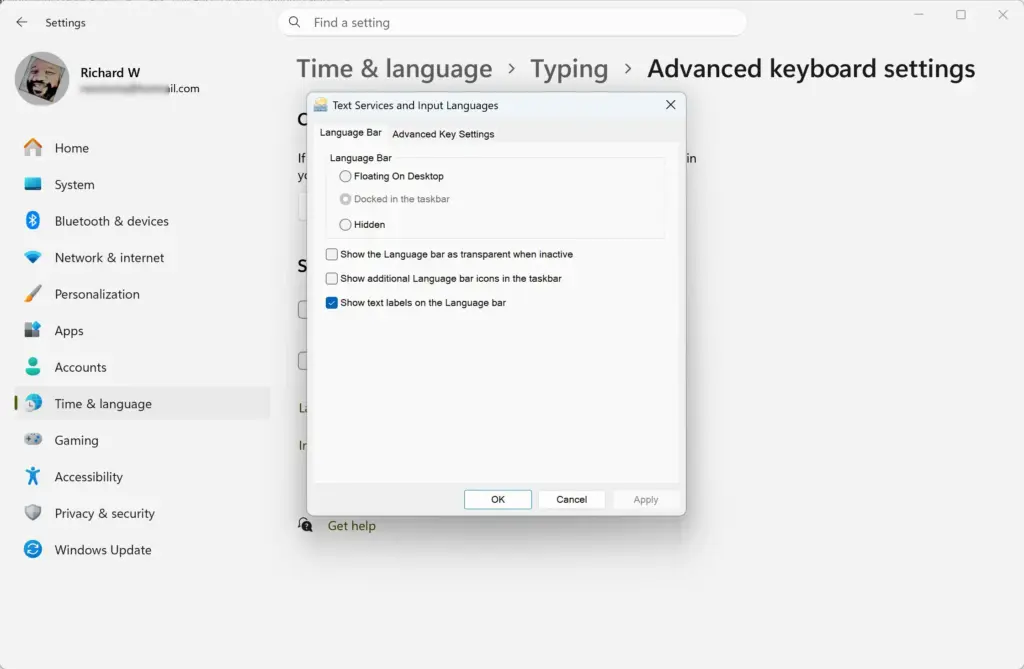
Settings > Time & language > Typing > Advanced keyboard settings - Open the Override for default input method list. Pick the language and layout you want as the default. If the list does not name the layout, choose the closest Arabic entry, then check it in Notepad.
That’s it. Windows now starts new windows with the language and layout you picked. To undo this, return to the same list and choose the original entry.
This setting applies to your account only. Other user accounts on the same PC keep their own choices.
Keep more than one Arabic layout
Adding Arabic 101 Legacy does not remove the Arabic layout you already have. You can keep both and switch between them with Win+Space. This is handy if you want to compare the two before settling on one.
Keep in mind that every extra layout adds an entry to the Win+Space cycle. If you cycle through the list often, a long list slows you down. If you do not use a layout, remove it so the list stays short.
How to remove the Arabic 101 Legacy keyboard
Removing the layout takes a few clicks. You can add it back at any time with the steps above, and your documents and settings are not affected.
- Open Settings. Press Win+I.
- Go to Time & language Language & region. The Preferred languages list appears.
- Click the three dots next to Arabic. A small menu opens.
- Choose Language options. The Arabic page opens with the Keyboards list.
- Click the three dots next to Arabic 101 Legacy. A menu appears with a remove option.
- Choose Remove. The layout disappears from the Keyboards list and from the language switcher.
You should now have Arabic 101 Legacy removed, with your other keyboards untouched.
If Remove is greyed out, the layout is the only keyboard installed for that language. Windows keeps at least one keyboard per language. Add another Arabic layout first, then remove Arabic 101 Legacy. To remove the Arabic language entirely, use the three dots next to Arabic in the Preferred languages list instead.
Common problems
The layout types the wrong characters
Check which keyboard is active before changing anything. Press Win+Space and look at the highlighted entry, or open the taskbar menu. A different layout may be selected, especially if you installed more than one for Arabic.
Switch to Arabic 101 Legacy and type again. If the keys still produce the wrong characters, confirm the layout appears in the Keyboards list for Arabic.
The language code is missing from the taskbar
Windows shows the language code in the taskbar only when you have more than one language or layout installed. If you removed the extra layouts, the code disappears. It returns when a second layout is added.
The layout works in some apps but not others
Windows remembers the active layout for each window. If you switch layouts while one app is active, other open apps may keep the layout they used before. Click into the app and press Win+Space again.
Typing a physical keyboard layout that does not match the screen
Windows layouts change which character each key types, but the keys themselves are labelled by your hardware. If your keyboard has no Arabic letters printed on the keys, the labels will not match what you type. This is normal for any layout on a standard keyboard.
Learn the shortcuts that help with layout switching
Many people switch languages often, so shortcuts save time. If you want to go further, every Windows 11 keyboard shortcut for built-in features lists the rest in one place. A longer collection is in the Windows 11 keyboard shortcuts masterclass.
What to do next
With the layout installed, press Win+Space in any text field and choose the Arabic keyboard to start typing. If you decide the layout is not the right fit, remove it with the steps above and keep your original Arabic layout. When you want to speed up other everyday tasks, read the essential keyboard shortcuts for Windows 11 next.
Frequently asked questions
How to add multiple monitors to your 🪟 Windows 11 PC site:Microsoft.com?
Connect the second monitor to your PC, then open Settings System Display. If Windows does not show the monitor, click Detect. Open the Multiple displays list and choose Extend these displays. Press Win+P to switch display modes quickly.
How to add multiple monitors to your 🪟 Windows 11 laptop?
Plug the external monitor into your laptop's HDMI or USB-C port. Press Win+P and choose Extend. For more control, open Settings System Display and set Multiple displays to Extend these displays. Drag the screen icons to match where the monitors sit on your desk.
How to get help in 🪟 Windows 11 keyboard sound?
Windows 11 has no general typing sound setting for physical keyboards, so the click usually comes from the keyboard hardware. To change the touch keyboard's key sounds, open Settings Personalization Touch keyboard and turn Play key sounds as I type on or off.
How to set up the Windows keyboard for 🪟 Windows 11 for english?
Open Settings Time & language Language & region. Under Preferred languages, select English and choose Language options. Under Keyboards, add the English keyboard you want, such as US. Press Windows key + Spacebar to switch between installed keyboards.
How do I make my keyboard bigger I cannot see it on laptop 🪟 Windows 11 10?
Press Win+Ctrl+O to open the On-screen keyboard. Drag any corner or edge of the keyboard window to make it bigger. To keep it open at sign-in, go to Settings Accessibility Keyboard and turn on the On-screen keyboard setting.
Still have a question?
Answered by AI from this guide. Good questions may be added to this page — please don't include personal details.
Did this guide fix your problem?

About the Author
Richard
Tech Writer, IT Professional
Richard is a writer at Geek Rewind who turns complex IT tasks into clear, step-by-step guides. He draws on years of hands-on experience in system administration and enterprise IT operations, focusing on Windows, Linux and WordPress: the problems people actually run into, and the fixes that work. His server and WordPress guides come from systems he runs himself. Richard builds and maintains the platform behind Geek Rewind, from its Ubuntu servers and Nginx configuration to its custom WordPress plugins. Many new tutorials start with readers' questions, and he's always glad to answer them in the comments.
No comments yet — be the first to share your thoughts!