File Explorer Search Filters: Every Kind, Size and Date Keyword in Windows 11

- 13 steps
- Needs administrator rights
File Explorer search filters are keywords you type into the search box to narrow results by file type, size, or date. Three examples are a kind filter, kind:picture, a size filter, size:>10MB, and a date filter, datemodified:last month. This post lists every kind, size, and date keyword and shows how to combine them in Windows 11, including current versions such as 25H2.
The quickest way to use a filter is to open a folder, click the search box in the top-right corner, type the keyword and value, and press Enter. File Explorer searches that folder and everything inside it.
The filters work the same on Home and Pro editions. Nothing needs a restart, and you can clear a filter at any time.
File Explorer search filters are keywords you type into the search box to narrow results by kind, size, or date in Windows 11. Open a folder, click the search box in the top-right corner, type a keyword and value such as kind:picture, size:>10MB, or datemodified:last month with no space after the colon, then press Enter.
How File Explorer Search Filters Work
A filter has two parts: a keyword, a colon, and a value, with no space after the colon. In kind:video, kind is the property and video is the value. Keywords are not case-sensitive, so Kind:Video works too.
These keywords come from Windows Search’s advanced query syntax (the set of search operators built into Windows). On a PC with a display language other than English, the keywords may be localised. The filter menus described below insert the correct text for your language, so use them if a typed keyword does nothing.
You can type a filter on its own or add it after a search word. The text invoice kind:document finds documents that match “invoice”. Several filters in one search narrow the results further, because Windows treats each extra filter as a condition the file must also meet.
These keywords belong to the search box in File Explorer. The taskbar search is a separate feature. Microsoft says a new taskbar search with inline actions is rolling out to Windows Insiders only, and that the Start menu still uses the existing search. Do not expect the same filters to work exactly the same way there.
Run a Filtered Search in File Explorer
The steps below run a File Explorer search filter by kind, size, and date from start to finish. The example finds large pictures changed last month, and you can swap in any keyword from the tables later in this post.
- Open File Explorer. Press
Windows key + E, or select the folder icon on the taskbar. A File Explorer window opens.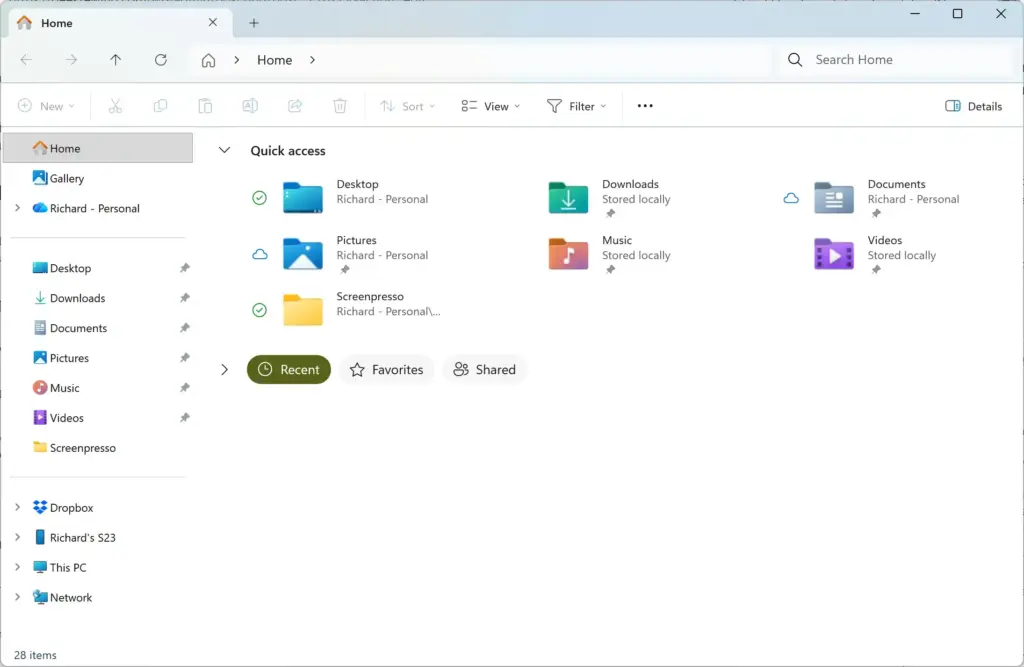
Windows 11 File Explorer showing Dropbox folder in sidebar. - Go to the folder you want to search. Search covers the current folder and all its subfolders, so choose This PC in the left pane to search every drive.
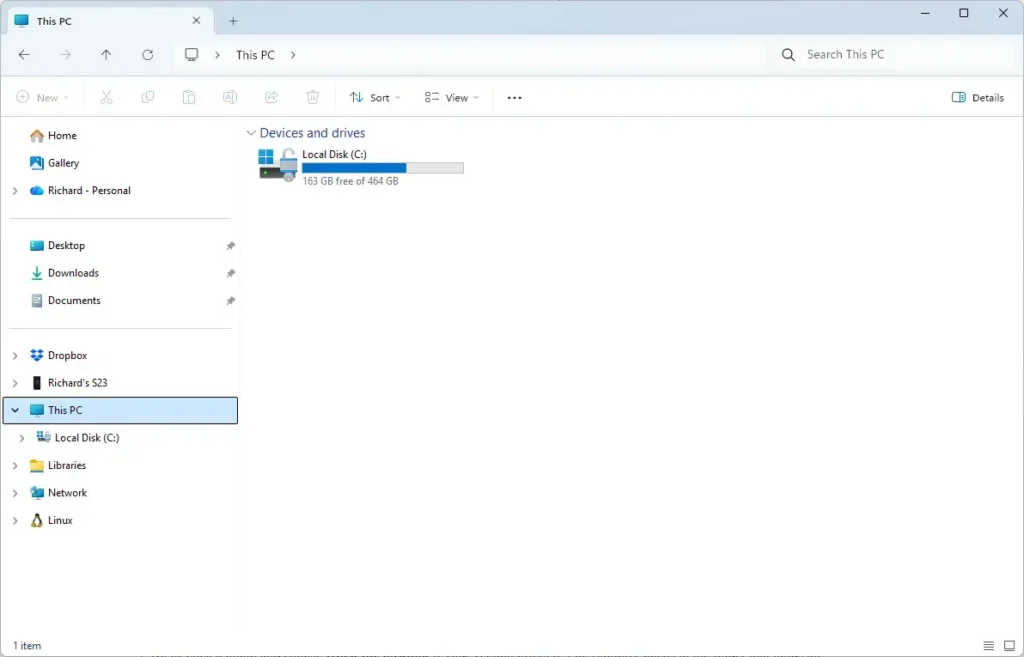
File Explorer - Click the search box. It sits in the top-right corner and shows “Search” followed by the folder name. You can also press
Ctrl + Eto jump to it. - Type a kind filter. Enter
kind:picture. Windows starts searching as you type, and the address bar changes to show “Search Results in” plus the folder name. - Press Enter. The results list now shows only pictures. A green progress bar runs across the address bar while the search continues.
- Add a date filter after a space. Type
datemodified:last monthso the box readskind:picture datemodified:last month. Press Enter to apply it. The list shrinks to pictures changed last month. - Add a size filter after another space. Type
size:>5MBand press Enter. The list now shows only pictures larger than 5 MB. - Review the results. Select View Details to see the Date modified and Size columns, which confirm the filters worked.
- Clear the search when you finish. Select the X at the right end of the search box. File Explorer returns to the folder’s normal contents.
If step 6 returns nothing, check the spelling of the date value and make sure there is no space between the colon and the value. If the search runs for a long time, the folder is probably not indexed. The troubleshooting section below covers that.
Use the Search Options Menu Instead of Typing
If you do not want to memorise keywords, the Search options menu builds the filter text for you. Windows 11 shows this menu in the command bar while the search box is active. Menu entries can differ slightly between builds, but the typed keywords work regardless.
- Click the search box. The command bar changes to show Search options.
- Select Search options. A menu opens with entries such as Kind, Date modified, and Size.
- Point to Kind and pick a value, such as Picture. File Explorer writes the matching keyword into the search box and filters the list.
- Repeat for Date modified and Size. Each choice adds another keyword to the box, so you can read, edit, or copy the full filter afterward.
The menu also lists Recent searches and Save search. Save search stores the current filter as a saved search file, so you can run it again without retyping. You choose the save location in the dialog that opens. To remove a filter, delete its text from the search box.
Kind Keywords
The kind: keyword filters by the broad category of a file rather than its extension (the letters after the dot, such as .pdf). Windows decides the category from the file type registered on your PC, so an unusual file format may land in no category at all.
| Keyword | What it finds |
|---|---|
kind:document | Documents such as Word files, PDFs, and plain-text files |
kind:picture | Image files such as JPG and PNG |
kind:video | Video files such as MP4 |
kind:music | Audio files such as MP3 |
kind:folder | Folders only, with no files |
kind:program | Applications and program files |
kind:link | Shortcuts |
kind:email | Email messages the search index can read |
kind:contact | Contact entries |
kind:calendar | Calendar items |
kind:note | Note items |
kind:task | Task items |
kind:journal | Journal items |
kind:feed | Feed items |
kind:game | Items Windows classes as games |
kind:movie | Items Windows classes as movies |
The Kind submenu also offers multi-word values such as Instant message, Recorded TV, and Saved search. Pick these from the menu rather than typing them, because the menu inserts the exact text Windows expects.
Be realistic about the less common kinds. Email, contact, calendar, note, task, and journal results depend on apps that store data as indexed items. Many current mail and calendar apps keep data in the cloud, so those filters often return little or nothing on a typical Windows 11 PC.
Match a Specific File Type with ext:
When a kind is too broad, use ext: to match one extension. For example, ext:pdf finds only PDF files, and ext:png finds only PNG images. Combine it with a kind to be precise, such as kind:picture ext:png.
Size Keywords
The size: keyword filters by file size. Use one of the named ranges, or type your own comparison with a number and a unit (KB, MB, or GB). Folders have no size value in search, so a size filter returns files only.
| Keyword | Size range |
|---|---|
size:empty | 0 KB |
size:tiny | 0 to 10 KB |
size:small | 10 to 100 KB |
size:medium | 100 KB to 1 MB |
size:large | 1 to 16 MB |
size:huge | 16 to 128 MB |
size:gigantic | More than 128 MB |
These named ranges match the entries in the Size submenu of Search options. They are fixed, so for anything else, use a comparison.
Type Your Own Size Limits
Put an operator directly after the colon, with no spaces anywhere in the value. Three forms cover most needs:
size:>100MBfinds files larger than 100 MB.size:<500KBfinds files smaller than 500 KB.size:10MB..100MBfinds files between 10 MB and 100 MB. The two dots mark a range.
size:gigantic or size:>1GB, then sort by size. Before you delete anything, check each file. Large files often belong to apps and games, and removing one can stop that app from working.The Details view Size column has long shown values in KB only, even for big files. Microsoft has announced a change that shows KB, MB, or GB, depending on the file size. The change is rolling out gradually. If your column still shows only KB, the change has not reached your PC yet. The filter itself accepts MB and GB either way.
Date Keywords
Three keywords filter by a file’s timestamps. Each file stores a modified date (last saved), a created date (when it appeared on this PC), and an accessed date (last opened).
| Keyword | Filters by |
|---|---|
datemodified: | When the file was last changed |
datecreated: | When the file was created on this PC |
dateaccessed: | When the file was last opened |
datetaken: | When a photo was taken, from the camera’s metadata |
Be careful with the accessed date filter, dateaccessed:. Windows may not update the last-opened time on every open, so results can miss files you used recently.
datemodified: is the most reliable of the three. datetaken: only works on pictures that carry camera information.
Named Date Values
Each date keyword accepts these named values. They are relative to today’s date, so the same search returns different files next week.
| Value | Example |
|---|---|
| today | datemodified:today |
| yesterday | datemodified:yesterday |
| this week | datemodified:this week |
| last week | datemodified:last week |
| this month | datemodified:this month |
| last month | datemodified:last month |
| this year | datemodified:this year |
| last year | datemodified:last year |
The Date modified submenu lists similar choices. If the typed version fails, pick the value from the menu and compare the text it inserts.
Exact Dates and Date Ranges
For a specific day, type the date in your regional format. On a US setup that is month/day/year, as in datemodified:3/15/2026. Use the same operators as for size:
datemodified:>1/1/2026finds files changed after that date.datemodified:<1/1/2026finds files changed before it.datemodified:3/1/2026..3/31/2026finds files changed within that range.
The date order follows your PC’s regional format, not the examples here. To check it, open Settings Time & language Language & region and look at Regional format. If it is set to a day/month/year format, write dates in that order.
Combine Filters
Filters of different types combine with AND, which means a file must match every condition to appear. The search kind:video size:>500MB datemodified:this year returns only videos over 500 MB changed this year.
To widen a search, use OR in capital letters, and wrap the group in parentheses. For example, (kind:picture OR kind:video) size:>100MB finds large pictures and large videos. To exclude something, use NOT, as in kind:document NOT ext:pdf.
Three more tools help with the search words themselves:
- Use quotation marks for an exact phrase, such as
"quarterly report". - Use
*for any run of characters and?for one character. The searchname:report*finds files whose names start with “report”. - Use
name:to match file names only, so words inside documents do not clutter the results.
OR and NOT must be in uppercase. Lowercase or is treated as an ordinary word to search for.Sort and Review Filtered Results
A filter narrows the list, and sorting puts the right file at the top. Open View Details, then select a column heading such as Size or Date modified to sort by it. Select the heading again to reverse the order.
If the columns you need are missing, right-click any column heading and tick the one you want. Layout choices are covered in How to Change File Explorer Layout in Windows 11.
To compare two searches side by side, open a second tab with Ctrl + T and run the other search there. The guide on switching tabs in Windows 11 File Explorer shows how to move between them quickly.
For faster work from the keyboard, Ctrl + E puts the cursor in the search box. Other shortcuts are listed in How to Use Access Keys in Windows 11 File Explorer.
Why a Filter Returns Nothing or Misses Files
Most filter problems come from the search index. The index is a database Windows builds in the background so searches finish quickly. In folders it does not cover, File Explorer scans files one by one, which is slow and skips some properties.
The Folder Is Not Indexed
By default, Windows indexes your user folders, such as Documents, Pictures, and Desktop, plus the Start menu. A folder on another drive may not be covered. Filters still run there, but slowly, and results for properties such as kind: can be incomplete.
Adding folders under Advanced indexing options may need administrator privileges, so have an admin account ready before you start.
To widen the index, open Settings Privacy & security Searching Windows. Under Find My Files, choose Enhanced to index the whole PC, or keep Classic and add folders yourself. The first indexing pass can take a while and uses more processor (CPU) and disk time until it finishes.
If a prompt appears, approve it with an administrator account. You can reverse the change by switching back to Classic or removing the folder from the list.
Windows Skips Some Files in Non-Indexed Locations
In non-indexed folders, compressed archives and file contents are skipped unless you opt in. Select the three-dot menu in the command bar, choose Options, and open the Search tab. There you can tick Include compressed files (ZIP, CAB…) and Always search file names and contents. Expect slower searches after ticking them.
The Syntax Has a Small Mistake
Check these common slips before assuming the filter is broken:
- A space after the colon, as in
size: >10MB, breaks the filter. Remove the space. - A space inside a size value, such as
10 MB, breaks it too. Write10MB. - A date in the wrong order for your regional format returns nothing or the wrong files.
- Lowercase
orandnotare treated as search words, not operators. - Searching from the wrong folder limits the scope. Select This PC to search everything.
If the filter looks right and still returns nothing, test it on a folder you know contains matching files. A quick check with kind:picture in your Pictures folder tells you whether the problem is the filter or the location.
Search Seems Stuck or Slow
While Windows rebuilds the index, searches slow down and results may be incomplete. Leave the PC on for a while and try again. For general File Explorer problems beyond search, see Get Help with File Explorer in Windows 11.
What to Do Next
To reuse a filter you rely on, run the search, then select Search options Save search so you can reopen it in one click. To make the rest of File Explorer fit the way you work, move on to How to Customize Windows 11 File Explorer for Your Needs. If a filter caught the wrong files and you moved or deleted some, How to Use Undo and Redo in Windows 11 File Explorer shows how to reverse the action.
Have a question about this guide?
Answered by AI from this guide. Good questions may be added to this page — please don't include personal details.
Did this guide fix your problem?

About the Author
Richard
Tech Writer, IT Professional
Richard is a writer at Geek Rewind who turns complex IT tasks into clear, step-by-step guides. He draws on years of hands-on experience in system administration and enterprise IT operations, focusing on Windows, Linux and WordPress: the problems people actually run into, and the fixes that work. His server and WordPress guides come from systems he runs himself. Richard builds and maintains the platform behind Geek Rewind, from its Ubuntu servers and Nginx configuration to its custom WordPress plugins. Many new tutorials start with readers' questions, and he's always glad to answer them in the comments.
No comments yet — be the first to share your thoughts!