
Narrator featured image icon

How to Enable Phonetic Reading in Windows 11 Narrator

Narrator is a built-in app in Windows that reads text on your screen out loud. It helps people who have trouble seeing or are blind.

When you use Narrator, you can turn on or off its keyboard shortcuts, launch it automatically, adjust the voice, speed, and volume, manage natural voices, lower other apps volume when Narrator is speaking, change Narrator audio output device, change verbosity level, emphasize formatted text, and do much more.

One helpful feature you can turn on or off is phonetic reading. This is when Narrator says each letter in a word using its phonetic sound. For example, the letter “A” would be said as “ay.”

Why use phonetic reading?

Phonetic reading helps people who have difficulty reading or saying certain words. It breaks down words into their individual sounds. This can make it easier to understand how to pronounce something.

What happens when you enable it?

When phonetic reading is on, Narrator will say each letter phonetically as it reads by character. This may slow down the reading speed. If you read well already, you might not need it on.

The good news is you can easily turn this feature on or off whenever you want. This lets you customize Narrator to match your reading needs.

How to Enable or Disable Phonetic Reading in Narrator

  1. Open the Settings app. Click the Start menu and select Settings. Or use the keyboard shortcut Windows key + I.
  2. When Settings opens, click Accessibility on the left side.
  3. Click the Narrator tile on the right side to expand it.

  4. Narrator tile in Settings
  5. Find the section labeled “Verbosity.” Click to expand “Verbosity level.”
  6. Look for the option that says “Read phonetically when reading by character.” Toggle the box next to it to turn it On or Off.
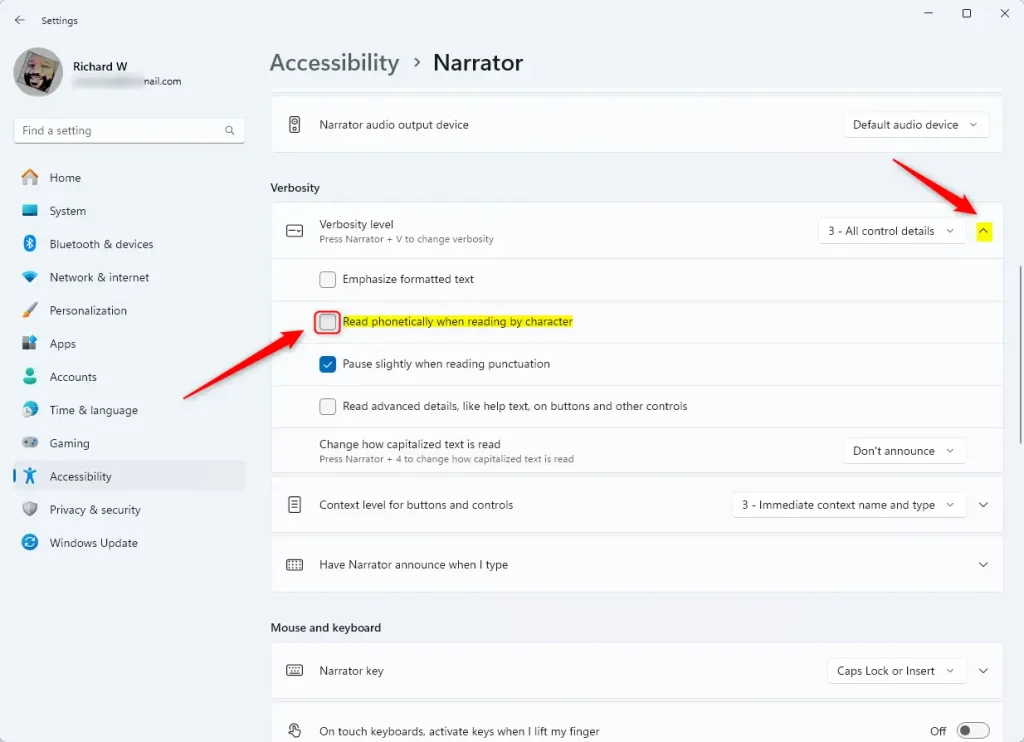
  7. Read phonetically when reading by character
  8. Close the Settings app when finished.

That’s all there is to it! You’ve successfully changed your phonetic reading setting.

Summary

Flexibility: You can turn phonetic reading on or off based on your needs. If you struggle with reading, turn it on. If you read well, turn it off.

Helps with pronunciation: Phonetic reading speaks each letter as a sound. This helps you learn how to say difficult words.

Your choice: Windows lets you personalize Narrator to work the way you like. Everyone reads differently, and this feature respects that.


Frequently Asked Questions

How do I enable phonetic reading in Windows 11 Narrator?

To enable phonetic reading in Windows 11 Narrator, open the Settings app, go to Accessibility, select Narrator, and under 'Verbosity,' toggle the option for 'Read phonetically when reading by character' to On.

What is phonetic reading in Narrator?

Phonetic reading in Narrator reads each character in a word phonetically, which can assist users who have difficulty with reading or pronouncing certain words, making it easier for them to understand text.

Can I disable phonetic reading in Windows 11 Narrator?

Yes, you can disable phonetic reading in Windows 11 Narrator by going to the Settings app, selecting Accessibility, then Narrator, and toggling the 'Read phonetically when reading by character' option to Off.

What are the benefits of using phonetic reading in Narrator?

Phonetic reading can enhance accessibility for users who struggle with reading, providing them with a better understanding of text. It allows for a more personalized experience based on individual reading needs.

Does phonetic reading slow down the reading process?

Yes, enabling phonetic reading may slow down the reading process, which could be unnecessary for users who are more fluent in reading. It provides flexibility to accommodate different reading preferences.
Fediverse reactions

Categories:

Tags:

5 responses to “How to Enable Phonetic Reading in Windows 11 Narrator”

  1. […] you use the Narrator app, you can enable or disable Narrators phonetic reading, pause for punctuation, adjust how the Narrator read advanced details, adjust the way […]

  2. […] you use the Narrator app, you can enable or disable Narrators phonetic reading, pause for punctuation, adjust how the Narrator read advanced details, adjust the […]

  3. […] you use the Narrator app, you can enable or disable Narrators phonetic reading, pause for punctuation, adjust how the Narrator read advanced details, adjust the […]

  4. […] you use the Narrator app, you can enable or disable Narrator phonetic reading, pause for punctuation, adjust how the Narrator read advanced details, adjust the way […]

  5. […] you use the Narrator app, you can enable or disable Narrator phonetic reading, pause for punctuation, adjust how the Narrator read advanced details, adjust the way […]

Leave a Reply

Your email address will not be published. Required fields are marked *

