Download Official Microsoft Wallpapers for Windows 11

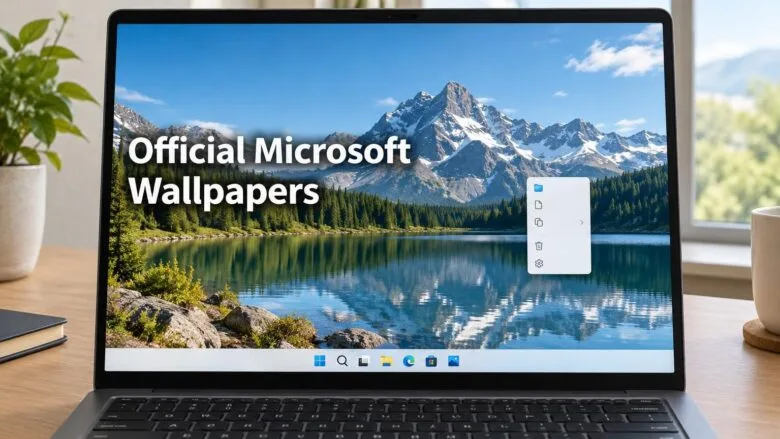
Download official Microsoft wallpapers from microsoft.design/wallpapers, then right-click an image and select Set as desktop background. These are free desktop images that Microsoft publishes on its Microsoft Design site and in the Microsoft Store.
The steps below work on Home and Pro editions of a currently supported Windows 11 version (25H2 or 26H2). None of them needs administrator rights or a restart. This guide also covers Microsoft Store themes, Windows spotlight, and the fixes for a blurry or locked wallpaper.
Download official Microsoft wallpapers from microsoft.design/wallpapers in any browser, then extract the image files if they arrive as a ZIP. Right-click an image and select Set as desktop background. The steps work on Windows 11 25H2 or 26H2, Home or Pro, and need no administrator rights or restart. Keep images in a permanent folder such as Pictures\Wallpapers.
Where to Get Official Microsoft Wallpapers
Microsoft distributes wallpapers in four places. Each suits a different goal, so pick the one that matches what you want.
- Microsoft Design (microsoft.design/wallpapers)downloadable image collections, such as Windows 11 Themes, Horizons, Fluid Textures, and anniversary sets. Collections are added over time, so the list you see may differ from the one named here.
- Microsoft Store themesa theme is a bundle of wallpapers, and sometimes colors and sounds, that Windows applies in one step. Nature and photography themes are popular here.
- Windows spotlighta built-in option that rotates Microsoft-chosen photos on your desktop. You cannot pick or download individual images.
- Bing Wallpapera separate app that sets a new Bing photo each day. It has its own guide, How to Download Bing Wallpaper for Windows 11.
Download only from Microsoft sites. Third-party wallpaper pages often bundle installers or adware, and a plain image never needs an installer.
Before You Start
Check three things first. They prevent the most common problems.
- Know your screen resolution. Resolution is the number of pixels your screen displays, such as 1920 x 1080. A wallpaper smaller than that looks soft when Windows stretches it. To check, open Settings System Display and read the Display resolution box.
- Activate Windows. On a copy of Windows 11 that is not activated, Windows locks the personalization settings. Activation confirms that the copy is licensed. The troubleshooting section below explains how to fix that.
- Choose a permanent folder. Windows reads the wallpaper from the file’s location. If you delete or move the file later, the wallpaper can turn black or revert.
How to Download Microsoft Wallpapers From Microsoft Design
This is the main method for getting Microsoft wallpapers as image files you keep. The steps below take you from the download page to a new desktop background.
- Open microsoft.design/wallpapers in Microsoft Edge or any browser. The page shows previews of each wallpaper collection.
- Scroll to a collection you like. Some collections come in light and dark versions, which suit Windows’ light and dark modes. Others include phone-sized images that look cropped on a PC, so pick the desktop version.
- Select the collection to see larger previews. Each collection has its own page or download area.
- Select the download link for the collection or image. Use the link or button the page shows. Your browser saves the file to your Downloads folder unless it asks where to save.
- Press Win+E (
Windows key + E) to open File Explorer. File Explorer opens, with your folders listed on the left.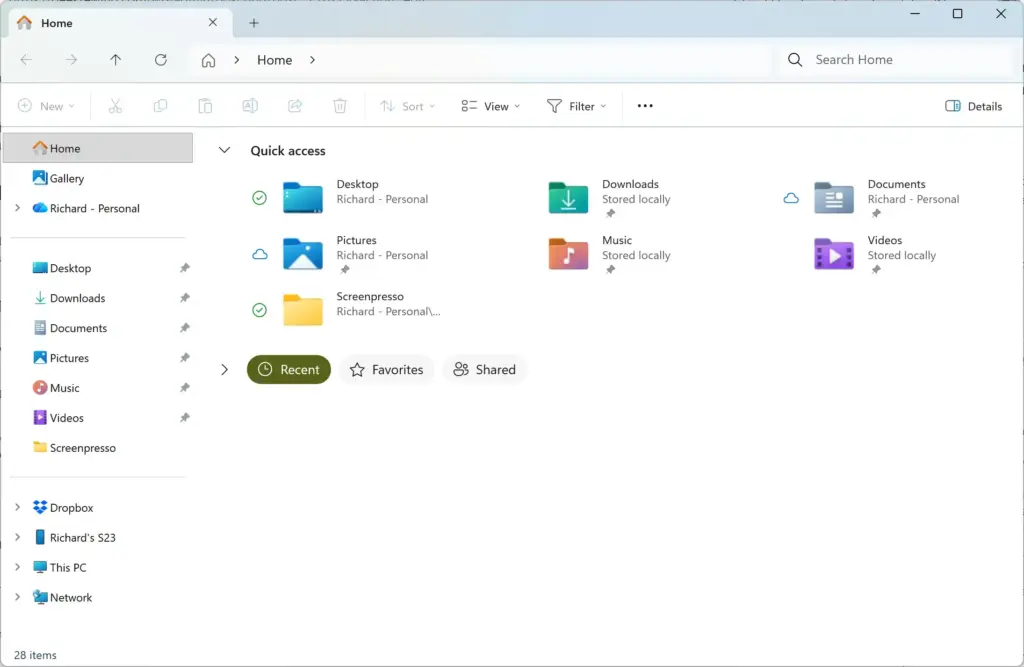
Windows 11 File Explorer showing Dropbox folder in sidebar. - Select Downloads in the left pane. Find the file you just saved, sorted by newest at the top.
- Right-click the file and select Extract All if it is a ZIP file. A ZIP file is a compressed folder that holds several files in one. Select Extract in the window that opens. A new folder opens with the image files inside.
- Create a folder named Wallpapers inside your Pictures folder. Right-click an empty area in Pictures, select New Folder, and type the name.
- Move the extracted images into that Wallpapers folder. Drag them in, or select them, press Ctrl+X (
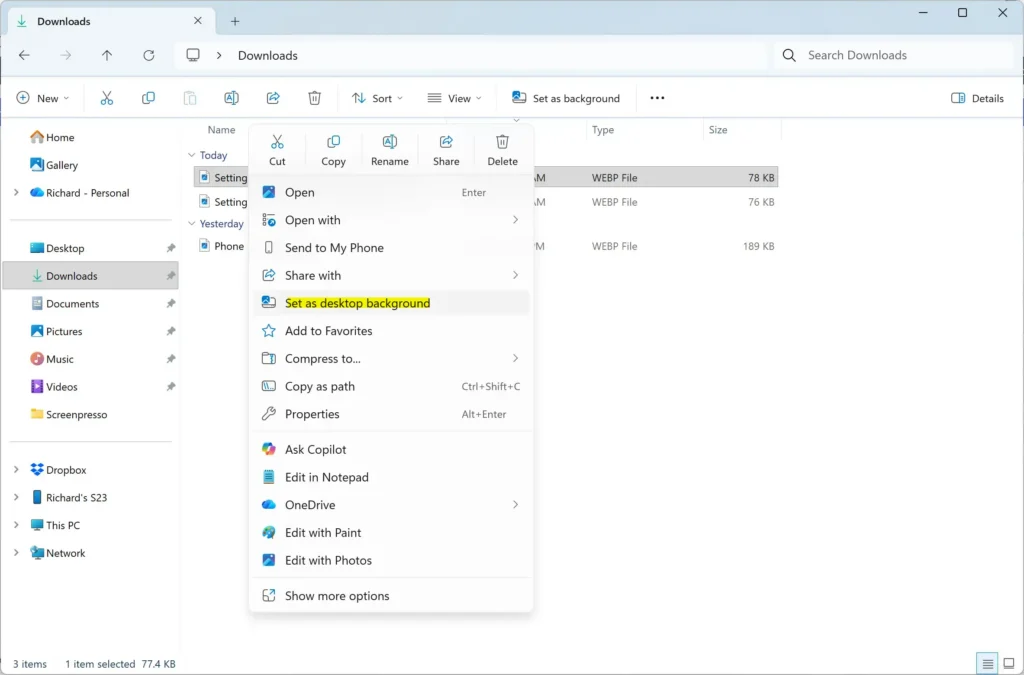
Ctrl + X) to cut, open the new folder, and press Ctrl+V (Ctrl + V) to paste. - Right-click the image you want and select Set as desktop background. Your desktop changes at once. If you do not see the option, go to Settings Personalization Background, select Browse photos under Choose a photo, and pick the file.
Settings > Personalization > Background - Open Settings Personalization Background to confirm the change. The preview at the top shows your new image.
- Select a setting from the Choose a fit for your desktop image list if the picture looks cropped or stretched. Fill works best when the image matches your screen shape. The next section explains the other options.
If your browser opens an image in a new tab instead of downloading it, right-click the image and select Save image as. Save it to the Wallpapers folder, then continue with the step that says Right-click the image you want and select Set as desktop background.
Choose the Right Fit for Your Wallpaper
The Choose a fit for your desktop image list decides how Windows places a picture that does not match your screen size. Here is what each option does:
- Fillscales the picture to cover the whole screen and crops the edges that do not fit. This is the best default.
- Fitshows the whole picture without cropping and leaves bars of color at the sides or top.
- Stretchforces the picture to the screen shape and distorts it if the shapes differ.
- Tilerepeats the picture like a pattern. It suits small textures only.
- Centerplaces the picture at its original size in the middle of the screen.
- Spanstretches one picture across all your monitors.
A wallpaper that is blurry under Fill is usually smaller than your display resolution. Download a larger version instead of changing the fit.
Match the Wallpaper to Light or Dark Mode
Several Microsoft collections ship in matching light and dark versions. Use the version that suits your Windows mode so the desktop and the taskbar look consistent.
To check your mode, open Settings Personalization Colors and read the Choose your mode setting. It shows Light, Dark, or Custom. A dark wallpaper on a light taskbar still works, but icon labels can be harder to read when the image is bright.
How to Get Microsoft Themes From the Microsoft Store
Themes apply a full set of wallpapers in one go and can also change the accent color and sounds. Use this method if you want a rotating set of official images without managing files.
- Press
Windows key + Ito open Settings. The Settings window opens with categories on the left.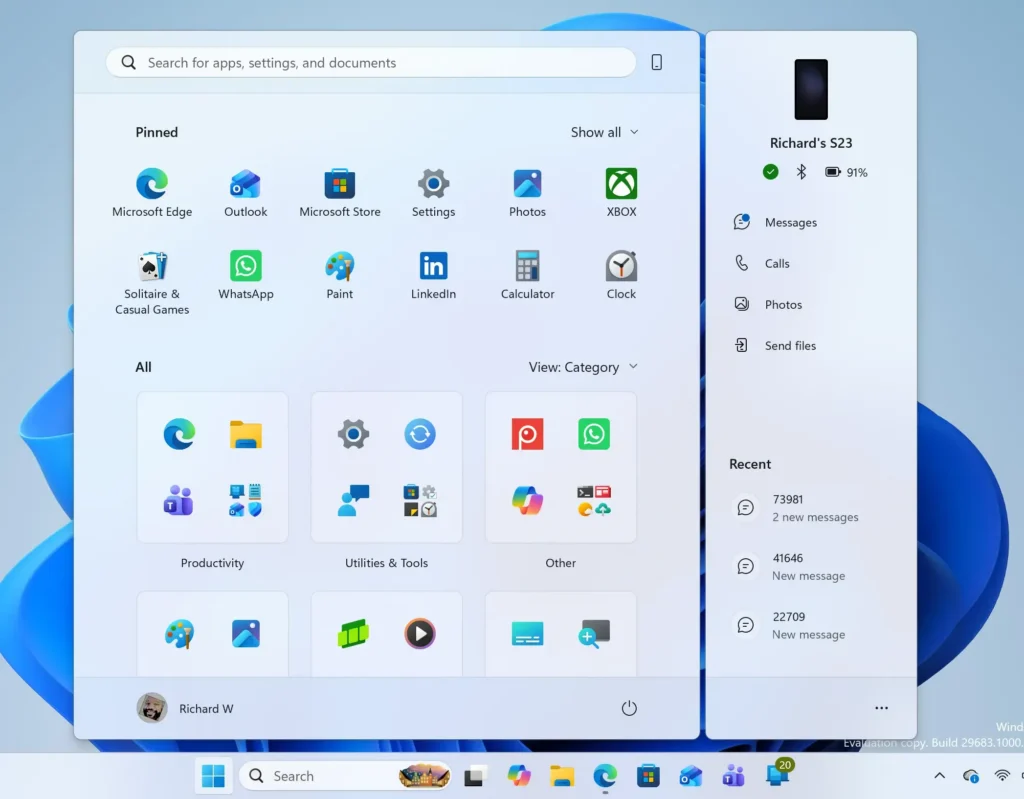
Windows 11 Start menu search panel for opening OpenSSH Client settings - Select Personalization in the left pane. The personalization options appear on the right.
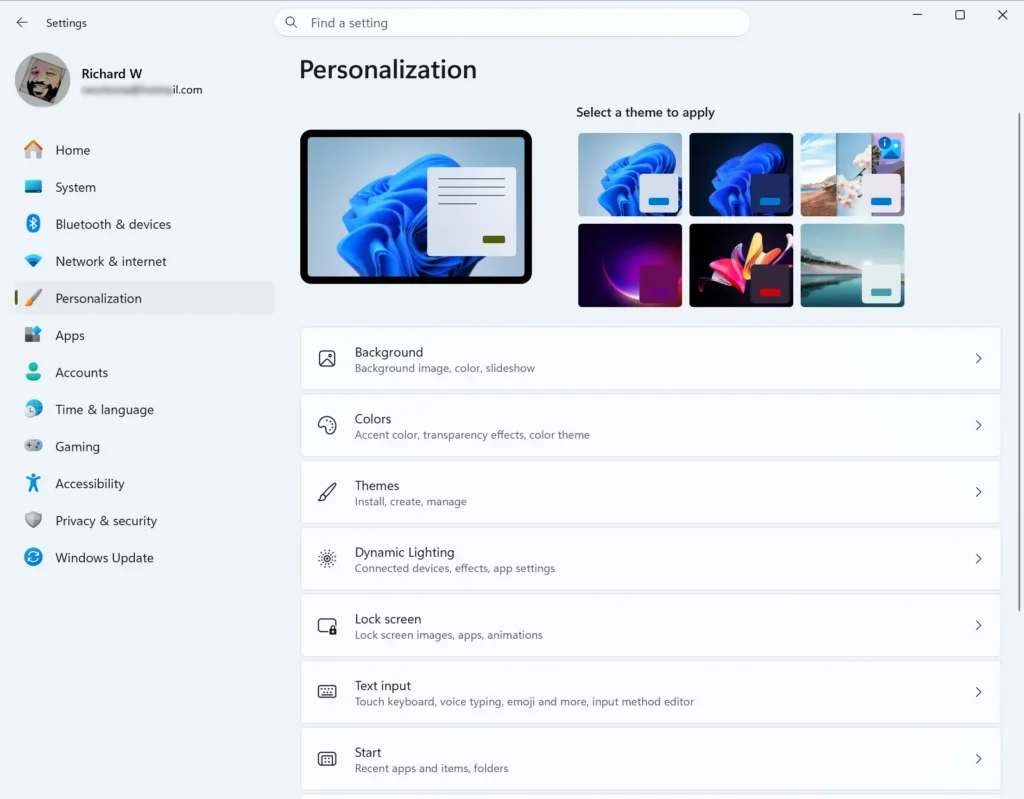
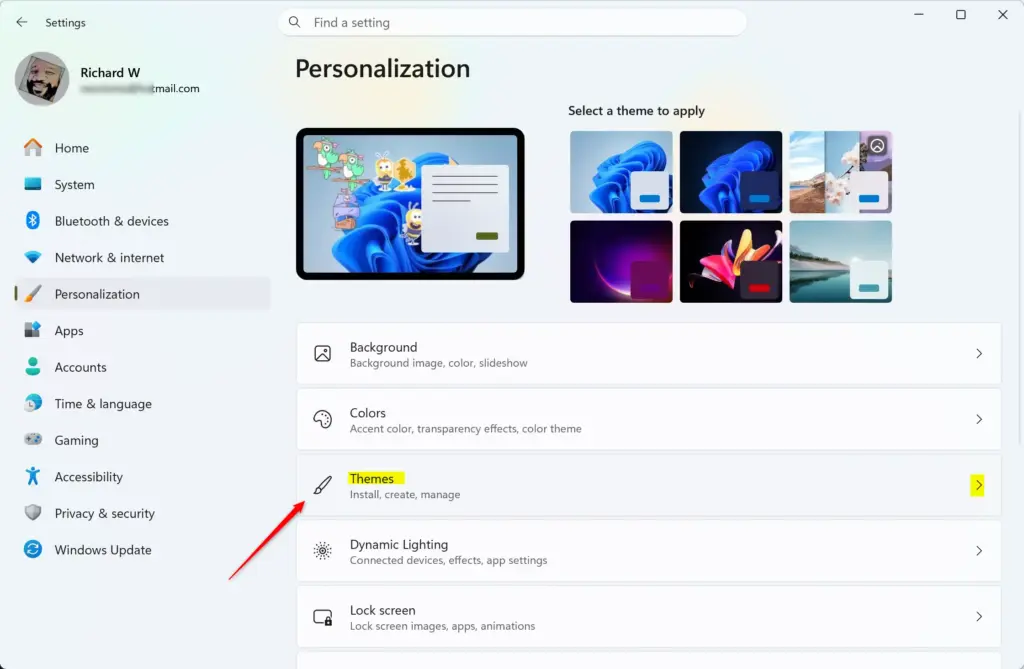
Settings > Personalization - Select Themes. The page lists your current theme and the themes already on the PC.
Settings › Personalization › Themes - Select Browse themes next to Get more themes from Microsoft Store. The Microsoft Store opens on its themes collection.
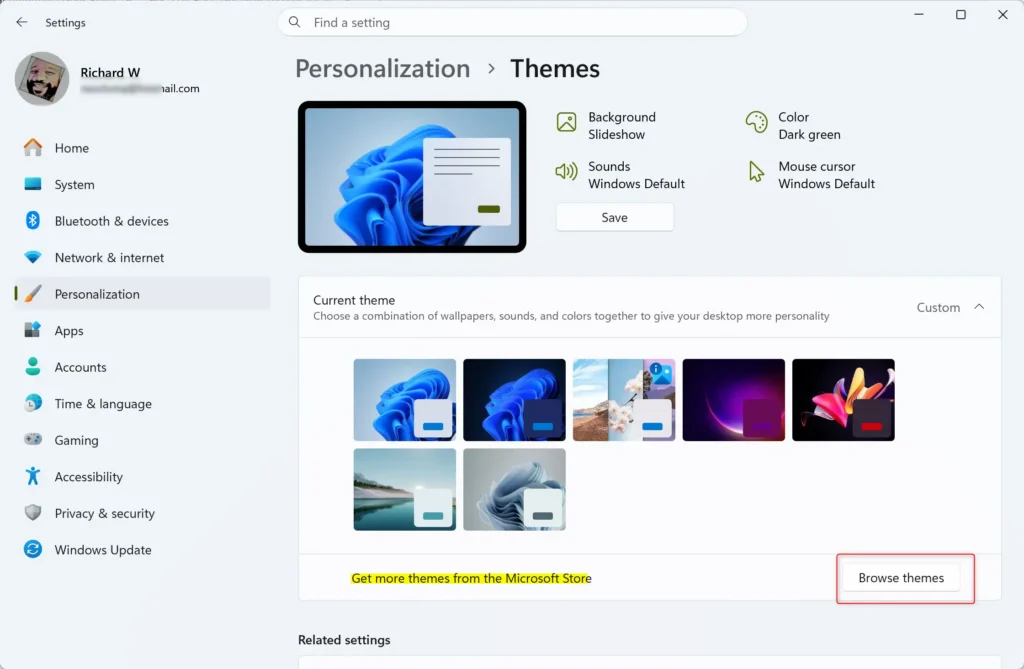
- Select a theme you like. Its page shows preview images.
- Select Get. The Store downloads the theme, which is a small file.
- Return to Settings Personalization Themes. The new theme appears in the theme list.
- Select the theme to apply it. The wallpaper, and any colors the theme includes, change right away.
The Windows themes collection is also available in a browser at apps.microsoft.com/collections/curated/windows-themes. The page may ask you to open the Microsoft Store app to finish the download.
For more on installing themes, including theme files you saved yourself, see How to Download and Install Themes in Windows 11. The guide How to Get Custom Themes in Windows 11 Using Official Microsoft Store Methods goes further into the Store options.
How to Use Windows Spotlight for Microsoft Wallpapers
Windows spotlight is a built-in feature that downloads curated photos from Microsoft and changes them on a schedule. It needs an internet connection and gives you no control over which image appears.
- Open Settings Personalization Background. The background options appear.
- Select the list next to Personalize your background. The list shows Picture, Solid color, Slideshow, and Windows spotlight.
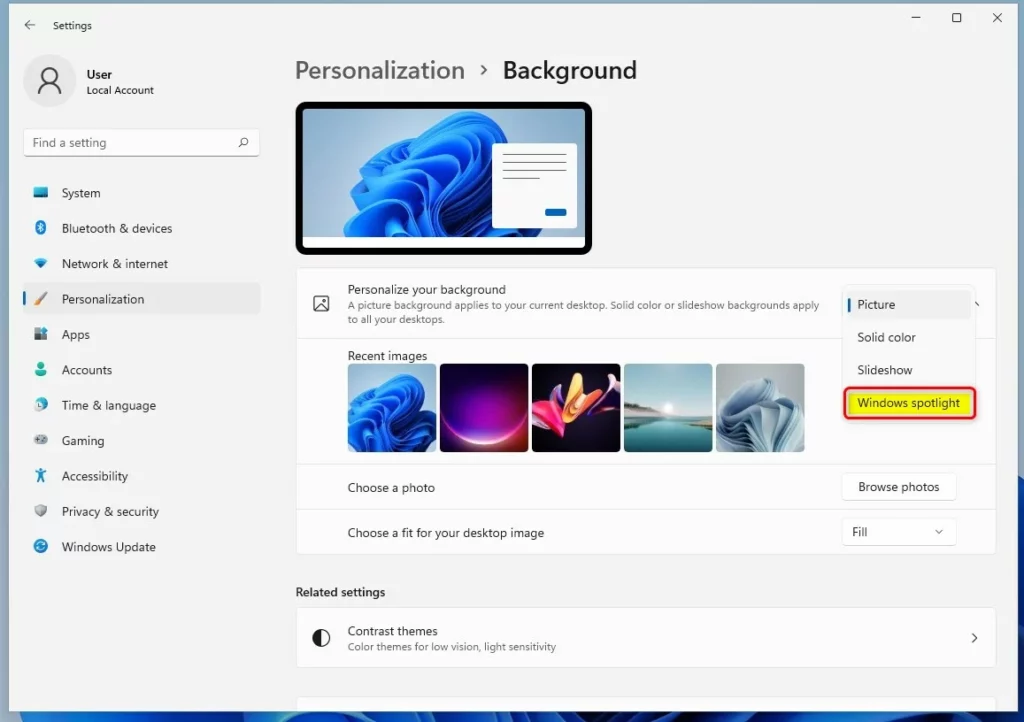
windows 11 personalization background windows spotlight - Select Windows spotlight. Within a short time, Windows loads a Microsoft photo as your desktop.
Use a Slideshow or Different Wallpapers on Each Monitor
If you download a whole collection, a slideshow shows every image in turn. Set it up in Settings Personalization Background. Choose Slideshow from Personalize your background, then select Browse next to Choose albums for your slideshow and pick your Wallpapers folder. The Change picture every list sets how often the image changes.
The lock screen uses a separate setting from the desktop. To use a different Microsoft image there, follow Set Different Lock Screen and Desktop Wallpapers in Windows 11.
If You Cannot Change the Wallpaper
These are the problems readers hit most often, with the fix for each.
The Personalization settings are greyed out
Windows 11 restricts personalization until it is activated. A message at the top of the page says you need to activate Windows. Open Settings System Activation and check the status. Activate with a valid license, then return to the Background page.
A message says some settings are managed by your organization
A work or school PC can have its wallpaper set by an administrator, so your choice does not stick. Only your IT team can lift that. The same restriction can also block the Microsoft Store, which stops theme downloads.
The wallpaper looks blurry
The image is smaller than your screen resolution, or the fit setting is wrong. Compare the image size with your Display resolution in Settings System Display. Download a larger version, then set Fill under Choose a fit for your desktop image.
The wallpaper turned black or went back to the default
The image file was probably moved, renamed, or deleted. Put the file back in its folder, or choose it again with Browse photos in Settings Personalization Background.
The download opens in the browser or does not start
Right-click the preview and select Save image as. If the download stalls, check that no download blocker or browser extension is stopping the file, then try again in Microsoft Edge.
The Set as desktop background option is missing
Use the Settings route instead. Open Settings Personalization Background, select Browse photos, and choose the file. If it does not appear in the picker, the file is not in a picture format Windows recognizes, so download the image again.
How to Go Back to Your Previous Wallpaper
Changing the wallpaper is fully reversible and costs nothing. Open Settings Personalization Background and pick an earlier image from Choose a photo, or switch Personalize your background back to Windows spotlight.
To undo a theme, open Settings Personalization Themes and select a different theme, such as Windows (light) or Windows (dark). To remove a theme you no longer want, right-click it in the theme list and select Delete. Deleting images from your Wallpapers folder does not affect Windows itself.
What to Do Next
Your desktop now shows the new image. You can repeat any of the methods above when you want a change. To give the sign-in screen the same treatment, set a separate lock screen picture with the guide on different lock screen and desktop wallpapers. For a fresh image each day with no downloads, try Bing Wallpaper.
Have a question about this guide?
Answered by AI from this guide. Good questions may be added to this page — please don't include personal details.
Did this guide fix your problem?

About the Author
Richard
Tech Writer, IT Professional
Richard is a writer at Geek Rewind who turns complex IT tasks into clear, step-by-step guides. He draws on years of hands-on experience in system administration and enterprise IT operations, focusing on Windows, Linux and WordPress: the problems people actually run into, and the fixes that work. His server and WordPress guides come from systems he runs himself. Richard builds and maintains the platform behind Geek Rewind, from its Ubuntu servers and Nginx configuration to its custom WordPress plugins. Many new tutorials start with readers' questions, and he's always glad to answer them in the comments.
No comments yet — be the first to share your thoughts!