Download Microsoft Safety Scanner for Windows 11

Microsoft Safety Scanner is a free downloadable tool that finds and removes viruses, spyware, and other malware from your Windows 11 PC. Unlike standard antivirus software that runs constantly in the background, it only runs when you start it. It does not replace your regular antivirus, because it gives no real-time protection.
Version 1.395.525.0 includes the newest threat definitions to catch recent computer infections. Microsoft sets the scanner to expire about 10 days after you download it, so it can’t be kept around as a permanent tool. Download a fresh copy each time you need it.
Use it in two situations. The first is as a backup safety check when your regular antivirus fails to open or stops working properly. The second is as a second opinion when you suspect something got past it.
Microsoft Safety Scanner is a free, portable tool that finds and removes viruses, spyware and other malware on Windows 11. Download it only from Microsoft’s official download page, then right-click the msert.exe file and choose Run as administrator. It runs only when you start it and gives no real-time protection, and it expires about 10 days after download.
System Requirements and Expiration
Your Windows 11 PC needs only standard hardware to run the Microsoft Safety Scanner. It works on both 32-bit and 64-bit systems. Windows 11 itself is 64-bit on most PCs, but pick the version that matches your system.
To check, open Settings System About and look at System type under Device specifications. It tells you whether you have a 32-bit or 64-bit operating system.
The scanner is a single portable file, so you don’t install anything. It also works on Home and Pro editions alike, with no difference in the steps.
How to Download and Use Microsoft Safety Scanner
- Visit the official Microsoft Safety Scanner download page.
- Choose the version matching your system architecture (64-bit is standard for Windows 11).
- Locate the downloaded msert.exe file in your folder.
- Right-click the file and select Run as administrator. Requires admin privileges.
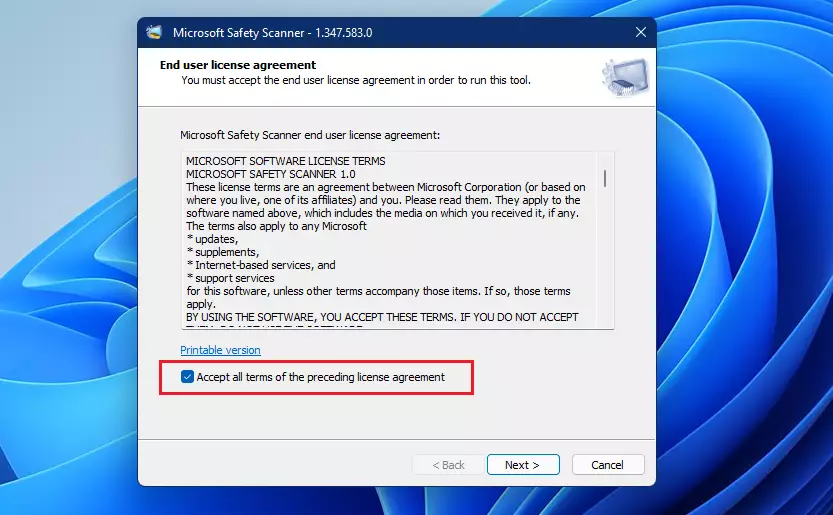
- Accept the license agreement to proceed.
Download only from Microsoft, because fake "scanner" downloads on other sites are a common way to spread malware.
Here is how to download Microsoft Safety Scanner on Windows 11 and run your first scan, from start to finish:
- Open the official Microsoft Safety Scanner download page. Use Microsoft's own site only, not a third-party mirror or a link from an ad.
- Choose the version that matches your PC, 32-bit or 64-bit. If you're unsure, check System type in Settings System About first. Most Windows 11 PCs need the 64-bit version.
- Download the file. Your browser normally saves it to the Downloads folder. Wait until the download finishes before moving on.
- Open your Downloads folder. You should see the scanner file you just saved. There is nothing to install, because the scanner is a single portable file.
- Right-click the downloaded file and select Run as administrator. If you don't see that option, choose Show more options first, then pick it from the classic menu.
- Click Yes when the User Account Control prompt appears. Without administrator rights the scanner can't remove infected files properly. If you're asked for a password, you are signed in with a standard account and need an administrator's credentials.
- Accept the license terms. The scanner won't go any further until you agree.
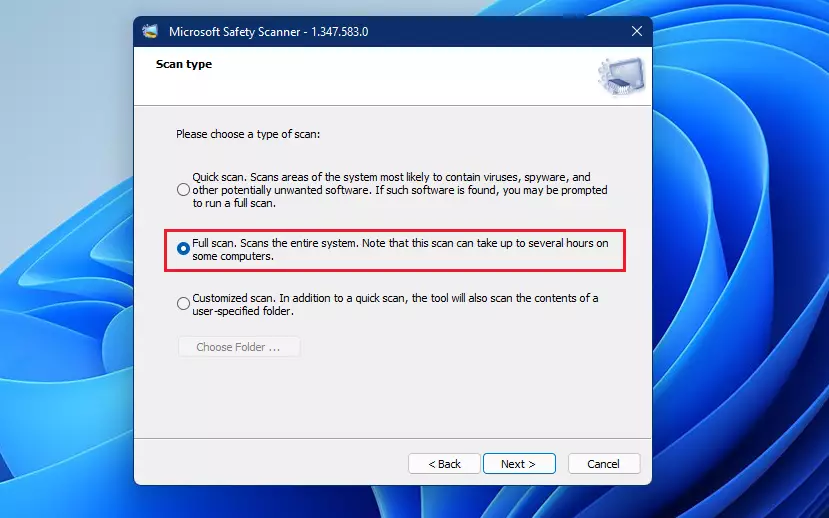
- Click Next through the first screens. You should now see a choice of scan types.
- Pick Quick scan, Full scan or Customized scan. A quick scan is fast and checks the places malware usually hides. A full scan checks every file and can take hours, so run it when you don't need the PC.
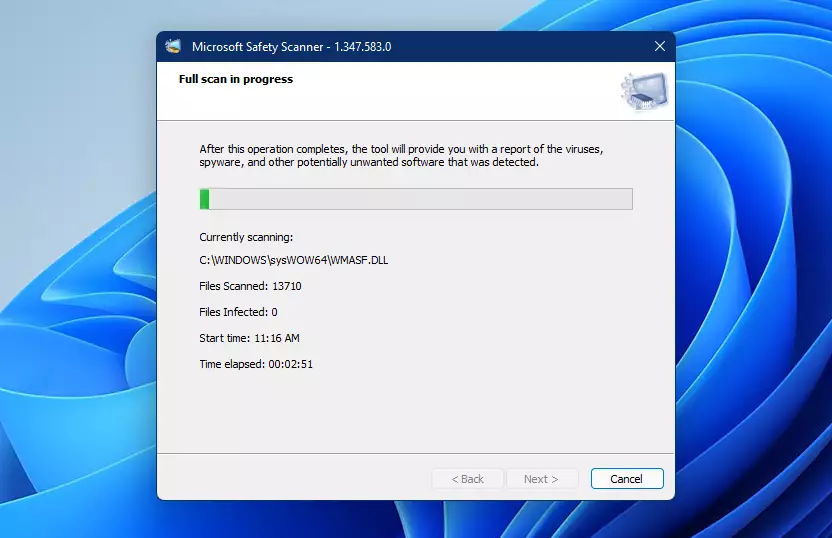
- Click Next to start the scan. The scanner shows its progress while it works. Don't close the window.
- Wait for the scan to finish. When it ends, the scanner reports whether it found and removed anything.
- Click Finish to close the scanner.
- Restart the PC if the scanner said it removed something. This clears any leftover components.
Check the SHA-256 signature (a unique code that proves the file hasn't been altered) on the download page to verify the file's integrity. Compare it with the hash of the file you downloaded. If the two don't match, delete the file and download it again from Microsoft's site. Don't run a file that fails this check.
Run the scanner from an elevated Command Prompt or Windows Terminal so the options and administrator rights both apply. If you open a normal, non-elevated window, the scanner will lack the rights it needs.
Troubleshooting Common Errors
Troubleshooting common errors when running Microsoft Safety Scanner on Windows 11 usually involves fixing permission issues, restarting your PC in Safe Mode if the scan freezes, or checking the error logs stored at C:\Windows\debug\msert.log to find out why the application closed unexpectedly. Find your symptom below.
- Permission errors: close the scanner and start it again with Run as administrator. Make sure you are signed in with an account that has administrator rights.
- Scan freezes: restart in Safe Mode and run the scanner there. Malware that is actively running often can't interfere with it in Safe Mode. To get there, open Settings System Recovery, click Restart now next to Advanced startup, then choose Troubleshoot Advanced options Startup Settings Restart and pick Safe Mode. To go back to normal, restart the PC again.
- Scanner closes unexpectedly: open the log file at C:\Windows\debug\msert.log in Notepad and read the last entries. They usually point to the cause, and they also list what was detected after a successful scan.
- Scanner won't start or says it has expired: download a fresh copy, since old copies stop working after about 10 days. Delete the old file so you don't run it by mistake.
Summary
Microsoft Safety Scanner is a free, portable tool for Windows 11 that helps remove malware, especially if your main antivirus is blocked. Download it from Microsoft, run it as administrator, and get a fresh copy each time. Keep your normal antivirus turned on afterwards for everyday protection, because the scanner only checks the PC while it is running.
Does Microsoft Safety Scanner replace my antivirus?
No, it does not. Microsoft Safety Scanner is an on-demand tool meant to supplement your existing security. It lacks real-time protection features, meaning it cannot prevent new infections. Always keep Microsoft Defender Antivirus or another reputable security suite running for continuous, active protection against incoming threats.
Is Microsoft Safety Scanner free for 🪟 Windows 11?
Yes, the Microsoft Safety Scanner is completely free for all Windows 11 users. It is provided by Microsoft as a portable utility to help users clean their systems. You do not need a subscription or a license to download and run the tool for personal use on your devices.
Have a question about this guide?
Answered by AI from this guide. Good questions may be added to this page — please don't include personal details.
Did this guide fix your problem?

About the Author
Richard
Tech Writer, IT Professional
Richard is a writer at Geek Rewind who turns complex IT tasks into clear, step-by-step guides. He draws on years of hands-on experience in system administration and enterprise IT operations, focusing on Windows, Linux and WordPress: the problems people actually run into, and the fixes that work. His server and WordPress guides come from systems he runs himself. Richard builds and maintains the platform behind Geek Rewind, from its Ubuntu servers and Nginx configuration to its custom WordPress plugins. Many new tutorials start with readers' questions, and he's always glad to answer them in the comments.
No comments yet — be the first to share your thoughts!