How to Change Minimum PIN Length in Windows 11

The minimum PIN length in Windows 11 sets the lower limit for how many numbers your sign-in PIN must contain, which defaults to 4 digits out of the box.
You can raise this limit up to 127 digits using the Local Group Policy Editor (a built-in tool that lets you manage advanced system settings) to make your PC harder to break into.
Open the Local Group Policy Editor and navigate to PIN Complexity. Double-click Minimum PIN length, select Enabled, and enter your desired number between 4 and 127. Click OK to save.
What is a Windows PIN?
A Windows PIN is a short number code you use to sign in to your computer and apps quickly and safely, instead of a long password.
Windows 11 also lets you sign in using other methods like a picture password, fingerprint, or face recognition.
Why Change the PIN Length?
Changing your Windows 11 PIN length from the default 4 digits makes your account more secure by making it harder for others to guess.
How to Change the Minimum PIN Length in 🪟 Windows 11
Method 1Using Local Group Policy Editor
Local Group Policy Editor (a tool for managing advanced system settings) lets you change your Windows 11 PIN length if you use Windows 11 Pro, Enterprise, or Education editions. You can open this tool by pressing the Windows key, typing 'Edit group policy', and pressing Enter. Once it opens, you navigate to the PIN complexity settings to set your new character limits.
- Click the Start button and type
Edit group policy, then open the Local Group Policy Editor. [Requires admin privileges] - In the left sidebar, go to:
Computer Configuration > Administrative Templates > System > PIN Complexity - On the right side, find Minimum PIN length and double-click it.
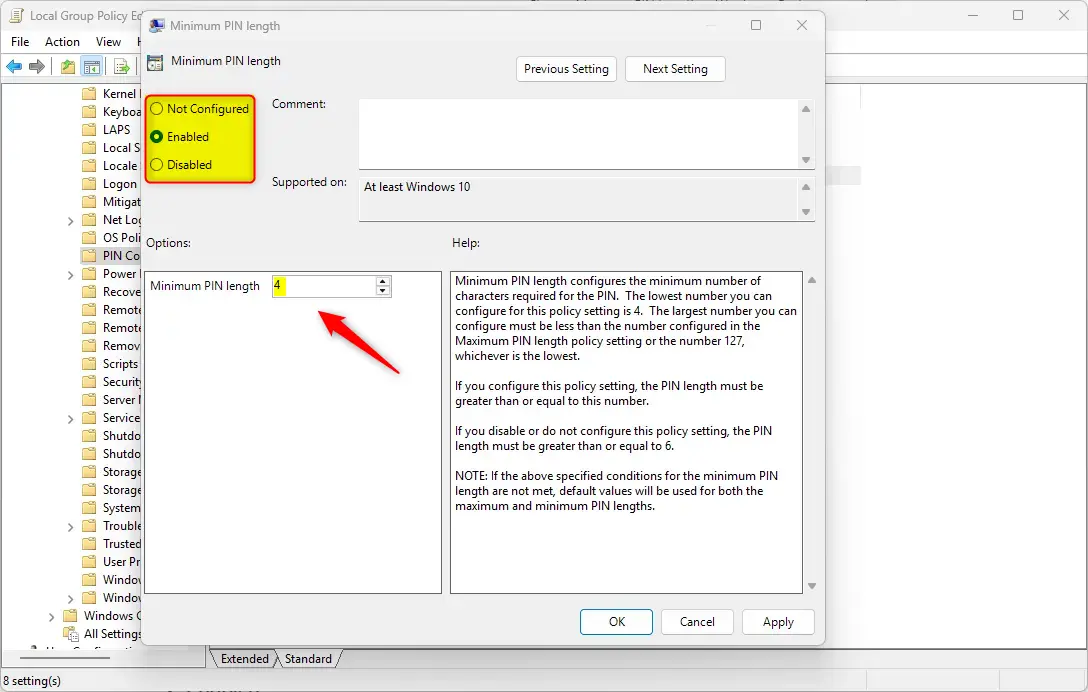
- Choose Enabled.
- In the box below, enter the minimum number of digits you want your PIN to have (between 4 and 127).
- Click OK to save.
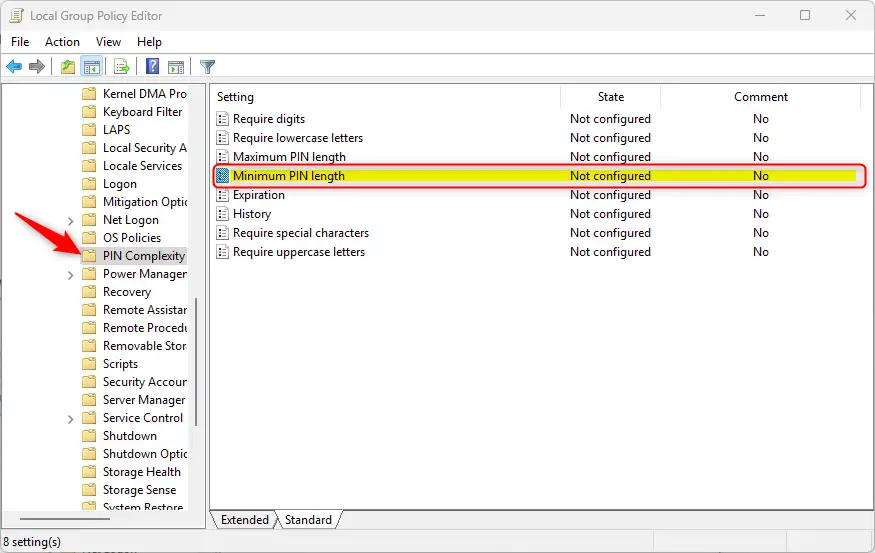
Example of the Minimum PIN length setting in Group Policy Editor.
What the Options Mean:
- Not Configured: Uses the default PIN length (minimum 4 digits).
- Enabled: Lets you set your own minimum PIN length.
- Disabled: Requires a minimum PIN length of 6 digits.
Method 2Using the Windows Registry Editor
Registry Editor (a database that stores system and app settings) lets you change your Windows 11 PIN length on Windows 11 Home edition, which does not include the Group Policy tool. You open this by pressing Windows + R, typing 'regedit', and hitting Enter. Be careful here, because making mistakes in the registry can cause system problems.
- Press
Windows + Ron your keyboard, typeregedit, and press Enter to open the Registry Editor. [Requires admin privileges] - Navigate to this folder:
HKEY_LOCAL_MACHINE\SOFTWARE\Policies\Microsoft\PassportForWork\PINComplexity - If you don't see the PassportForWork or PINComplexity folders, you can create them by right-clicking and selecting New Key.
- Inside the PINComplexity folder, right-click on the right side and select New DWORD (32-bit) Value.
- Name this new value MinimumPINLength.
- Double-click MinimumPINLength, select Decimal under Base, and type a number between 4 and 127 for your minimum PIN length.
- Click OK and close the Registry Editor.
- Restart your computer to apply the changes.
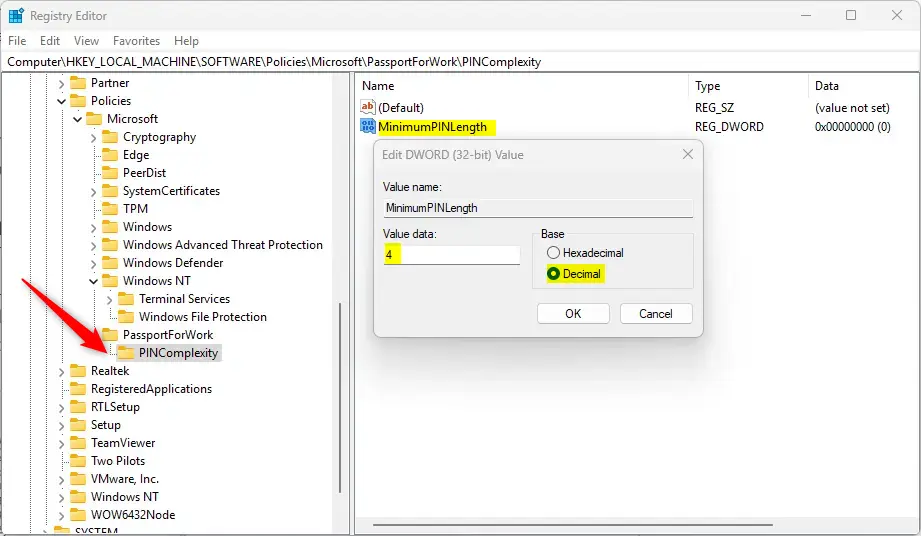
Registry Editor showing the MinimumPINLength value.
To Undo Changes:
Delete the MinimumPINLength value you created, then restart your PC.
Summary
Increasing your Windows 11 PIN length makes your computer more secure, and you can do this using either the Group Policy Editor or Registry Editor.Helpful Links:
- How to login with a PIN in Windows 11
- How to change your PIN in Windows 11
- How to open the Registry Editor in Windows 11
- How to backup and restore the Registry in Windows 11
- Microsoft official info on PIN length policies
Additional guides help you set up, update, or troubleshoot your sign-in options if you need more help with your Windows 11 PIN. These links cover how to sign in with a PIN, change your current code, and safely open or back up the registry. Use these resources if you run into any other sign-in issues while adjusting your security settings.
How long should my 🪟 Windows 11 PIN be?
We've discussed four methods to configure the minimum Windows 11 PIN length. While most experts agree that a length of between 4-6 numbers is sufficient for credential management, it is still highly recommended that you check for any specific requirements from your preferred IT compliance.
How many digits is a 🪟 Windows 11 PIN?
💡 Tip: Generally, PINs are between 4-6 numbers long. However, feel free to check various IT compliance requirements to determine the best length for your business. Click Apply, then Ok. Open an elevated Command Prompt and execute gpudate /force to apply the changes immediately.
Was this guide helpful?

About the Author
Richard
Tech Writer, IT Professional
Richard, a writer for Geek Rewind, is a tech enthusiast who loves breaking down complex IT topics into simple, easy-to-understand ideas. With years of hands-on experience in system administration and enterprise IT operations, he’s developed a knack for offering practical tips and solutions. Richard aims to make technology more accessible and actionable. He's deeply committed to the Geek Rewind community, always ready to answer questions and engage in discussions.




No comments yet — be the first to share your thoughts!