The article details the steps to enable or disable the use of security questions for local accounts in Windows 11. It highlights the benefits of such security questions, like added account safety and easy password recovery. The methods involved using the 'Local Group Policy Editor' or the 'Windows Registry Editor.' Disabling security questions implies utilizing alternative methods for account recovery.
Windows
The article provides a guide on creating desktop shortcuts in Windows 11. The shortcuts can point to files, folders, apps, or websites. Different methods include using the "New Item Shortcut Wizard," the "Send to" command in the context menu, dragging items from the start menu, or dragging and dropping web addresses directly onto the desktop. Deleting a shortcut doesn't eliminate the original file or folder.
The article outlines steps for initializing new disks in Windows 11. If a new disk doesn't appear in File Explorer, it may need a drive letter or initialization. Initializing a disk erases all data, preparing it for use. The guide provides step-by-step instructions for performing this action via the Windows Settings app, and also through the Windows Disk Management tool.
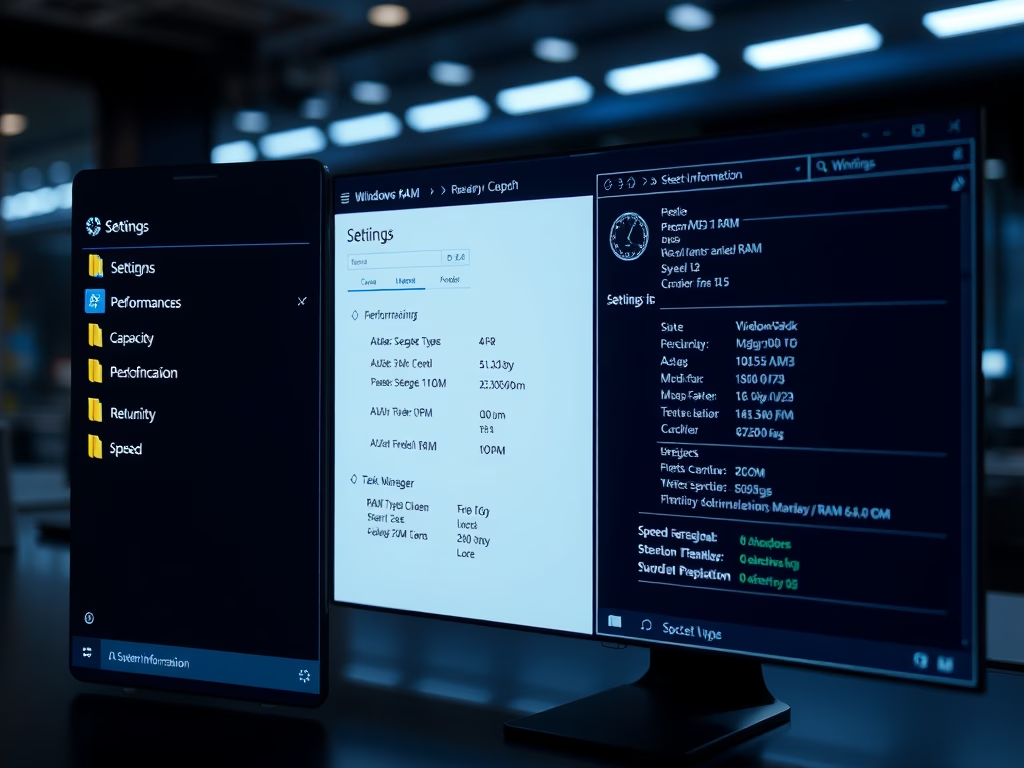
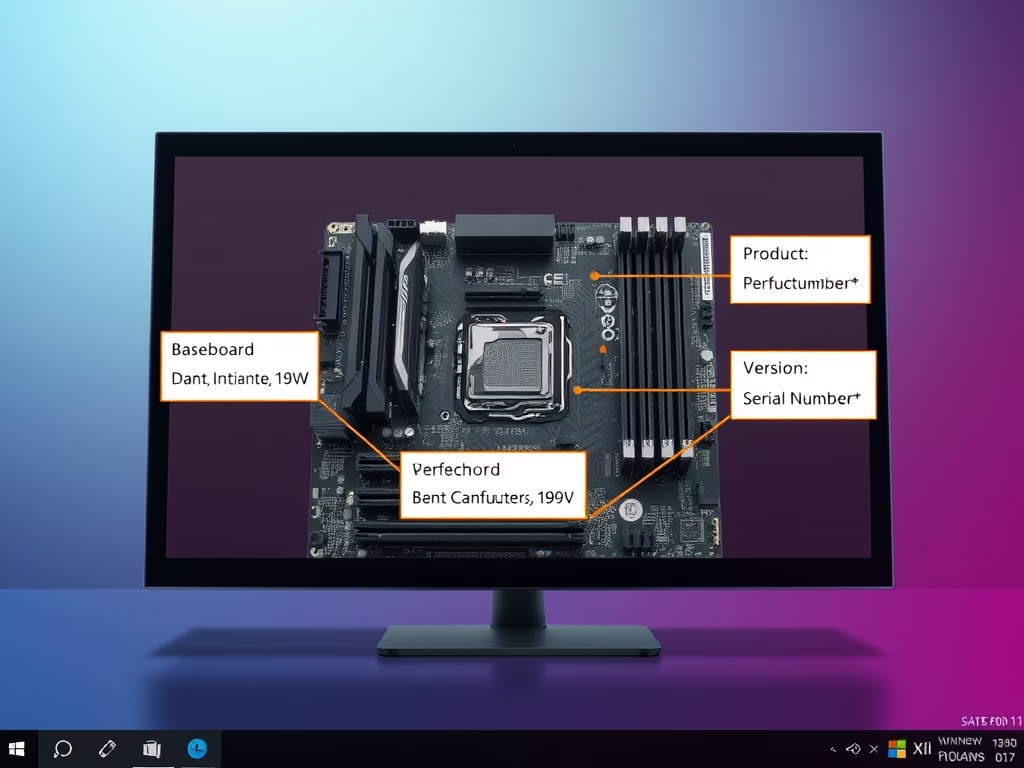
The article explains various ways to check system specifications on Windows 11, even without accompanying documentation. The methods listed are: checking the 'About' pane in the Settings app, using the 'System Information' tool, using Command Prompt with the 'systeminfo' command, or using Windows PowerShell with the 'Get-ComputerInfo' command. Users can find detailed information about installed hardware such as RAM, hard disk, and adapters.
The article provides a guide to re-register the Microsoft Store app in Windows 11. The Microsoft Store app comes pre-installed and if it malfunctions or corrupts, troubleshooting steps include resetting, repairing, reinstalling or re-registering the app. The process to re-register the app for the current user or all users, using PowerShell commands, is explained step-by-step.
The text provides an extensive list of keyboard shortcuts for Windows 11, detailing combinations for general use, command prompt operations, dialog box functions, File Explorer tasks, virtual desktop switching, taskbar engagements, and settings navigation. The post emphasizes the efficiency of keyboard shortcuts as an alternative to mouse-dependent actions, potentially replacing its necessity for many commands.
The article provides a step-by-step guide on how to uninstall Windows Mixed Reality (a spatial operating system) from Windows 11 via the Settings app. Uninstalling Windows Mixed Reality can help resolve potential issues and free up disk space. Note that uninstalling will erase user info, but the Mixed Reality apps will remain on the computer.
The article provides a guide on how to add or remove the Mixed Reality pane in the Settings app on Windows 11. Windows Mixed Reality, a spatial operating system, can be set up using a compatible headset. After setup, the Mixed Reality pane is automatically added to the Settings app. Users can manually add or remove this pane by manipulating the Windows Registry. The article includes explicit steps to perform this task.
This article provides a guide on how to enable or disable Windows 11's new taskbar feature that allows users to share windows from the taskbar in meeting calls. Users can activate or deactivate this feature either through the Settings app or by using the Windows Registry Editor.
The article explains how to turn on or off forced button/lid shutdown in Windows 11. This setting determines what happens when the power or sleep button on the computer is pressed. The force shutdown feature can potentially result in unsaved documents and data loss. The guide provides step-by-step instructions for enabling or disabling this feature via the Control Panel.
The article provides instructions on enabling or disabling Advanced Graphics with Microsoft Defender Application Guard for Edge in Windows 11. The Application Guard isolates untrusted sites and files, limiting specific actions like file printing and camera use. However, enabling Advanced Graphics yields improved video and visual performance. The text, besides explaining the procedure via the Windows Security app, also offers guidance on using the Windows Registry Editor to achieve the same result.
The article provides a guide on changing the alarm sound following a Focus session or break in Windows 11. Focus, a feature in Windows 11, works with the Clock app to manage distractions. By default, an alarm and notification signal the end of Focus sessions or breaks. Users who dislike the default Tap sound have the option to change or deactivate these alarms using the Clock app settings.
The article explains how to activate or deactivate the end-of-break alarm in the Focus feature of Windows 11. Focus helps to minimize distractions by incorporating a timer and music into the Clock app. Breaks can be set during long sessions, after which an alarm sounds. This can be toggled on and off within the Clock app settings for users who find it distracting.
The article provides a guide on how to enable or disable the end of session sound after a Focus session in Windows 11. Windows 11's Focus feature, designed to minimize distractions, notifies users with an alarm sound post-session. The alert sound can be toggled on or off in the Clock app settings.
The article outlines the process of adding or removing Remote Desktop users in Windows 11. Remote Desktop, included by default with Windows, allows remote access to a PC's apps, files, and network resources. To permit this, users must be added to the Remote Desktop Users group. The article provides steps to do this using the Windows Settings app, Control Panel, Local Users and Group applet, Command Prompt, and PowerShell.