This article provides instructions on how to turn on or off the 'Live Caption' feature in the Google Chrome browser. 'Live Caption' automatically generates captions for English audio and video within the browser. The feature is based on Windows' Live Caption, which must be activated for it to work in Chrome. Activating it involves a combination of a keyboard shortcut or changing settings in the Accessibility menu. This feature in Chrome also allows for customization of caption size and style.
Browsers
Google Chrome now allows users to use Windows Hello, instead of a credit card's CVC code, to confirm stored credit cards. This new feature enhances security and convenience for online transactions. Users can toggle this option on or off in Chrome's settings under 'Payment methods.' Enabling it will require a Windows Hello PIN or fingerprint.
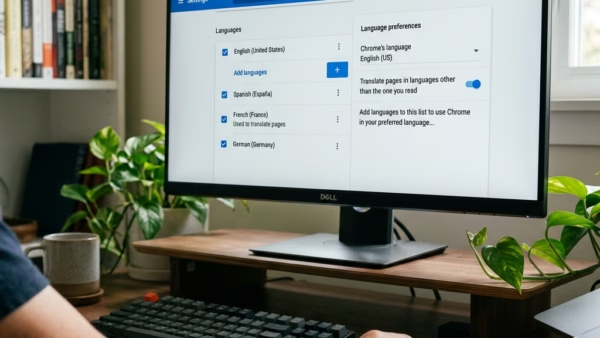
This article details how to enable or disable Google Translate in Google Chrome. Google Chrome, similar to Microsoft Edge, has a personalized, in-built translation feature that can auto-translate websites into the user's preferred language. This helps to enhance the browsing experience by offering a more contextual exploration of various websites across different languages. Notably, users can select or discard specific languages for translation.
Google Chrome offers a built-in spell checker feature that flags misspelled words as you type, with two options - 'Basic' and 'Enhanced'. The feature is typically enabled by default, but users can toggle it on or off via the Languages settings. 'Enhanced' spell check sends typed text to Google, similar to Google search.
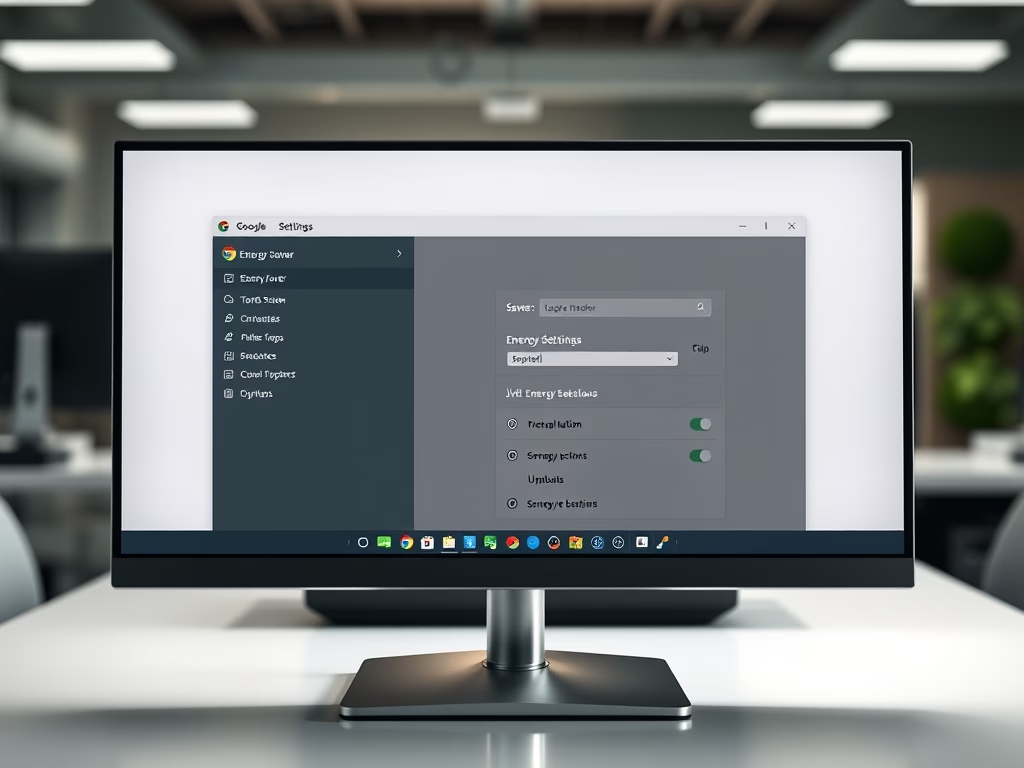
This article details how to enable or disable the Energy Saver feature in Google Chrome, aimed at enhancing battery life. Users can configure this through Chrome's settings or the Windows Registry Editor. Clear steps are provided for both methods, helping users effectively manage energy consumption while browsing.
This article provides instructions on how to activate or deactivate the "Memory Saver" feature in Google Chrome. This feature enhances the speed and battery life of your device by deactivating tabs that are not currently in use, freeing up memory for active apps. Inactive tabs automatically reload once they are accessed again.
The article outlines how to add or delete addresses stored in Google Chrome, a feature designed for secure, convenient management of credit card information and associated addresses for automatic form filling. The process involves navigating to the "Settings", "Autofill and passwords", and the "Addresses and more" page, where users can edit, delete, or manually add addresses.
Google Chrome has a new feature called on-device encryption that secures your passwords by encoding them on your device before saving to Google Password Manager. The unique encryption key ensures only the user can access this information. If the key is lost, the passwords could be lost too. The encryption can be set up within the browser's settings, and once enabled, only the original device with the specific passkey, fingerprint, or PIN will be able to access the encrypted information.
The article provides a guide on how to enable or disable the "Always show scrollbars" feature in Microsoft Edge, the default browser in Windows 11. The feature, which allows users the option to hide or display browser scrollbars, can be accessed and manipulated via the "Appearance" settings in the browser.
The article provides a guide on how to enable or disable the "Use Windows Hello when filling passwords" feature in Google Chrome. The new security feature prompts users to authenticate through Windows Hello each time they access saved passwords, thereby strengthening security particularly on shared devices. This guide provides clear instructions, including navigating Chrome settings, where to find and toggle the option on or off.
The article outlines methods for enabling or disabling the 'Save screenshots for site for History' feature in the Microsoft Edge browser. The latest version of Edge allows screenshots of visited sites to be saved as thumbnails. Users can adjust this setting in the browser's settings or via the Windows Registry editor. The article provides step-by-step instructions for both methods.
The article provides step-by-step instructions on how to add or remove addresses from the Microsoft Edge Wallet. The Wallet feature in Microsoft Edge allows for secure management of credit cards and associated addresses, along with autofill capabilities. Users can also control the autofill address feature through the Windows Registry editor settings.
The article informs how to turn "Personalization & advertising" On or Off in the Microsoft Edge browser. This option allows Microsoft to collect and use your browsing data to offer personalized ads. Users can disable it through browser settings or Windows Registry editor, and manage additional advertising settings via the Microsoft account privacy dashboard.
The Microsoft Edge browser, now the default in Windows 11, has added a "Share browsing data with other Windows features" functionality. This feature, when enabled, syncs the user's browsing data with other Windows features, improving the accessibility of information like browsing history and recent tabs. Users can easily turn this feature on or off via the browser's settings.
This summary guides users on how to reset sync browser data from Microsoft's Cloud servers in Microsoft Edge, the default browser in Windows 11. Given instances where synchronization is unsuccessful or to have your data removed from the cloud, the Edge browser offers an option to reset cloud data. Additionally, it's possible to re-sync Edge data on devices prior to deleting sync data from cloud servers. This process involves several steps, including accessing settings, navigating to profiles, selecting the "Reset sync server data" option, and confirming the action.