How to Set Up a Wallpaper Slideshow on Windows 11


Do you want to see your favorite family photos or folder-in-windows-11/" class="sal-link" rel="noopener" target="_blank" data-sal-id="21904">pictures of your pets on your computer screen? Windows 11 lets you turn your desktop background into a slideshow that changes pictures automatically. You don’t have to stick with the plain default images that came with your PC.
Why create a slideshow?
A slideshow makes your computer feel more personal. It brings your favorite memories to your workspace, making your daily tasks a little more enjoyable.
What happens when you are done?
Once you finish these steps, your desktop background will cycle through the photos in your chosen folder. You can decide how fast the images change, keeping your screen looking fresh throughout the day.
To get started, create a new folder on your computer and move all the photos you want to use into that folder. You do not need special permissions for this, but ensure your files are saved in common formats like JPG or PNG.
To open your settings, press the Windows key + I on your keyboard, or click Start and then Settings.

Once the Settings window is open, follow these steps:
- Click on Personalization in the menu on the left.
- Select Background on the right side of the screen.
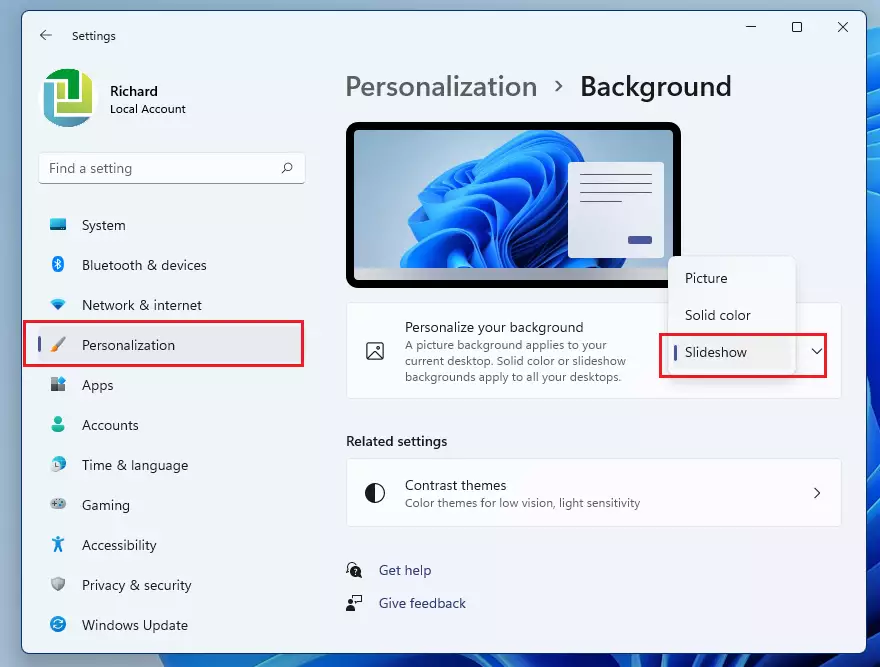
In the Background section, you will see a drop-down menu. Change it from “Picture” to Slideshow.
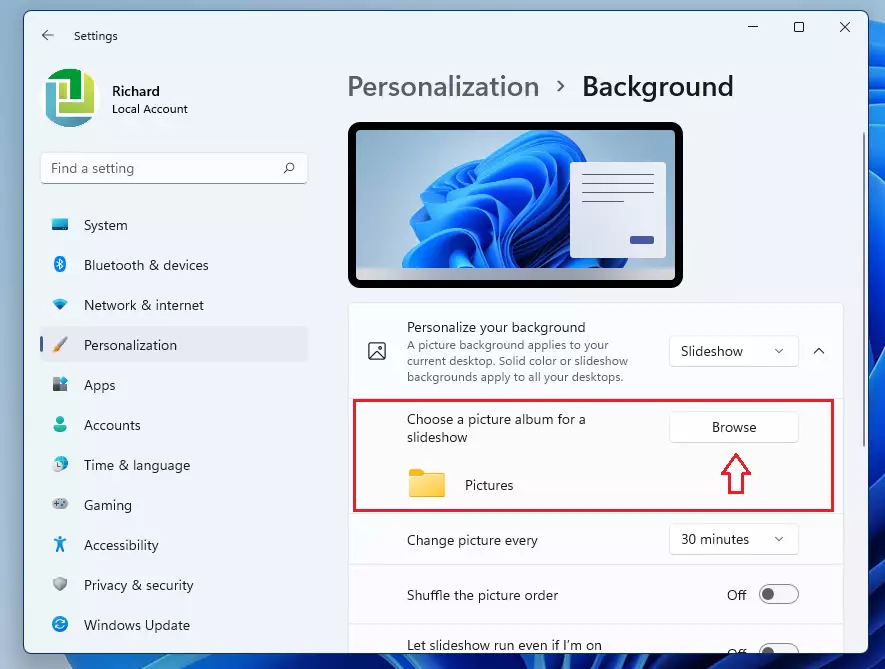
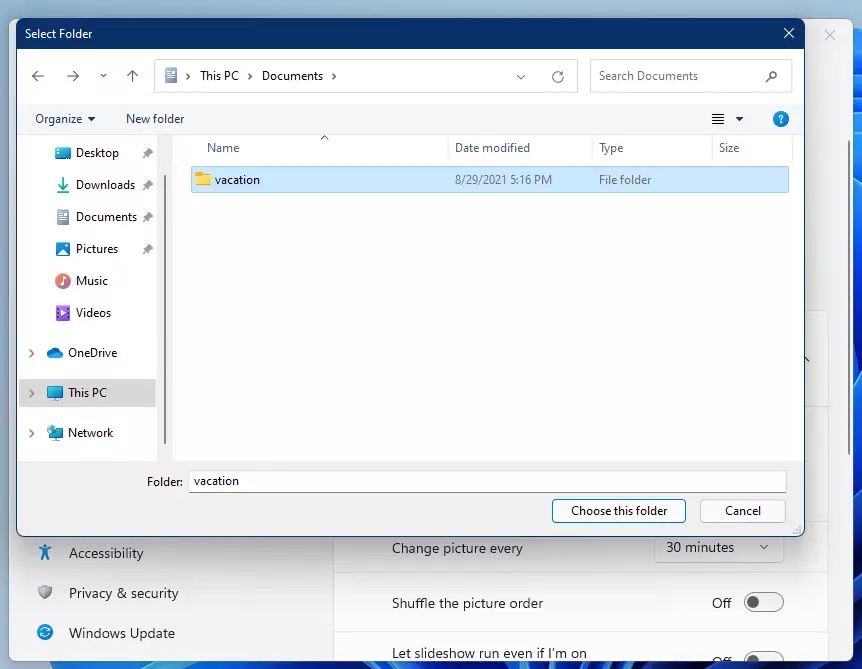
Next, click the Browse button. Find the folder where you saved your photos and click Choose this folder.
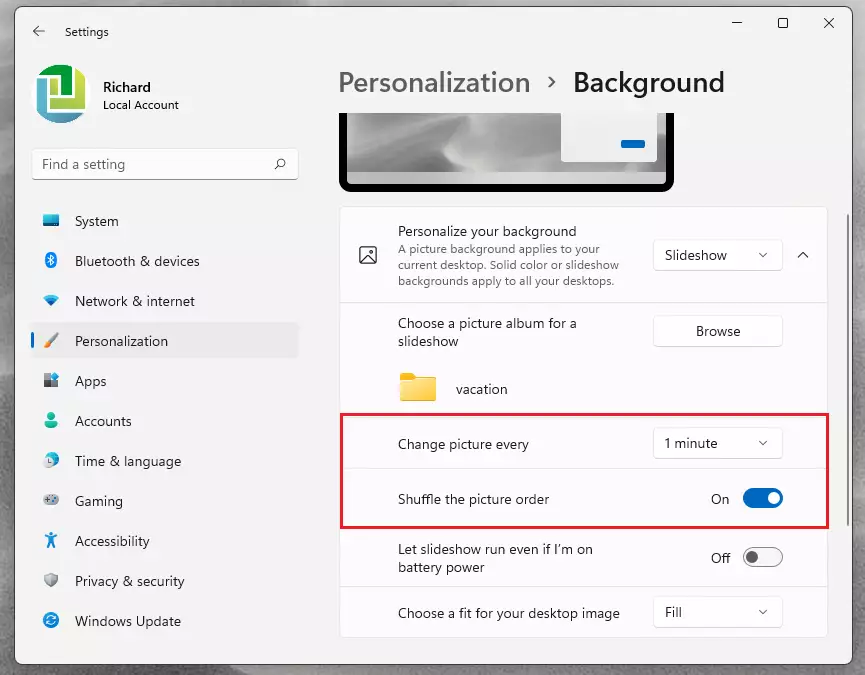
Your slideshow will start immediately. You can now adjust the settings to your liking:
- Change picture every: Choose how often you want the image to swap. You can set it as fast as 1 minute or as slow as 1 day.
- Choose a fit for your desktop: If your photos look stretched or blurry, use the “Fill” or “Fit” options to make them look better.
Advanced Configuration and Multi-Monitor Setup
If you use multiple monitors, Windows 11 allows you to span your slideshow across all screens. By default, the system applies the same folder to all displays. If you want unique backgrounds, you may need to use third-party tools, as native Windows 11 settings apply the slideshow globally to all connected displays.
Troubleshooting Persistent Settings
If your slideshow resets after a restart, check your Power & Battery settings. Windows may be pausing the slideshow to save energy. Ensure your power mode is set to “Balanced” or “Best Performance.” Additionally, verify that your image folder is not located on a network drive that disconnects during startup.
To verify your settings path via command line (Requires Admin Privileges):
reg query "HKEY_CURRENT_USER\Control Panel\Desktop" /v WallPaper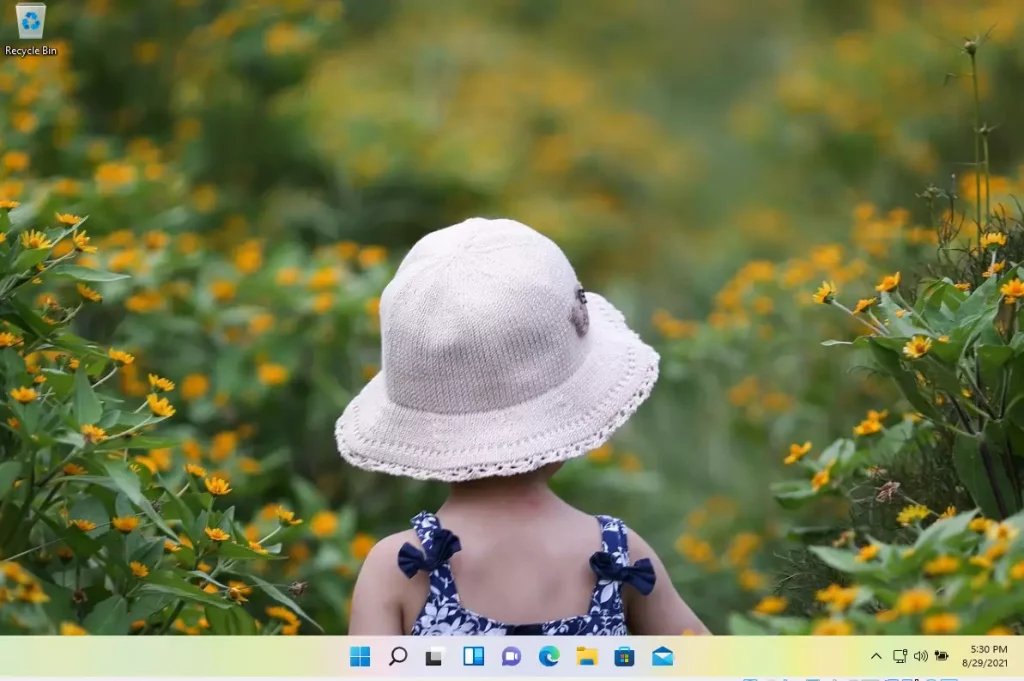
If you need to clear your background path using a script (Requires Admin Privileges):
reg add "HKEY_CURRENT_USER\Control Panel\Desktop" /v WallPaper /t REG_SZ /d "" /f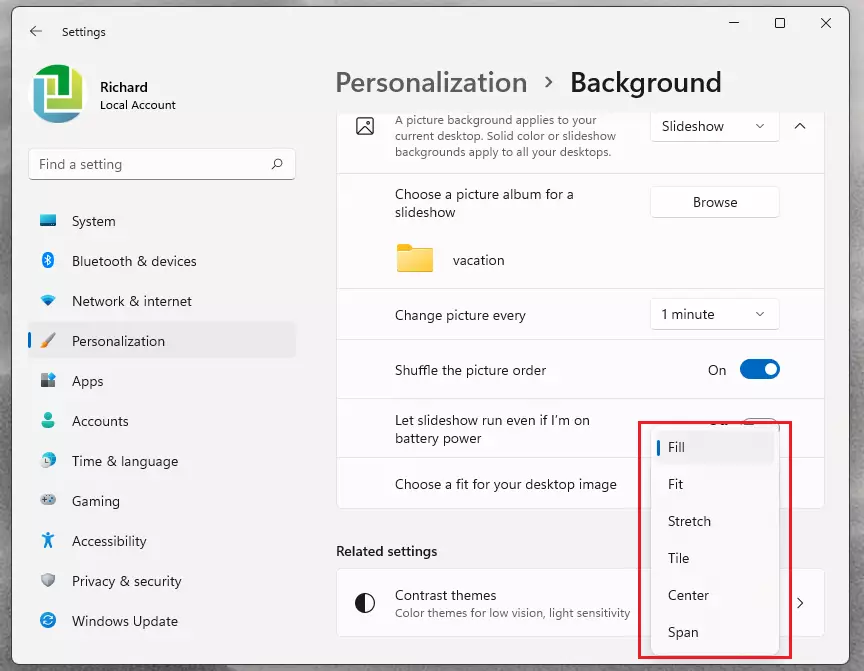
Summary
Creating a wallpaper slideshow in Windows 11 is a quick way to customize your PC. Simply move your images into a folder, select “Slideshow” in the Personalization settings, and pick your folder. You can easily adjust how often the images change and how they fit on your screen to ensure your desktop always looks great.
Why does my Windows 11 slideshow reset after restart?
This often happens if the folder path is inaccessible during boot or if power-saving modes are enabled. Ensure your images are stored on a local drive, such as C:\Users\GenericUser\Pictures, rather than an external or cloud-synced drive that takes time to initialize when your computer starts up.
Does a wallpaper slideshow drain battery life?
Yes, a slideshow can slightly increase battery consumption because the system must constantly process and refresh the image files. If you are on a laptop and need to save power, consider setting the rotation frequency to a longer interval, such as once per day, or switching to a static image.
Was this guide helpful?



Looking for just being able to do an immediate (not saved, not used as screen saver, not a lock screen) just a quick slide show of a selected folder/file or individual photos. A quick look at the photos you’ve taken so you can choose what needs to be tossed, what needs to be massaged, etc. It was in Windows 10 File Explorer under Picture format . . . Where is it now?
[…] wallpaper automatically. One is to use its slideshow feature, where you select a folder with pictures to change at intervals. The other is to use Windows […]
[…] allows you to customize the lock screen background using Windows Spotlight, Pictures, or a Slideshow that randomly displays your chosen […]
[…] can use interesting photos, slideshow, or Spotlight images as background […]
[…] a standard desktop background. Users can change or replace that background with a custom picture, slideshow, or Windows Spotlight […]
[…] can also configure a background slideshow and set it on a single […]
[…] How to set a Slideshow Background […]
[…] The Task View feature in Windows is a manager that lets you switch between apps on multiple desktops. Why use this? It keeps your work projects separate from your personal apps, reducing clutter and helping you focus. What happens when you use them? You get a cleaner screen and a faster way to switch tasks. Virtual desktops stay there even after you restart your computer until you manually close them. You can also give each one a different background, unless you use a solid color or a slideshow. […]