
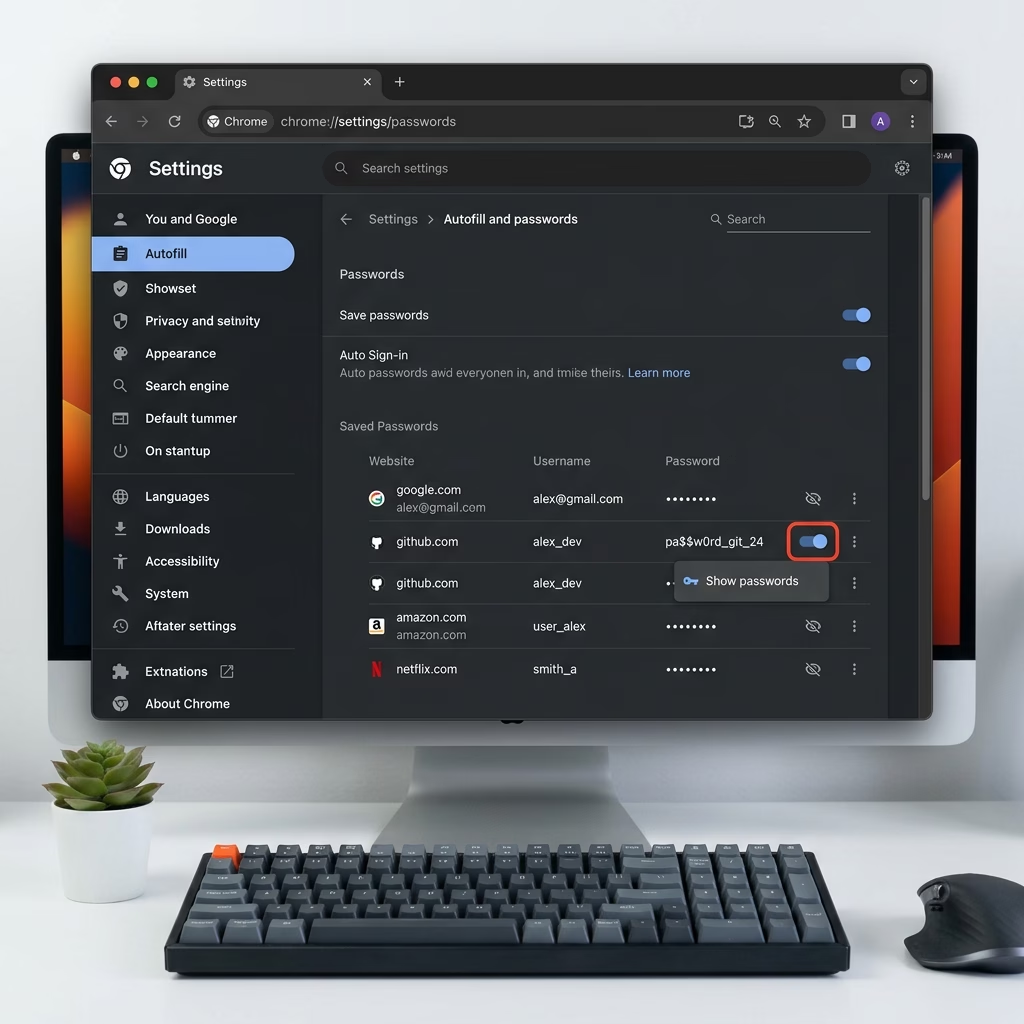
You enable or disable the password saving feature in Microsoft Edge on Windows 11 to control whether the browser prompts you to save login credentials.
This setting dictates if Microsoft Edge asks to store usernames and passwords for websites you visit, preventing accidental or unwanted password storage.
On Windows 11, you can configure this for your specific user profile or apply it system-wide for all users through Local Group Policy Editor (gpedit.msc) if you have Windows 11 Pro or Enterprise.
Disabling this prevents Edge from offering to save passwords, enhancing security by ensuring sensitive information isn’t automatically stored.
To enable or disable password saving, open Edge settings, navigate to Passwords and autofill, then toggle “Ask to save passwords and passkeys” on or off. For all users, use Windows Terminal with administrator privileges to modify the `PasswordManagerEnabled` registry key.
Why This Matters
Saving passwords in Microsoft Edge makes logging into websites much faster, and it can even sync them across your devices if you use a Microsoft account.
You might want to turn this feature off for security reasons. Or you might want to turn it on to make browsing easier. The choice is yours.
What Happens When You Enable Password Saving
When “Ask to save passwords” is turned on, Edge will prompt you each time you enter a new password. You can choose to save it or skip it. The next time you visit that site, Edge fills in your username and password automatically.
What Happens When You Disable Password Saving
When “Ask to save passwords” is turned off, Edge no longer asks if you want to save passwords. You can still manually add passwords if you want. Any passwords you already saved will still work.
Option 1Turn Password Saving On or Off for Your Account
You can easily turn the ‘Ask to save passwords’ feature on or off in Microsoft Edge settings for your personal account.Option 2Enable or Disable Password Saving for All Users on the Computer
⚠️ Admin Privileges Required — You must be logged in as an administrator to use this method.
This option uses a Windows policy called PasswordManagerEnabled.
To Always Allow Password Saving
- Right-click the Windows Terminal app and select Run as administrator.
- Run this command to always enable password saving for all users:
To always allow password saving in Microsoft Edge for everyone on your computer, you can use a simple command in Windows Terminal.
This turns on “Ask to save passwords” for everyone. Users cannot turn it off in Option One.
To Always Disable Password Saving
- Right-click the Windows Terminal app and select Run as administrator.
- Run this command to disable password saving for all users:
reg add "HKEY_LOCAL_MACHINE\SOFTWARE\Policies\Microsoft\Edge" /v "PasswordManagerEnabled" /t REG_DWORD /d 0 /fThis turns off “Ask to save passwords” for everyone.
To Reset to Default Settings
- Right-click the Windows Terminal app and select Run as administrator.
- Run this command to return to default settings:
reg delete "HKEY_LOCAL_MACHINE\SOFTWARE\Policies\Microsoft\Edge" /v "PasswordManagerEnabled" /fThis removes the policy. Users can now turn password saving on or off as they wish in Option One.
Additional Resources
View or edit your passwords in Microsoft Password Manager – Microsoft Support
Learn how to view or edit passwords you have already saved in Microsoft Edge.
Summary
You can manage saving passwords in Microsoft Edge using a simple setting for your account or a command for all users if you’re an administrator.
- Option One lets you turn password saving on or off for just your account. This is the easiest method for most users.
- Option Two lets administrators control password saving for all users on the computer. This requires admin access and uses Windows Terminal.
When password saving is on, Edge asks if you want to save passwords as you browse. When it is off, Edge stops asking. Either way, passwords you already saved continue to work. Choose the setting that works best for your security and convenience needs.
Why shouldn't you save passwords in the browser?
You shouldn’t save passwords directly in your browser because if your computer is lost or someone unauthorized gets access, they could see your saved logins.
How to save Edge passwords to a file?
You can export your saved Microsoft Edge passwords to a file by going into the browser’s settings and selecting the option to download them as a CSV.
How to get Microsoft Edge to autofill passwords?
To have Microsoft Edge automatically fill in your passwords on websites, you need to turn on the ‘Offer to save passwords’ and ‘Sign in automatically’ options in the browser’s settings.
Is it safe to save passwords on Edge?
Saving passwords in Microsoft Edge is generally safe for everyday use if you protect your computer with a strong password and keep your device secure.
Was this guide helpful?

About the Author
Richard
Tech Writer, IT Professional
Richard, a writer for Geek Rewind, is a tech enthusiast who loves breaking down complex IT topics into simple, easy-to-understand ideas. With years of hands-on experience in system administration and enterprise IT operations, he’s developed a knack for offering practical tips and solutions. Richard aims to make technology more accessible and actionable. He's deeply committed to the Geek Rewind community, always ready to answer questions and engage in discussions.




No comments yet — be the first to share your thoughts!