How to Install CAB Files in Windows 11

You install CAB files in Windows 11 by using the built-in Command Prompt.
A CAB (Cabinet) file is a compressed archive file, similar to a ZIP file, used by Microsoft Windows to distribute software updates and system files. These files contain one or more files compressed together for easier installation.
For example, you might need to install a specific driver update packaged within a CAB file, often downloaded manually from a manufacturer’s website when automatic updates fail. This process typically involves navigating to the file’s location and executing a command.
You will use the `expand` command in the Command Prompt to extract and install the contents of a CAB file directly into your system directories. This method ensures you can manage these specific update packages effectively.
What Is a CAB File?
A CAB (short for cabinet) file is like a zipped folder that holds one or more files inside it. These files are compressed (made smaller) so they take up less space. Windows and some device makers use CAB files to send updates or drivers for your computer.
Think of it as a package with several things inside, all squished together to save space.
How to Install a CAB File in 🪟 Windows 11
There are different ways to install CAB files. Here are the easiest methods:
1Using Command Prompt
Command Prompt is a tool where you type commands to tell your computer what to do.
⚠️ Admin Privileges Required — Open Command Prompt Open Command Prompt as Administrator (this means running it with special permissions).
Type the command below, but replace FULL_PATH_TO_CAB_FILE with the full location of your CAB file. For example, if your CAB file is in Downloads, it might look like this: C:\Users\UserName\Downloads\file.cab.
dism /Online /Add-Package /PackagePath:"FULL_PATH_TO_CAB_FILE"
Example:
dism /Online /Add-Package /PackagePath:"C:\Users\UserName\Downloads\Windows10.0-KB5018851-x64.cab"
After running the command, you should see a message that says the installation was successful.
2Using Windows PowerShell
PowerShell is similar to Command Prompt, but a bit more powerful.
⚠️ Admin Privileges Required — Open PowerShell Open PowerShell as Administrator.
Type this command, again replacing FULL_PATH_TO_CAB_FILE with your file’s path:
Add-WindowsPackage -Online -PackagePath "FULL_PATH_TO_CAB_FILE"
Example:
Add-WindowsPackage -Online -PackagePath "C:\Users\UserName\Downloads\Windows10.0-KB5018851-x64.cab"
Once done, you’ll get a success message.
3Extract and Install CAB Files Using File Explorer
Sometimes, CAB files contain device drivers (special software that helps your computer parts work). If you want to install just one driver from the CAB file, you can first extract (unzip) the files and then install the driver you want.
- Open Open File Explorer (the folder icon on your taskbar).
- Find your CAB file and double-click it to open.
- Select all the files inside, right-click, and choose Extract All.
- Pick a folder where you want to save the extracted files, then click Extract.
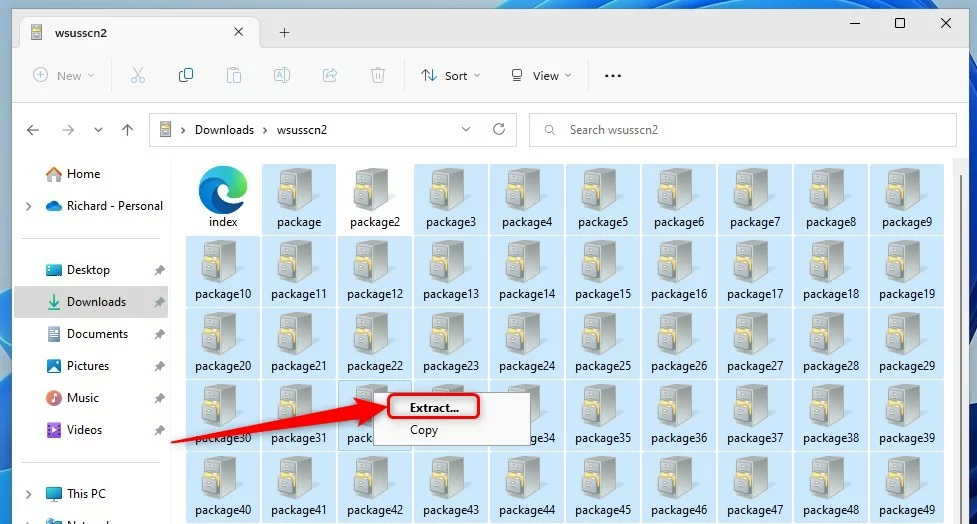
Extracting CAB files in Windows 11 using File Explorer
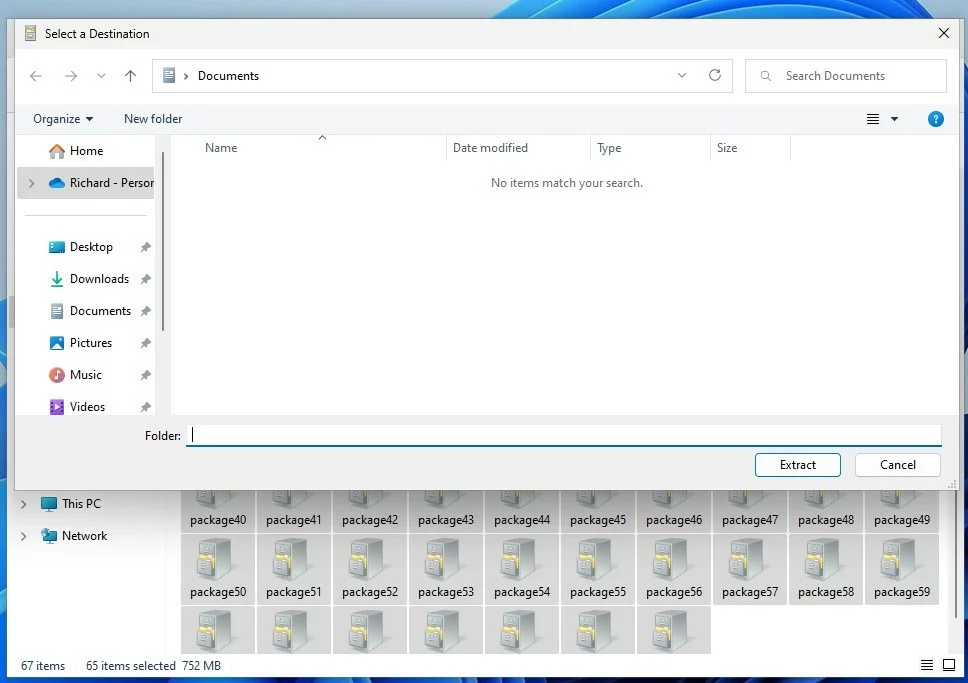
Choosing a folder to extract the CAB file
After extracting, you can install drivers using Device Manager. For a simple guide on installing drivers, check out this post: How to install device drivers in Windows 11.
Summary
- CAB files are compressed packages with updates or drivers for Windows.
- You can install them using Command Prompt or PowerShell by typing simple commands.
- If you only want certain drivers, you can extract CAB files using File Explorer and install just what you need.
- Helpful links and pictures make the process easier to follow.
Helpful Links & Resources
- Microsoft official info about CAB files
- How to open apps as administrator in Windows 11
- How to open Command Prompt in Windows 11
- How to open PowerShell in Windows 11
If you have questions or want to share your experience, feel free to leave a comment below!
Was this guide helpful?

About the Author
Richard
Tech Writer, IT Professional
Richard, a writer for Geek Rewind, is a tech enthusiast who loves breaking down complex IT topics into simple, easy-to-understand ideas. With years of hands-on experience in system administration and enterprise IT operations, he’s developed a knack for offering practical tips and solutions. Richard aims to make technology more accessible and actionable. He's deeply committed to the Geek Rewind community, always ready to answer questions and engage in discussions.




No comments yet — be the first to share your thoughts!