How to Install or Update Audio Drivers in Windows 11

There are a few ways to install or update audio drivers in Windows 11: you can use Device Manager, visit your manufacturer’s website, or let Windows Update handle it.
Think of an audio driver as essential software. It’s how your Windows 11 operating system talks to your sound card, letting you hear everything through your speakers or headphones. Keeping these drivers current is crucial for optimal sound quality and to resolve common audio issues.
For instance, a corrupted or outdated audio driver might cause distorted sound, no sound at all, or errors like “Audio device is disabled” on Windows 11. Ensuring you have the latest driver version, often from Realtek or your motherboard manufacturer, can prevent these problems.
Update audio drivers in Windows 11 via Settings > Windows Update > Optional updates, or by using Device Manager. Right-click your audio device in Device Manager and select “Update driver” to search automatically or browse for a downloaded driver. Restart your PC after the update.
Update Audio Drivers Using Windows Optional Updates
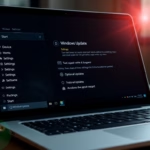
You can update audio drivers in Windows 11 using the Optional Updates feature in Settings, which is a great way to find newer driver versions that aren’t part of the main Windows Update.
Here’s how to check:
- Click the Start menu (the Windows icon on the bottom left).
- Select Settings (the gear icon).
- In Settings, click Windows Update on the left side.
- Click Advanced options.
- Click Optional updates.
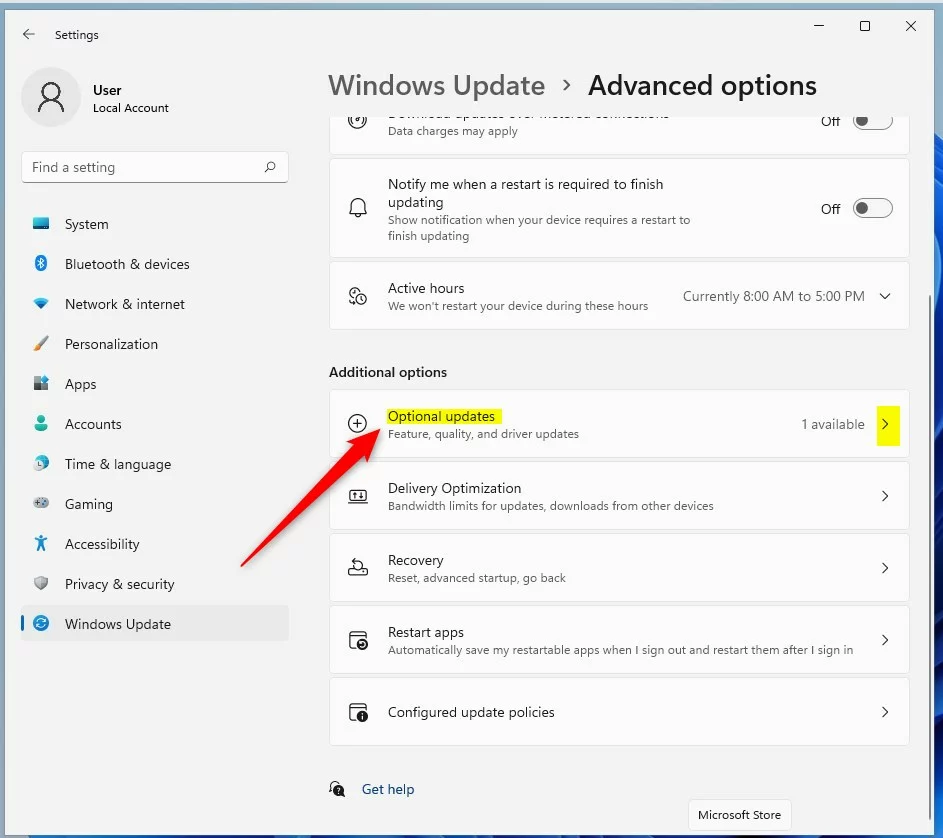
If there’s an audio driver update available, you’ll see it listed here. Check the box next to it and click Download & install. Learn more about Optional Updates
Update Audio Drivers Using Device Manager
Updating your audio drivers in Windows 11 is simple with Device Manager, especially if you’ve downloaded a driver from the manufacturer or need to manually install one.
Follow these steps:
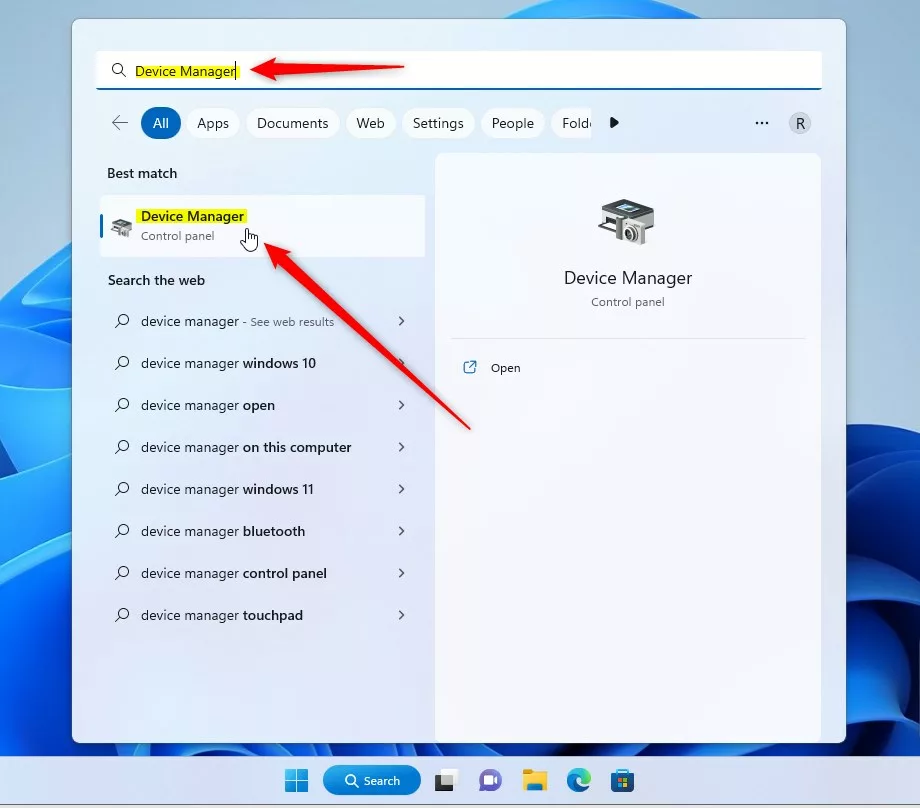
- Click the Start menu and type Device Manager in the search box.
- Click the Device Manager app from the search results.
In Device Manager:
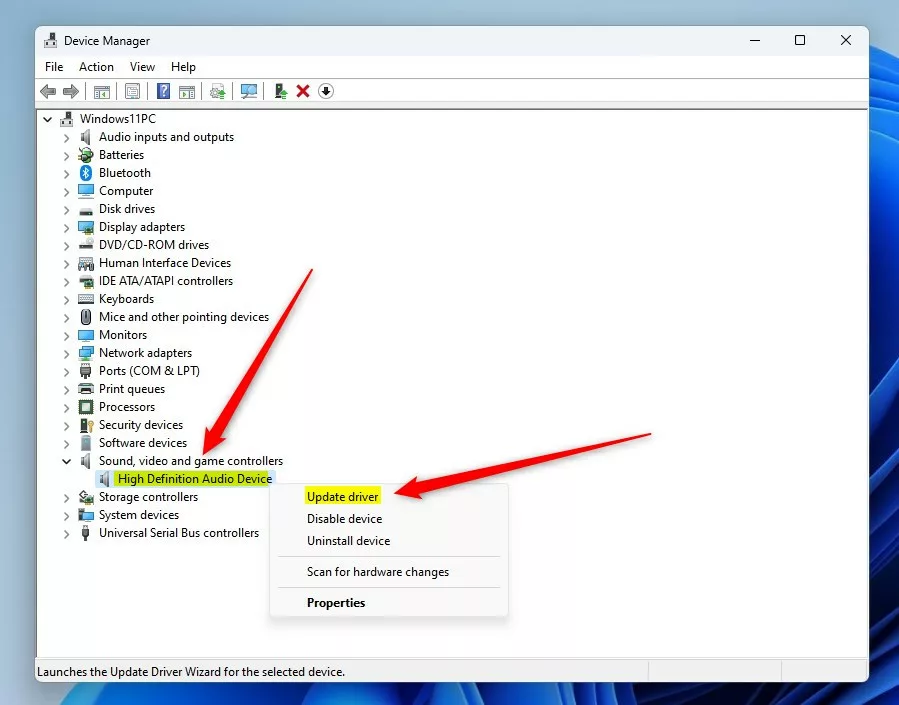
- Find and click the arrow next to Sound, video, and game controllers to expand it.
- Right-click on your audio device (it might be called High Definition Audio Device or something similar).
- Select Update driver from the menu.
You’ll then see two main options:
- Search automatically for drivers: Windows will look online for the best driver.
- Browse my computer for drivers: You can pick a driver file if you already downloaded one.
Search automatically for drivers: Windows will look online for the best driver.
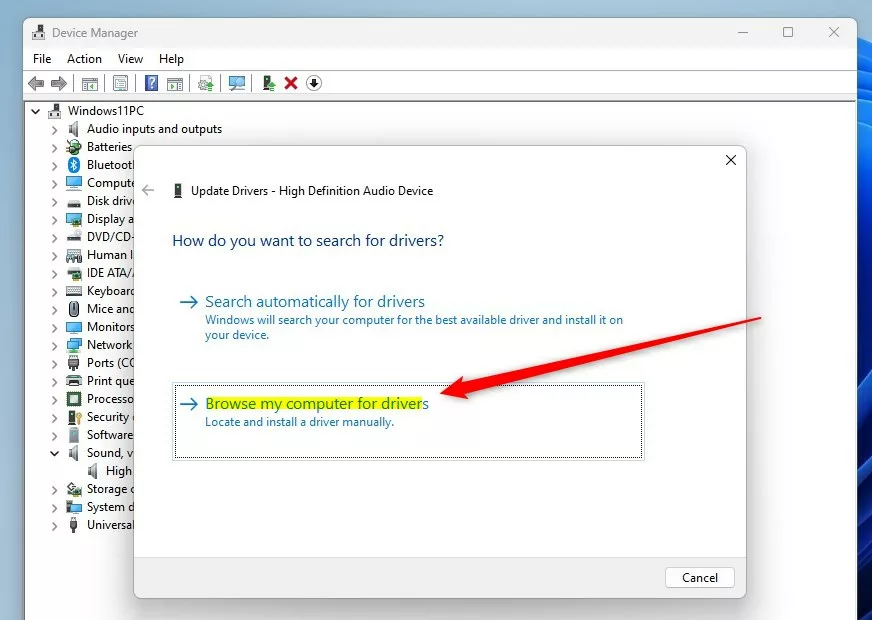
Browse my computer for drivers: This is where you’ll pick a driver file if you’ve already downloaded one.
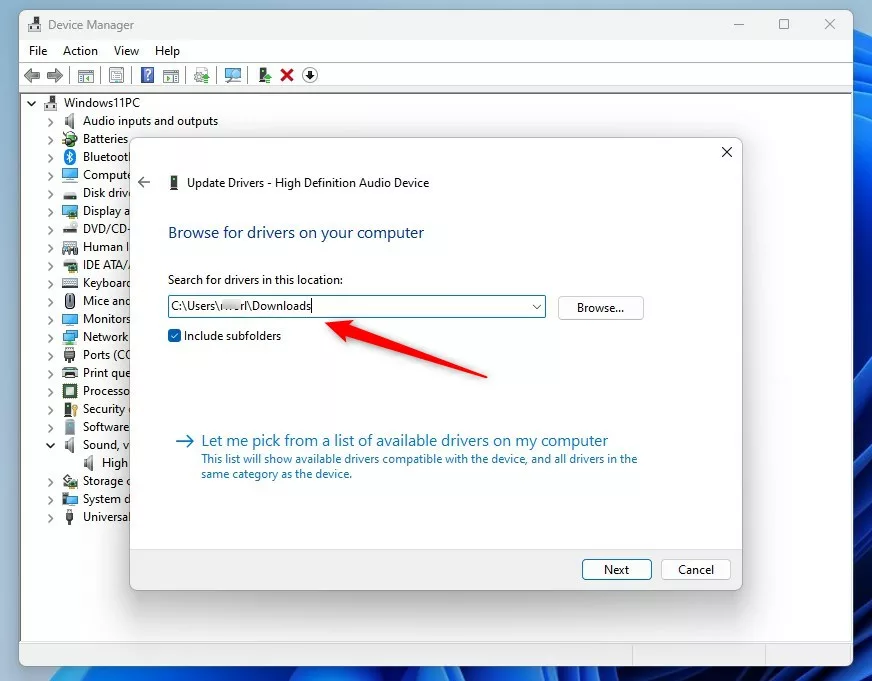
If you have the driver saved on your PC (for example, from the manufacturer’s website), choose ‘Browse my computer for drivers’.
Navigate to the folder where you saved the driver, select it, and click ‘Next’ to start the installation.
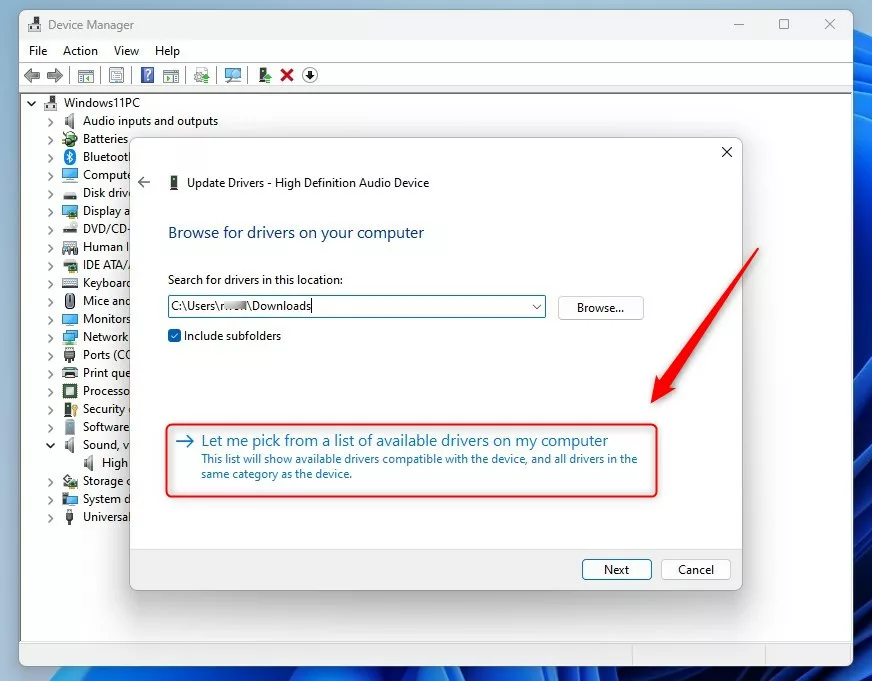
If you haven’t downloaded a driver yet, you can also select ‘Let me pick from a list of available drivers’ to choose from drivers already on your computer.
If one driver doesn’t work out, you can always come back and try another from that list.
After updating or installing the driver, restart your computer. This ensures all the changes take effect correctly.
Summary
Updating your audio drivers in Windows 11 can fix sound issues and boost audio quality, and you can do this easily through Windows Optional Updates or Device Manager.- Updating audio drivers can fix sound problems and improve audio quality.
- You can update drivers using Windows Optional Updates or Device Manager.
- Optional Updates are found in Settings > Windows Update > Advanced options > Optional updates.
- Device Manager lets you manually update or install drivers you have downloaded.
- Restart your PC after updating drivers for best results.
- For more help managing drivers on Windows 11, check out this guide: How to Update Device Drivers in Windows 11.
How do I manually Update audio drivers?
Update audio drivers using Device Manager: Expand ‘Sound, video and game controllers.’ Right‑click your audio device, and then select ‘Update driver.’
Was this guide helpful?

About the Author
Richard
Tech Writer, IT Professional
Richard, a writer for Geek Rewind, is a tech enthusiast who loves breaking down complex IT topics into simple, easy-to-understand ideas. With years of hands-on experience in system administration and enterprise IT operations, he’s developed a knack for offering practical tips and solutions. Richard aims to make technology more accessible and actionable. He's deeply committed to the Geek Rewind community, always ready to answer questions and engage in discussions.

No comments yet — be the first to share your thoughts!