How to Add or Remove the Sleep Button in Windows 11

You can add or remove the Sleep button from the power menu in Windows 11 using Registry Editor or Group Policy Editor.
The Sleep option conserves power by placing your PC into a low-power state, keeping your applications and documents ready for quick resumption.
Most Windows 11 installations include the Sleep button by default. It allows you to quickly pause your work and restart without a full boot-up.
If you’ve found yourself accidentally clicking Sleep or simply prefer a cleaner power menu, you can easily hide this option.
You can add or remove the Sleep button from the power menu in Windows 11 via Control Panel, Registry Editor, or Group Policy Editor. Open Control Panel, go to Power Options, and change shutdown settings to show or hide Sleep. Alternatively, edit the registry or group policy for more advanced control.
Add or Remove the Sleep Button Using Control Panel
You can easily add or remove the Sleep button from your Windows 11 power menu using the Control Panel. This simple method lets you quickly change whether the Sleep option appears when you click the Start menu’s power icon.
- Open Control Panel. Click the Start menu button, type Control Panel, and press Enter. Learn how to open Control Panel
- Inside Control Panel, click Hardware and Sound, then select Power Options.
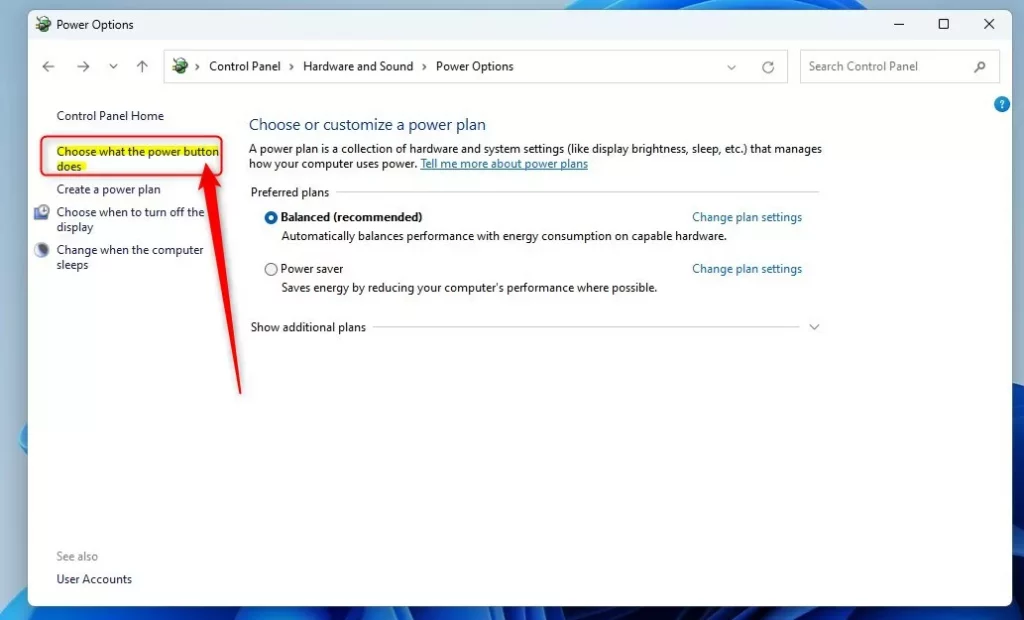
- Click Choose what the power buttons do on the left side.
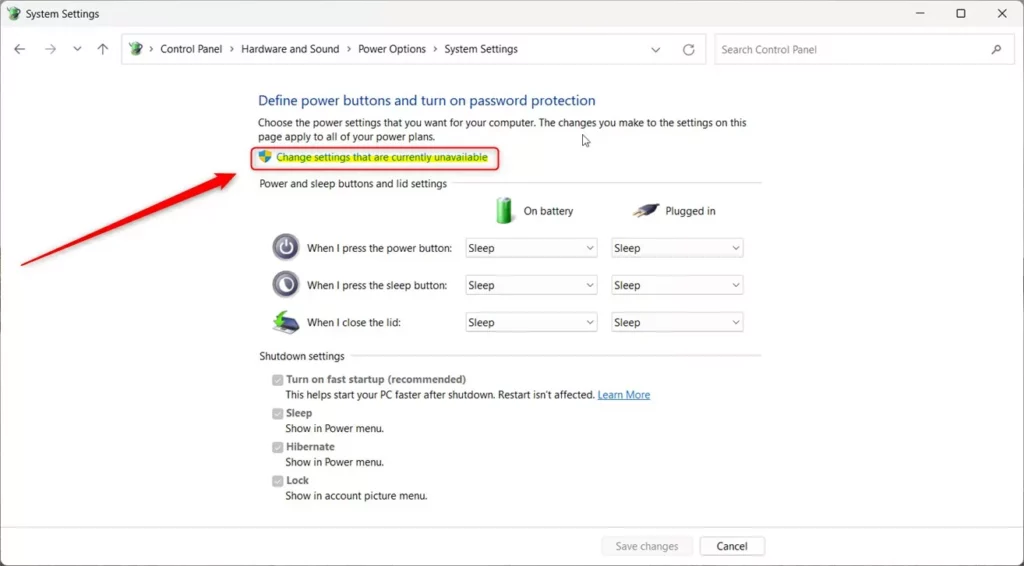
- Click Change settings that are currently unavailable near the top.
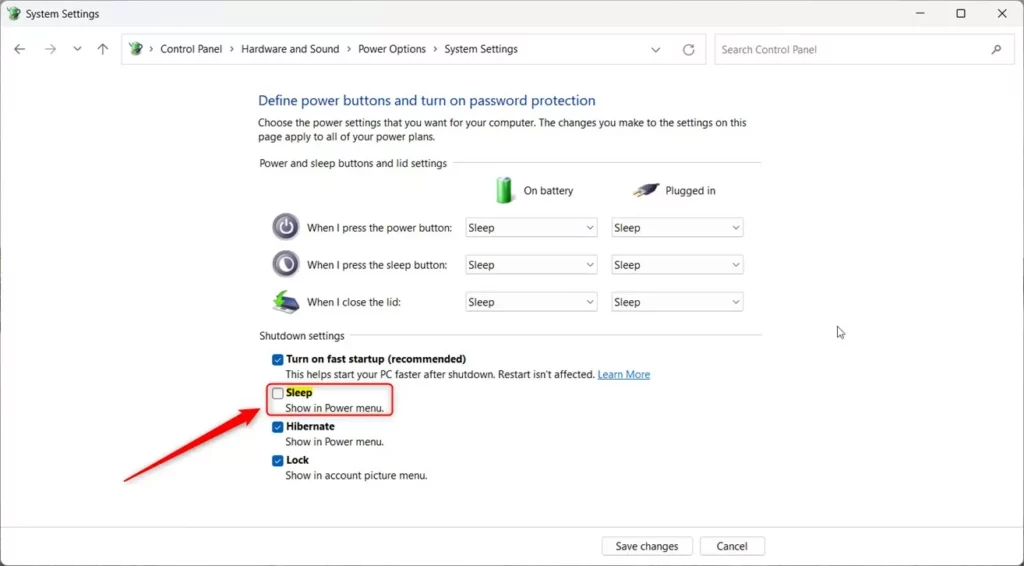
- Under Shutdown settings, check or uncheck the Sleep box to show or hide the Sleep button.
- Click Save changes to apply your settings.
Show or Hide Sleep Button Using Windows Registry Editor
For more control, you can show or hide the Windows 11 Sleep button using the Registry Editor, but be careful as mistakes can cause issues. This advanced method involves editing specific registry keys to change the power options available on your PC.
Be careful: Editing the registry incorrectly can cause problems. Make sure to follow these steps exactly and consider backing up your registry first.
- [ADMIN REQUIRED] Open the Registry Editor by typing
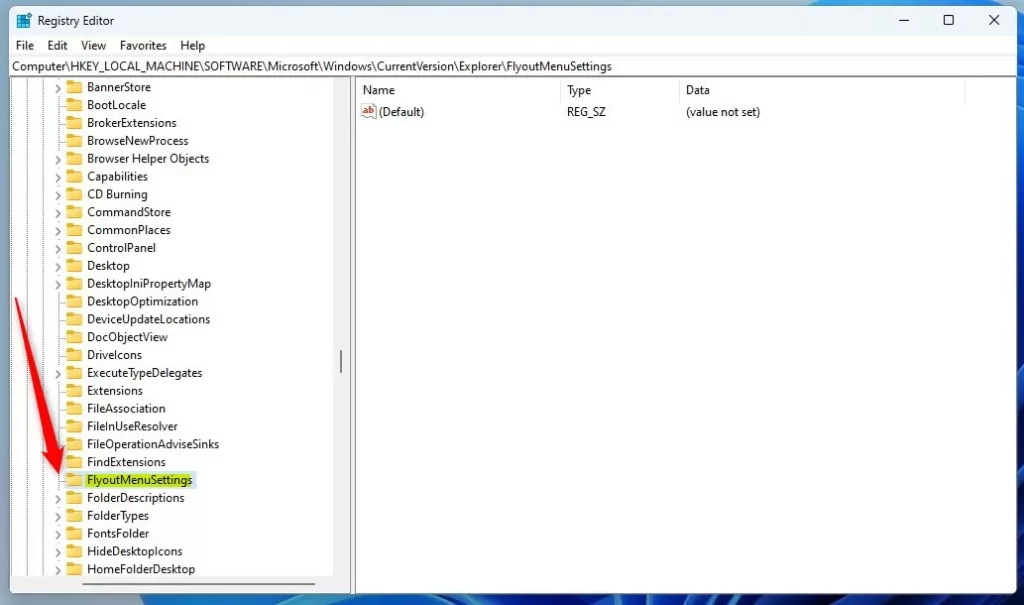
regeditin the Start menu and pressing Enter. - Navigate to this folder path:
HKEY_LOCAL_MACHINE\SOFTWARE\Microsoft\Windows\CurrentVersion\Explorer\FlyoutMenuSettings - If FlyoutMenuSettings does not exist, right-click on Explorer, choose New > Key, and name it FlyoutMenuSettings.
- Inside FlyoutMenuSettings, right-click on the right side, select New > DWORD (32-bit) Value, and name it ShowSleepOption.
- Double-click ShowSleepOption and set the value to:
- 1 – Show the Sleep button
- 0 – Hide the Sleep button
- Click OK, close the Registry Editor, and restart your computer.
Use Local Group Policy Editor to Manage Sleep Button
Windows 11 Pro and Enterprise users can manage the Sleep button’s appearance through the Local Group Policy Editor. This tool allows you to control system settings, including whether the Sleep option is visible on your computer’s power menu.
- [ADMIN REQUIRED] Click the Start menu and type Edit group policy, then open the Edit group policy app.
- In the left panel, go to:
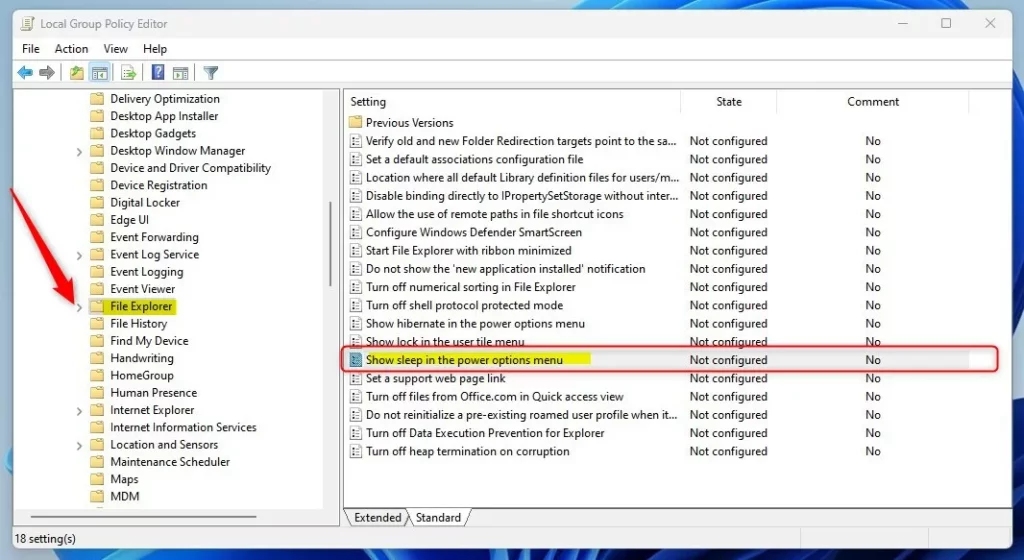
Computer Configuration > Administrative Templates > Windows Components > File Explorer - In the right panel, find and double-click Show sleep in the power options menu.

- Choose one of these options:
- Not Configured (default) – Sleep button will show.
- Enabled – Sleep button will show.
- Disabled – Sleep button will be hidden.
- Click OK, close the window, and restart your PC for changes to take effect.
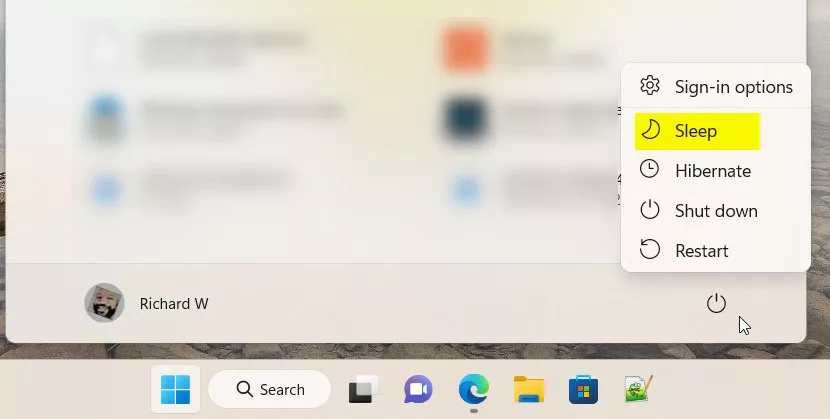
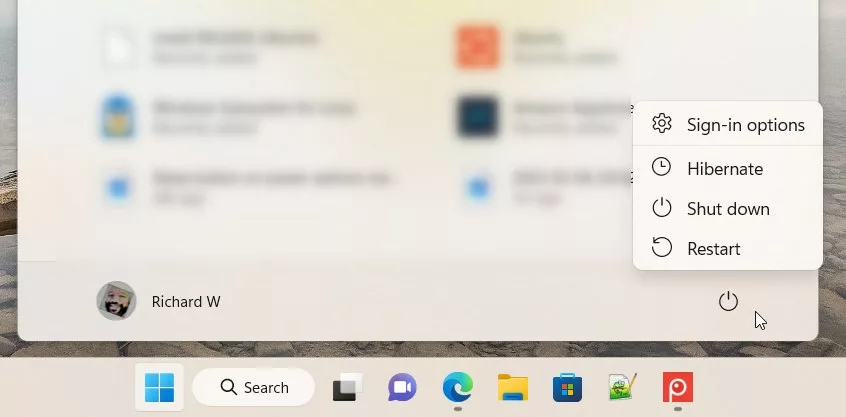
What Does This Look Like?
Summary
You have several ways to add or remove the Sleep button in Windows 11, making your PC’s power menu work just how you want it. The Control Panel offers the easiest method, while the Registry Editor and Group Policy Editor provide more advanced options for customization.
Where is the sleep button on 🪟 Windows 11?
Search once control panel opens you have to go to power options. Next in the power options window in the very left pane. You will find a link called choose what the power button does just click on
Why is sleep no longer an option in 🪟 Windows 11?
So all you have to do is just check this box. Click save changes and now if I go back to my power. Options you will see that. It's now showing sleep.
Was this guide helpful?

About the Author
Richard
Tech Writer, IT Professional
Richard, a writer for Geek Rewind, is a tech enthusiast who loves breaking down complex IT topics into simple, easy-to-understand ideas. With years of hands-on experience in system administration and enterprise IT operations, he’s developed a knack for offering practical tips and solutions. Richard aims to make technology more accessible and actionable. He's deeply committed to the Geek Rewind community, always ready to answer questions and engage in discussions.



No comments yet — be the first to share your thoughts!