How to Reset Default Apps in Windows 11

Want to change all your default apps back to Windows 11’s original ones? This guide shows you how to do it in just a few clicks.
Open Settings, navigate to Apps, then Default apps. Scroll down and click the “Reset all default apps” button, then confirm by clicking OK. This restores Microsoft’s original app choices for all file types for your user account.
What is a Default App?
A default app is simply the program Windows picks to open specific files or links automatically, like setting Chrome as your default browser so all web links open there.
Why does this matter? Default apps make your computer work the way you want. But sometimes you might want to go back to what came with Windows.
Important: The default apps you choose only affect your user account. Other people using your computer won’t be affected.
How to Reset All Default Apps in 🪟 Windows 11
Resetting all your default apps in Windows 11 back to Microsoft’s original choices is easy and can be done right from the Settings app.
- Open the Settings app:
- Click the Start menu and select Settings, or
- Press the Windows key + I on your keyboard to open Settings right away.
- On the left side menu, click Apps.
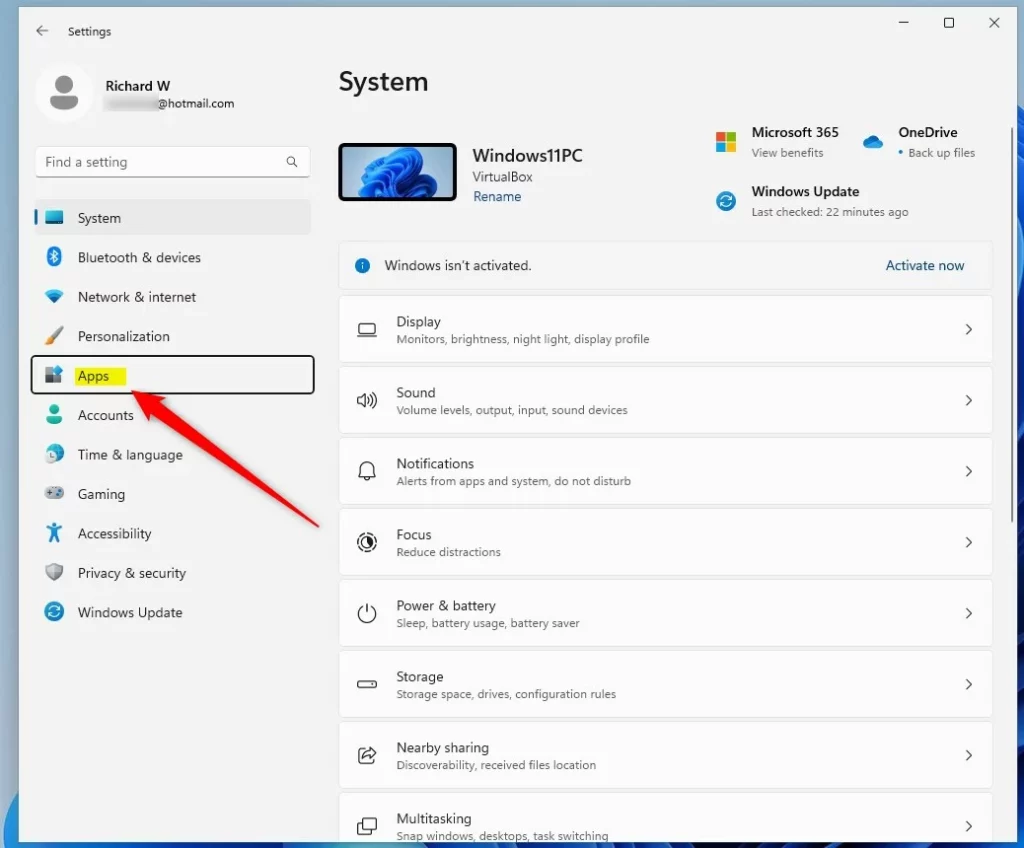
windows 11 settings apps on menu - On the right side, click Default apps.
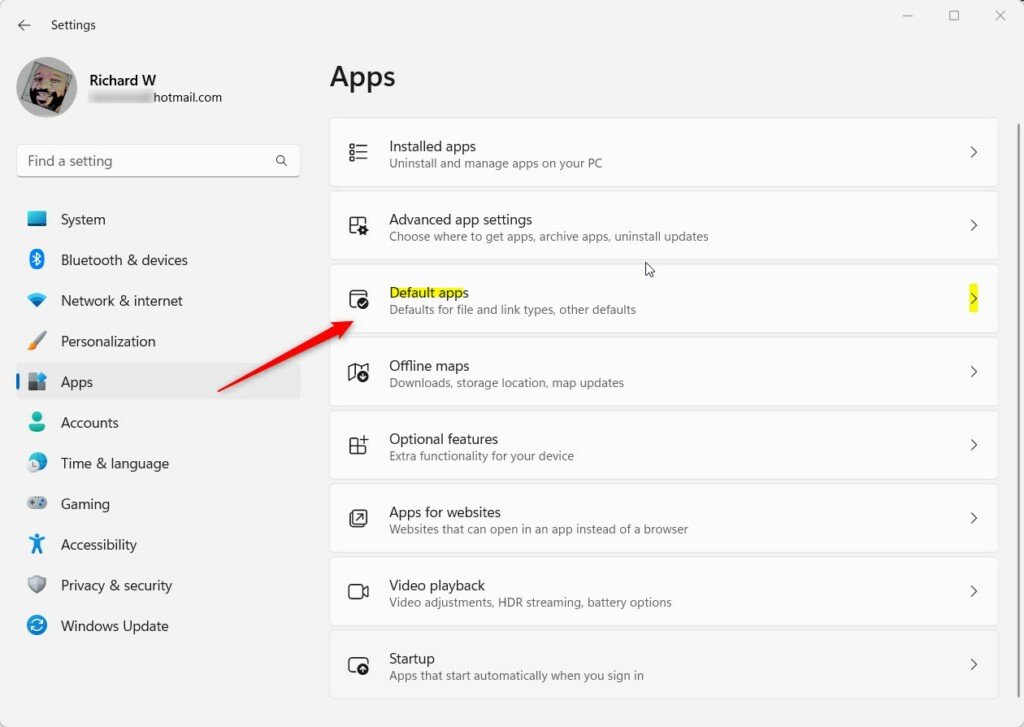
Windows 11 default apps tile in the settings app - Scroll down to the bottom of the page. Look for the button that says Reset all default apps and click it.
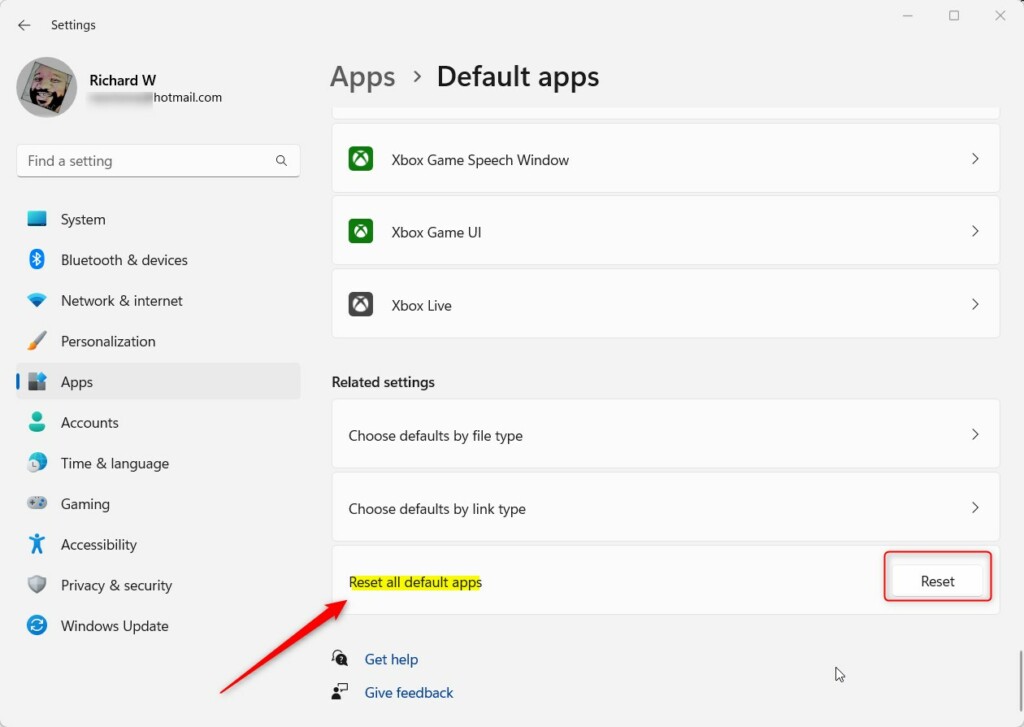
Reset All Default Apps Button - A message will appear asking you to confirm. Click OK to proceed.
- You’ll see a checkmark next to the reset button when it’s done.
What Happens Now?
All your default apps are now back to the way Microsoft set them up. Any custom choices you made before are gone. Windows will use its recommended apps to open files and links.
Summary
- A default app is the program Windows automatically opens for certain files or links.
- Resetting brings back Microsoft’s original recommended apps for all file types.
- This change only affects your user account. Other accounts on the computer stay the same.
- The reset process takes just a few seconds using the Windows 11 Settings app.
- After you’re done, Windows will use its default apps again.
Resetting default apps in Windows 11 means Windows will use its original recommended programs for all file types, and this quick process only affects your account.
How do I clear all default apps?
And select at near the bottom where it says system. So select that and then you want to go down again. And select the reset options at the bottom. Select reset app preferences.
Was this guide helpful?

About the Author
Richard
Tech Writer, IT Professional
Richard, a writer for Geek Rewind, is a tech enthusiast who loves breaking down complex IT topics into simple, easy-to-understand ideas. With years of hands-on experience in system administration and enterprise IT operations, he’s developed a knack for offering practical tips and solutions. Richard aims to make technology more accessible and actionable. He's deeply committed to the Geek Rewind community, always ready to answer questions and engage in discussions.
No comments yet — be the first to share your thoughts!