Why the Screen Capture Border Is Red in Windows 11

- 9 steps
- Includes a restart or sign-out
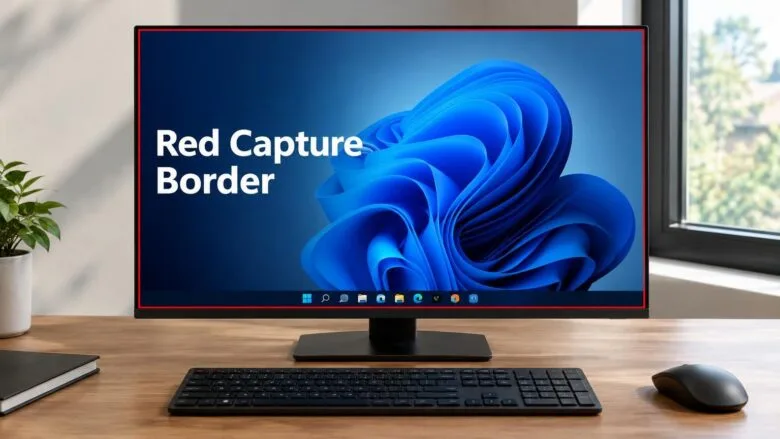
The screen capture border in Windows 11 is red because Microsoft changed its color from yellow to red in update KB5132057 (KB is the identifier Microsoft gives each update). The border appears around your screen while something captures it, such as a recording or a shared screen. The new color makes an active capture easier to spot.
Nothing is wrong with your display, and no malware sets this color. If you see the red border, a capture session is running. The sections below explain which update made the change, how to check whether you have it, and what to do if you still see yellow.
The screen capture border is red in Windows 11 because Microsoft changed its color from yellow to red in update KB5132057, a preview update for Windows 11 25H2. The border appears only while something captures your screen, such as a recording or a shared screen. To confirm the update is installed, open Settings, select Windows Update, then Update history.
Why the screen capture border is now red
Microsoft’s release notes for KB5132057 list the change as “Screen capture border changed to red.” The border displayed during screen capture changed from yellow to red. Microsoft’s stated reason is that red makes it easier to identify when a capture session is active.
The purpose of the border has not changed. It is a visible signal on screen that something is capturing the display. Only the color is different.
The release notes carry entries dated November 13, 2026 and November 18, 2026 for this update. They do not describe any new settings, buttons, or options for the border. The change is a color swap, not a new feature to turn on.
Which Windows 11 versions get the red border
Microsoft lists KB5132057 as an optional preview update for Windows 11 25H2, released in November 2026. A preview update is an optional update that delivers changes ahead of the regular monthly security release. Windows does not force it on you unless you choose to install it or it arrives through a later release.
The release notes for the red border change name 25H2 as the version it applies to. Details on other versions can change while Microsoft rolls this out, so check the KB5132057 release notes on support.microsoft.com for the current list.
How to check whether the update is installed
These steps confirm whether KB5132057 is on your PC, which tells you whether the screen capture border should be red. Menu labels in Windows Update can shift as Microsoft rolls out changes, so match what you see on screen.
- Open Settings. Press the Win+I to get there quickly.
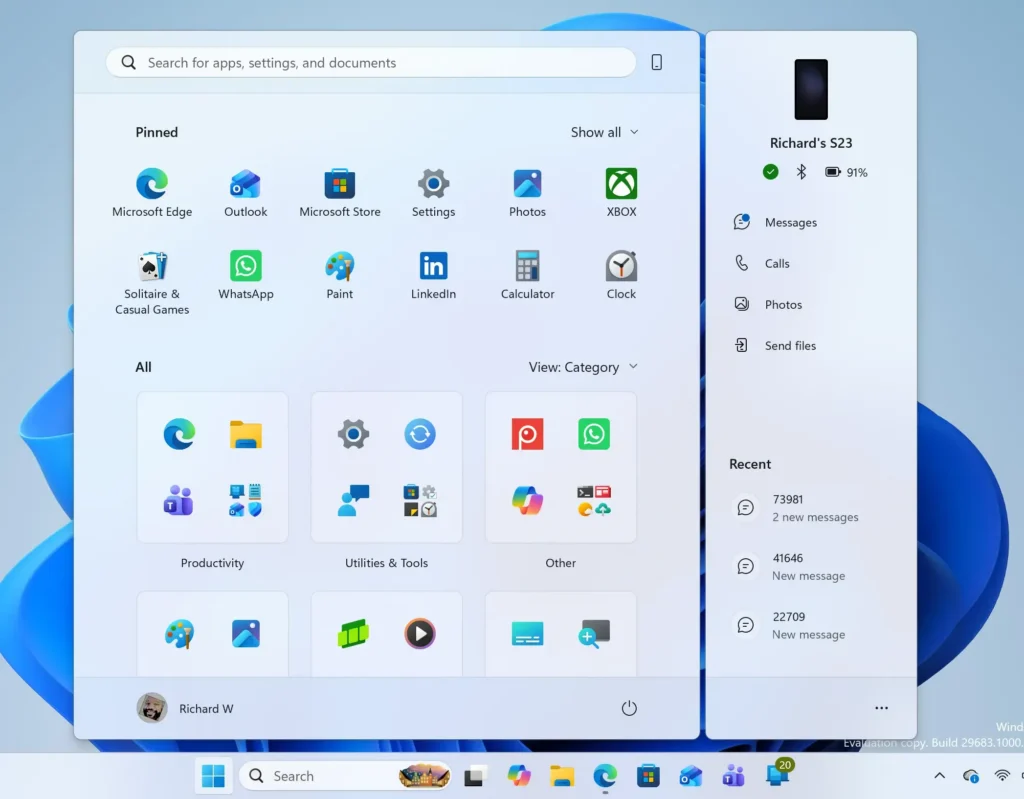
Windows 11 Start menu search panel for opening OpenSSH Client settings - Select Windows Update. This is in the left-hand list. The page shows your update status.
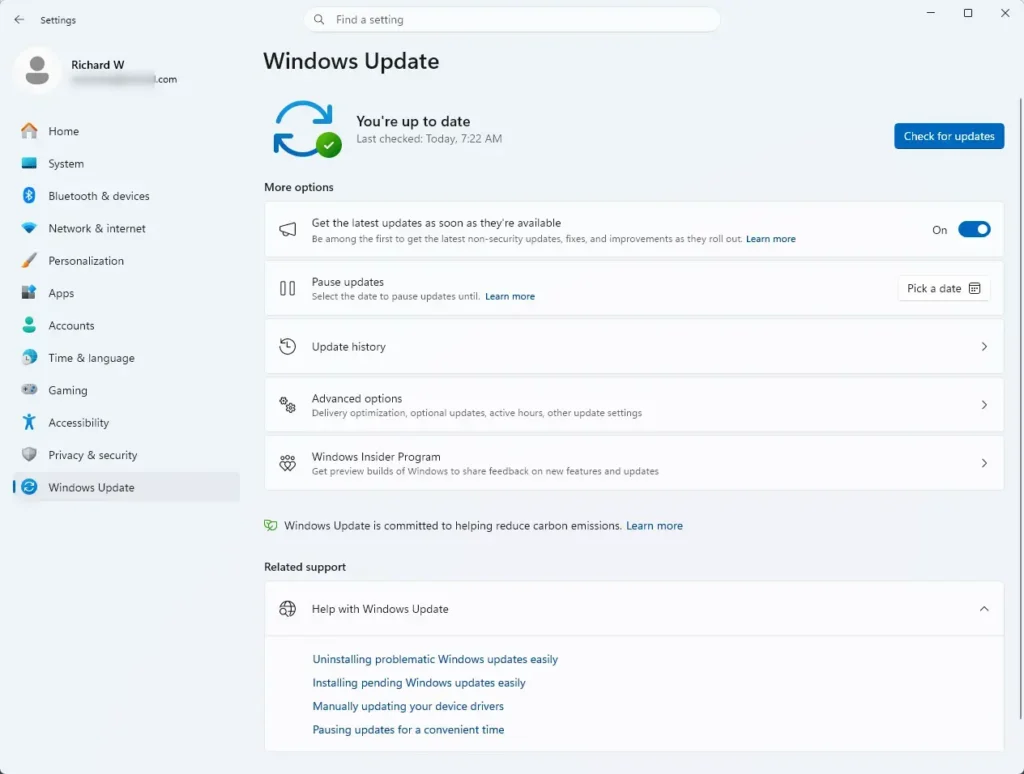
Settings > Windows Update - Select Update history. The page lists recently installed updates, grouped by type.
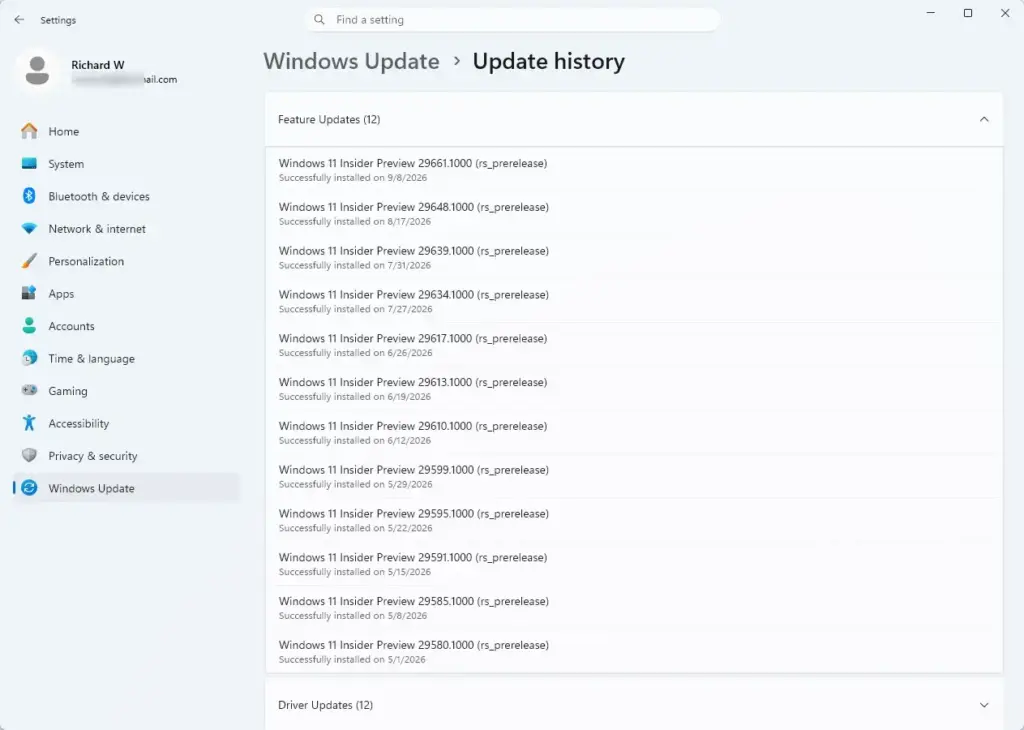
Settings › Windows Update › Update history - Look for KB5132057 in the list. If you see it with a status of Successfully installed, your PC has the red border change.
- Return to Settings and open System About. This page shows your Windows version.
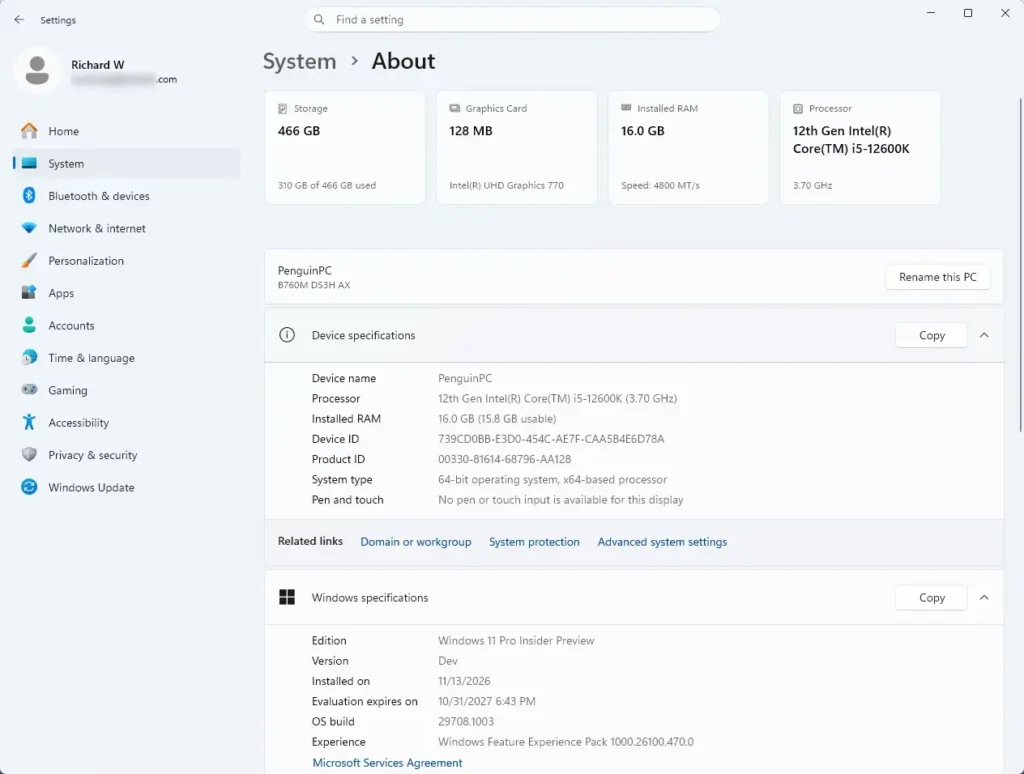
Settings > System > About - Read the Version line under Windows specifications. It should read 25H2 or 26H2 to be eligible for this change. A 24H2 PC is not covered.
If KB5132057 is not in the list, check for it by hand. Optional preview updates are not always offered automatically.
- Open Settings Windows Update.
- Select Check for updates.
- Select Advanced options Optional updates, then look for KB5132057 to see whether it is available for your PC.
Installing a preview update is a choice, not a requirement. If a yellow border does not bother you, you do not need to install it. The preview changes usually reach all PCs later through a regular update, though Microsoft has not confirmed a date for this one in the release notes.
What the red border means when you see it
A red border means a capture session is active on the screen. Microsoft says the color change makes an active capture easier to spot. Treat the red border as you would treat a yellow one: something is capturing the display right now.
If you started the capture yourself, nothing needs fixing. A capture session starts when you record the screen, share it in a meeting, or use a tool that captures gameplay. If you want to start a recording on purpose, see how to screen record in Windows 11.
If you did not start a capture, check what is running:
- Open Task Manager by pressing Ctrl+Shift+Esc.
- Look at the Processes list for recording, streaming, remote-support, or meeting apps that you did not mean to leave open.
- Close those apps, or select a process and choose End task if an app does not close normally.
The border should disappear once the capture session ends. The release notes do not say which apps trigger the border, so this check cannot name a specific app for you. If you capture gameplay, the border may be tied to that feature. The guide to game capture on Windows 11 covers that setup.
Why you might still see a yellow border
The most likely reason is that your PC does not have KB5132057 yet. Work through the update check steps in the section above to confirm whether KB5132057 is installed. A PC on a version outside the update’s scope keeps the old behavior.
A PC on Windows 11 24H2 Home or Pro is a particular case. That version reached end of updates on October 13, 2026, so it does not receive new updates, including this one. Moving to 26H2 or 25H2 brings the PC back onto supported updates.
If the update is installed and the border is still yellow, restart the PC and start a new capture session. Microsoft’s release notes do not list a known issue for this change, so there is no documented cause to point to beyond that. If a yellow border persists after a restart on 25H2, the source does not confirm any other fix.
Can you change the border back to yellow?
The release notes do not describe a setting, switch, or registry value (a stored Windows setting) for the border color. Without a documented option, no safe way to change it is confirmed, so none is given here. Any guide offering a registry edit for this is going beyond what Microsoft has published.
If you want to avoid the change before it arrives, do not install the optional preview update. Check the update history from time to time, because the same change may arrive later through a regular update.
What to do next
If the Print Screen key stopped capturing after an update, work through what to do when the Print Screen key does nothing in Windows 11. To show your display on a TV or another screen instead of capturing it, see how to use screen mirroring in Windows 11. Check the KB5132057 release notes again from time to time, since Microsoft can update the details while the change rolls out.
Have a question about this guide?
Answered by AI from this guide. Good questions may be added to this page — please don't include personal details.
Did this guide fix your problem?

About the Author
Richard
Tech Writer, IT Professional
Richard is a writer at Geek Rewind who turns complex IT tasks into clear, step-by-step guides. He draws on years of hands-on experience in system administration and enterprise IT operations, focusing on Windows, Linux and WordPress: the problems people actually run into, and the fixes that work. His server and WordPress guides come from systems he runs himself. Richard builds and maintains the platform behind Geek Rewind, from its Ubuntu servers and Nginx configuration to its custom WordPress plugins. Many new tutorials start with readers' questions, and he's always glad to answer them in the comments.
No comments yet — be the first to share your thoughts!