Make Your Windows 11 Audio Clearer with Voice Focus and Studio Effects

Voice Focus and Studio Effects in Windows 11 are built-in tools that block background noise and sharpen your voice during video calls. They cut out sounds like barking dogs and traffic, so the people on the other end hear mostly you.
Studio Effects requires a Windows 11 PC with a compatible NPU (Neural Processing Unit, a specialized chip for AI tasks) built into the hardware. If your PC has one, you can switch these settings on from the Quick Settings panel on your taskbar before your next meeting. If your PC has no NPU, you will not see the Studio Effects options, and that is normal. Nothing is broken.
Activate Voice Focus in Windows 11 Settings under System Sound Audio enhancements to reduce background noise. Studio Effects, available on newer PCs, further enhance call quality by adjusting lighting and noise cancellation.
What is Voice Focus?
Windows 11 Voice Focus makes your voice sound clearer during video and audio calls by automatically cutting out background noise. It blocks everyday sounds like keyboard typing, loud computer fans, barking dogs and street traffic, so the people on the call hear you without distractions.
It works on your microphone signal before the call app receives it. Teams, Zoom and other apps that use your default microphone can all benefit, though a few apps apply their own noise suppression on top.
- It reduces background sounds like keyboard typing, computer fans, or traffic noise.
- It makes your voice clearer so others understand you better.
Your computer can have one of two versions of Voice Focus, depending on its hardware:
- Basic version: Uses software to reduce background noise. It works on a wider range of PCs, but it handles sudden or loud noises less well than the enhanced version.
- Enhanced version: Uses AI processing on a special chip called a Neural Processing Unit (NPU) for better noise cancelling. Because the NPU does the work, it takes load off your main processor.
To get the best experience with Studio Effects and enhanced Voice Focus, your PC needs to be a Windows Copilot+ PC with an NPU. Check your PC’s spec sheet or the manufacturer’s site if you are not sure whether yours has one.
How to Turn Voice Focus On or Off in 🪟 Windows 11
You can turn Voice Focus on or off from your system settings whenever you need to block background noise during calls. The switch sits next to the settings for your active microphone. The steps below take you there. No restart is needed, and you can turn it off again the same way.
- Open Settings . Click the Start button (Windows icon) and choose Settings, or press Win+I on your keyboard. The Settings window opens.
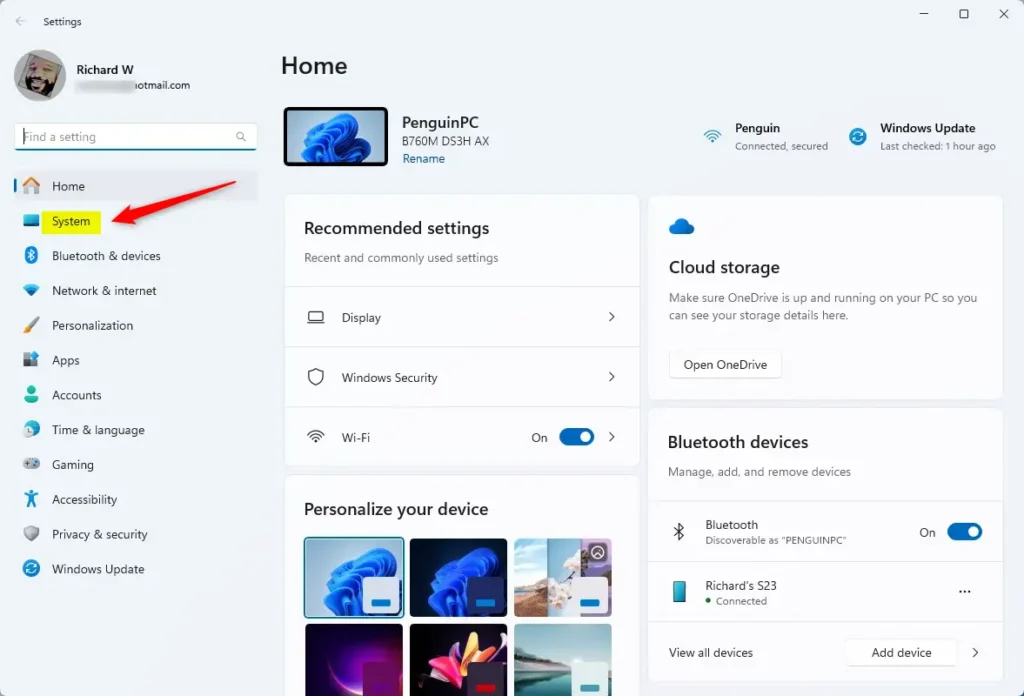
- In the Settings window, click System in the left menu. The System options appear on the right.
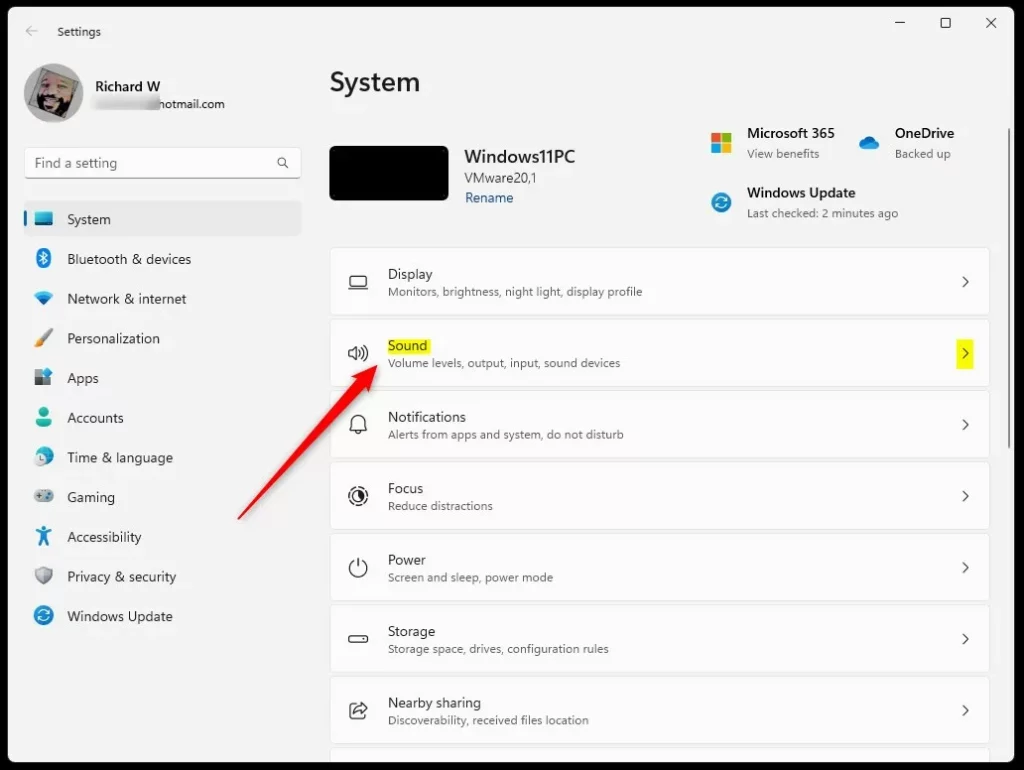
System in the Settings app - Click Sound in the right panel. You should see your output devices (speakers) and input devices (microphones).
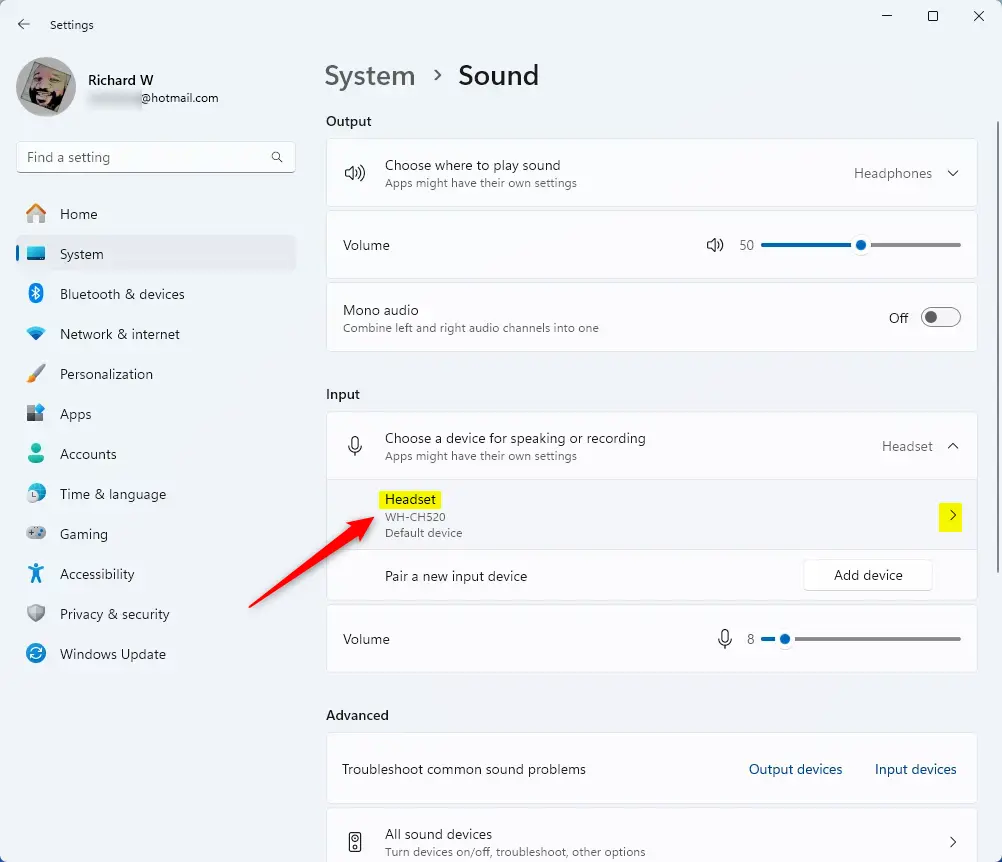
Windows Sound tile in Windows Settings app - Under Output or Input, click your active sound device, such as your microphone or speakers. For Voice Focus, pick your microphone under Input. The properties page for that device opens.
- Find the section called Audio enhancements and click to open it. If you do not see it, your microphone or PC may not support Voice Focus, or you may have picked the wrong device. Try the built-in microphone first, since some external USB microphones do not offer this option.
Audio Enhancements settings in Windows 11 - Toggle the Voice Focus switch to turn it On or Off. Exact labels can differ slightly between Windows 11 versions, so look for the Voice Focus entry in that section. Make a short test recording or join a test call to hear the difference.
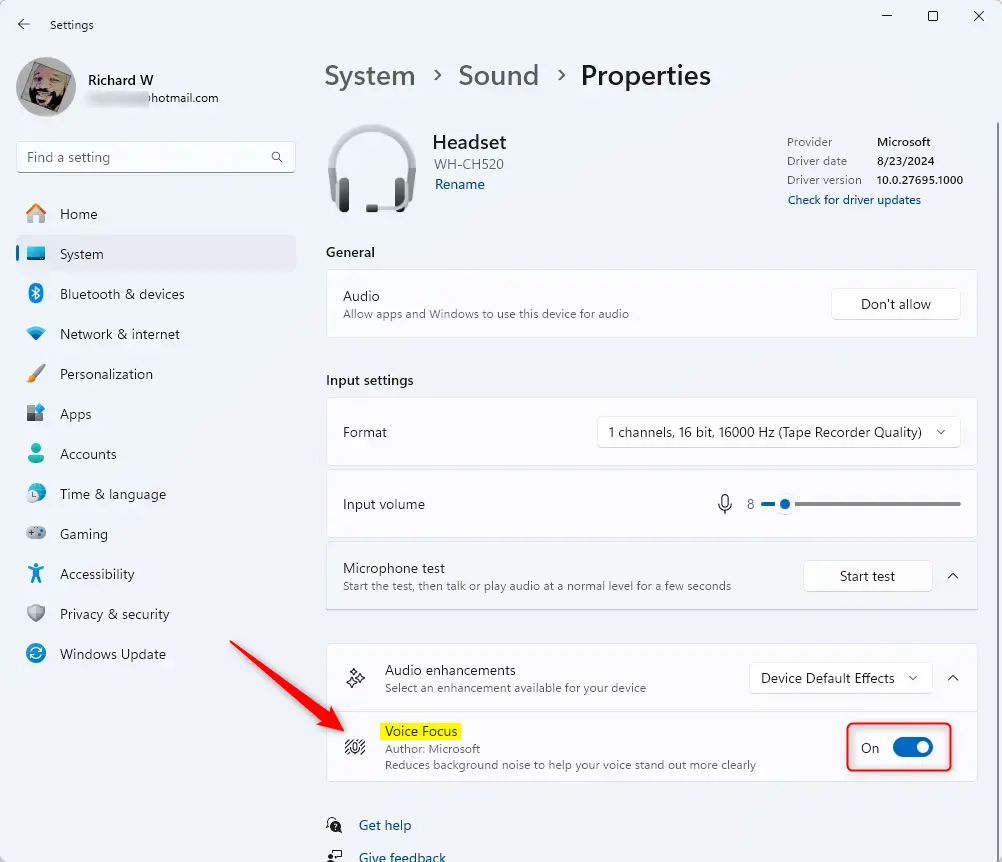
Voice Focus toggle button in Windows 11 - Close the Settings app when you are done. Your choice is saved automatically.
Voice Focus and Studio Effects make your voice sound clearer during calls by reducing background noise. This improves call quality, so others hear you better.
Extra Tips
Voice Focus works best when you also use the Quick Settings menu on your taskbar to switch it on and off during live calls. Click the network, speaker and battery icons at the right end of the taskbar to open Quick Settings. If you do not see a Studio Effects tile, your PC probably does not support it. If your PC does support it but the tile is missing, click the pencil (Edit quick settings) icon and check whether you can add it. Checking your microphone setup and trying Windows Studio Effects will also improve your audio and video call quality on supported computers.
Make sure your microphone is set up properly for the best experience. Confirm that the right microphone is selected as your input device in Settings System Sound, and keep it a normal speaking distance from your mouth. Noise reduction works better when your voice is the loudest thing the microphone hears.
If your PC supports it, try Windows Studio Effects for better video calls, with improved lighting and noise cancellation. These effects run on the NPU, so they should not slow your PC down much.
Learn More
For more details, check out the official Microsoft page on Windows Studio Effects.
Summary
In summary, Windows 11 Voice Focus is a great feature for clearer calls and less background noise, and it is easy to turn on or off.
Have a question about this guide?
Answered by AI from this guide. Good questions may be added to this page — please don't include personal details.
Did this guide fix your problem?

About the Author
Richard
Tech Writer, IT Professional
Richard is a writer at Geek Rewind who turns complex IT tasks into clear, step-by-step guides. He draws on years of hands-on experience in system administration and enterprise IT operations, focusing on Windows, Linux and WordPress: the problems people actually run into, and the fixes that work. His server and WordPress guides come from systems he runs himself. Richard builds and maintains the platform behind Geek Rewind, from its Ubuntu servers and Nginx configuration to its custom WordPress plugins. Many new tutorials start with readers' questions, and he's always glad to answer them in the comments.
No comments yet — be the first to share your thoughts!