How to Refresh Media Library Locations in Windows Media Player

Refreshing media library locations in Windows Media Player forces the built-in app to scan your hard drive for missing music, videos, and pictures. This process updates your media list so tracks you add, move, or delete show up correctly in the program.
Old song titles and deleted movies often stay stuck in Windows Media Player because the app relies on saved folder paths to find files. Telling the player to check those folders again fixes the problem in a few clicks.
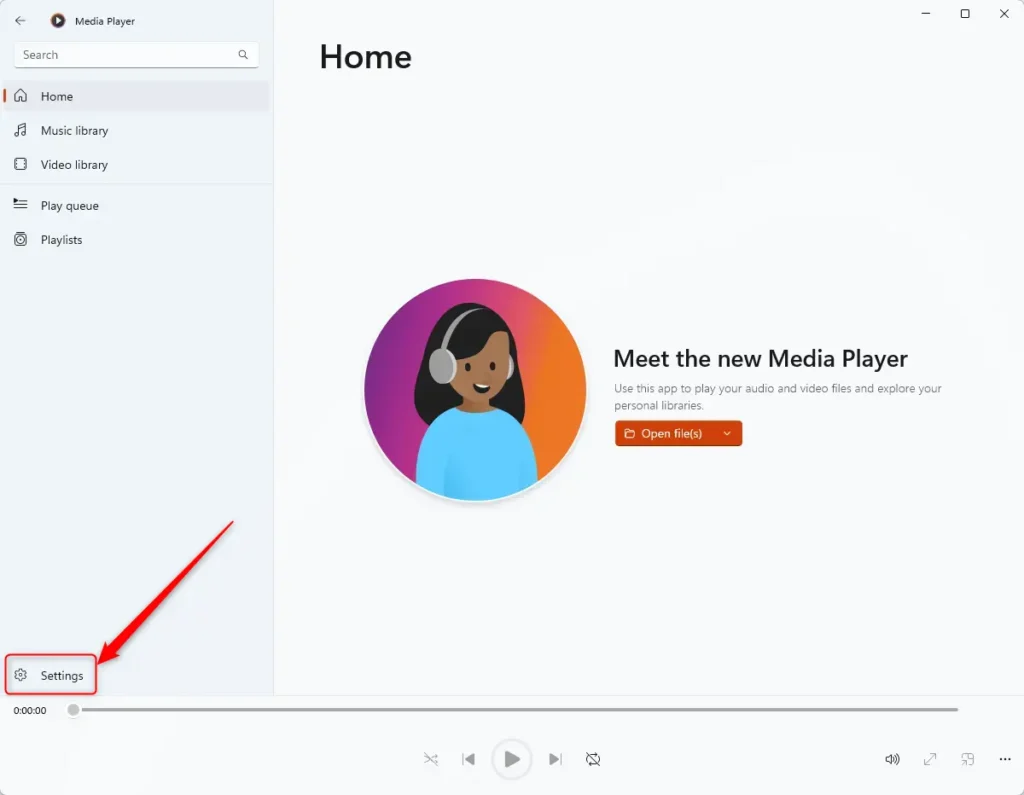
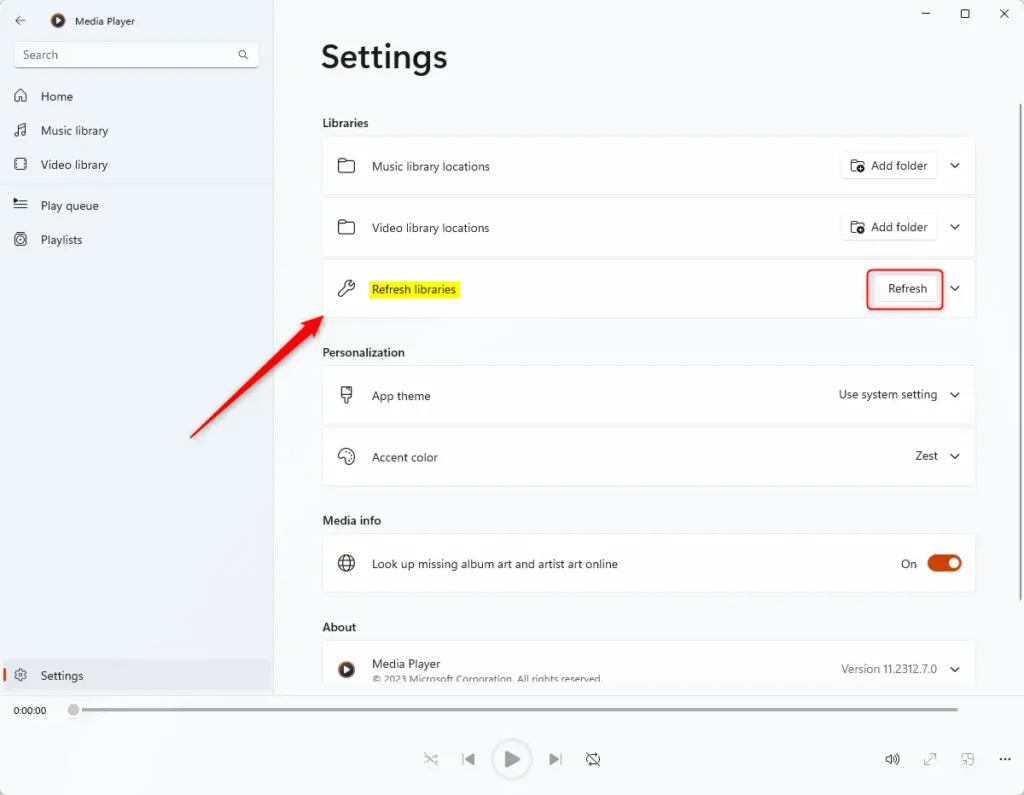
Click Settings on the left sidebar in Windows Media Player, then click Refresh to rescan your folders. This updates the library to show any new or moved media files.
How to refresh library locations
Scanning folders again brings missing files into view without a full reinstall. New music or videos often fail to appear automatically after an import. Updating the database solves this problem.
- Open the open the Windows Media Player app.
- Click the Settings button located on the left sidebar.
- Click the Refresh button in the settings menu to scan your folders and update your library.
The app relies on the Windows Search Indexing service (a background feature that catalogues files to speed up searches) to work correctly. Running services must include Windows Search for the library database to update properly. Note: Changing system services may require admin privileges.
Summary
Updating the Windows Media Player database ensures the software sees every file on the local storage drives. Forcing a rescan fixes missing media issues and keeps the collection organized.
How to refresh vlc media library?
Using VLC instead? Click Media, select Open Folder, and browse to the directory holding your new music or videos. Files added since the previous session appear instantly. Troubleshooting missing items requires checking alternative folders if this method fails.
Was this guide helpful?
100% of readers found this helpful (1 votes)

About the Author
Richard
Tech Writer, IT Professional
Richard, a writer for Geek Rewind, is a tech enthusiast who loves breaking down complex IT topics into simple, easy-to-understand ideas. With years of hands-on experience in system administration and enterprise IT operations, he’s developed a knack for offering practical tips and solutions. Richard aims to make technology more accessible and actionable. He's deeply committed to the Geek Rewind community, always ready to answer questions and engage in discussions.

No comments yet — be the first to share your thoughts!