How to Enable Dropbox at Windows 11 Startup


You enable Dropbox at Windows 11 startup to automatically sync your files every time you turn on your PC.
This ensures your cloud-stored documents and photos are immediately accessible and up-to-date without needing to manually open the Dropbox desktop app.
Managing startup applications, like Dropbox, can also help optimize your Windows 11 PC’s boot time. By default, Dropbox usually launches with Windows 11, but you can easily change this setting.
Open Dropbox preferences from the taskbar icon, go to General, and check “Start Dropbox on system startup” in the System section. Alternatively, open Task Manager (Ctrl+Shift+Esc), go to Startup apps, find Dropbox, and enable it if it’s disabled.
How to change Dropbox startup settings
You can easily change Dropbox startup settings directly in the app without needing special permission.
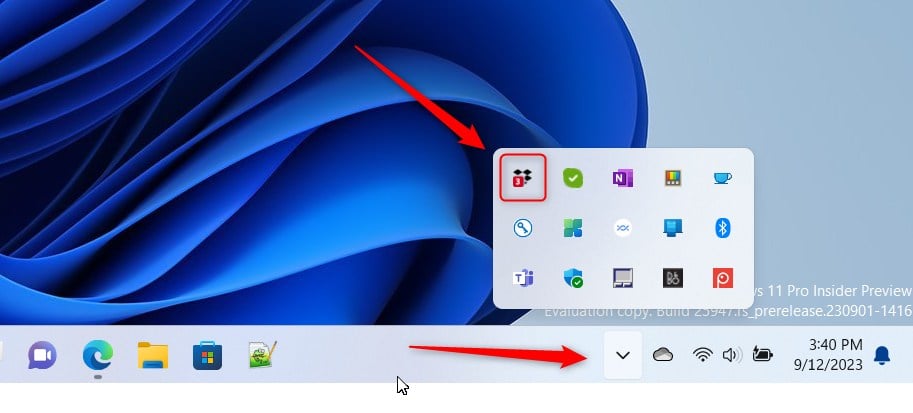
- Look at your taskbar near the clock. Click the arrow icon to show hidden icons, then click the Dropbox icon to open the small menu window.
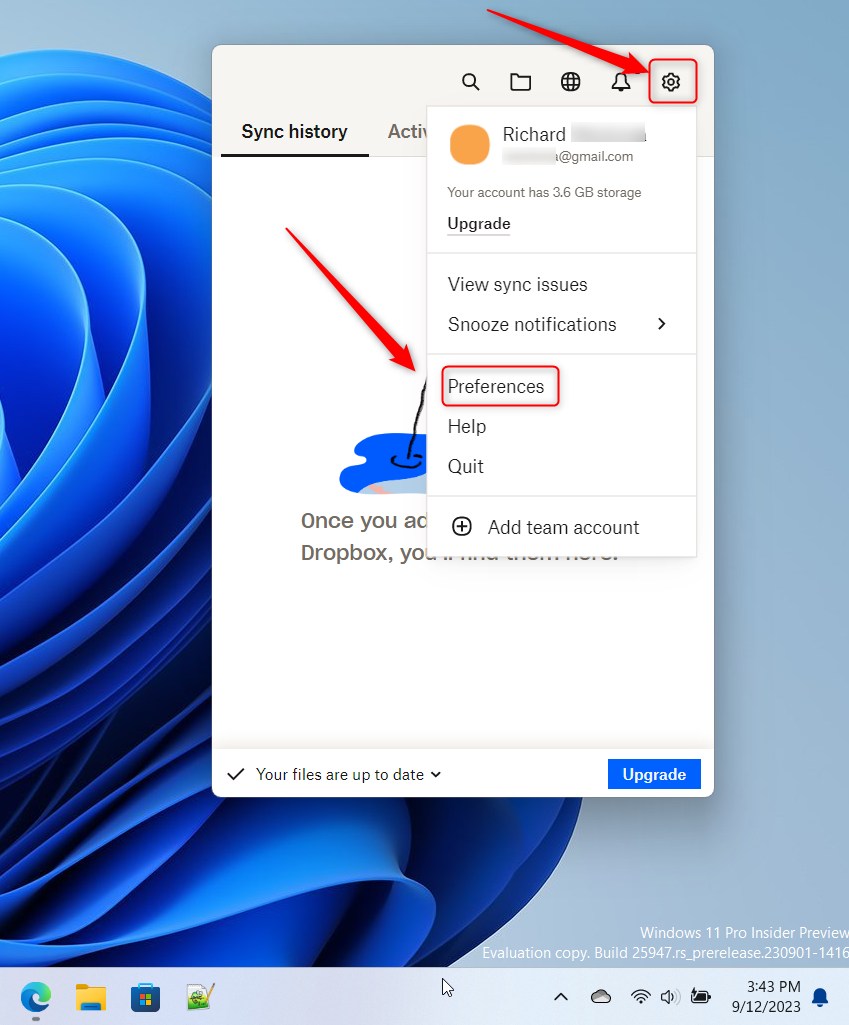
- Click the Settings (gear icon) at the top right of the window. Select Preferences from the list.
- Go to the General tab. Look for the System section.
- Check the box for Start Dropbox on system startup to turn it on. Uncheck the box to turn it off.
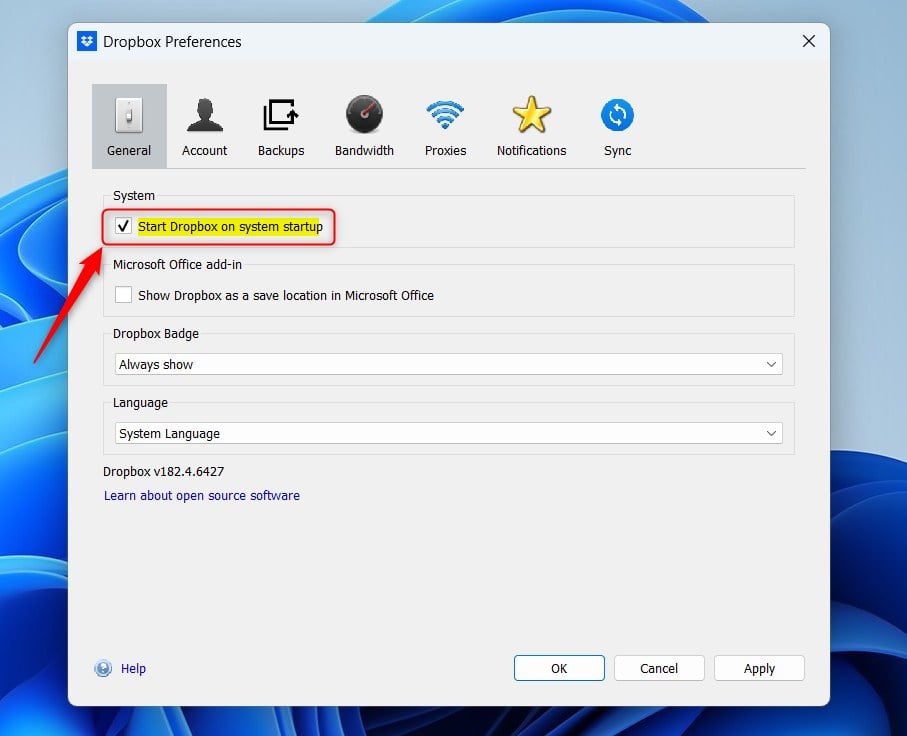
- Click the Apply button to save your choices.
Using Task Manager to control Dropbox startup
If changing Dropbox startup settings in the app doesn’t work, you can use the Windows 11 Task Manager to control it.
- Press Ctrl+Shift+Esc to open the Task Manager.
- Click on the Startup apps tab on the left sidebar.
- Find Dropbox in the list.
- If the status says Disabled, right-click it and select Enable.
Manual Startup Folder configuration
If Dropbox isn’t appearing in your startup list, you can manually add it to the Windows Startup Folder so it opens automatically.
- Press ⊞ Win+R on your keyboard to open the Run box.
- Type
shell:startupand press Enter. - Right-click inside the folder, select New, then Shortcut.
- Browse to the Dropbox executable file, usually located at
C:\Program Files\Dropbox\Client\Dropbox.exe. - Click Next and Finish.
Troubleshooting: Firewall and S-Mode
Windows 11 S-Mode can prevent Dropbox from starting if you installed the desktop version, as it only allows apps from the Microsoft Store.
Summary
Managing your startup apps, like Dropbox, helps your computer run smoothly, and you can easily control these settings through Dropbox preferences or the Task Manager.
Why does Dropbox not start even when ‘Start on Startup’ is checked?
If Dropbox doesn’t start even when ‘Start on Startup’ is checked, it might be disabled in Task Manager or blocked by security software.
How do I check if Dropbox is disabled in 🪟 Windows 11 startup apps?
You can quickly check this by opening the Windows 11 startup settings. Press the Windows key, type ‘Startup apps’, and press Enter. Look for Dropbox in the list. If the toggle is set to ‘Off’, simply click it to switch it to ‘On’ to allow it to launch automatically.
Was this guide helpful?

About the Author
Richard
Tech Writer, IT Professional
Richard, a writer for Geek Rewind, is a tech enthusiast who loves breaking down complex IT topics into simple, easy-to-understand ideas. With years of hands-on experience in system administration and enterprise IT operations, he’s developed a knack for offering practical tips and solutions. Richard aims to make technology more accessible and actionable. He's deeply committed to the Geek Rewind community, always ready to answer questions and engage in discussions.


[…] can configure many settings with the Dropbox app in Windows, including starting Dropbox on system startup, disabling Dropbox startup in the background, adding Microsoft Office […]
[…] can configure many settings with the Dropbox app in Windows, including starting Dropbox on system startup, disabling Dropbox startup in the background, adding Microsoft Office add-in, turning […]
[…] can configure many settings with the Dropbox app in Windows, including starting Dropbox on system startup, disabling Dropbox startup in the background, adding Microsoft Office […]
My fly out window does not show the settings gear. I am using free version
[…] is a great tool for keeping your work safe. You can manage many settings, including starting Dropbox on system startup, disabling Dropbox startup in the background, adding Microsoft Office add-in, turning notifications […]
[…] can manage many settings in the Dropbox app, including starting Dropbox on system startup, disabling Dropbox startup in the background, adding Microsoft Office add-in, turning notifications […]
[…] documents, share folders, and work with teams. You can change many settings in the app, such as starting Dropbox on system startup, disabling Dropbox startup in the background, adding Microsoft Office add-in, turning notifications […]
[…] can change many settings in the Dropbox app, including starting Dropbox on system startup, disabling Dropbox startup in the background, adding Microsoft Office add-in, turning notifications […]
[…] work together by keeping files up to date. You can change many settings for the app, including starting Dropbox on system startup, disabling Dropbox startup in the background, and adding Microsoft Office […]