How to Enable or Disable DLNA Streaming on Windows 11


DLNA (Digital Living Network Alliance) streaming on Windows 11 turns your PC into a home media server. Smart TVs, game consoles and phones on your local Wi-Fi network can then find and play the photos, music and videos stored on your computer, with no cables.
You decide what gets shared. You choose which devices are allowed to connect, and you can switch sharing off whenever you like. This guide covers turning DLNA streaming on, turning it off, and fixing it when a TV or other device can’t see your PC.
To enable DLNA streaming, open Control Panel , go to Network and Sharing Center, and select “Media streaming options” to turn it on. To disable it, return to the same menu and click “Block All.
How to Enable or Disable Media Streaming
DLNA streaming on Windows 11 shares music, pictures and videos from your computer with other devices on your home network. You turn it on or off in Control Panel , under Media streaming options. The feature is built into Home, Pro and the other editions, and you don’t need to install anything.
You need an administrator account for these steps. A standard account will be asked for admin credentials.
- Open the Start menu, type Control Panel , and press Enter.
- Go to Control Panel Network and Internet Network and Sharing Center Media streaming options
- If you can’t find it by clicking, type Media streaming options into the Start menu search instead. It opens the same window.
- Click Turn on media streaming. This button appears only while streaming is off.
After you click, the window changes to a list of devices on your network and a box where you can name your media library. Each device is marked as allowed or blocked.
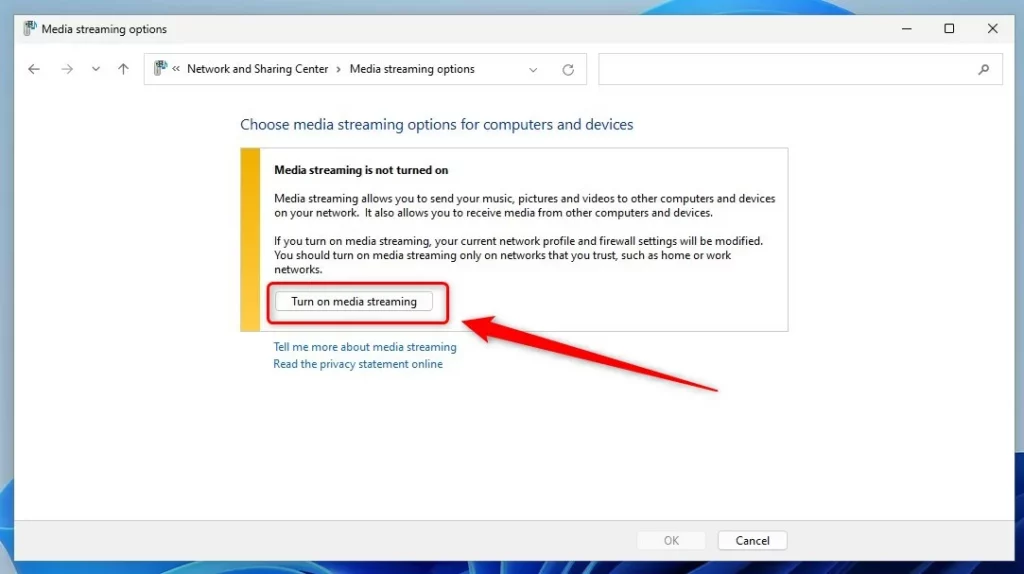
Turning on media streaming also changes your Windows Defender Firewall settings. Windows opens the ports it needs so other devices can reach the media sharing service. Only do this on a trusted network, such as your home Wi-Fi . If the network is set to Public, other devices may not see your PC at all. See the troubleshooting section below.
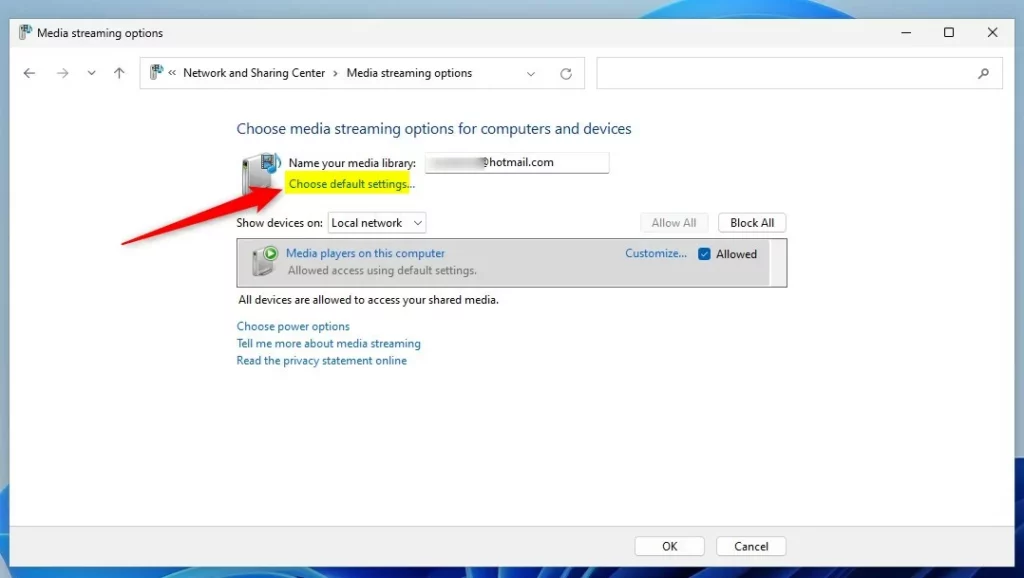
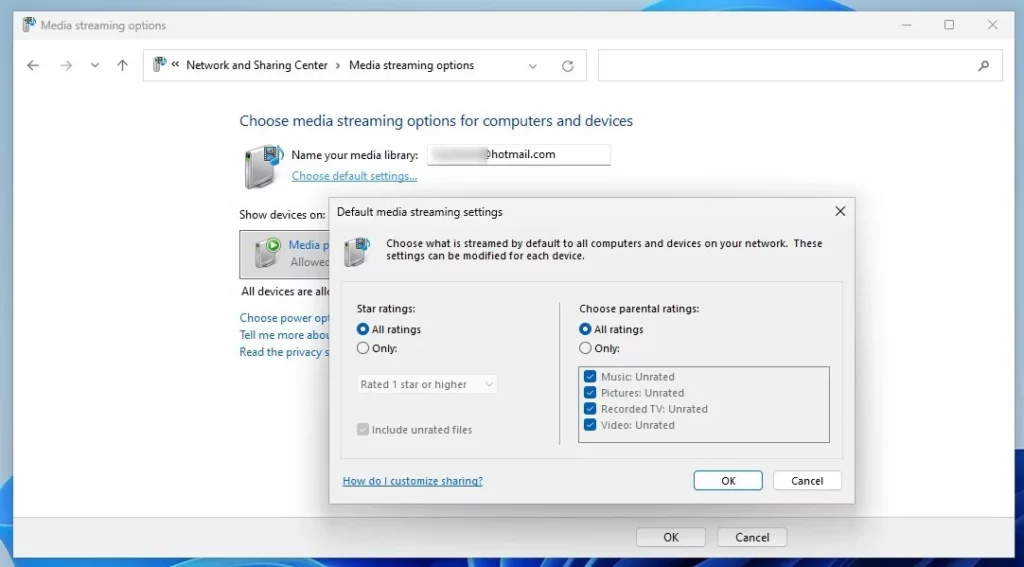
By default, Windows shares files from your Music, Pictures, Recorded TV, and Videos directories. Anything you keep in those places becomes visible to every device you allow. Check what is in them before you turn sharing on.
To turn DLNA streaming off, use the same window you used to turn it on.
- Open Control Panel Network and Internet Network and Sharing Center Media streaming options
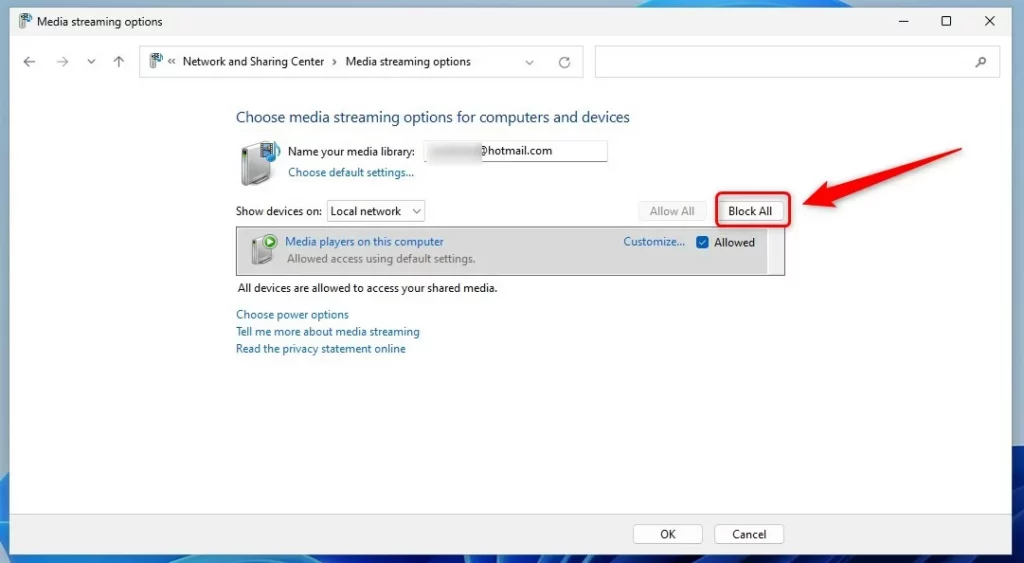
- Click Block All in the Media streaming options window.
- Click OK if the window asks you to confirm.
Blocking all devices stops other computers and network hardware from reaching the media files on your Windows 11 PC. Nothing is deleted, and your files stay where they are. To undo this, open the same window again and turn media streaming back on, then allow the devices you want.
Troubleshooting DLNA Connection Issues
If a TV or phone can't see your PC, check three basics first:
- Your PC and the TV are on the same network.
- Your network profile is set to Private, not Public.
- The SSDP Discovery service is running.
To check the profile, go to Settings Network & internet, open your Wi-Fi or Ethernet connection, and look at the Network profile type setting. Choose Private network for your home network. The next sections cover the service and the firewall.
Verifying SSDP Discovery
SSDP Discovery is the service that lets devices on your network find each other. If it is stopped, your PC won't show up on the TV.
- Press the Windows key and R together to open the Run box.
- Type services.msc and press Enter. The Services window opens with an alphabetical list.
- Find SSDP Discovery in the list.
- Look at the Status column. It should say Running.
- If it doesn't, right-click SSDP Discovery and select Start. The status changes to Running.
If the service stops again after a restart, double-click it and check that Startup type is not set to Disabled.
Configuring Windows Defender Firewall
Firewall rules sometimes block the Windows Media Player Network Sharing Service. This service does the actual sharing.
- Open the Start menu and search for Windows Defender Firewall with Advanced Security.
- Open it and look in the rules list for Windows Media Player Network Sharing Service.
- Confirm that it displays as Allowed for Private networks.
If the rules are disabled or missing, turn media streaming off and on again in Media streaming options. Windows then recreates its firewall rules.
Using PowerShell for Management
Note: This step requires admin privileges.
PowerShell is another way to manage services, and it is quicker if you don't want to click through Services. Right-click the Start button and choose Terminal (Admin) or open PowerShell as an administrator. Then run this command to start the discovery service:
Start-Service SSDPSRV
Third-Party Media Server Alternatives
If you find Windows Media Player too restrictive, alternatives such as Plex or Universal Media Server work well. They offer better codec support and more modern interfaces, which improves streaming to smart TVs. Many TVs can't play certain video formats directly, and these apps can convert the files on the fly.
Summary
Windows 11 DLNA streaming lets you share photos, music and videos with other devices on your home network. You manage it through Control Panel or an alternative app. Turn the feature off on public networks to keep your files secure.
Why is my DLNA server not showing up on my TV?
A network profile set to Public instead of Private, or a stopped SSDP Discovery service, usually causes this. Make sure the PC and the TV are on the same subnet, which in a home usually means the same router. Also make sure the firewall permits the Windows Media Player Network Sharing Service.
Is DLNA streaming secure?
No. DLNA is designed for home networks and doesn't use modern encryption, so it isn't secure on public Wi-Fi. Turn DLNA media streaming off when you leave your home network. That blocks other people from reaching your personal media files.
Have a question about this guide?
Answered by AI from this guide. Good questions may be added to this page — please don't include personal details.
Did this guide fix your problem?

About the Author
Richard
Tech Writer, IT Professional
Richard is a writer at Geek Rewind who turns complex IT tasks into clear, step-by-step guides. He draws on years of hands-on experience in system administration and enterprise IT operations, focusing on Windows, Linux and WordPress: the problems people actually run into, and the fixes that work. His server and WordPress guides come from systems he runs himself. Richard builds and maintains the platform behind Geek Rewind, from its Ubuntu servers and Nginx configuration to its custom WordPress plugins. Many new tutorials start with readers' questions, and he's always glad to answer them in the comments.
[…] previously showed you how to turn on or off DLNA media streaming in Windows 11. When DLNA is off or disabled, Windows will not receive media from other computers and […]