Enable Automatic Suspension in Ubuntu Linux Easily


- 13 steps
- Needs administrator rights
Automatic suspension is a power-saving mode that puts your computer to sleep after a set period of inactivity to save battery and electricity. Ubuntu 22.04 LTS and newer versions let you set different idle timers for when your laptop runs on battery power versus a wall charger.
You can change these time limits in the system settings to match your daily habits and keep your open apps right where you left them. Desktop PCs usually show only one timer, because there is no battery to switch between. Laptops show both.
Go to Settings, then Power. Under Automatic Suspend, choose On Battery Power or Plugged In, turn the switch on, and select a delay time for your system to suspend when idle.
How to suspend Ubuntu Linux
Manual suspension lets you pause work quickly without shutting down. Hardware permitting, triggering this state takes a couple of clicks from the top bar. If the Suspend option is missing, the hardware or a virtual machine setup probably doesn’t support it.
Here’s how to suspend Ubuntu Linux manually. It takes about ten seconds.
Manually suspending Ubuntu Linux
Manually suspending Ubuntu Linux lets you put your computer to sleep right away to save power when you step away from your desk. You can do this quickly by opening the system menu in the top-right corner of your screen and choosing the suspend option, which pauses all current activity without shutting down your apps.
Your session stays in memory while the machine sleeps. Save important work first anyway. If a desktop loses power while suspended, anything unsaved is lost.
- Click the System menu in the top-right corner of the top bar. A panel opens with the volume slider, network options and a row of buttons.
- Expand the Power Off / Log Out command. A short list of power options appears.
- Click the Suspend command, as shown below.
The exact layout can differ slightly between Ubuntu releases, but the Suspend option always sits in the power section of this menu.
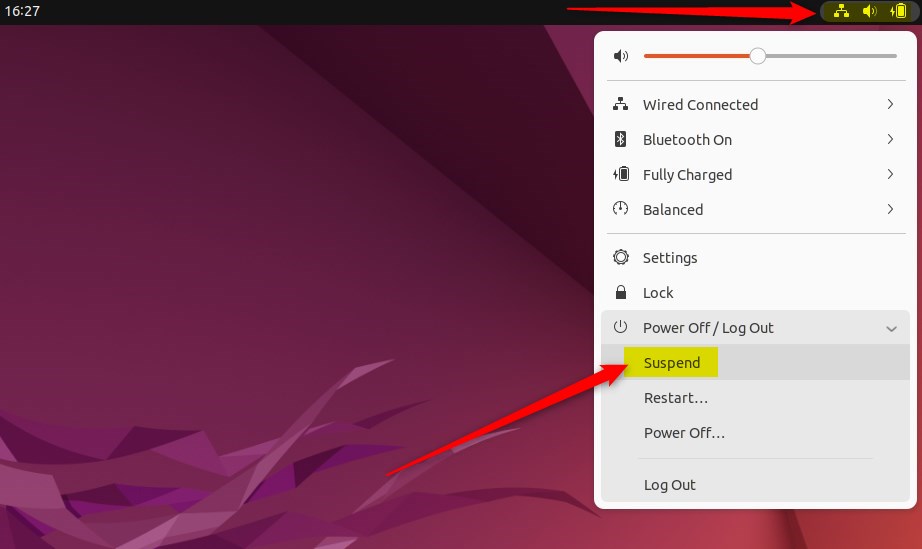
This action suspends the computer immediately. The screen goes dark and the fans stop. To wake it, press a key, move the mouse or tap the power button. You should land on the lock screen with your apps as you left them. No restart is involved.
Enable automatic suspension in Ubuntu Linux
To enable automatic suspension in Ubuntu Linux, you need to open your main system settings and adjust your power preferences so your computer goes to sleep after a set time of inactivity. This feature helps you save battery life and electricity by turning off the screen and putting hardware into a low-power state when you are not using it.
You don’t need administrator rights to change this for your own session, and no restart is required.
Here’s how to do that:
Most system configurations are managed within the main dashboard. This area controls user accounts, system updates, and core hardware preferences. There are two ways to reach it.
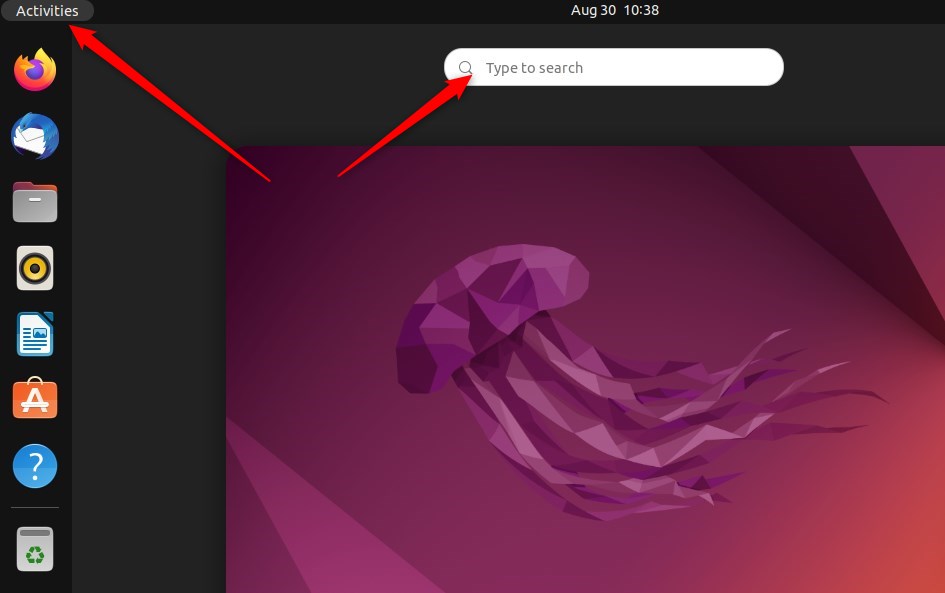
The first way is to open the Activities overview and search for the app.
- Click Activities in the top-left corner, or press the Super (Windows) key.
- Type Settings in the search box.
- Click the Settings icon in the results. The Settings window opens.
Alternatively, you can use the top bar.
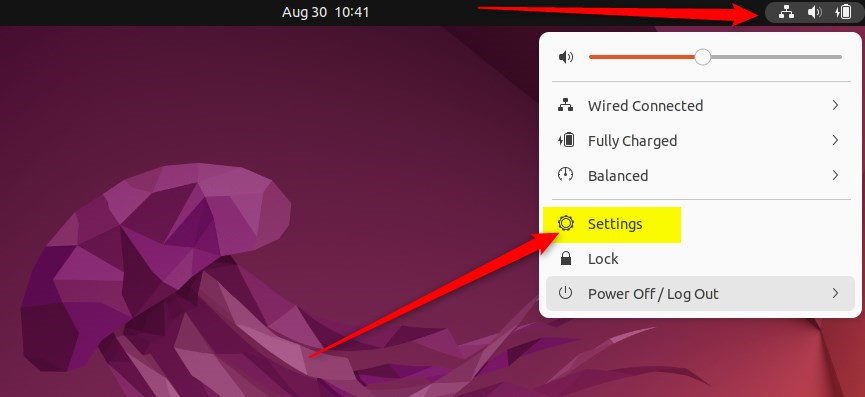
- Click the System menu in the top-right corner of the desktop.
- On the System menu, select Settings, as shown below. The Settings window opens.
- Inside the Settings app, scroll the left sidebar if needed and click the Power tile to open the panel.
If you don’t see a Power entry, check that you’re in the full Settings app and not a trimmed-down or remote session. Power settings are also limited in some virtual machines.
Head into Settings Power and locate the Automatic Suspend tile under Power Saving Options. On some newer releases, the same row sits under a Suspend section on the Power panel instead. Click it to open the timer options.
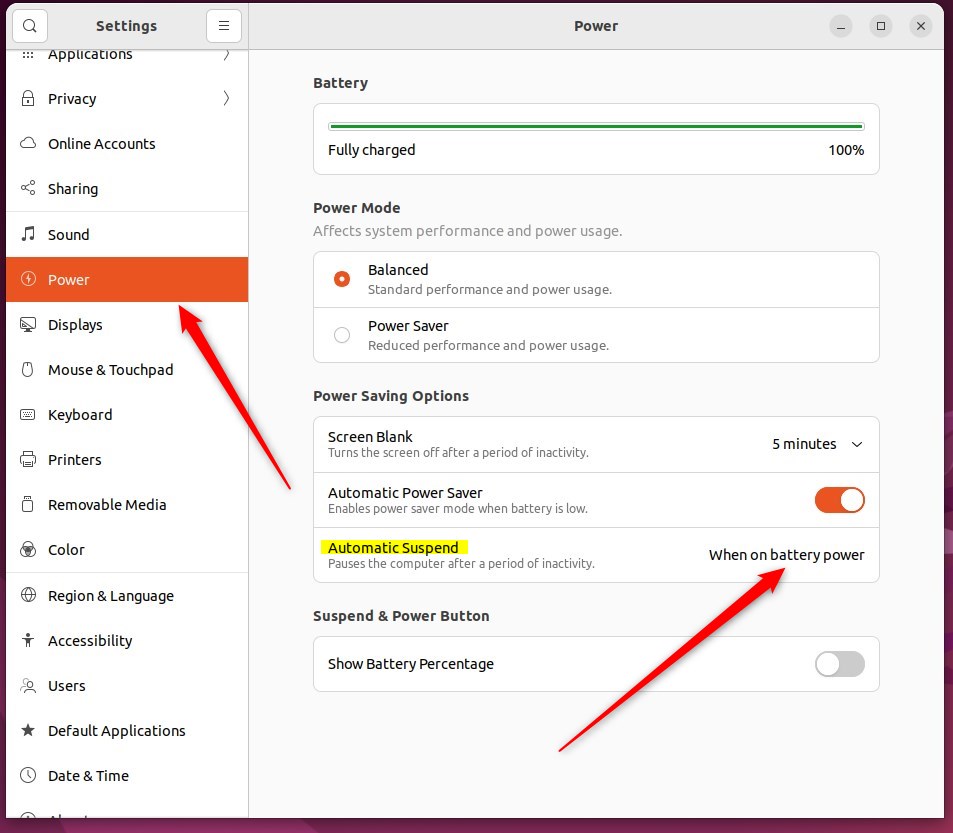
- Choose On Battery Power or Plugged In. Both options configure independently, so you can set a short delay on battery and a longer one on the charger.
- Flip the toggle to on.
- Select a delay duration from the drop-down list. The list offers fixed choices, such as 15 or 30 minutes, rather than a free-text box.
- Repeat for the other power source if you want both.
To undo this later, return to the same dialog and flip the toggle off.
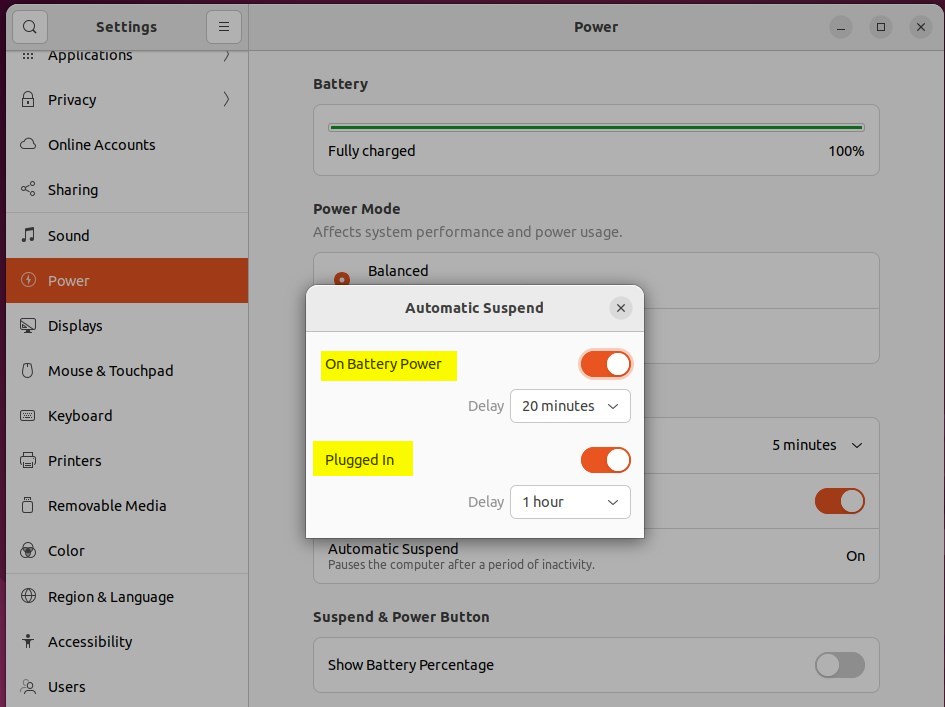
Changes save automatically upon exiting. There is no Apply or OK button to hunt for. The Settings app can now be closed.
To test it, leave the machine untouched for the delay you chose. It should suspend on its own. Playing video or having an inhibiting app open may delay suspension.
Enabling automatic suspension saves battery life and preserves your session when you step away.
- Enabling automatic suspension in Ubuntu Linux can be a convenient way to save power and preserve your desktop session when the system is idle.
- Whether you prefer manual or automatic suspension, Ubuntu Linux provides options for your specific preferences and hardware support.
- Configuring the automatic suspension settings through the System Settings panel allows for customization based on power source and delay preferences. This ensures a tailored approach to power management.
Have a question about this guide?
Answered by AI from this guide. Good questions may be added to this page — please don't include personal details.
Did this guide fix your problem?

About the Author
Richard
Tech Writer, IT Professional
Richard is a writer at Geek Rewind who turns complex IT tasks into clear, step-by-step guides. He draws on years of hands-on experience in system administration and enterprise IT operations, focusing on Windows, Linux and WordPress: the problems people actually run into, and the fixes that work. His server and WordPress guides come from systems he runs himself. Richard builds and maintains the platform behind Geek Rewind, from its Ubuntu servers and Nginx configuration to its custom WordPress plugins. Many new tutorials start with readers' questions, and he's always glad to answer them in the comments.
[…] Ubuntu Linux goes to suspend mode, it’s not turned off – go to sleep. Then, you can resume by opening the lid, and your […]