
This article describes the steps to add or remove the sidebar using the Microsoft Edge browser.
Microsoft Edge is the default browser in Windows 11. However, users can switch to their preferred or favorite browser anytime. Edge is based on Chromium, similar to Google Chrome and other Chromium-based browsers today.
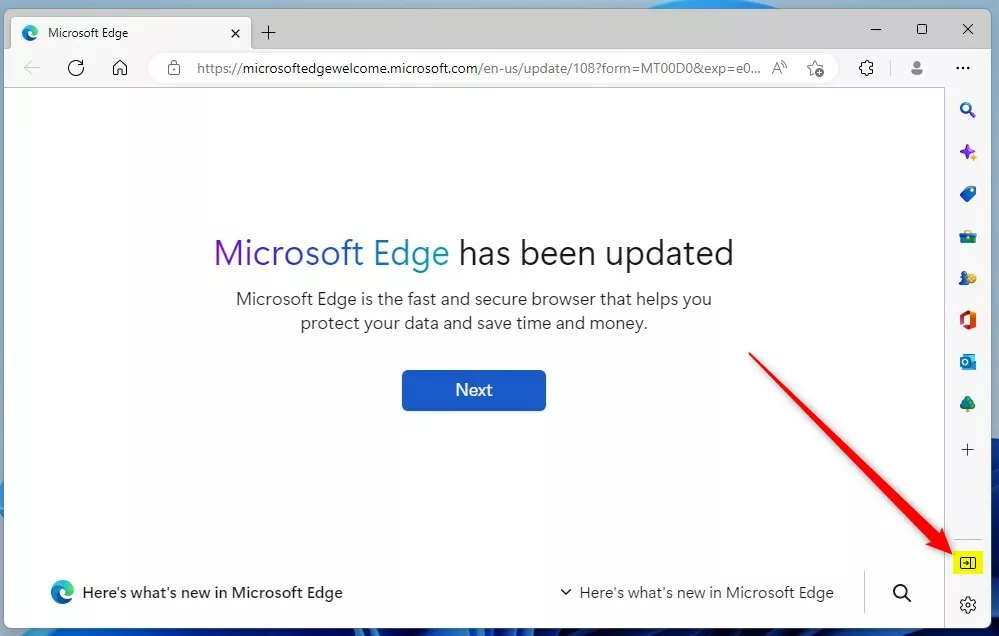
There are lots of features one can use with Edge. The new Edge has a sidebar on the right, including Search, Discover, Tools, Internet Speed Test, Games, and Microsoft Office icons for quick access.
You can quickly disable that sidebar if you do not want to see it. However, if you want to use it but can’t find it, here’s how to add it.
Add or remove the sidebar in the Microsoft Edge web browser
As described above, the new Edge has a sidebar on the right and includes search, discovery, Tools, Internet Speed Test, Games, and Microsoft Office icons for quick access.
Below is how to hide or show the sidebar.
With the sidebar enabled, you will find a push button to hide the side. Use the highlighted button in the image below to hide the sidebar quickly.
Show or hide the sidebar in Edge from the settings
If you don’t see the sidebar when you use Edge, you can add or remove it from its settings pane.
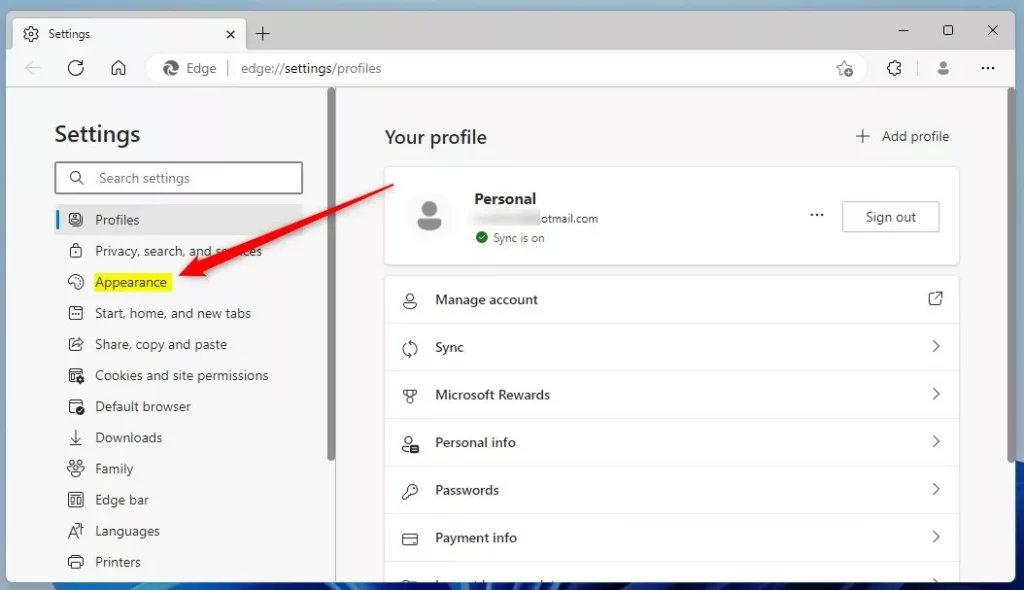
Open Microsoft Edge, select Settings and More (3 dots), or use the keyboard shortcut (Alt + F). Then, on the context menu, select Settings.

On the Settings page, click on Appearance on the left.
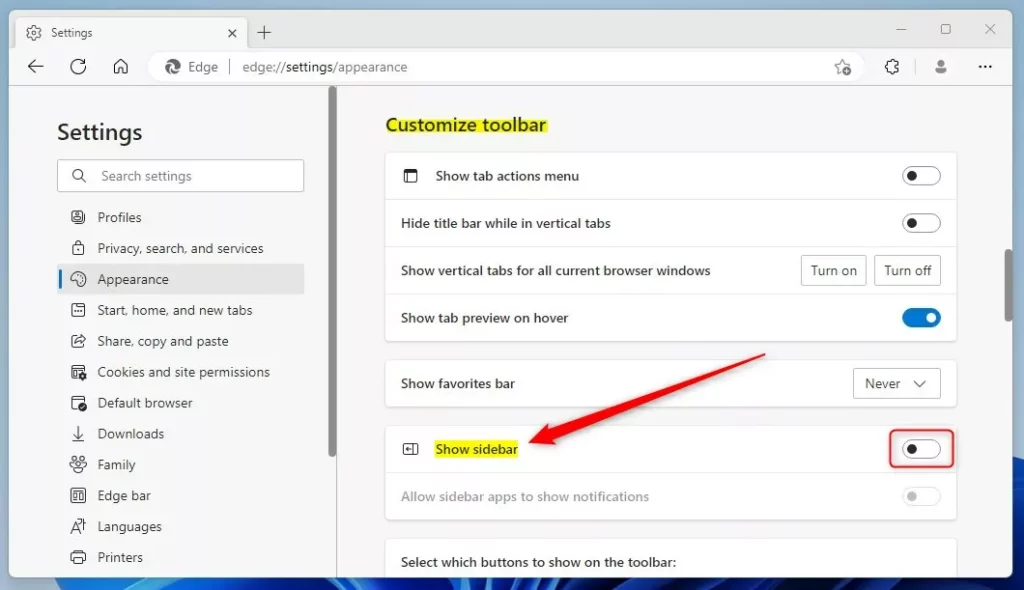
On the Settings –> Appearance page, under Customize toolbar, toggle the button on the tile that says “Show sidebar” to the On position to enable the side.
To disable it, toggle the button back to the Off position.
Add or remove the sidebar in Edge via the registry
Alternatively, users can use the Windows registry to add or remove the sidebar in the Microsoft Edge web browser.
Open the Windows Registry, and navigate to the folder key path below.
HKEY_LOCAL_MACHINE\SOFTWARE\Policies\Microsoft\Edge
If you don’t see the Edge folder key, right-click on the Microsoft parent key, then create the subkey (Edge) folder.
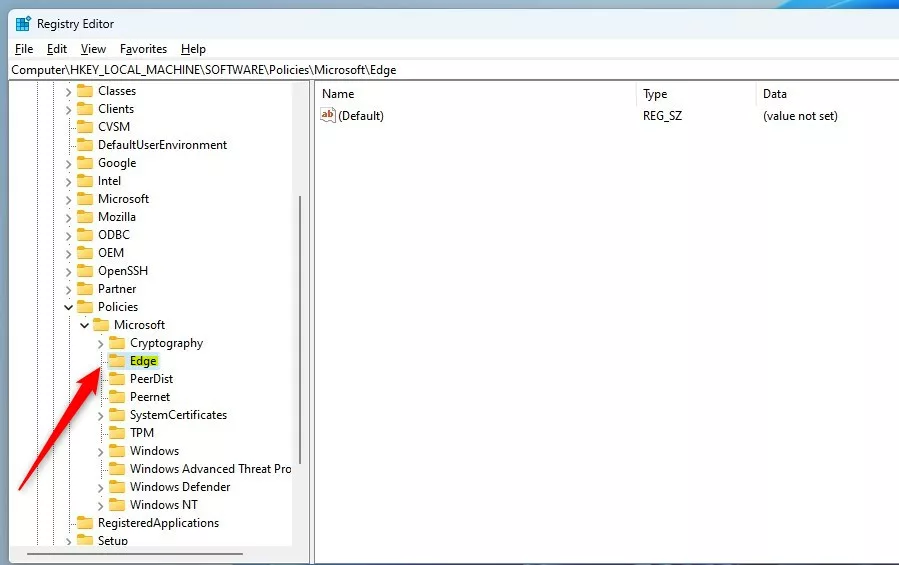
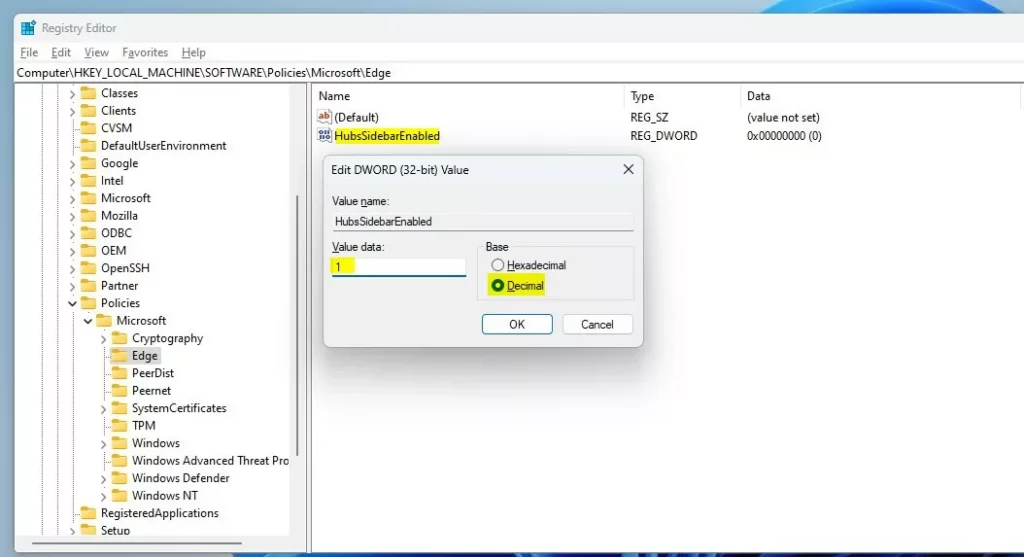
Right-click on the Edge folder key’s right pane and select New -> DWORD (32-bit) Value. Type a new key named HubsSidebarEnabled.
Double-click the new value name (HubsSidebarEnabled) and enter the Value data 1 to show the sidebar in Microsoft Edge.
A Value data of 0 will hide the sidebar in Microsoft Edge.
That should do it!
Conclusion:
- The article provides comprehensive instructions on adding or removing the sidebar in the Microsoft Edge web browser through various methods: using the button, accessing settings, and utilizing the Windows registry.
- Users can easily enable or disable the sidebar based on their preferences, enhancing their browsing experience.
- The detailed visual aids accompanying the instructions offer clear guidance for users to follow seamlessly.
- Readers are encouraged to leave comments if they encounter errors or wish to contribute additional insights.
Leave a Reply Cancel reply