How to Set Up a Microsoft Passkey with a Security Key


This article explains how to set up a Microsoft account Passkey using a physical Security Key for improved online security.
Connect your FIDO security key to your PC and sign in to your Microsoft account. Navigate to Advanced Security Options, then “Add a new way to sign in or verify.” Select “Security key,” follow the prompts to enter your PIN and touch your key, and give it a name.
What Is a Passkey?
A Microsoft passkey offers a new, safer sign-in method for your Microsoft account, eliminating passwords. A Microsoft passkey uses something you possess, such as your fingerprint, face, or a security key, to verify your identity. This security measure significantly increases the difficulty for hackers to access your accounts.
You can use a passkey to sign in to Microsoft apps and websites. This includes Microsoft 365 and Copilot. You can use them on desktop and mobile browsers. On your Microsoft account sign-in screen, choose Sign-in options. Then select face, fingerprint, PIN, or security key.
Why Use a FIDO Security Key?
A FIDO security key is a small physical device, like a USB stick, that gives your Microsoft account an extra strong layer of protection. You plug it into your computer and use your fingerprint or a PIN to sign in. This is a much safer method than just using a password.
A FIDO security device, a small physical key you hold, adds extra security to your online accounts. You plug the FIDO security device into your computer or phone, then verify your identity with your fingerprint or a PIN code to access your account.
How to Set Up a Passkey Using a Security Key
Setting up your Microsoft passkey with a security key is a straightforward process. First, plug your FIDO security key into your computer. Then, sign in to your Microsoft account online and go to the Advanced Security Options page to add this new sign-in method.
- Connect your FIDO security key to your Windows PC.
- Sign in to your Microsoft account. Go to the Advanced Security Options page. Choose "Add a new way to sign in or verify."
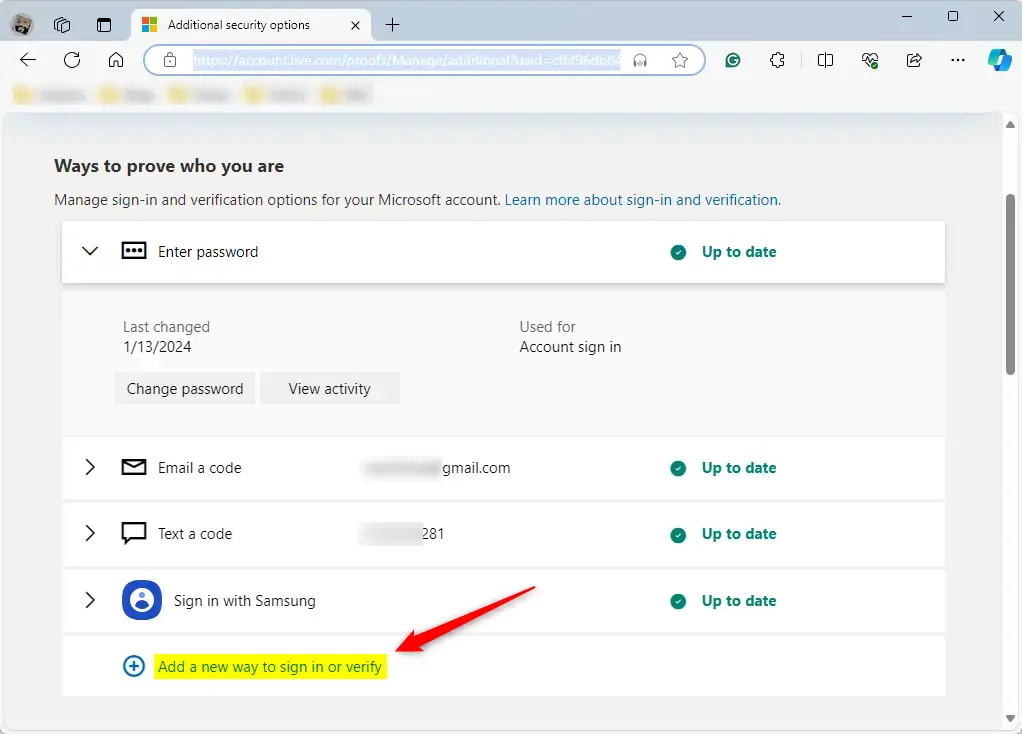
Microsoft account security sign-in options page showing passkey setup. - Select "Face, fingerprint, PIN, or security key." Then select "Security key" and click Next.
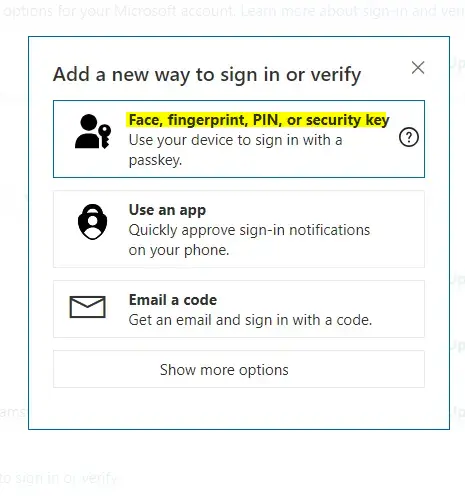
Microsoft account security page for setting up a new passkey. 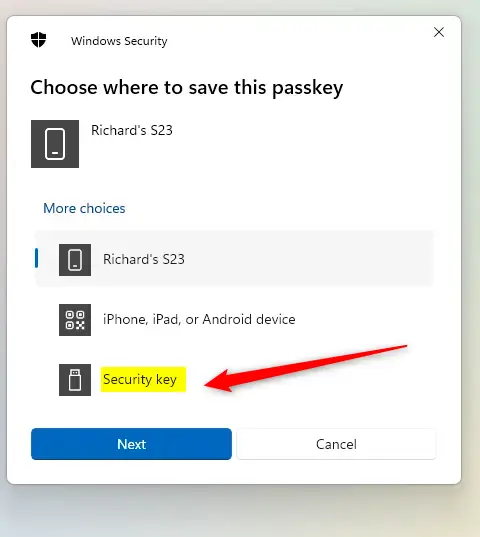
Microsoft account security passkey security key - Click OK to continue the setup. Enter the security key PIN when the system asks for it.
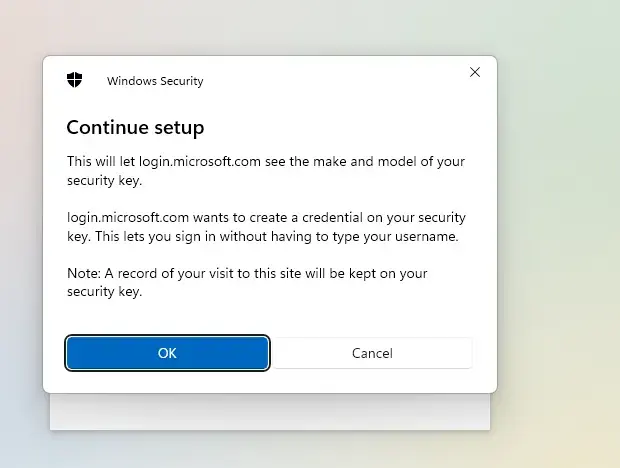
Microsoft account security settings page for adding passkey security key 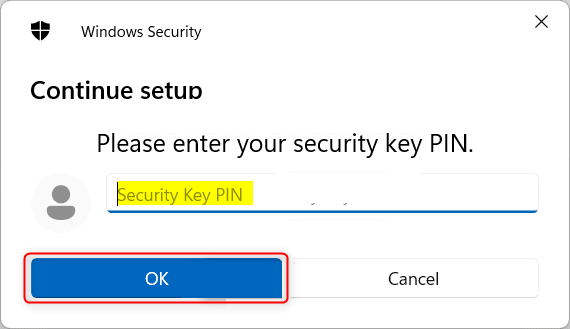
Microsoft account passkey security key - Touch your security key fingerprint sensor. Click OK when done.
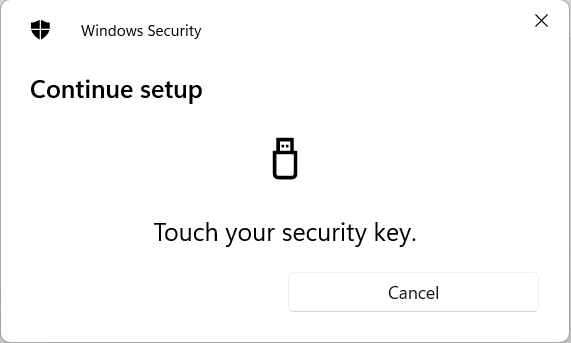
Microsoft account passkey security key touch 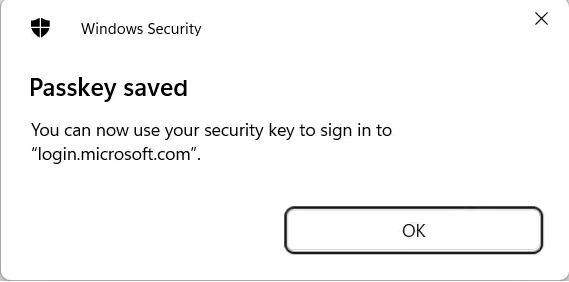
Saved security device key - Give your security key a name. Click Next to finish the setup.
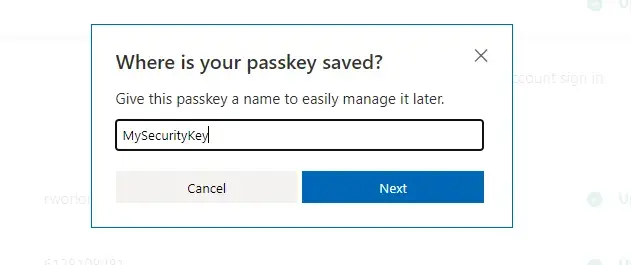
FIDO security key device connected to Microsoft account setup process 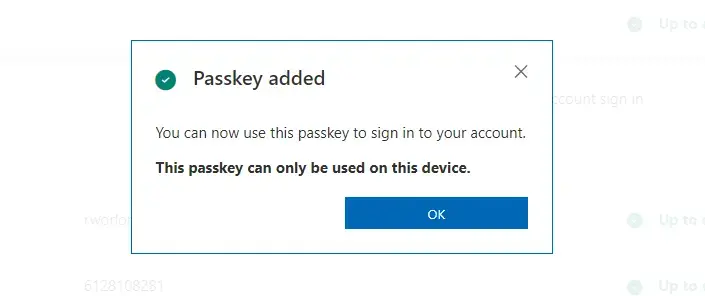
Microsoft passkey security key successfully saved confirmation screen
You're all set! Your security key is now active.
Summary
Using a Microsoft Passkey with a security key makes your account much safer from hackers. This physical key adds real protection, and setting it up is quick and easy, ensuring your personal information stays secure.
References
Where is my passkey for Microsoft?
You can manage passkeys saved to Windows in Windows Settings. Passkeys created for your Microsoft accounts can also be managed through your personal or work/school security dashboard. For other synced credential managers, such as Microsoft Password Manager, go to the provider or service to manage passkeys stored there.
Was this guide helpful?

About the Author
Richard
Tech Writer, IT Professional
Richard, a writer for Geek Rewind, is a tech enthusiast who loves breaking down complex IT topics into simple, easy-to-understand ideas. With years of hands-on experience in system administration and enterprise IT operations, he’s developed a knack for offering practical tips and solutions. Richard aims to make technology more accessible and actionable. He's deeply committed to the Geek Rewind community, always ready to answer questions and engage in discussions.




[…] article explains how to remove a Passkey from Security Key on your Microsoft […]