How to Run a PowerShell Script in Windows 11

- 17 steps
- Needs administrator rights
Running a PowerShell script in Windows 11 means opening PowerShell, allowing scripts to run, and calling the script file by its path. A PowerShell script is a plain-text file with a .ps1 extension that holds commands PowerShell runs in order. The fastest method is to open Windows PowerShell, go to the script’s folder, and type .\YourScript.ps1, the run command shown in step 6.
The step most people miss is the execution policy (a PowerShell safety setting that decides which scripts may run). On many Windows 11 PCs the policy is Restricted, which blocks every script. This guide covers how to change the policy for your account only, run the script, and fix the errors you are most likely to see.
The steps apply to current Windows 11 versions (23H2 and later) and to both Home and Pro editions.
To run a PowerShell script in Windows 11, open Windows PowerShell, run Set-ExecutionPolicy -Scope CurrentUser -ExecutionPolicy RemoteSigned, then go to the script’s folder with cd and type.\YourScript.ps1. The RemoteSigned setting applies to your account only and needs no administrator rights. The script runs immediately and prints its output in the window.
What You Need Before You Run a .ps1 Script
Check three things before you start:
- The script is saved as a file ending in
.ps1. A file namedBackup.ps1.txtwill not run, and Windows often hides extensions, so turn on File name extensions in File Explorer’s View menu to check. - You know where the file is. The examples below use
C:\Scripts\Backup.ps1. Replace that with your own path. - You trust the script. A script can change settings, delete files, and install software. Read it in Notepad first if it came from the internet.
Double-clicking a .ps1 file does not run it. By default Windows opens the file in Notepad, which is a safety measure. You run it from PowerShell or from the right-click menu instead.
How to Run a PowerShell Script in Windows 11 (Step by Step)
This is the standard way to run a PowerShell script, including the execution policy fix. The steps work for scripts you wrote and for scripts you saved to your own PC.
- Save the script with a .ps1 extension. In Notepad, select File Save as, set Save as type to All files, and name it
Backup.ps1. Save it in a simple folder such asC:\Scripts. - Open Windows PowerShell. Select Start, type
PowerShell, and select Windows PowerShell. A blue window opens with a prompt likePS C:\Users\USERNAME>. On some PCs the shortcut is now named Windows PowerShell 5.1, and others keep the old name. Both open the same program. For other ways to open it, see how to open PowerShell in Windows 11. - Check the current execution policy. Type the command below and press Enter. If PowerShell prints
Restricted, scripts are blocked and you need the next step. If the output isRemoteSigned,Unrestricted, orBypass, skip to step 5. If it printsAllSigned, only digitally signed scripts run.PowerShellGet-ExecutionPolicy - Allow scripts for your account only. This step changes a security setting, but you can reverse it (see the undo section below). Type the command below and press Enter. When PowerShell asks about the change, type
Yand press Enter. This needs no administrator rights because it applies only to your user account.PowerShellSet-ExecutionPolicy -Scope CurrentUser -ExecutionPolicy RemoteSigned📝Good to KnowRemoteSigned lets scripts you create on this PC run. Scripts downloaded from the internet must be digitally signed (carry a trusted publisher’s signature) or be unblocked first. - Go to the folder that holds the script. Type
cd C:\Scriptsand press Enter. The prompt changes toPS C:\Scripts>. - Run the script by typing its name with
.\in front. Type the command below and press Enter. The.\tells PowerShell to look in the current folder. PowerShell does not run scripts from the current folder by bare name, soBackup.ps1alone fails.Code.\Backup.ps1 - Read the output. The script prints its results in the window, and errors appear in red. When the prompt returns, the script has finished.
If the path contains spaces, put it in quotes and start with the call operator & (a symbol that tells PowerShell to run what follows). Example:
& "C:\My Scripts\Backup.ps1"You can also skip step 5 and run the script by its full path, such as C:\Scripts\Backup.ps1. The result is the same.
Other Ways to Run a PowerShell Script
The steps above suit most people. These alternatives help when you want a one-off run, need administrator rights, or prefer an editor.
Run the Script With a One-Time Policy Bypass
powershell.exe -ExecutionPolicy Bypass -File C:\Scripts\Backup.ps1The Bypass setting applies only to that one PowerShell session (a single running copy of the program). When it closes, your policy is unchanged. The same command works from Command Prompt.
Run the Script From the Right-Click Menu
Use this when you want to run a script without typing a path. The window may close the moment the script ends, so you may not see the output. Run it from the console instead if you need to read the results.
- Open File Explorer. Go to the folder that holds the script.
- Right-click the
.ps1file. Windows 11 shows its short menu. - Select Show more options if you do not see Run with PowerShell. The full menu opens.
- Select Run with PowerShell. A PowerShell window opens and runs the script.
If the script is blocked by the execution policy, the window shows the error and closes quickly. Fix the policy using steps 3 and 4 above, then try again.
Run the Script as Administrator
Some scripts change system settings, install features, or edit protected folders. Those scripts need administrator privileges. Without them you see “Access is denied” or a similar error. Open PowerShell as administrator first, then follow steps 5 and 6 above.
- Select Start, type
PowerShell, and select Windows PowerShell. The Windows PowerShell result appears. - Select Run as administrator in the panel on the right. Windows shows a User Account Control prompt.
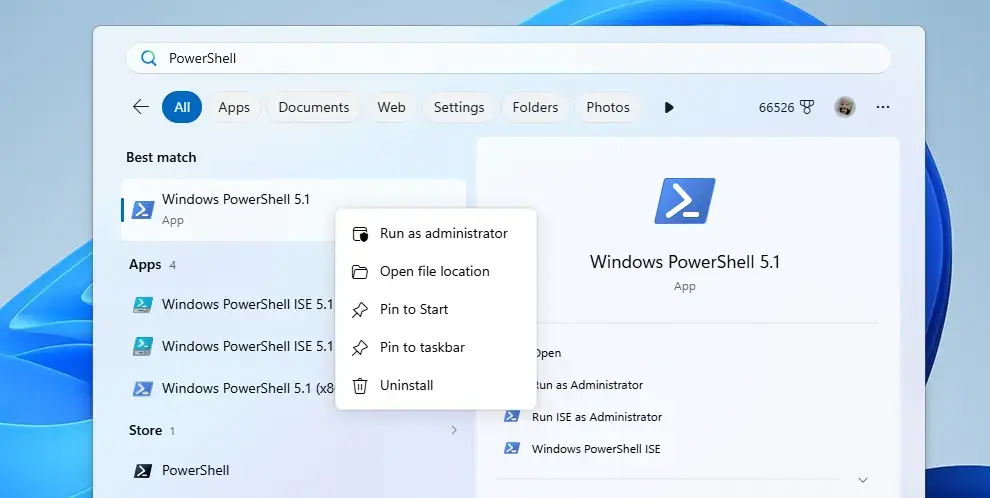
PowerShell - Select Yes. The PowerShell window opens, and its title bar starts with
Administrator:.
Run scripts as administrator only when they need it. The OpenSSH Server install is one example of a task that does.
Run the Script in Windows Terminal
Windows Terminal is the tabbed app that runs PowerShell, Command Prompt, and other command-line tools (a shell is a program you type commands into). In current Windows 11 it opens PowerShell by default. Right-click Start, select Terminal, and follow steps 3 to 6. If you keep the app running for long scripts, see how to run Windows Terminal in the background.
Run the Script From Windows PowerShell ISE
Windows PowerShell ISE (Integrated Scripting Environment) is an editor that ships with Windows PowerShell 5.1. It lets you edit and run a script in one window. The execution policy still applies, so complete step 4 first.
- Open Windows PowerShell ISE from the Start menu. Its name may include 5.1 on updated PCs.
- Select File Open. Choose your
.ps1file. - Press F5 to run the whole script. The output appears in the pane at the bottom.
To test a few lines, highlight them and press F8. ISE runs only the selected text.
Fix Common Errors When You Run a Script
Most failures fall into a few patterns. Match the message you see to the fix.
“Running scripts is disabled on this system”
The full message says File C:\Scripts\Backup.ps1 cannot be loaded because running scripts is disabled on this system. The execution policy is Restricted. Run step 4, or use the one-time bypass method above.
The Policy Change Succeeds but Scripts Still Fail
PowerShell may print that your policy was updated but is overridden by a policy defined at a more specific level, such as a setting for a group of PCs or users (a scope is the level where a setting applies). That means an organisation or administrator set the policy through Group Policy (a Windows feature that applies settings from a central source). To see which scope wins, run:
Get-ExecutionPolicy -ListIf a value appears next to MachinePolicy or UserPolicy, you cannot override it from PowerShell. Ask your IT administrator. For a full explanation of every policy level, read how to change PowerShell execution policies in Windows 11.
“The file is not digitally signed” for a Downloaded Script
Windows marks files from the internet as blocked, and RemoteSigned refuses unsigned scripts with that mark. If you have read the script and trust it, remove the mark with this command:
Unblock-File -Path C:\Scripts\Backup.ps1You can also right-click the file, select Properties, tick Unblock on the General tab, and select OK.
“The term is not recognized as the name of a cmdlet”
A cmdlet is a built-in PowerShell command, and PowerShell reports this error when it does not recognise a name as a command or script. You most likely typed the script name Backup.ps1 without .\ in front. Add it, or use the full path. This error also appears if you are in the wrong folder, so check the prompt shows the folder that holds the script.
A Signed Script Fails After a Windows Update
Microsoft’s November 2026 update KB5131087 (a numbered Windows update for Windows 11 23H2) applies stricter encoding checks to script signatures. A signed script with invalid UTF-8 encoding can now fail signature validation even if it ran before. Microsoft’s guidance is to save the script as UTF-8 with a byte order mark (BOM, a few hidden bytes at the start of the file), then sign it again. In Notepad, choose UTF-8 with BOM in the encoding box of the Save as dialog.
Editor’s note: check the KB number and date against Microsoft’s release notes before publishing.
How to Undo the Execution Policy Change
To return your account to the system default, remove the setting you made in step 4. Run this command in PowerShell:
Set-ExecutionPolicy -Scope CurrentUser -ExecutionPolicy UndefinedRun the check from step 3 again (Get-ExecutionPolicy -List) to confirm your policy has returned to its default. The CurrentUser line should read Undefined. No restart is needed. The setting takes effect in new PowerShell windows straight away, and it does not affect other user accounts on the PC.
PowerShell 7 is a separate install from Windows PowerShell 5.1. Check the policy inside the one you actually use.
What to do next
If a script still refuses to run, read the execution policy guide linked above for the other policy levels and scopes. Once scripts run reliably, try one that does real work, such as mapping a network drive with PowerShell. Another good first script is ending a task from PowerShell.
Have a question about this guide?
Answered by AI from this guide. Good questions may be added to this page — please don't include personal details.
Did this guide fix your problem?

About the Author
Richard
Tech Writer, IT Professional
Richard is a writer at Geek Rewind who turns complex IT tasks into clear, step-by-step guides. He draws on years of hands-on experience in system administration and enterprise IT operations, focusing on Windows, Linux and WordPress: the problems people actually run into, and the fixes that work. His server and WordPress guides come from systems he runs himself. Richard builds and maintains the platform behind Geek Rewind, from its Ubuntu servers and Nginx configuration to its custom WordPress plugins. Many new tutorials start with readers' questions, and he's always glad to answer them in the comments.
No comments yet — be the first to share your thoughts!